tutorial · 2026-03-03
Choosing the Right Heightmap Resolution in UE5: 512 vs 1K vs 4K vs 8K
How to pick the heightmap size that matches your landscape's footprint, your detail budget and your edit-time patience.
Resolution decides how much world a heightmap can describe
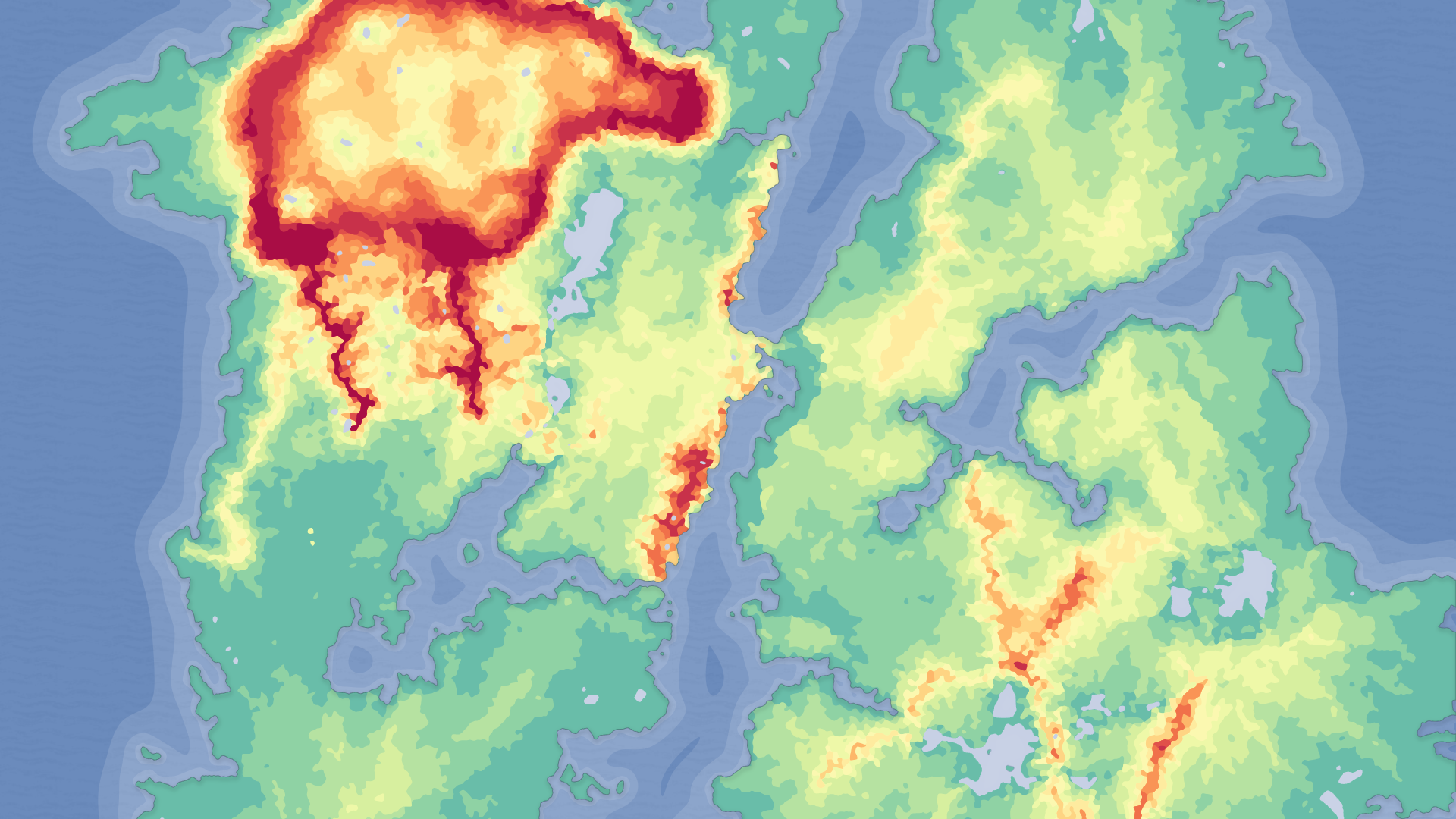
The single most common question when you start importing terrain into Unreal Engine 5 is what heightmap resolution to use for your landscape size: 512, 1K, 4K or 8K. The honest answer is that resolution is not a quality dial you crank to maximum, it is a budget you spend. A grayscale heightmap is just a grid of elevation samples, whiter pixels meaning higher ground, and the pixel count sets how many distinct height samples exist across the whole footprint of your landscape.
That means a 512 by 512 heightmap stretched across a few square kilometres gives you one height sample every several metres, so fine ridgelines and tight gullies simply cannot be represented, no matter how good your material is. The same 512 map covering a single arena-sized level gives you a sample every few centimetres and looks crisp. Resolution only makes sense relative to the area you are draping it over.
The Fantasy Landscape Pack leans into this directly. Its regular maps, the islands, mountains, passes and the canyon, ship at 512, 1K, 2K and 4K, while the huge open-world maps ship at 8K. You are meant to pick the size that fits the job, not always reach for the biggest file.
When 512 and 1K are plenty
Reach for 512 or 1K when the landscape is a backdrop or a contained playspace rather than a continent. A focused combat arena, a single island level, a mountain pass the player walks through, or a tile that is only one piece of a larger streamed world are all good candidates. Across a modest footprint a 1K heightmap still resolves believable slopes and silhouettes, and the smaller grid imports near-instantly and re-sculpts without lag.
This is also the right call when terrain is not the star. If most of the player's attention is on meshes, props and set dressing, a lower-resolution base landscape carries the silhouette for far less memory and edit-time cost. The Fantasy Landscape Pack's regular maps are built for exactly this: drop a 512 or 1K island or mountain-pass map in as a focused level, apply the included AutoMaterial so it paints itself by height and slope, and you have a credible scene without paying for samples you will never see.
If you are tiling a bigger world by hand, smaller maps are also easier to patch together and align, because each tile is lighter to load and the relationships between them are easier to reason about.
When 8K earns its place
Go to 8K when you genuinely have a full open world: a single explorable landmass where the player can roam for kilometres and still expect ridgelines, valleys and coastlines to read cleanly up close. At that scale a 4K map starts to feel mushy because each height sample is covering too much ground, and the terrain loses the crisp definition that sells an open world. This is exactly why the Fantasy Landscape Pack reserves 8K for its four huge open-world maps rather than the regular set.
The general rule the pack's guide follows is simple and worth adopting as your own default: use a smaller resolution when the landscape is one part of a larger world, and reach for 8K only for the largest, single-piece open worlds. If you find yourself loading an 8K map for a level the player crosses in thirty seconds, you have over-bought, and a 1K or 2K map would have looked identical while costing a fraction.
If your ambitions are bigger still, an entire archipelago or a whole streamed continent, that is the territory of the Massive Open World Landscape Pack, which ships every one of its maps across the full 1K, 2K, 4K and 8K range specifically so you can mix small sub-region tiles with full 8K worlds in the same project.
The memory and edit-time trade-off
Heightmap resolution scales with the square of its side length, so each step up is roughly four times the data of the one below. A 1K grid is around a million samples, a 2K grid around four million, a 4K grid around sixteen million, and an 8K grid around sixty-five million. That cost shows up in three places: the memory the landscape occupies, how long imports and saves take, and how responsive sculpting and painting feel while you work.
The practical consequence is that an oversized heightmap punishes you every single edit session, not just at runtime. Sculpt brushes lag, the AutoMaterial takes longer to recompute as you paint layers, and iteration slows to a crawl, all for detail the player cannot perceive at the distances your level actually presents. Right-sizing the heightmap is as much about protecting your own iteration speed as it is about runtime budget.
A sensible workflow is to prototype at a lower resolution to nail layout and gameplay flow, then re-import at a higher size only if close-up inspection proves you need the extra fidelity. Because the Fantasy Landscape Pack ships the same regular map at 512, 1K, 2K and 4K, and includes the Gaea source files, you can move up or down a tier without redoing your work, or re-edit the source and re-export at the size you actually need.
Importing the right file in UE5
Once you have chosen a resolution, the import itself is short. The heightmaps are grayscale images, so you bring them in as a new landscape rather than as a texture or mesh.
1. Open the Landscape panel in UE5 and switch to the 'Manage' tab.
2. Choose the 'New' option and select 'Import from File', then point it at the grayscale heightmap for the map you want, picking the 512, 1K, 2K or 4K file for a regular map or the 8K file for an open-world map.
3. Create the landscape, then assign the included AutoMaterial to its material slot. Expect the landscape to appear black at first, this is normal before the layers exist.
4. Open the 'Paint' tab and use 'Create Layers from Assigned Material', then fill the base layer so the AutoMaterial paints the terrain automatically by height and slope.
5. From there, tune the textures and the height and slope rules in the Material Instance, and use the five custom layers to hand-paint your own textures on top of the auto-painted result.
A common mistake to avoid: each map's folder also contains high-resolution preview and screenshot renders, which are colour reference images, not import heightmaps. Always import the grayscale map from the pack's grayscale maps folder for that map, never one of the RGBA preview renders, or the elevation will not read correctly.
Where stamping fits in
Picking a resolution gives you a base canvas, but you will often want to add or refine landforms after import without committing destructive edits to that whole grid. That is where heightmap stamping comes in, and it is fully complementary to a pre-made pack.
Landstamp Pro is a C++ editor plugin that places non-destructive stamp actors driven by Unreal's Landscape Patch system, letting you add, subtract or replace terrain beneath each stamp and keep every edit re-tunable afterwards. It ships a large stamp library and can even extract a heightmap from a static mesh at 512, 1K, 2K or 4K to turn meshes into custom stamps. If you would rather stay entirely in Blueprint, the Landscape Stamp Tool is the lighter sibling: you drag geological stamp blueprints into a World Partition level and they morph the terrain in place, with the same choice of texture sizes.
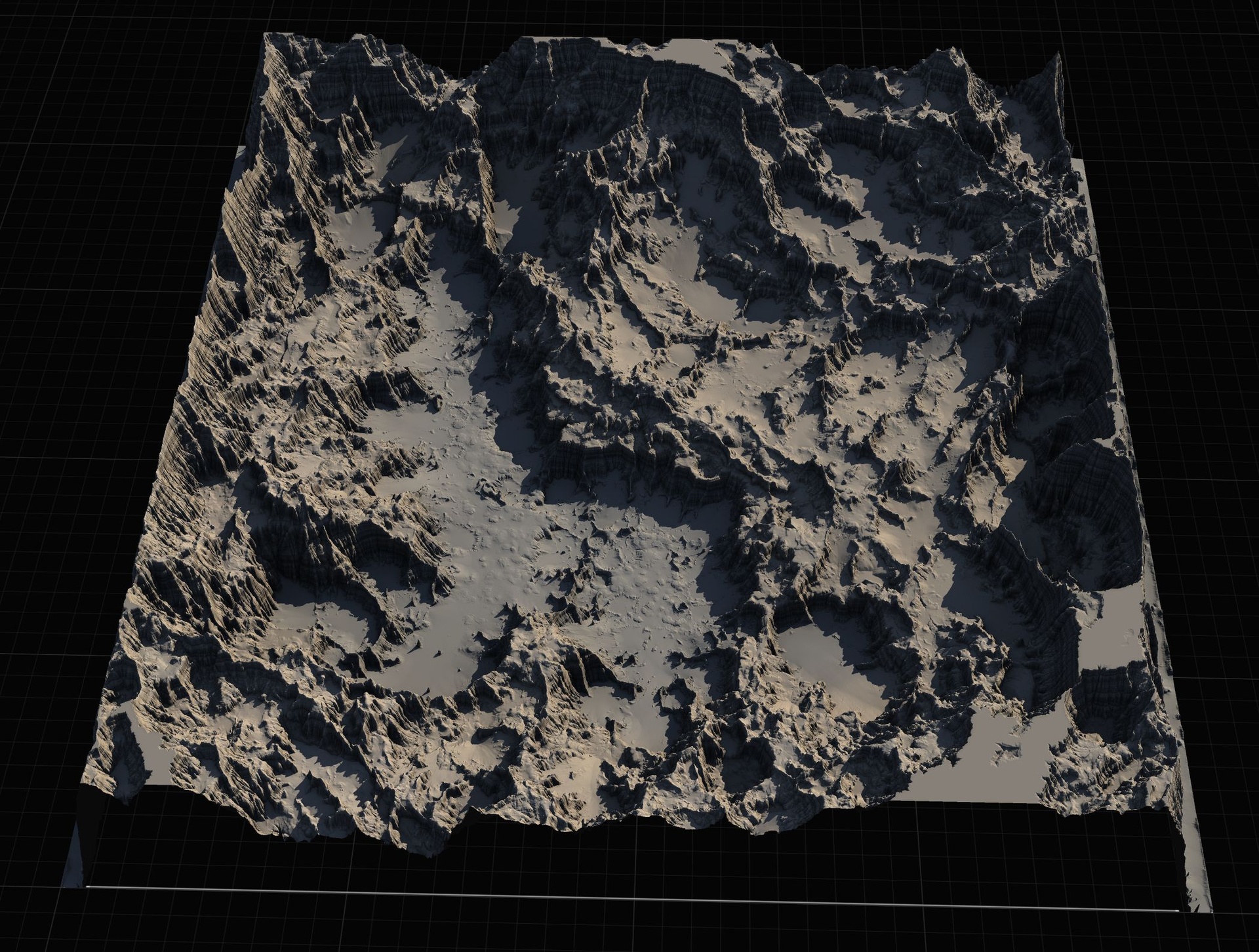
A productive pattern is to import a right-sized base landscape from the Fantasy Landscape Pack, then stamp mountains, canyons or craters on top to make it your own, choosing the stamp's source resolution to match the detail the camera will actually see.
Heightmap resolution by landscape job
| Resolution | Best for | Relative data cost | In the pack |
|---|---|---|---|
| 512 | Arenas, single contained levels, backdrops, tiles | Lowest | Regular maps |
| 1K | Focused island or mountain-pass levels, sub-region tiles | About 4x of 512 | Regular maps |
| 2K | Mid-size levels needing crisper close-up ridgelines | About 4x of 1K | Regular maps |
| 4K | Large levels where terrain is a focus | About 4x of 2K | Regular maps |
| 8K | Full single-piece open worlds explored on foot | About 4x of 4K | Huge open-world maps |
Resolution is relative to footprint; the same map at a smaller size can look identical on a smaller area. Sizes shown are the tiers the Fantasy Landscape Pack ships.
FAQ
What heightmap resolution should I use for my landscape size in UE5 (512, 1K, 4K or 8K)?
Match resolution to footprint, not ambition. Use 512 or 1K for contained levels, arenas and tiles, step up to 2K or 4K when terrain is a focal point on a larger level, and reserve 8K for a full single-piece open world the player explores for kilometres. The Fantasy Landscape Pack ships its regular maps at 512, 1K, 2K and 4K and its huge open-world maps at 8K for exactly this reason.
Does a bigger heightmap always look better?
No. Resolution only helps if the extra height samples land where the camera can see them. A 512 map on a small area looks just as crisp as an 8K map there, while an oversized heightmap costs you memory and slows every sculpt and paint edit for detail you cannot perceive at the distances your level presents.
How much heavier is an 8K heightmap than a 1K one?
Roughly sixty-four times the height samples. Resolution scales with the square of the side length, so each tier is about four times the data of the one below: a 1K grid is around a million samples and an 8K grid is around sixty-five million. That cost shows up in memory, import and save times, and editor responsiveness while you work.
Which file do I import from the pack, and how?
Import the grayscale heightmap from the pack's grayscale maps folder for that map, not the colour preview or screenshot renders. In UE5 open the Landscape panel, switch to the Manage tab, choose New then Import from File, select the size you need, then assign the included AutoMaterial and use Create Layers from Assigned Material to paint by height and slope.
Can I change a landscape's resolution after I have started building it?
You re-import at a different tier rather than rescale in place. Because the Fantasy Landscape Pack ships the same regular map at 512, 1K, 2K and 4K and includes the Gaea source files, you can prototype at a lower size and move up later, or re-edit the source and re-export at the resolution you actually need.
Fantasy Landscape Pack
A collection of diverse fantasy heightmap landscapes across multiple biomes — drop-in terrains for RPGs and open worlds, ready to dress and play.