tutorial · 2026-05-09
Emoji Particle Reactions for Twitch Overlays and In-Game Emotes in UE5
Drop a glowing emoji NiagaraSystem into your scene, tune it into a punchy burst, and recolour the whole set from a single parameter collection.
Where emoji VFX actually fit
If you are building a UE5 emoji particle effect for chat reactions or an emote burst, the hard part is rarely the visual idea, it is authoring readable, glowing glyphs in Niagara from scratch and then wiring up enough variations to cover a whole reaction set. A heart, a laugh, a fire emoji, a clap, each one is its own little particle problem, and doing it by hand for an overlay or an emote wheel eats days.
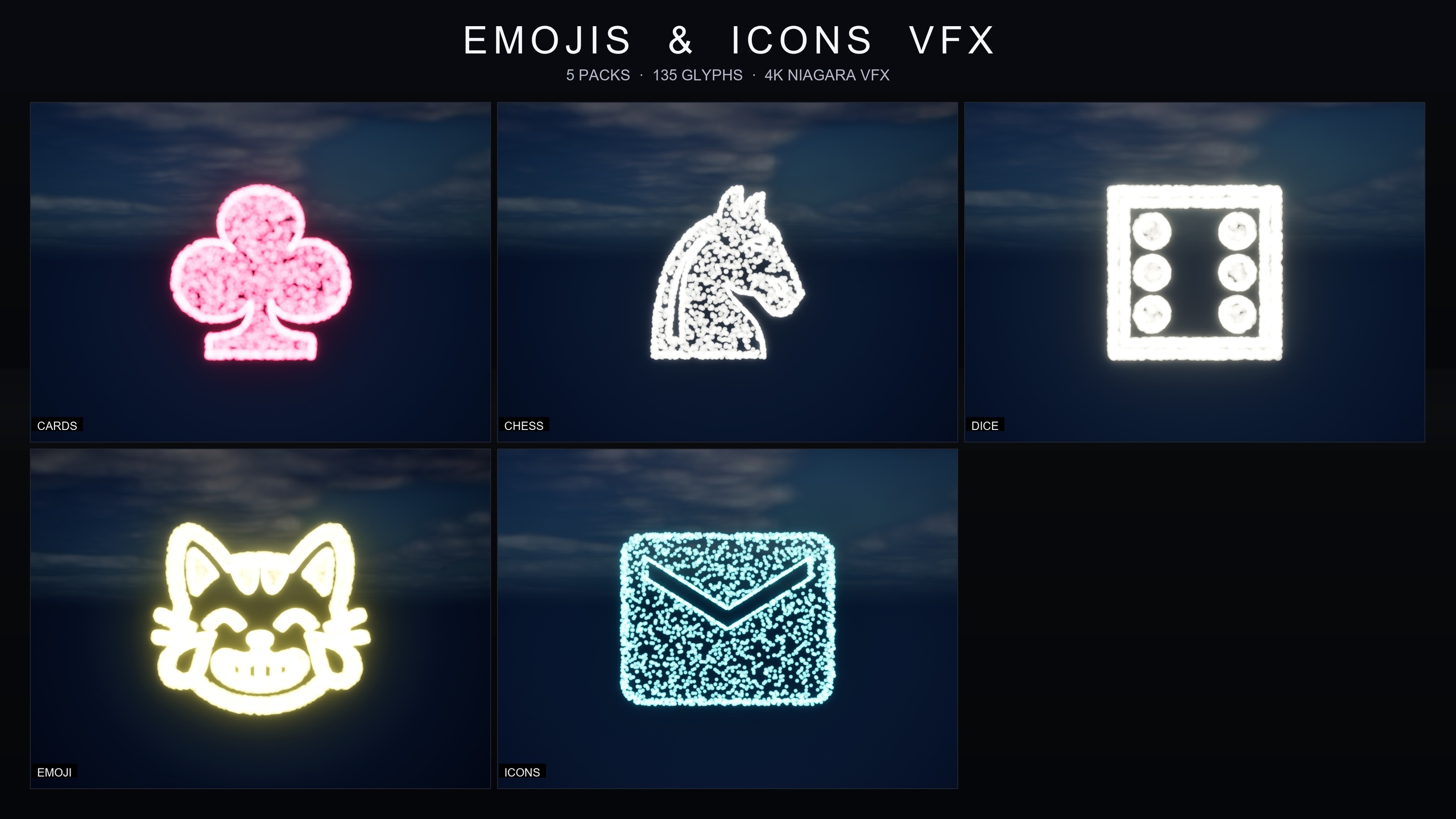
The Emojis and Icons VFX Bundle skips that authoring work. It ships 80 emoji effects drawn from the Noto Emoji set, rendered as warm, glowing particle systems rather than flat sprites. Each one is a Niagara CPU sprite renderer that samples particle positions across a baked 3D glyph mesh, so the emoji is literally drawn out of particles, which is what gives it that soft, emissive read that pairs well with bloom.
The natural homes for these are chat overlays, Twitch-style streaming reactions, in-game emote bursts, social or mood-feedback UI, and achievement pops. Anywhere a player or a viewer triggers a quick emotional beat, you spawn the matching emoji system, let it burst, and let it die. The rest of this tutorial walks through dropping one in, shaping it into a punchy reaction, and retheming the whole emoji pack from one asset.
Dropping in a glowing emoji NiagaraSystem
The bundle is content-only with zero third-party dependencies, so there is no plugin to enable and nothing to compile. Add the pack to your project and everything lives under a single 'Content/EmojisAndIconsVFX' folder. The Niagara systems are split by theme into 'CardsSuits', 'ChessPieces', 'DicePips', 'EmojiNoto' and 'IconsMaterial', so for reactions you want the 'EmojiNoto' subfolder.
Inside it, every emoji system follows the 'NS_EmojiNoto_' naming convention, which makes filtering in the Content Browser fast: type that prefix into the search box and you see the whole reaction set. The systems default to a warm gold signature colour out of the box, which is the look you see in the bundle's promotional shots.
1. Open the 'EmojiNoto' folder under 'Content/EmojisAndIconsVFX/Niagara' and pick the emoji you want, for example a laughing or heart face.
2. Drag the 'NS_EmojiNoto_' system straight into your level, or attach it to an actor or UI-anchor component if you are driving it from gameplay.
3. Hit Play. The system runs immediately with no parameter tuning and no missing references, so you get an instant preview of the glowing glyph.
4. To see the whole set laid out, open one of the included demo maps. They follow the 'L_Demo_EmojisAndIconsVFX_' naming, and because the emoji set is large it is split across numbered part maps so you can browse all 80 without one giant level.
Spawning a reaction from gameplay or chat
For a Twitch-style overlay or an in-game emote, you usually want to spawn the effect on demand rather than leave it placed in the level. In Blueprint, the cleanest approach is the 'Spawn System at Location' node, which takes a Niagara System reference and a world transform and fires a one-shot instance you do not have to clean up manually.
Point the node's System asset at the relevant 'NS_EmojiNoto_' system, feed it a location, and call it from whatever event represents the reaction. For a chat overlay that might be a custom event fired when your chat-integration layer parses an emote; for an in-game emote wheel it is the button or input that selects the emoji; for an achievement it is the unlock event. The bundle does not ship a Twitch integration itself, so the chat or input plumbing is yours, but the visual payload is a single node call.
If the reaction should track a character or a HUD anchor instead of a fixed point, use the 'Spawn System Attached' node and parent it to the relevant component so the burst follows the actor. Either way you are spawning a self-contained system that bursts and expires on its own.
Tuning size and lifetime for a punchy burst
A reaction wants to read instantly and then get out of the way, which is a different feel from an ambient effect. You shape that almost entirely through two controls exposed by the pack: particle size and lifetime. Size decides whether the emoji sits discreetly in a HUD corner or fills the screen as a hero moment, and lifetime decides whether it is a sharp one-shot pop or a lingering glow.
For a chat-overlay reaction, lean towards a smaller particle size so several emoji can stack without crowding the stream, and a short lifetime so each one punches and clears for the next viewer. For an achievement pop or a checkmate-style hero beat in your own game, push size up and let the lifetime breathe a little longer so the moment lands.
Spawn rate is the third lever. The pack describes it as a range from delicate dust to a dense hero burst, so for a snappy reaction you generally want a higher spawn rate over a short window rather than a slow trickle. The bundle plays nicely with bloom and works under any post-process setup, so a punchy emissive burst against a streamer's scene composites cleanly without extra material work.
Recolouring the whole emoji pack from one asset
The standout convenience here is retheming. Every pack in the bundle ships its own Niagara Parameter Collection, and for the emoji set that asset is 'NPC_EmojiNotoStyle'. Editing it retunes spawn rate, particle size, glyph colour and lifetime across the entire emoji pack at once, in real time, instead of opening 80 systems individually.
1. Open 'NPC_EmojiNotoStyle' from the 'EmojiNoto' content folder.
2. Change the glyph colour value to move the whole set off its default warm gold, for example to match a channel's brand palette or your game's UI accent.
3. Adjust the spawn rate, particle size and lifetime values here too if you want the change to apply pack-wide rather than per system.
4. With a demo map or a placed emoji system open, watch the change propagate live, then save the collection.
Because all five packs in the bundle share this exact architecture, learning the emoji workflow also teaches you the Card Suits, Chess Pieces, Dice Pips and Material Design Icons packs, each of which has its own equivalent parameter collection. That makes the bundle a single reusable kit for symbol and UI flair across a project, not just an emoji set.
A practical next step: build one custom event in your HUD or overlay Blueprint that takes an emoji system as a parameter and calls 'Spawn System at Location', then map your reactions to it. With the visuals already authored across 80 emoji and the styling centralised in one parameter collection, your remaining work is just deciding which emoji fires on which event.
Which control shapes which reaction
| Control | Effect on the burst | Reaction use |
|---|---|---|
| Particle size | HUD-corner discreet to screen-filling hero | Small for chat overlays, large for achievement pops |
| Lifetime | Sharp one-shot vs lingering glow | Short for fast reactions, longer for hero beats |
| Spawn rate | Delicate dust to dense hero burst | Higher for a punchy reaction over a short window |
| Glyph colour | Retheme the whole emoji pack from one value | Match a channel brand or UI accent |
All four are exposed through the NPC_EmojiNotoStyle parameter collection for pack-wide changes.
FAQ
How do I make a UE5 emoji particle effect for a chat reaction or emote burst?
Add the Emojis and Icons VFX Bundle, open the EmojiNoto folder under Content/EmojisAndIconsVFX/Niagara, and drag the NS_EmojiNoto_ system you want into the level or spawn it from gameplay with the Spawn System at Location node. The systems are pre-authored glowing particle glyphs, so there is no setup beyond choosing which emoji fires on which event.
How many emoji are included and where do they come from?
The bundle includes 80 emoji effects drawn from the Noto Emoji set, rendered as warm glowing particle systems. They are one of five themed packs in the bundle, which totals 135 Niagara effects alongside Card Suits, Chess Pieces, Dice Pips and Material Design Icons.
Can I change the colour of every emoji at once?
Yes. Open the NPC_EmojiNotoStyle Niagara Parameter Collection and edit a single value to retune glyph colour, spawn rate, particle size and lifetime across the whole emoji pack in real time, rather than editing each of the 80 systems individually.
Does the bundle include a Twitch integration?
No. The bundle is content-only and ships the emoji visuals as Niagara systems with zero third-party dependencies. You supply the chat or input plumbing that decides when a reaction fires, then spawn the matching NS_EmojiNoto_ system as the visual payload.
Which engine version does it need?
The product is listed for Unreal Engine 5.4 to 5.7 and was built clean in 5.4. It runs as CPU-simulated Niagara systems and is described as PC, console and mobile-friendly, with no plugin prerequisites.
Emojis and Icons VFX Bundle
Five themed Niagara packs in one bundle — Card Suits, Chess Pieces, Dice Pips, 80 Emoji and Material Design Icons — 135 effects in total. Each pack ships a Niagara Parameter Collection so spawn rate, size, colour and lifetime retune across a whole set from a single asset.