tutorial · 2026-03-18
Layering Niagara Effects for a Powerful 'Active Enchantment' Look in UE5
Stack a one-shot burst, a rotating glyph and a creeping vine on a single object so a spell reads as alive instead of flat.
Why a single emitter never reads as 'enchanted'
Reach for one big Niagara emitter when a spell needs to feel powerful and you usually end up cranking spawn rate, size and brightness until the effect is loud but lifeless. The problem is that a single emitter only tells the eye one thing at one tempo. Real enchantment reads as powerful because several things are happening at once and at different speeds: something erupts, something hangs in the air rotating, something grows. The brain interprets that combination as intent and energy, not just particles.
This is the core idea behind learning to combine multiple Niagara effects into a layered magic look in UE5. Instead of authoring one monolithic system, you stack a few purpose-built systems on the same object, each carrying one job, and let their contrasting rhythms do the work. The result is a hero effect that feels deliberate.
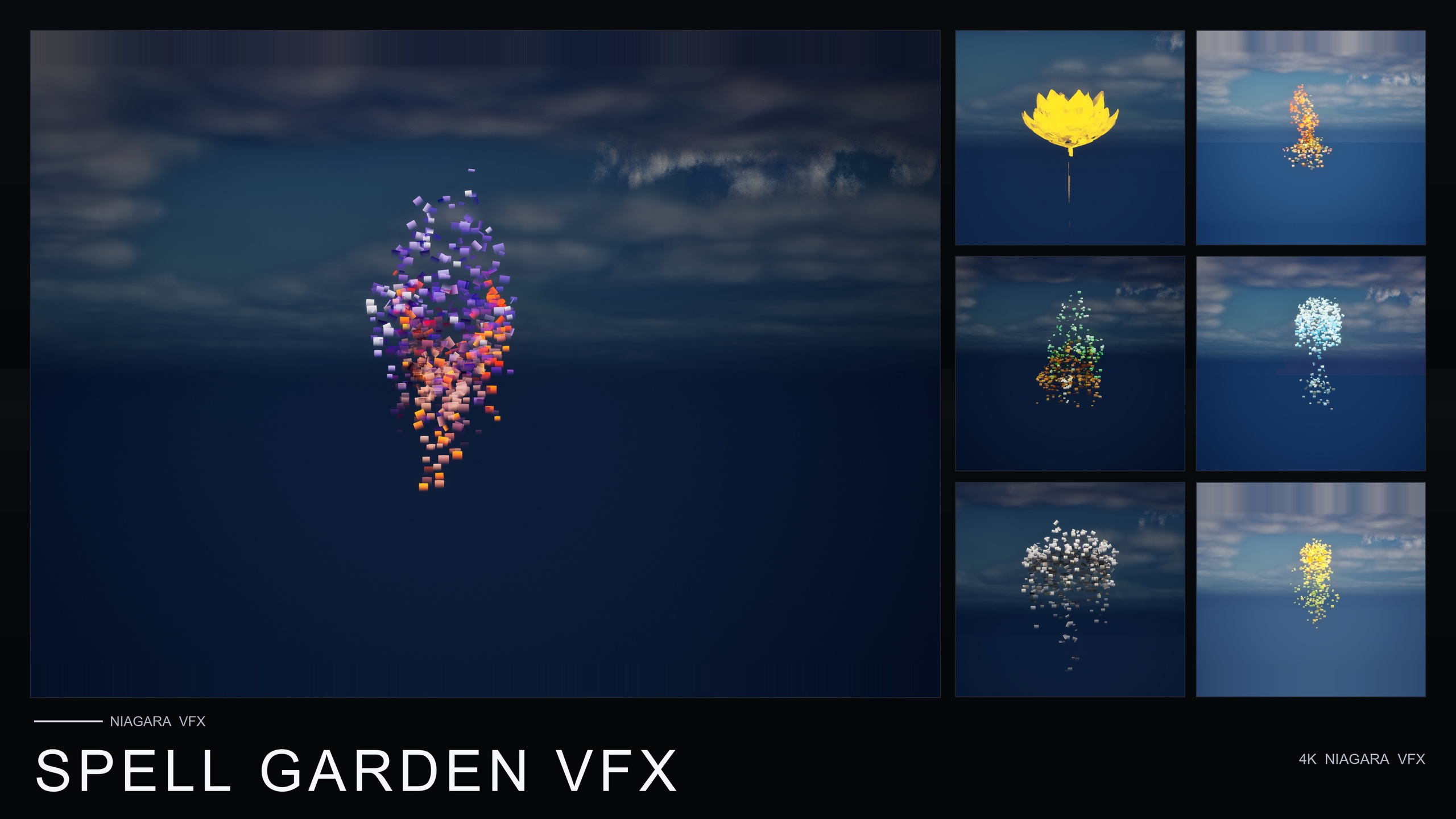
Spell Garden VFX is built around exactly this approach. It is a content-only Niagara pack that ships 150 ready-to-use NiagaraSystems, three spell families applied across all 51 stylised flower meshes in the Fantasy Flower line. There is no C++, no Blueprints and no plugin dependencies to wire in: every system is a drop-in asset, so the entire tutorial below is about composition rather than authoring particles from scratch.
The three families and the job each one does
Spell Garden splits into three families, and the trick to layering is understanding the distinct role each plays so they reinforce rather than compete.
UnfoldingBloom is the impact layer. It is a one-shot burst of petals and motes radiating outward, tuned for one-shot triggers from gameplay code, exactly the kind of thing you fire on a 'spell cast' or 'flower opens' beat. It gives the moment its punch and a clear start.
ProjectedGlyph is the sustain layer. These are arcane runic glyphs that slowly rotate and fade around the object, the visual vocabulary of summoning circles, enchantments-in-progress and ritual focal points. Critically, the glyphs work in screen space against any background, so they stay legible whether the flower sits in shadow or daylight.
VineGrow is the spread layer. Animated vine and leaf trails sprout from the base and creep outward across nearby surfaces, and the vines respect simulation bounds so they do not wander off into the rest of your level. This is the layer that makes the enchantment feel like it is taking hold of the world around it.
Stacking all three on one flower is the intended workflow, not a hack. The pack is explicitly designed so all three families can be combined on a single flower for a powerful active-enchantment read, or used individually when a scene only needs one register.
Step by step: stacking burst, glyph and vine on one object
1. Add the pack to your project and open the Content Browser to the SpellGardenVFX/Niagara folder. It is split into UnfoldingBloom, ProjectedGlyph and VineGrow subfolders, so pick the same flower across all three families to keep the silhouette consistent.
2. Place your base object or flower mesh in the level first. The layered effect should be anchored to a single transform so the three systems share an origin and read as one enchantment rather than three separate things.
3. Drag the matching ProjectedGlyph NiagaraSystem onto the actor (or into the level at the actor's location). Because the glyphs rotate and fade in screen space, this is your always-on base layer and the cheapest way to signal 'something arcane is happening here' before anything dramatic occurs.
4. Add the VineGrow NiagaraSystem at the same location. Let it begin creeping outward from the base. This layer takes time to read, so it works best as the second thing the player notices, the enchantment physically spreading.
5. Reserve UnfoldingBloom for the trigger moment. It is tuned to fire as a one-shot, so do not leave it looping in the level. Spawn it from your gameplay logic at the instant of the cast using the 'Spawn System at Location' node (or 'Spawn System Attached' if the object can move), passing the actor's location and rotation.
6. Sequence the layers in time rather than firing everything at once. A common, reliable order is glyph fades in, vine begins to grow, then the bloom bursts on the beat. That staggering is what sells the 'active' part of active enchantment, because the eye is led through a small story instead of being hit with one wall of particles.
Wiring the one-shot burst from gameplay code
Spell Garden is content-only and ships no Blueprints, which means the developer wires the trigger. That is a feature, not a gap: you decide exactly when the burst fires and you keep full control over the spawn call. UnfoldingBloom is the one family you should drive from code rather than placing in the level.
In a Blueprint, on the event that represents the cast (an ability activation, an input action, or an animation notify on the cast animation), add a 'Spawn System at Location' node. Set its 'System Template' to the UnfoldingBloom NiagaraSystem for your chosen flower, feed in the caster's or target's world location, and it will play the one-shot and clean itself up.
If the enchantment is attached to a moving actor or socket, swap to 'Spawn System Attached' and point it at the relevant component or socket name so the burst tracks the object. For a glowing weapon or a hovering focus, this keeps the bloom locked to the prop instead of stranded at a world coordinate.
Because the burst is the only timed element, you can re-fire it on every cast while the glyph and vine layers sit persistently in the scene. That separation, persistent ambience plus on-demand impact, is the practical heart of the layered look.
Avoiding visual mud when you stack effects
The failure mode of layering is mud: three bright systems competing in the same colour, size and tempo until the screen is a soup and nothing reads. Avoiding it is mostly about giving each layer its own lane.
Separate the layers by tempo. UnfoldingBloom is fast and transient, ProjectedGlyph is a slow rotate-and-fade, and VineGrow is a gradual creep. Keeping those speeds distinct is what lets the eye parse three things at once; if you ever feel the need to make them all faster, you are usually flattening the contrast that makes the stack work.
Separate the layers in space. Let the glyph occupy the screen-space halo around the object, the vine occupy the ground plane spreading outward, and the bloom occupy the burst volume at the centre. They overlap by design, but if every layer fights for the exact same pixels you lose the depth.
Lean on the screen-space behaviour of ProjectedGlyph as your anchor. Because the glyphs are designed to read against any background, they hold the composition together even when the bloom is at its busiest, so treat the glyph as the constant and let the bloom be the spike.
Mind the platform reality. Spell Garden's emitters use a CPU sim target, the render path is Deferred with dynamic lightmaps, and the pack is verified compile-clean on UE 5.4. Layering three CPU systems on many actors multiplies particle work, so build your hero stack on the few objects that deserve it rather than every flower in the field, and preview against the included demo maps (the pack ships demo levels per family) to judge density in context.
Mixing in cosmic and dark families for variety
Once the three-family stack feels natural, you can borrow registers from the wider Fantasy Flower line to change the mood of an enchantment without rebuilding the technique. The same anchor-plus-spike logic applies; you are just swapping which systems fill the lanes.
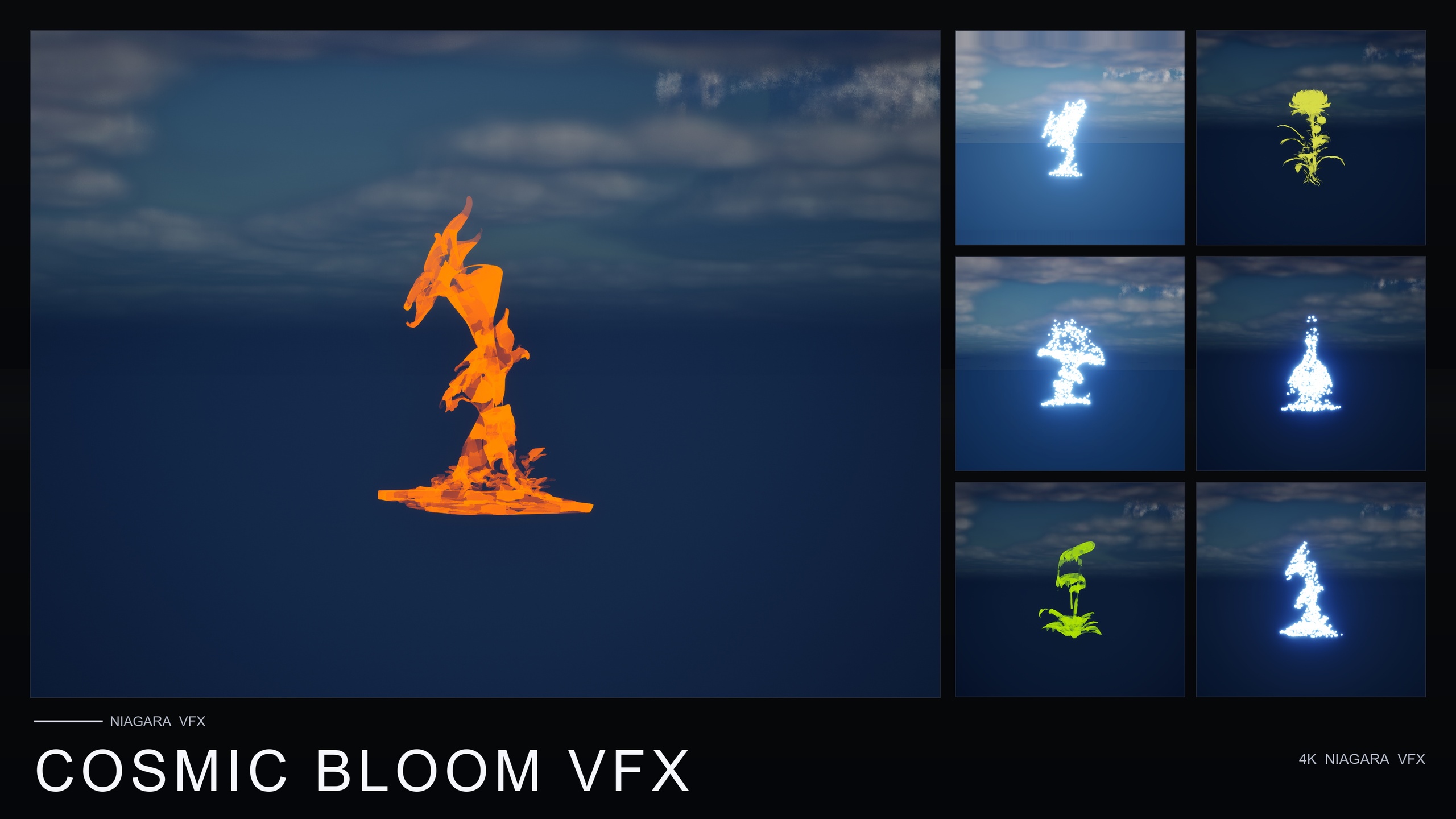
Cosmic Bloom VFX brings a celestial register. It is a two-family pack of 100 NiagaraSystems across the same 51 flowers: Constellation traces each flower's silhouette with bright star points joined by subtle line segments, and LumenLight orbits the bloom with soft warm-white volumetric puffs. Drop a Constellation system in place of (or alongside) ProjectedGlyph when you want an astral, star-magic enchantment rather than a runic one; the two Cosmic families are themselves designed to be layered on the same flower.
For a darker read, the line includes families like BlackMist alongside the runic glyphs. The recommended combination for a cursed, sinister summoning is BlackMist with ProjectedGlyph, a pairing the line explicitly suggests for a cursed-summoning look. That is the same layering principle pointed at a different emotion.
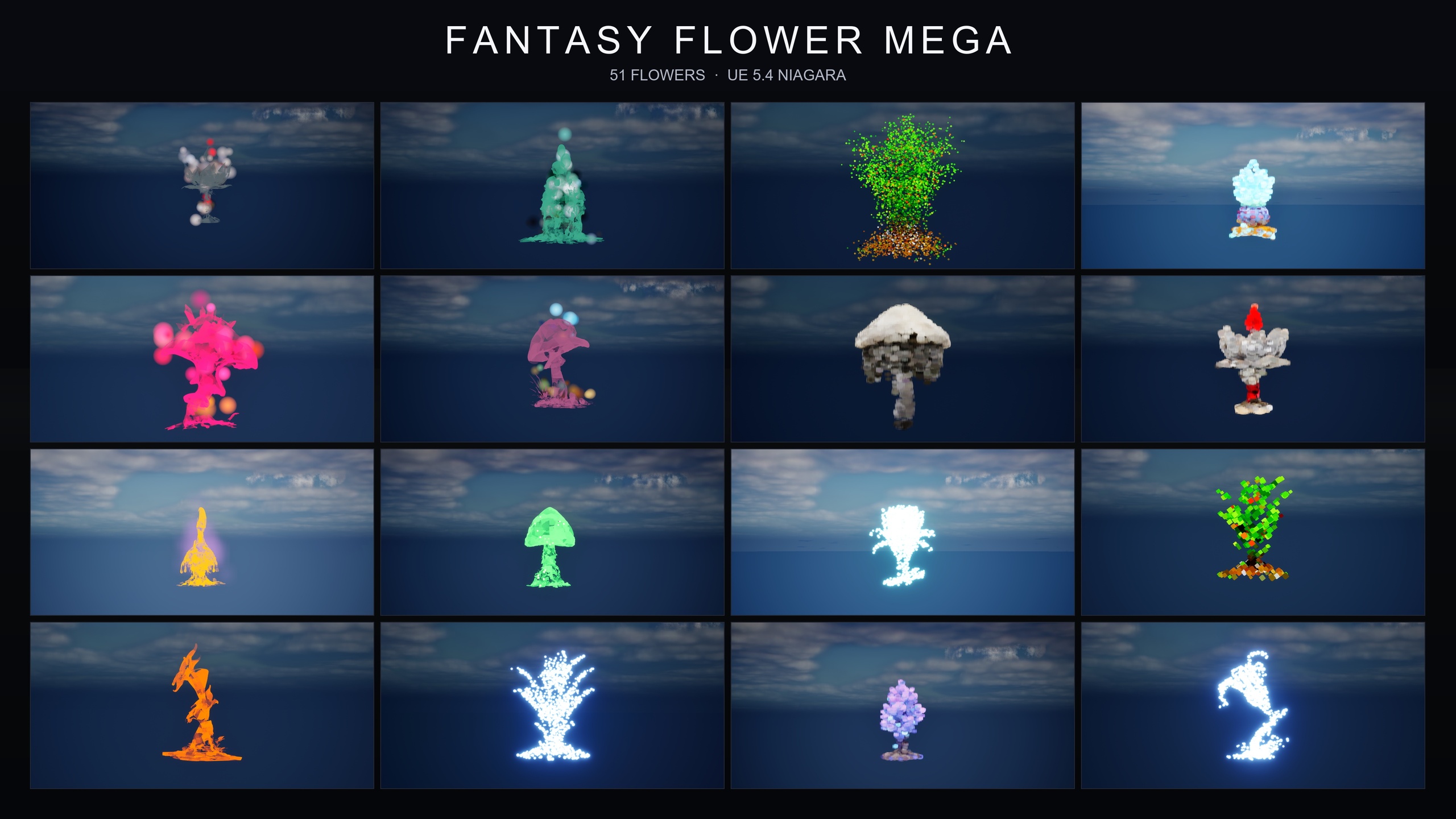
If you want every register on tap, the Fantasy Flower Mega Bundle is the complete line in one purchase: 750 NiagaraSystems, all 15 families across the 51 flowers, spanning ambient, magical, dark, cosmic, spell-themed and gilded looks. Its flat folder layout keeps each flower's variants together, so you can browse by flower or filter by family name in the Content Browser, which makes mixing families across packs fast.
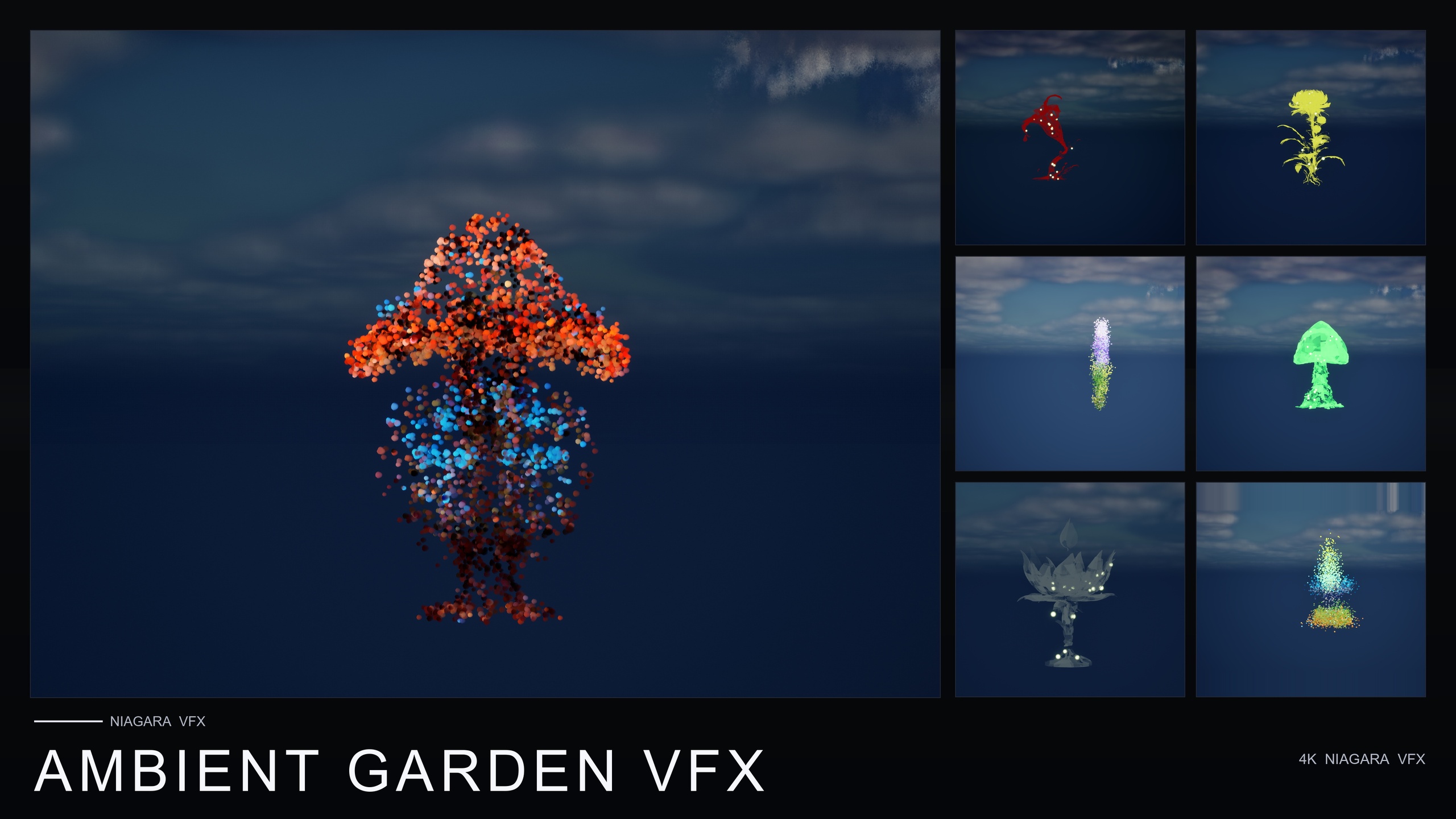
And when an enchantment needs to settle into a calmer environment, Ambient Garden VFX supplies the atmospheric backdrop: 150 NiagaraSystems across BloomingMotes, FireflySwarm and Mist. Layering a low-lying Mist or a drift of pollen motes under your active enchantment grounds the hero effect in a believable space instead of leaving it floating in a vacuum.
Where to take it next
Start small: pick one hero object, layer ProjectedGlyph and VineGrow as your persistent ambience, and wire UnfoldingBloom to a single cast event from Blueprint. Get that one composition reading cleanly, with the three tempos clearly separated, before you scale it to more of your level.
From there, treat the families as a palette. Swap in a Constellation or LumenLight system from Cosmic Bloom for an astral mood, reach for BlackMist plus ProjectedGlyph for a cursed summoning, and use Ambient Garden's mist and motes to seat the effect in its surroundings. The technique never changes, only which systems fill each lane.
Because every one of these is a drop-in, content-only NiagaraSystem with no plugin dependencies, the only thing standing between you and a powerful active-enchantment look is the deliberate stacking of layers, not weeks of particle authoring. Spell Garden VFX gives you the three families to start; the rest is composition.
The three Spell Garden families and the layer each fills
| Family | Role in the stack | Tempo | How to use it |
|---|---|---|---|
| UnfoldingBloom | Impact / spike | Fast, one-shot | Spawn from gameplay code on the cast beat |
| ProjectedGlyph | Sustain / anchor | Slow rotate and fade | Place persistently; reads in screen space against any background |
| VineGrow | Spread | Gradual creep | Place at the base; grows outward within simulation bounds |
All three are drop-in, content-only NiagaraSystems. UnfoldingBloom is the one family intended to be fired from gameplay code rather than placed in the level.
Choosing a pack for a layered enchantment mood
| Pack | Families | NiagaraSystems | Best for |
|---|---|---|---|
| Spell Garden VFX | 3 (UnfoldingBloom, ProjectedGlyph, VineGrow) | 150 | Spell-cast, ritual and active-enchantment hero effects |
| Cosmic Bloom VFX | 2 (Constellation, LumenLight) | 100 | Astral, star-magic and divine-glow variety |
| Ambient Garden VFX | 3 (BloomingMotes, FireflySwarm, Mist) | 150 | Atmospheric backdrop under a hero effect |
| Fantasy Flower Mega Bundle | 15 (the full line) | 750 | Maximum range to mix any mood across packs |
Counts are from each product's listing. All are content-only CPU Niagara packs with no plugin dependencies, applied across the same 51 flower meshes.
FAQ
How do I combine multiple Niagara effects into a layered magic look in UE5?
Anchor a few single-purpose NiagaraSystems to one object and let their contrasting rhythms do the work. With Spell Garden VFX you place ProjectedGlyph and VineGrow as persistent layers and fire UnfoldingBloom as a one-shot on the cast beat, so the eye reads a burst, a rotating glyph and a spreading vine at once. Keeping the tempos distinct is what makes the stack read as a powerful active enchantment rather than a single flat emitter.
Do I need to write C++ or build Blueprints to use Spell Garden VFX?
No. The pack is content-only, with no C++, no shipped Blueprints and no plugin dependencies. Every effect is a drop-in NiagaraSystem. The one place you wire something yourself is the UnfoldingBloom burst, which is tuned for one-shot triggers, so you fire it from your own gameplay logic with a 'Spawn System at Location' or 'Spawn System Attached' node.
How do I stop layered effects turning into visual mud?
Give each layer its own lane in tempo and space. Keep UnfoldingBloom fast and transient, ProjectedGlyph a slow rotate-and-fade, and VineGrow a gradual creep, and let the glyph sit in the screen-space halo, the vine on the ground plane and the bloom in the central burst volume. Use ProjectedGlyph as the constant anchor and let the bloom be the occasional spike.
Can I mix Spell Garden with other Fantasy Flower packs?
Yes. The families share the same 51 flower meshes, so you can swap in Cosmic Bloom's Constellation or LumenLight for an astral mood, pair BlackMist with ProjectedGlyph for a cursed summoning, or use Ambient Garden's Mist and motes as a backdrop. The Fantasy Flower Mega Bundle gives you all 15 families and 750 systems in one purchase if you want the full palette.
Which engine version does Spell Garden VFX support?
The pack is verified compile-clean on UE 5.4. It uses CPU Niagara emitters on a Deferred render path with dynamic lightmaps and ships demo levels you can use to judge effect density in context before placing it in your own scene.
Spell Garden VFX
150 ready-to-use Niagara systems — spell blooms, arcane glyphs and growing vines — across 51 stylised flower meshes and 131 material instances. CPU-simulated for Windows, Mac and Linux, with three demo levels included. Content-only: no C++, no Blueprints, no plugin dependencies.