tutorial · 2026-02-17
How to Edit a Marketplace FBX Asset in Blender for Unreal: Re-importing the Fantasy Flower Pack
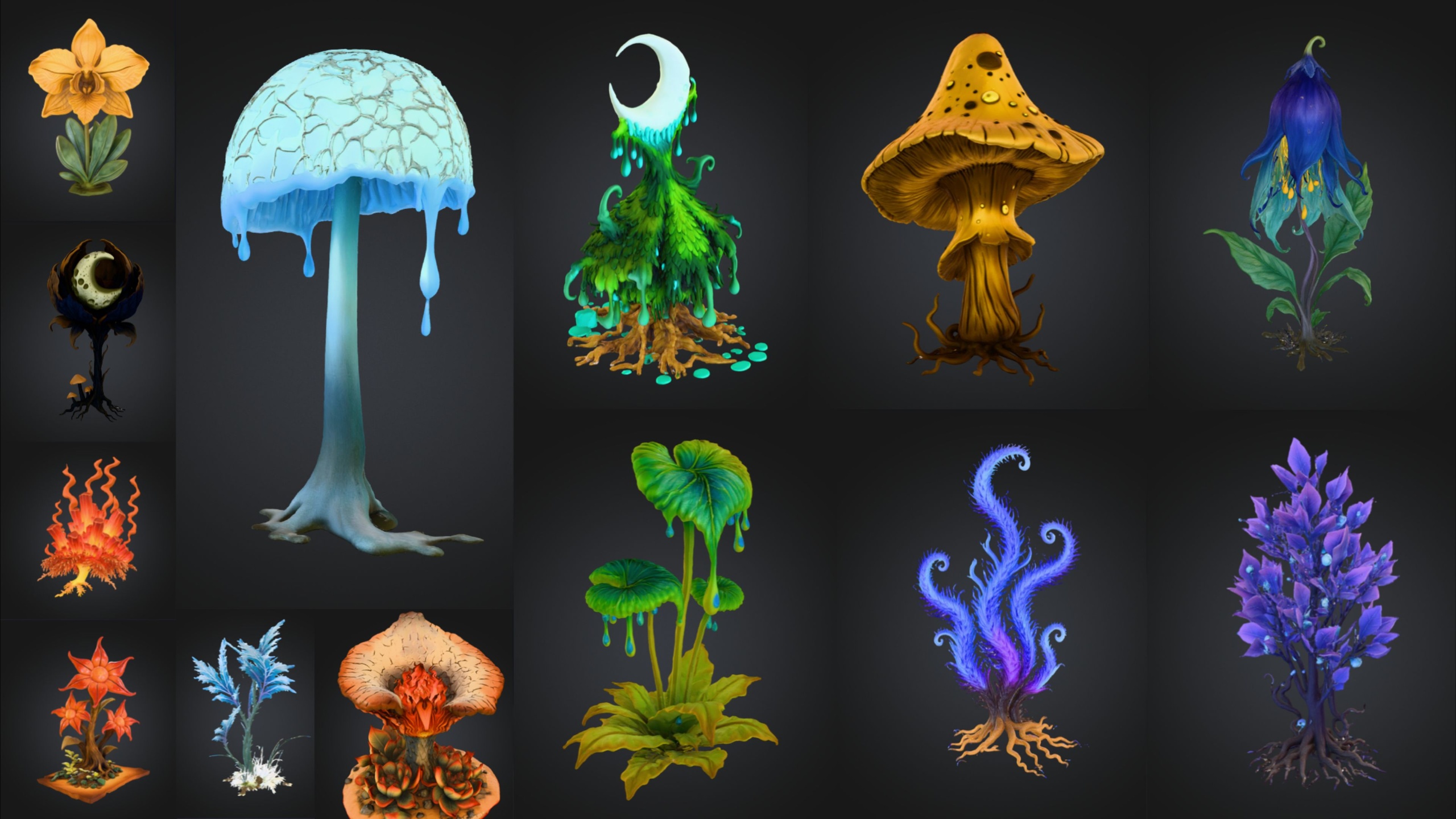
The Fantasy Flower Pack ships raw FBX sources alongside its cooked meshes, so you can tweak any of the 51 flowers in Blender and bring them straight back into UE5.
Why the raw FBX sources matter
Most marketplace flora gives you a cooked static mesh and nothing else, so when a blossom is slightly the wrong shape or you want to merge two plants into one prop, you are stuck. The Fantasy Flower Pack is different: it ships the raw FBX sources in an FBX folder alongside the cooked content, so you can open any flower in a DCC tool, edit it, and round-trip it back. That is the whole point of this guide on how to edit a marketplace FBX asset in Blender for Unreal.
The pack contains 51 unique hand-modelled fantasy, sci-fi and gothic flowers and plants, delivered as Nanite-ready UE5 static meshes with automatic collision. Every flower has its own mesh, its own material, and its own 2K PBR texture set. Crucially for this workflow, each FBX in the FBX folder ships with its matching base colour, metallic, normal and roughness PNGs, all at 2048x2048, so nothing about the look is locked inside the cooked .uasset.
Before you edit anything, decide whether you actually need to. If you only want to recolour or restyle a flower, you can do that with a material instance inside Unreal without touching Blender at all. Reach for the FBX route when you need real geometry changes: reshaping petals, deleting a stem, combining the Blood Lotus with another bloom, or reducing density for a lower-end target.
Locate the FBX sources and import into Blender
1. Open the Fantasy Flower Pack files and find the FBX folder that sits alongside the cooked content, the image folder and the reference folder. Inside it you will find one source FBX per flower, matching the 51 SM_FantasyFlower_ meshes in the UE project, each with its base, metallic, normal and roughness PNGs beside it.
2. In Blender, choose 'File', then 'Import', then 'FBX (.fbx)' and select the single flower you want to edit. Import one flower at a time so you keep its mesh, material slot and texture mapping clean rather than merging everything into one scene.
3. Blender imports the geometry but will not automatically wire up every PBR map. In the Shading workspace, add the matching textures by hand: plug the base colour PNG into 'Base Color', the roughness PNG into 'Roughness', and the metallic PNG into 'Metallic'. Set the colour space of the roughness, metallic and normal maps to 'Non-Color' so they are not gamma-corrected.
4. For the normal map, add a 'Normal Map' node between the image texture and the Principled BSDF so the surface detail reads correctly. The PNGs are 2048x2048, so the detail you see in Unreal will match what you see in Blender's viewport once the maps are connected.
Common scale and orientation fixes
The classic FBX round-trip headache is scale and axis. Unreal is a Z-up, centimetre-based engine, while Blender defaults to metres, so a flower that is correct in UE5 can arrive in Blender looking a hundred times too large or rotated onto its side. Set this right on import and on export rather than scaling in the viewport, which leaves non-uniform transforms that bake badly.
On import, open the FBX import panel's 'Transform' section and make sure the forward and up axes match how the asset was authored; for Unreal-sourced FBX, importing with the up axis as Z and applying transforms usually lands the flower upright at sensible size. If a flower comes in lying flat, rotate it 90 degrees on the X axis, then apply the rotation with 'Object', 'Apply', 'Rotation' so the change is baked into the mesh rather than left as a pending transform.
After any move, rotate or scale, apply all transforms before you export. A flower with a clean identity transform, scale of one and rotation of zero, re-imports into Unreal predictably. Keep the origin sensibly placed, ideally at the base of the stem, so the mesh still snaps to the ground when you drag it back into a level.
Re-export back to UE5
1. With your edits done and transforms applied, choose 'File', then 'Export', then 'FBX (.fbx)'. In the export panel set 'Path Mode' to 'Copy' and enable the embed-textures option only if you want the maps travelling inside the FBX; otherwise keep the original PNGs and reassign them in Unreal.
2. Under 'Object Types', limit the export to 'Mesh' so you do not drag Blender's camera or lights along. Set the scale and up-axis to match Unreal's expectations, then export.
3. In Unreal Engine 5.6, the version the pack is authored against, use 'Import' in the Content Browser and bring the FBX in as a static mesh. Reassign the base, metallic, normal and roughness maps, or point the new mesh at the flower's existing material if you only changed geometry.
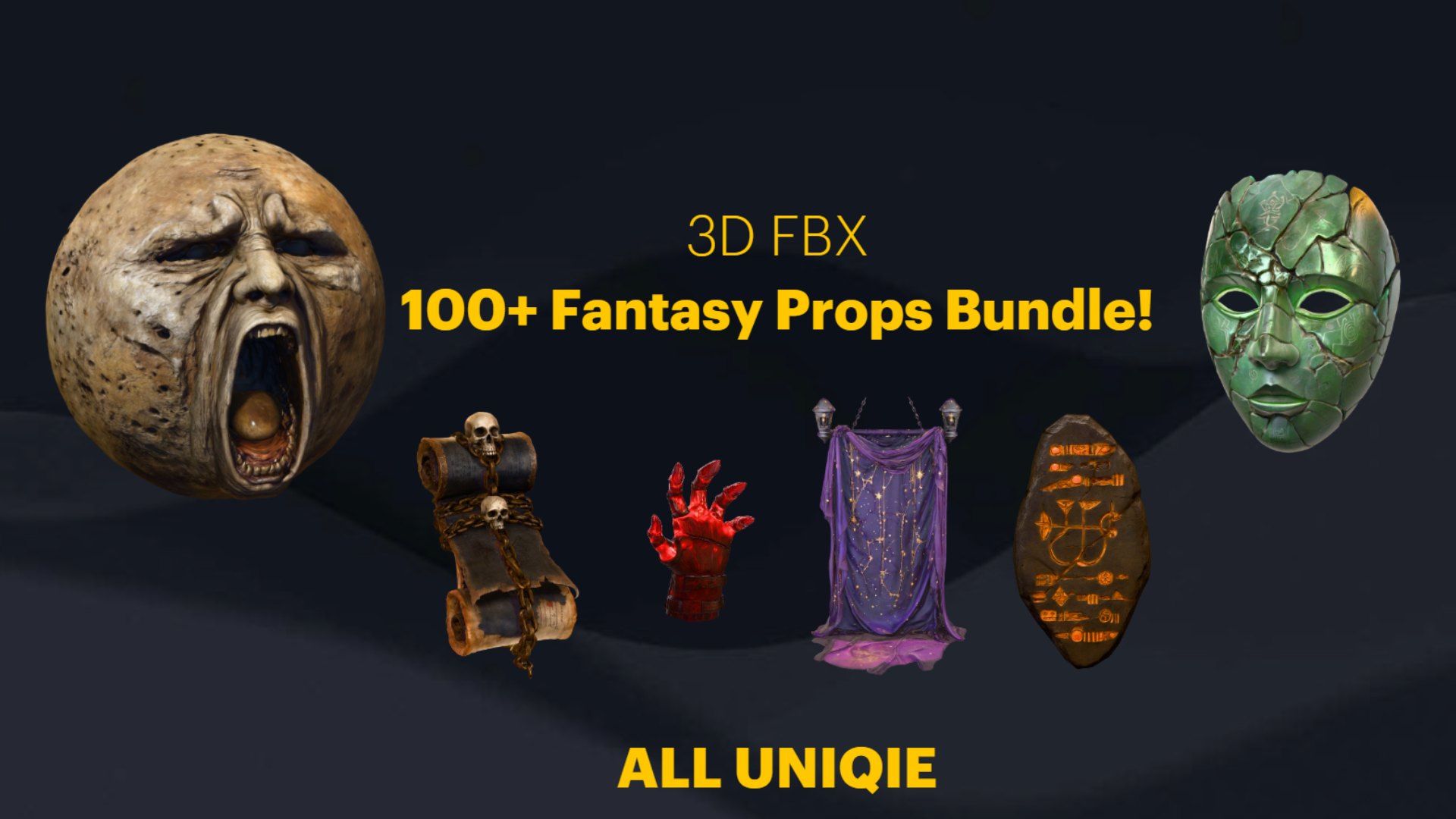
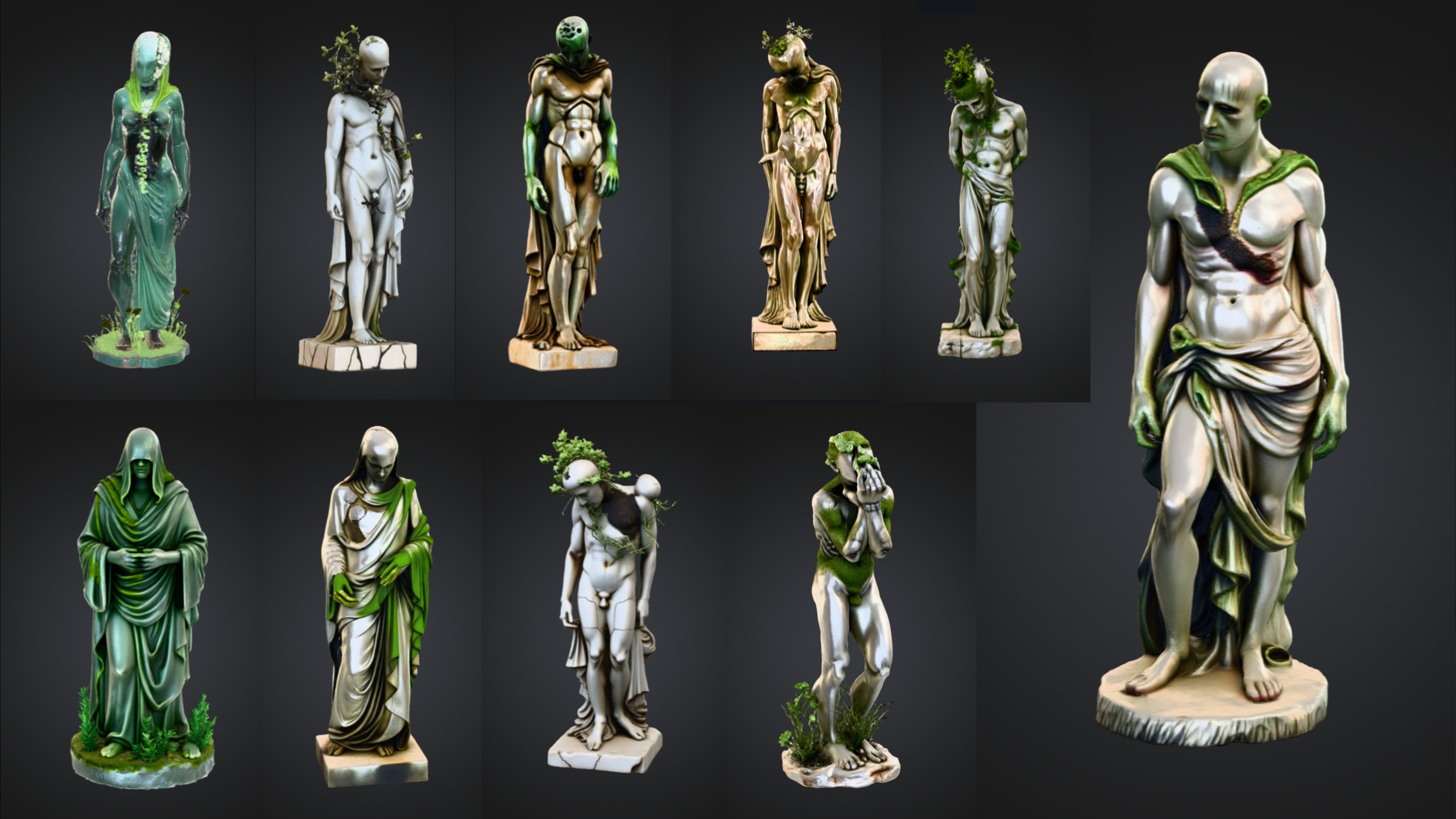
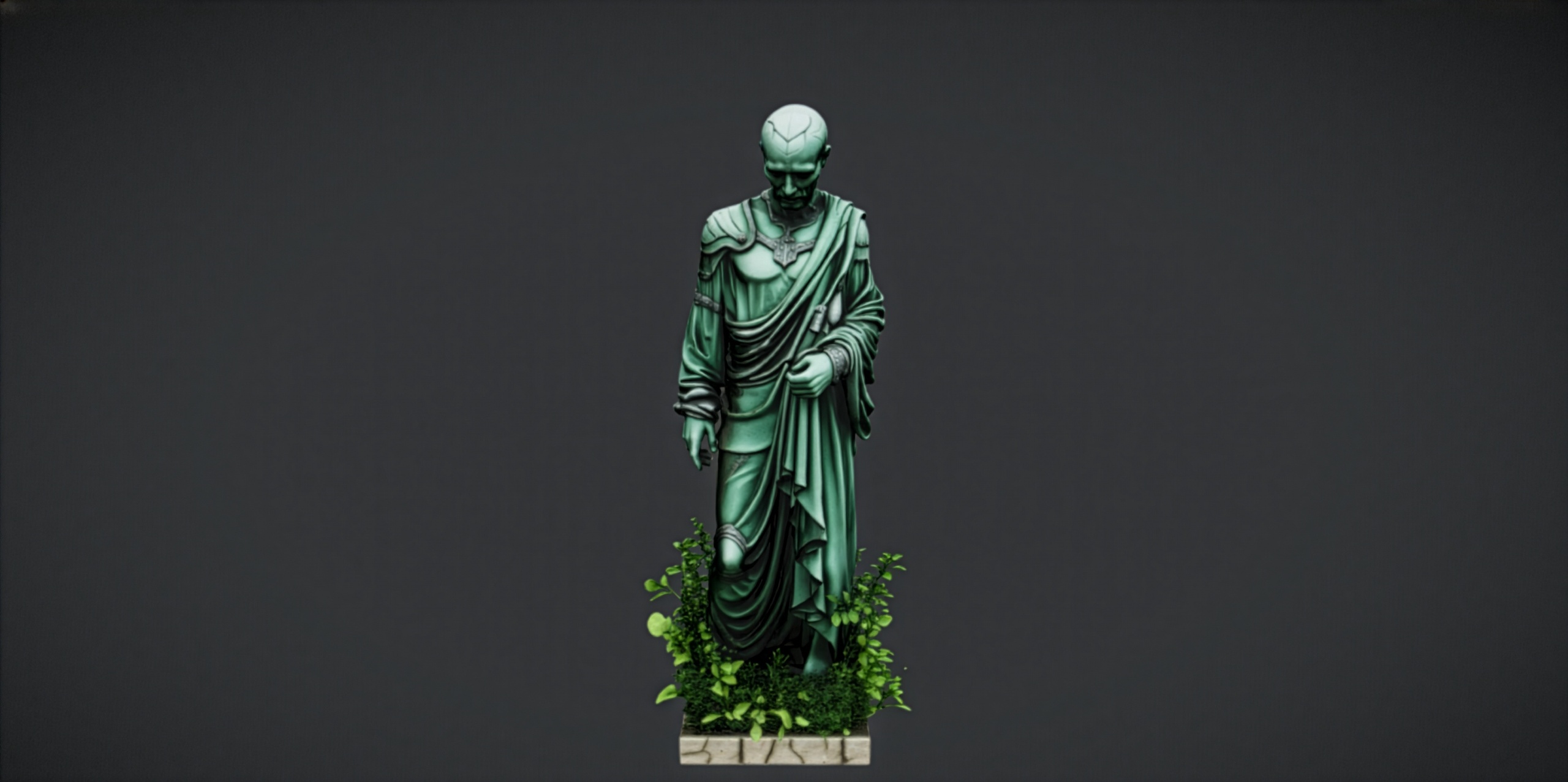
4. Because the original flowers are Nanite-ready with automatic collision, check the Static Mesh editor after import: enable Nanite if your edited mesh needs it, and confirm collision is generated for your new geometry. Drop the result into your scene next to the unedited flowers to confirm scale, orientation and lighting all match before you commit. The same FBX round-trip works for the sibling props in this range, including the Dark Fantasy Props Bundle, the Fantasy Statue Bundle and the free Fantasy Nature Statue, all of which ship FBX sources you can edit the same way.
Edit in Unreal vs edit the FBX in Blender
| Task | Material instance in UE5 | Edit FBX in Blender |
|---|---|---|
| Recolour or restyle | Yes, fastest option | Overkill |
| Reshape petals or stem | No | Yes |
| Merge two flowers into one prop | No | Yes |
| Reduce or change geometry | No | Yes |
| Keeps PBR maps | Yes | Yes, reassign the 2K maps on re-import |
Choose the lighter path when you can. Reach for the FBX round-trip only for real geometry changes.
FAQ
How do I edit a marketplace FBX asset in Blender for Unreal?
Find the raw FBX in the pack's FBX folder, import it into Blender with File, Import, FBX, then connect its base colour, metallic, roughness and normal PNGs in the Shading workspace. Make your geometry edits, apply all transforms, export back to FBX with Mesh-only object types, and re-import into Unreal as a static mesh.
Does the Fantasy Flower Pack actually include the FBX sources?
Yes. The pack ships raw FBX sources in an FBX folder alongside the cooked content, with one source FBX per flower and matching base, metallic, normal and roughness PNGs at 2048x2048.
Why does my flower come into Blender at the wrong size or lying on its side?
Unreal is Z-up and centimetre-based while Blender defaults to metres, so scale and axis often differ. Match the up axis to Z on import, rotate the mesh upright if needed, and apply rotation and scale with Object, Apply before exporting so the transform is baked into the mesh.
Do I need to re-enable Nanite and collision after re-importing?
Check both in the Static Mesh editor. The original flowers are Nanite-ready with automatic collision, but an edited mesh you re-import is a fresh asset, so enable Nanite if you need it and confirm collision is generated for your new geometry.
Can I avoid Blender entirely if I only want a different colour?
Yes. For recolouring or restyling, create a material instance in Unreal and adjust the parameters there. Only use the FBX round-trip when you need to change the actual geometry.
Fantasy Flower Pack
Fifty hand-modelled fantasy, sci-fi and gothic flowers — 51 unique meshes with automatic collision, 201 textures at 2048² and Nanite-ready geometry. Dress gardens, alien worlds and stylised scenes.