tutorial · 2026-03-31
Egyptian Cartouche Animation in Unreal Engine: A Discovery Cinematic Walkthrough
Build a glowing pharaoh's cartouche, sequence its reveal and grade the burn for a royal-discovery cutscene in UE5.
The shot you are trying to land
A pharaoh's cartouche is the oval cartouche-frame that encloses a royal name in Egyptian hieroglyphs, and it is one of the most cinematic beats you can stage in a tomb scene: the torchlight catches the wall, the carved name ignites glyph by glyph, and the camera pushes in on a king who died three thousand years ago. The trouble is that doing Egyptian cartouche animation in Unreal Engine convincingly means animating real symbols, not a single looping texture you flip on, because the audience needs to read the carved name as it lights up.
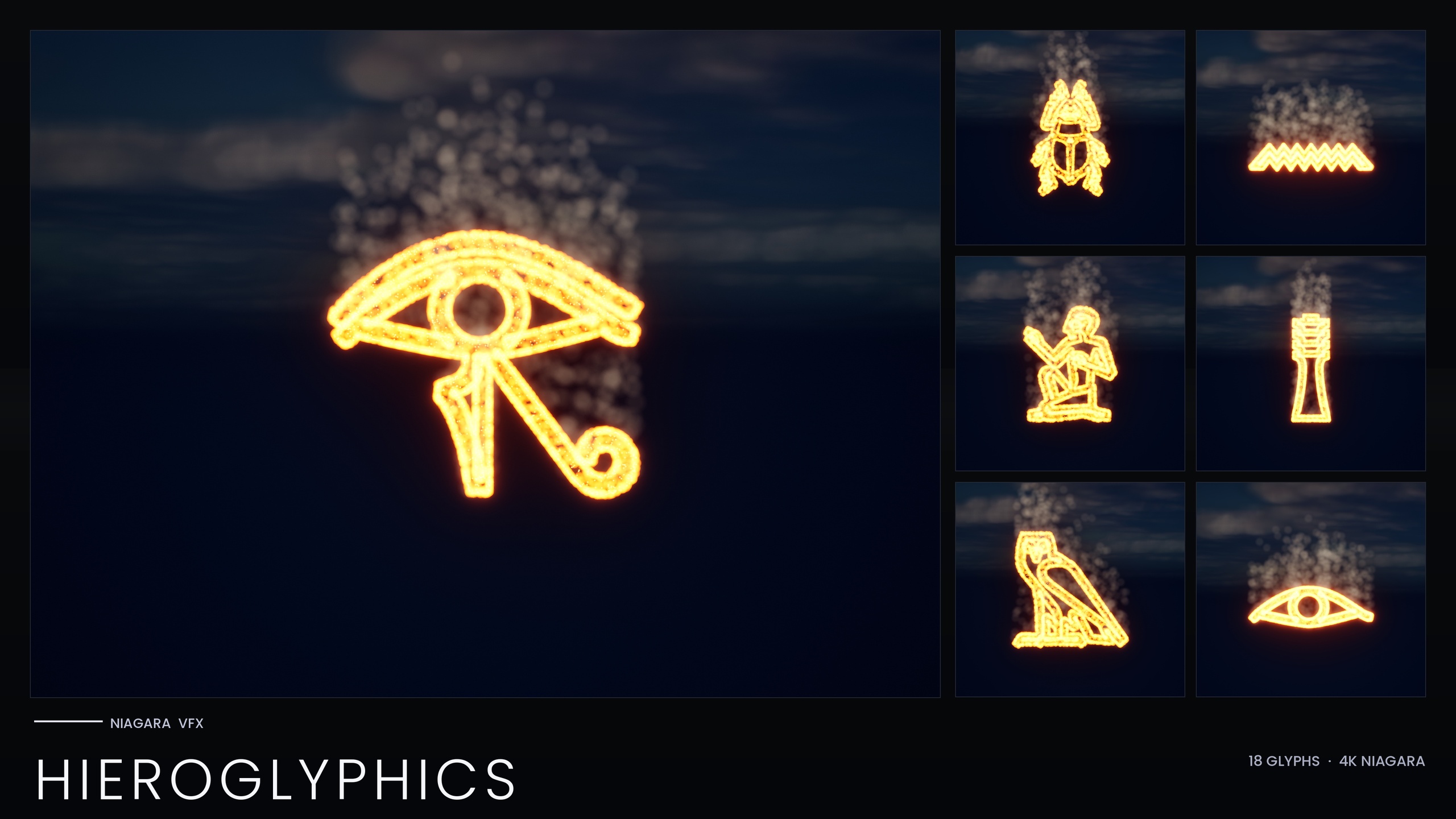
This tutorial builds that shot end to end with the Niagara Hieroglyphics Pack. The pack ships 18 Egyptian hieroglyph Niagara systems and 18 matching static meshes, and pharaoh cartouche animations for royal-discovery scenes are one of its listed use cases, so the asset is built for exactly this. Each glyph is an independently spawnable CPU Niagara system, which is what lets you compose an actual name and reveal it one symbol at a time.
Arranging glyphs into a cartouche
Start by dropping the content pack into your project and opening the included demo map. The demo lays out all 18 hieroglyphs lit and arranged, which is the fastest way to see each glyph's silhouette and pick the ones that form your name or your made-up royal sequence.
1. In the Content Browser, find the systems named NS_hieroglyph_glyph_X followed by a hex code, and the matching static meshes named SM_Glyph_NotoSansEgyptianHieroglyphs_Regular_X with the same hex. The mesh and the system that share a hex code are the same glyph, so you can carve and animate from one identity.
2. Place an empty 'Actor' in the level to act as the cartouche root, then drag the static-mesh glyphs (SM_Glyph_*) in as children, stacking them vertically in the tall oval reading order Egyptian names use. Snap them to your wall so they sit flush, as if chiselled into the stone.
3. Build the cartouche frame itself, the rounded rectangle with the bar at the base, from your own environment geometry or a simple extruded mesh; the pack supplies the glyphs, not the frame. Keep the carved meshes recessed slightly into the wall so the later glow reads as light spilling out of cut stone.
4. For each carved glyph, drag in the matching NS_ Niagara system and position it directly over its mesh. Each hieroglyph system is built from three emitters that sample the glyph mesh: an EmberCore hot HDR core, an EmberGlow red-orange halo, and a slow Smoke dust column that wafts upward. Aligning the system to the carving makes the embers appear to rise straight off the chiselled surface.
Sequencing the reveal in a cutscene
The drama comes from timing. Rather than igniting the whole name at once, you want each glyph to catch a beat after the last, as though the torch or the curse is travelling down the stone. Because every glyph is its own spawnable system, you can drive each one independently from a Level Sequence.
1. Create a 'Level Sequence' for the discovery beat and add your cartouche glyph systems to it as tracks. The simplest reliable approach is to keep each NS_ system deactivated at the start of the shot and activate them in turn.
2. On each glyph's Niagara component, key its activation so the systems fire in reading order with a short, even offset between them. A staggered cadence of a fraction of a second per glyph sells the name being read out by the stone itself.
3. If you would rather spawn than pre-place, call 'Spawn System at Location' or 'Spawn System Attached' from a Blueprint that the sequence triggers, spawning each glyph's system at its carved position on cue. This keeps an empty wall until the moment of discovery, then writes the name in fire.
4. Push your camera cut in on the cartouche as the final glyph ignites, and let the Smoke emitters keep drifting after the embers settle so the shot has life when you hold on it. The smoke uses a gentle in-cone velocity with a little gravity and drag, so it lingers rather than blowing away.
Colour grading the glow for drama
The whole set is driven by a single Niagara Parameter Collection, NPC_HieroglyphicsStyle, which exposes eight parameters covering the ember, glow and smoke colours, their sizes, and the spawn rates. Editing that one asset retunes all 18 glyphs at once, so you grade the entire cartouche from a single place instead of touching every system.
Open NPC_HieroglyphicsStyle and adjust EmberCoreColor, EmberGlowColor and SmokeColor along with their matching sizes and the SpawnRate and SmokeSpawnRate values. For a warm royal-discovery look, keep the ember core hot and push the glow toward red-orange; for a mummy-curse turn, swing the same parameters toward a sickly green or cold blue and the whole inscription changes mood in one edit.
The glow itself is not a texture, it comes from HDR colour driving the engine's bloom, so the look depends on bloom being enabled in your post-process. Keep bloom on, and if the cartouche looks flat, raise the HDR intensity of EmberCoreColor before you reach for anything else. One important setup note: the Parameter Collection must exist at import for the glyphs' linked parameters to resolve, so bring the whole pack in rather than cherry-picking single system assets.
If a single glyph in the name needs to stand out, perhaps the determinative or a god-sign you want to punch, you can pin that one glyph's colour with a per-glyph override on its own system while the rest of the cartouche stays governed by the NPC.
Pairing the animation with the static-mesh carving
The reason this shot reads as carved stone and not floating UI is that every glyph ships twice: as the spawnable Niagara system you just animated, and as a static mesh for carving and embossing. Use both together. Place the SM_Glyph_* meshes to chisel the cartouche into the wall and light them with an emissive material so the stone itself holds a faint warm line even before the reveal; then let the Niagara systems add the living embers, halo and rising smoke on top.
Because the pack is CPU-simulated and uses engine-default materials with no custom textures, the footprint stays light, but CPU systems still stack per instance. A cartouche is only a handful of glyphs, so it is comfortable, but if you build a whole wall of inscriptions, keep an eye on how many systems you have live at once and lean on the static-mesh carvings for the glyphs that are off-camera or merely set dressing.
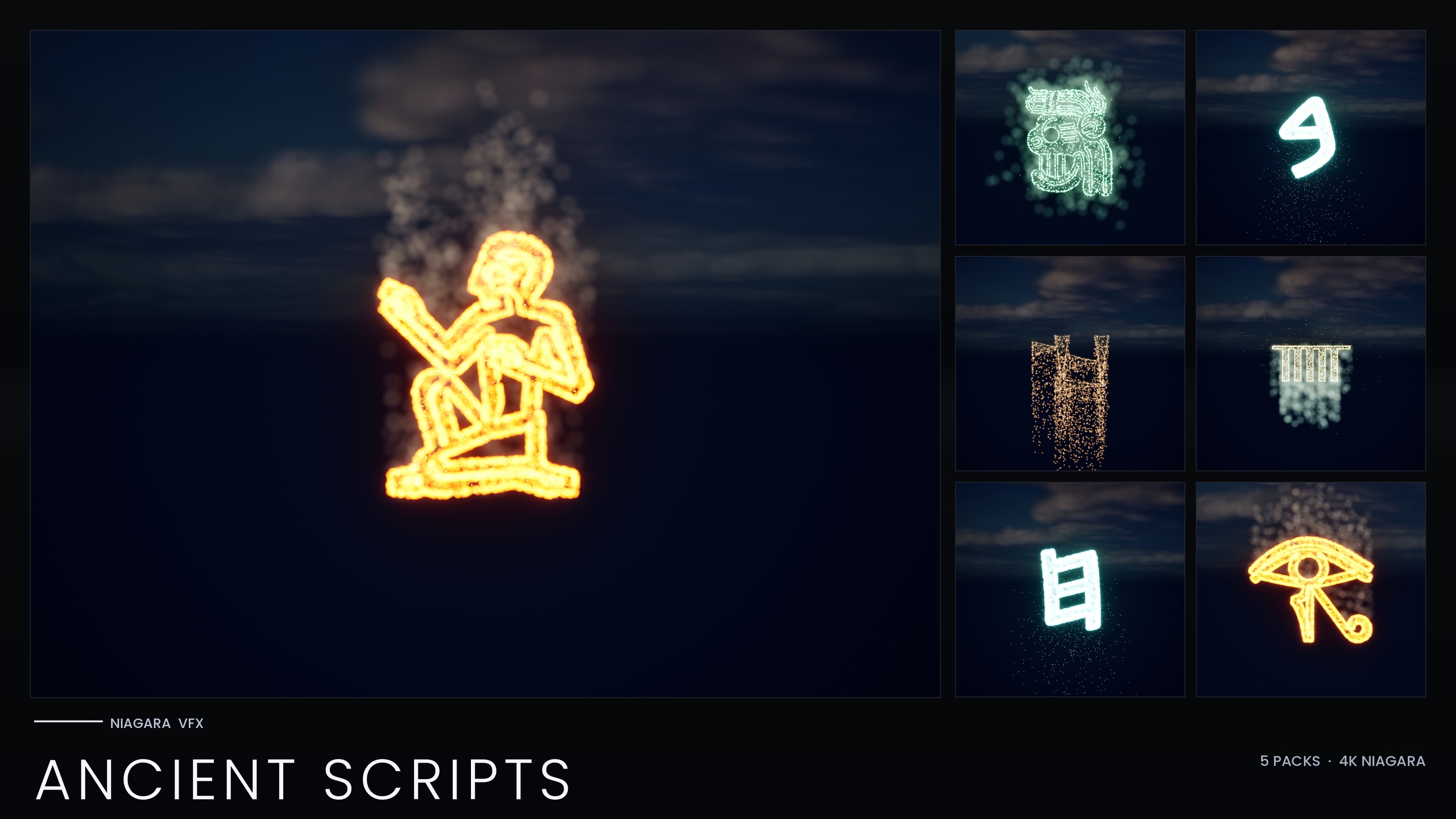
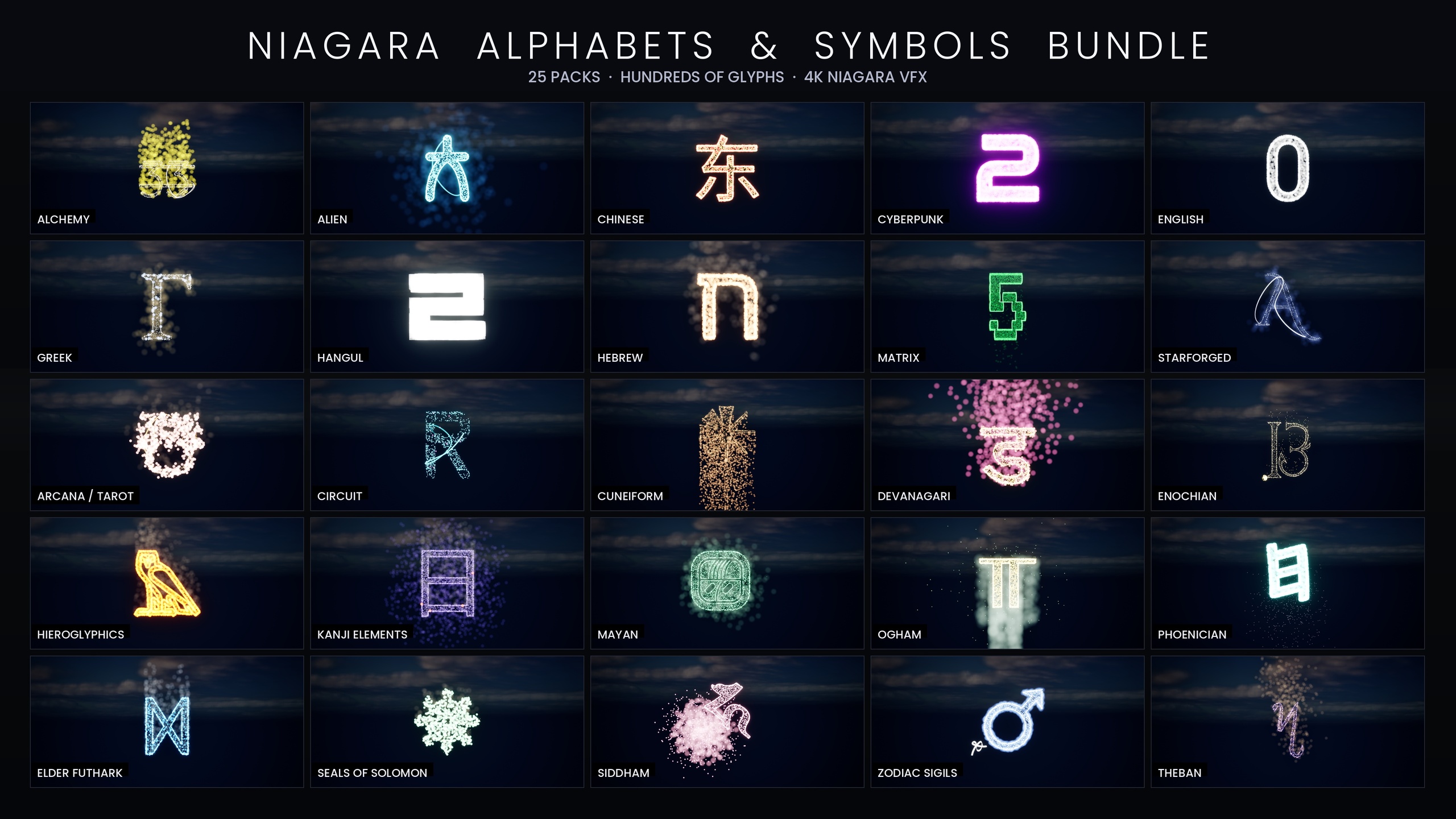
From here the natural next step is to widen the scene. If your discovery cinematic needs full tomb walls of authentic Egyptian, or you want to cut between Egypt, Mesopotamia and Mesoamerica, the Hieroglyphics Pack is the smallest entry point into a larger line and is also bundled into the Ancient Scripts pack and the full Alphabets and Symbols library, so you can scale up without re-authoring your workflow.
Which glyph pack fits your scene
| Pack | Niagara systems | Scripts / style | Recolour workflow |
|---|---|---|---|
| Niagara Hieroglyphics Pack | 18 | Egyptian hieroglyphs only | Single NPC (NPC_HieroglyphicsStyle) |
| Niagara Ancient Scripts Pack | 114 | Egyptian, Cuneiform, Mayan, Ogham, Phoenician | Per-script NPC backbone |
| Niagara Alphabet & Symbols Bundle | 687 | 25 themed sets across 26 fonts | 4 per-theme NPCs |
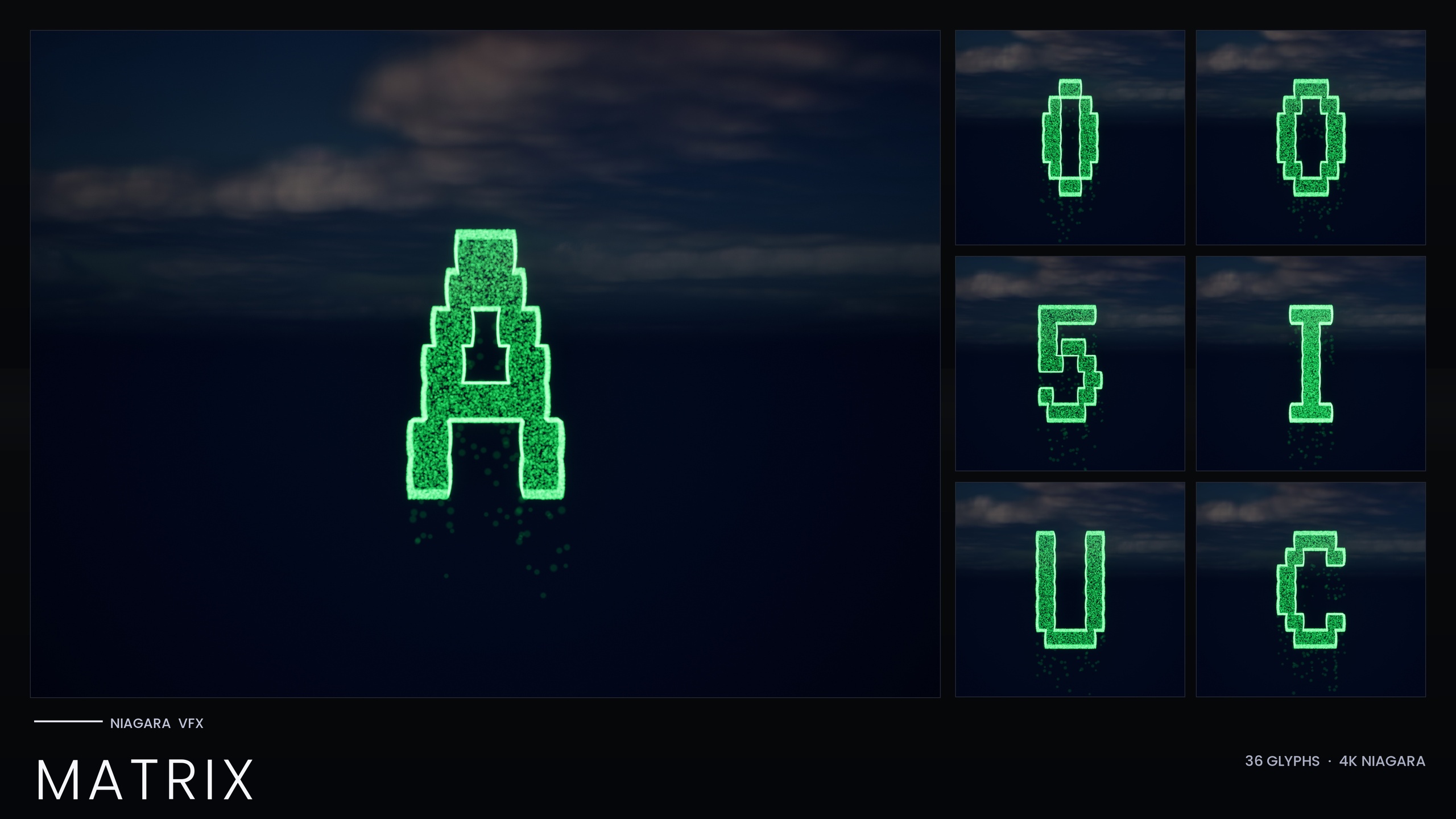
| Niagara Matrix Pack | 36 | Digital-rain A-Z and 0-9 | Inline constants, per-system recolour |
Counts and engine details are from each product's listing. Engine range 5.4 to 5.7 is per the product JSON.
FAQ
How do I do Egyptian cartouche animation in Unreal Engine without a custom shader?
Use the Niagara Hieroglyphics Pack's individual glyph systems. Carve the name with the matching SM_Glyph_ static meshes, drop the NS_ Niagara system over each glyph, and stagger their activation in a Level Sequence so the cartouche lights up one symbol at a time. The glow comes from HDR colour driving bloom, so no custom shader is needed.
How many hieroglyphs are in the pack?
The standalone Niagara Hieroglyphics Pack lists 18 Egyptian hieroglyph Niagara systems and 18 matching static meshes, plus one Niagara Parameter Collection and a single demo map.
Can I recolour the whole cartouche at once?
Yes. The set is driven by one Niagara Parameter Collection, NPC_HieroglyphicsStyle, with eight parameters for ember, glow and smoke colour, their sizes and spawn rates. Editing it retunes all 18 glyphs together, and you can still override an individual glyph's colour on its own system.
Why is my cartouche not glowing?
The glow is produced by HDR colour driving the engine's bloom, so make sure bloom is enabled in your post-process volume. Also confirm the Niagara Parameter Collection is present at import, because the glyphs' linked parameters need it to resolve. If it still reads flat, raise the HDR intensity of EmberCoreColor.
What if I need more than Egyptian for my scene?
The Hieroglyphics Pack is the smallest entry point into a larger line. Step up to the Ancient Scripts Pack for Egyptian plus Cuneiform, Mayan, Ogham and Phoenician, or the full Alphabet & Symbols Bundle for 687 systems across 25 themed sets, both of which include the hieroglyphs.
Niagara Hieroglyphics Pack
Eighteen Egyptian hieroglyph Niagara systems for rituals, tombs and arcane UI — CPU-simulated, with a Parameter Collection and a demo map for instant preview.
Related on Fab
Related reading