tutorial · 2026-06-06
UE5 Sequencer: Play a Voice Line in a Cutscene from a DataTable
Pull a specific dialogue clip by row name, drop it onto a Sequencer audio track, and sync its subtitle for a clean, repeatable cutscene workflow.
The problem: a cutscene needs the right line, not a random one
Bark systems are easy. You filter a dialogue DataTable by context, pick a random row, and play it. Cutscenes are the opposite problem. When you want UE5 Sequencer to play a voice line in a cutscene, you need one exact clip on one exact frame, every time the scene plays, so the camera move, the subtitle and the lip flap all land together. Randomness is the enemy of cinematics.
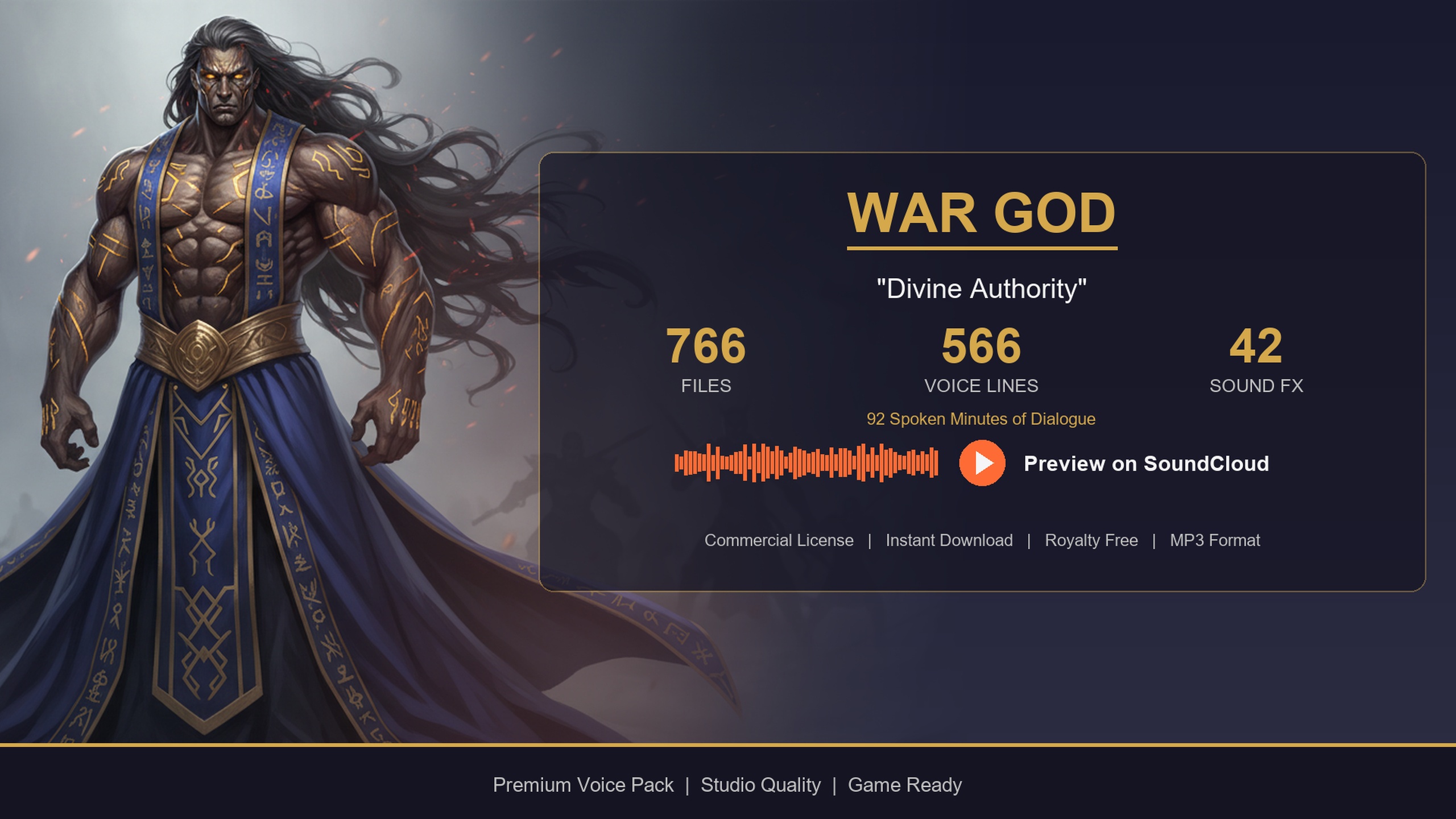
This tutorial uses the Deity Dialogue Pack as the source library. It is a DataTable-driven NPC voiceover pack for a deity/war-god archetype, shipping a thunderous, commanding voice performance plus cinematic divine narration that suits gods, oracles and otherworldly bosses addressing the player from on high. Its 566 voice lines live in a 'DT_Dialogue' DataTable where each row carries a 'VoiceAudio' reference, which is exactly the shape you want for a deterministic cutscene pull.
The technique below works for any pack in the same collection because they share the same row schema, so once you have wired one cutscene you can reuse the pattern for every speaker in your game.
Step 1 - Pull a specific line by row name
Every row in 'DT_Dialogue' has a row key, an FName, that uniquely identifies it. For a cutscene you do not search by context tag; you address the line you have already chosen by its known row name, so the result is deterministic.
1. Open your dialogue DataTable from the Content Browser and find the line you want for the scene. Note its row name (the leftmost 'Row Name' column).
2. In your cutscene setup Blueprint, add a 'Get Data Table Row' node. Set its 'Data Table' pin to the deity 'DT_Dialogue' asset and type the row name into the 'Row Name' field.
3. From the 'Out Row' struct, break out the 'VoiceAudio' member. In this collection 'VoiceAudio' is a soft object pointer to a USoundWave, which means the clip is not in memory until you ask for it.
4. Add a 'Load Synchronous' node off the 'VoiceAudio' soft reference. Its return value is the resolved USoundWave you will hand to Sequencer. Because cutscene lines are intentional and few, a synchronous load on the frame you build the scene is acceptable; for long lines you can instead async-load ahead of the cut.
Doing the lookup by FName keeps the cutscene stable across content updates as long as the row name persists, which is far safer than relying on a row index or a random pick.
Step 2 - Add the SoundWave to a Sequencer audio track
Sequencer drives cutscenes from a Level Sequence, and audio lives on an Audio track. You can author this entirely in the editor for a fixed scene, or build it at runtime if your cutscene is data-driven.
For a fixed, hand-authored cutscene, the simplest path is to open your Level Sequence, click the green 'Track' button, choose 'Audio Track', then on that track click the '+' and pick the resolved USoundWave from the asset list. Drag the resulting audio section so its start frame matches the moment the deity should speak. Because these lines are one-shot with no loop, the section length equals the clip length and you do not need to worry about loop seams.
For a runtime or templated cutscene, build the audio section from the USoundWave you loaded in Step 1. Get the Level Sequence's movie scene, add a movie scene audio track, add an audio section to it, and set the section's sound on the 'Sound' property using your loaded SoundWave. Set the section range so it begins on your chosen frame. This is the same data the editor writes when you drop a clip by hand, so the two approaches are interchangeable.
If the line is diegetic, for example a war-god speaking from a physical altar in the scene, attach the audio to the altar actor so it plays in 3D with attenuation. For a non-diegetic 'voice of god' narration over a prologue, leave it as a 2D master-track sound and skip attenuation entirely so the proclamation sits cleanly over the mix.
Preview by scrubbing the Sequencer playhead. The line should fire exactly when the playhead crosses the section start, which is the determinism a cutscene needs.
Step 3 - Sync subtitles to the clip
A cinematic line needs on-screen text, and the dialogue row already carries it. The 'ResponseText' field on the same row is the spoken line as written, so you never have to retype or risk drift between audio and caption.
The cleanest sync is to tie the subtitle to the audio section's lifetime rather than to a separate timer. In Sequencer, add an Event track and place a key on the frame the audio section starts; fire an event that pushes 'ResponseText' to your subtitle widget. Place a second key on the audio section's end frame that clears the subtitle. Because the section's start and end are the clip's true bounds, the caption appears and disappears with the voice with no magic numbers.
If you prefer to derive timing from the audio itself, read the duration of the loaded USoundWave and hold the subtitle for that length. Either way, pull the caption text straight from 'ResponseText' on the row you fetched in Step 1 so the words on screen are guaranteed to be the words being spoken.
For the longer divine proclamations, lean on the pack's larger length tiers; those LG and XL lines are written as multi-sentence narration, so consider breaking 'ResponseText' across a couple of subtitle cards keyed to natural pauses rather than dumping a paragraph on screen at once.
Step 4 - Reuse the line library across cutscenes
The reason to drive cutscenes from a DataTable instead of dragging loose WAVs is reuse. Once one cutscene addresses lines by row name and pulls captions from 'ResponseText', every future cutscene is the same three moves: pick a row name, load 'VoiceAudio', key the audio and subtitle into Sequencer.
Wrap Steps 1 to 3 in a small helper, for example a Blueprint function or a C++ utility that takes a DataTable and a row name and returns the loaded USoundWave plus the caption text. Call it from every cutscene builder so the lookup logic lives in one place; if the row schema ever changes you fix it once.
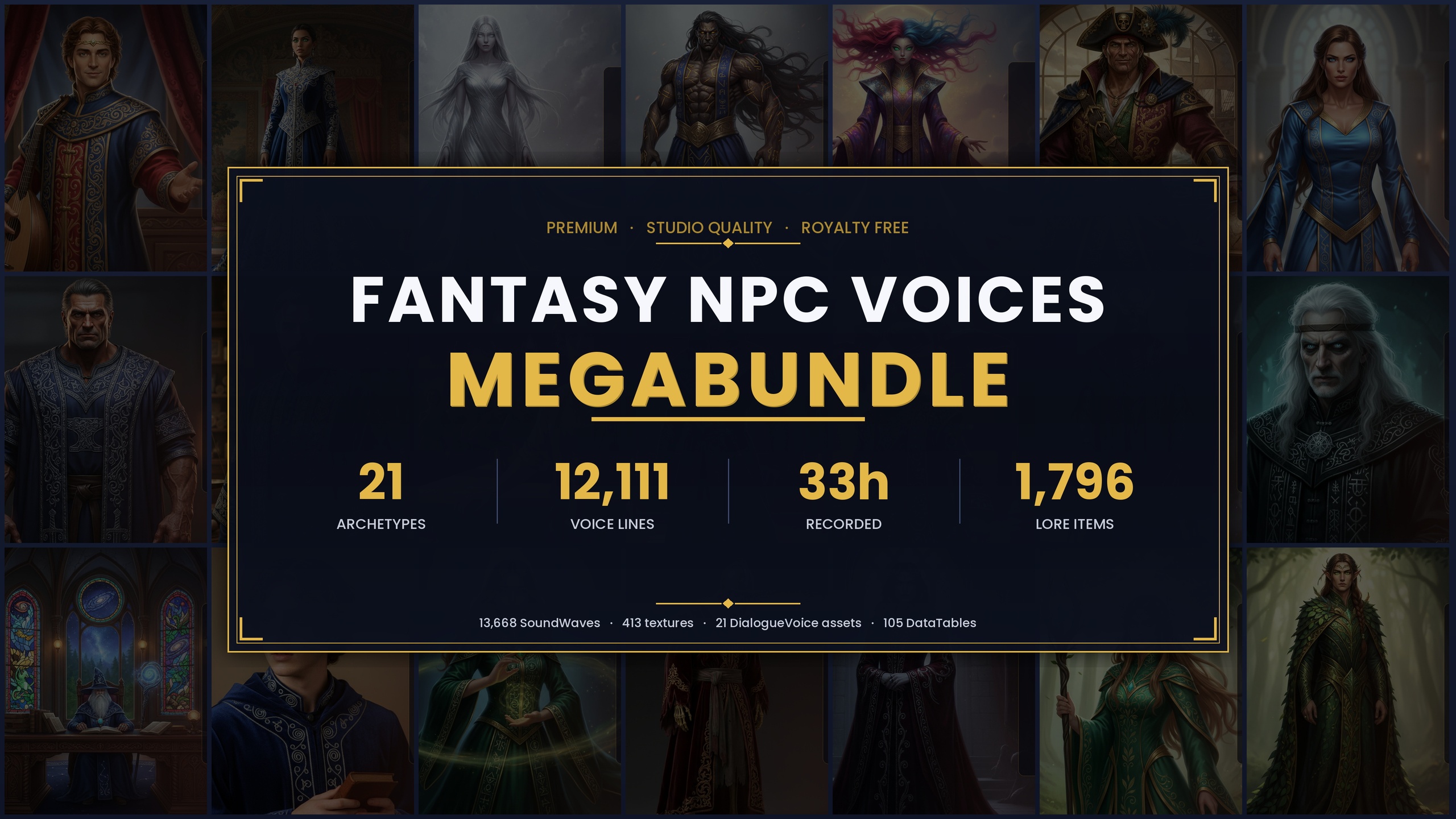
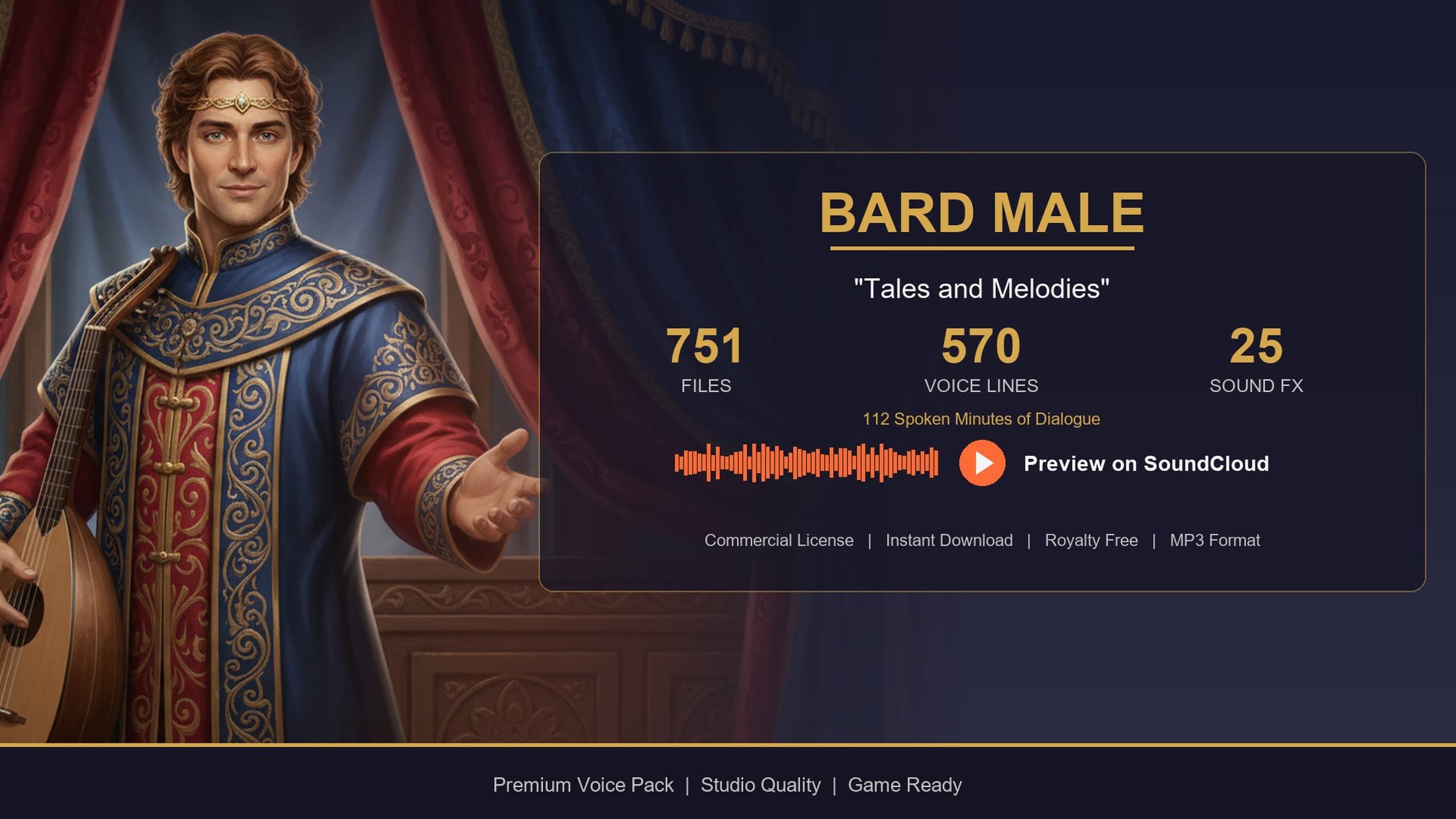
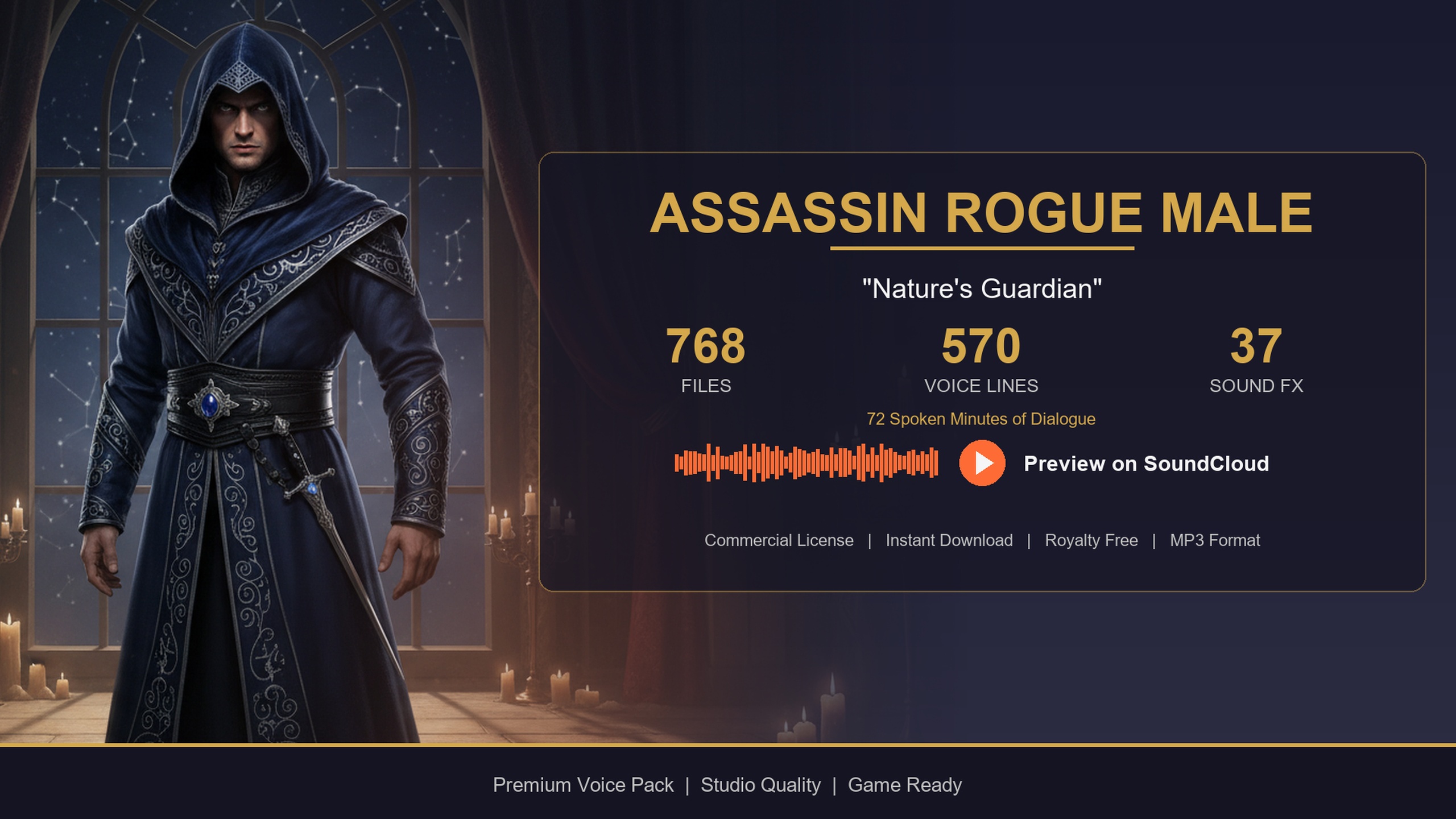
The same helper works across the whole collection, because the deity pack shares its 'DT_Dialogue' schema with the other Lore Packs. Point the same code at the Bard Dialogue Pack for a theatrical quest-giver, at the free Assassin Dialogue Lore Pack for a rogue, or migrate a single archetype out of the Fantasy NPC Voices complete bundle, and your cutscene pipeline does not change at all.
Performance-wise, cache the DataTable reference rather than reloading it per cutscene, and pre-load the specific 'VoiceAudio' clips a scene needs just before the cut so the synchronous load never stalls a frame mid-cinematic.
DT_Dialogue fields you use in a cutscene
| Field | Type | Cutscene use |
|---|---|---|
| Name | FName (row key) | Address the exact line by row name in 'Get Data Table Row' |
| VoiceAudio | TSoftObjectPtr<USoundWave> | Load Synchronous to get the clip for the Sequencer audio track |
| ResponseText | FString | Source text for the synced subtitle card |
| ContextTags | FString | category/subcategory/size tag, useful for picking the line before you fix its row name |
| EmotionalTone | FString | Cue for camera/lighting mood when staging the shot |
The row schema is shared across the collection, so the same field names apply to every pack referenced here.
FAQ
How do I make UE5 Sequencer play a voice line in a cutscene from a DataTable?
Address the row by its FName row name with 'Get Data Table Row', break out the 'VoiceAudio' soft pointer, 'Load Synchronous' it to a USoundWave, then add that SoundWave to an Audio track in your Level Sequence at the frame the line should fire. Sync the subtitle by keying the row's 'ResponseText' on the audio section's start and end frames.
Why pull by row name instead of filtering by context like a bark?
Context filtering plus a random pick is great for in-game barks but wrong for cinematics. A cutscene needs the same exact clip on the same frame every play so audio, camera and subtitle stay aligned. Fetching by the known FName row key is deterministic and survives content updates as long as the row name persists.
Do I need to worry about the clip looping under the camera move?
No. The lines in this pack are USoundWave one-shots with no loop, so the Sequencer audio section length simply equals the clip length and there are no loop seams to manage.
Can I reuse the same cutscene setup for other characters?
Yes. The deity pack shares its 'DT_Dialogue' row schema with the rest of the collection, so a single helper that takes a DataTable and a row name works unchanged against the Bard Dialogue Pack, the free Assassin Dialogue Lore Pack, or any archetype migrated from the Fantasy NPC Voices complete bundle.
Should the voice line play in 2D or 3D in the cutscene?
Use 2D on the master track for non-diegetic narration, such as a 'voice of god' proclamation over a prologue, and skip attenuation. Use 3D attached to an in-world actor, such as an altar or boss, when the deity is physically present in the scene.
Deity Dialogue Pack
Booming pronouncements and divine narration — 92 minutes of deity dialogue for gods, oracles and otherworldly beings. Cinematic voice cues to give your RPG's higher powers a real presence.
Related on Fab
Related reading