article · 2026-05-30
Building Varied Fantasy Biomes in UE5 from a Single Heightmap Pack
How to pull islands, mountain passes, a canyon and a volcano out of one Fantasy Landscape Pack and stitch them into a believable UE5 world.
Why biome variety matters for a fantasy world
A fantasy world stops feeling like a fantasy world the moment every region reads the same. If the player crosses what should be a continent and the silhouette never changes - the same rolling hills, the same coastline, the same ridge angle - the sense of scale and journey collapses. Real fantasy biome landscape variety in Unreal means contrasting landforms: an isolated island that feels marooned, a tight mountain pass that funnels the player, a canyon that drops away beneath them, a volcano that dominates the skyline. Each shape carries its own mood, and the contrast between them is what sells the size of the world.
The problem is that authoring that range by hand is slow. Sculpting a convincing canyon, then a believable alpine massif, then a ringed island, is three very different skill exercises, and most teams do not have the time to learn all three before the world even has gameplay in it. This is the gap the Fantasy Landscape Pack is built to close: it ships fifteen ready-made heightmaps spanning multiple biome shapes, so you can get genuinely different terrain into the editor and start building on top of it the same afternoon.
Because every map in the pack uses the same import workflow and the same height-and-slope AutoMaterial, the variety comes from the terrain shapes rather than from juggling fifteen unrelated setups. You learn the process once on a small island and reuse it on the 8K open-world maps without relearning anything.
Islands, mountain passes, canyons and volcanoes covered
The pack contains fifteen maps in total. Eleven are regular maps and four are huge open-world maps. On the regular side you get three distinct island shapes - Isolated Island, Large Island and Long Island - which between them cover the marooned outcrop, the broad landmass and the elongated coastal strip. For mountainous terrain there are Menacing Mountains, Rocky Mountains and Spiral Mountain, alongside Mountain Pass 1, Mountain Pass 2 and Mountain Side, so you can choose between a jagged range, a navigable pass and a single dramatic flank.
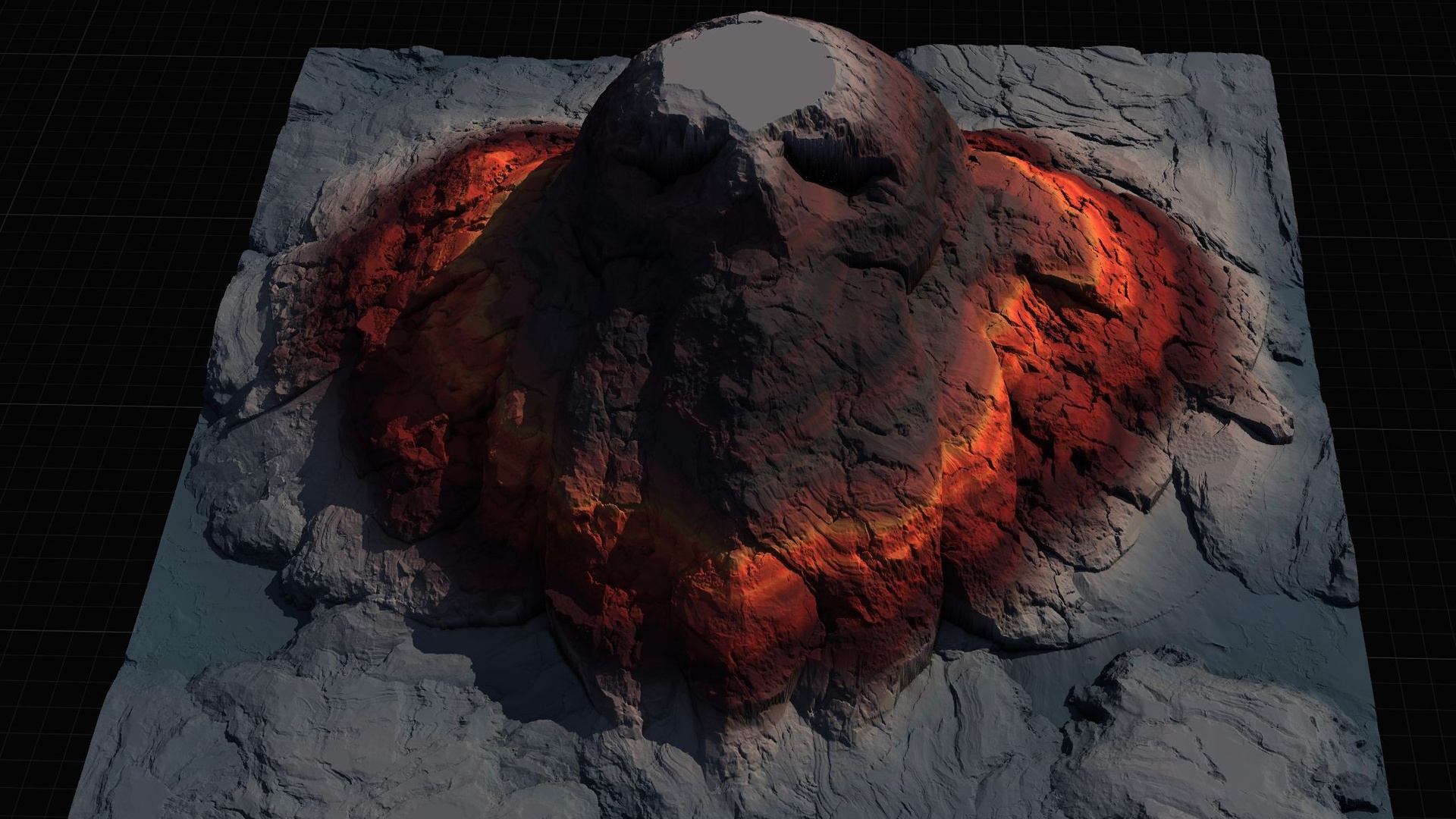
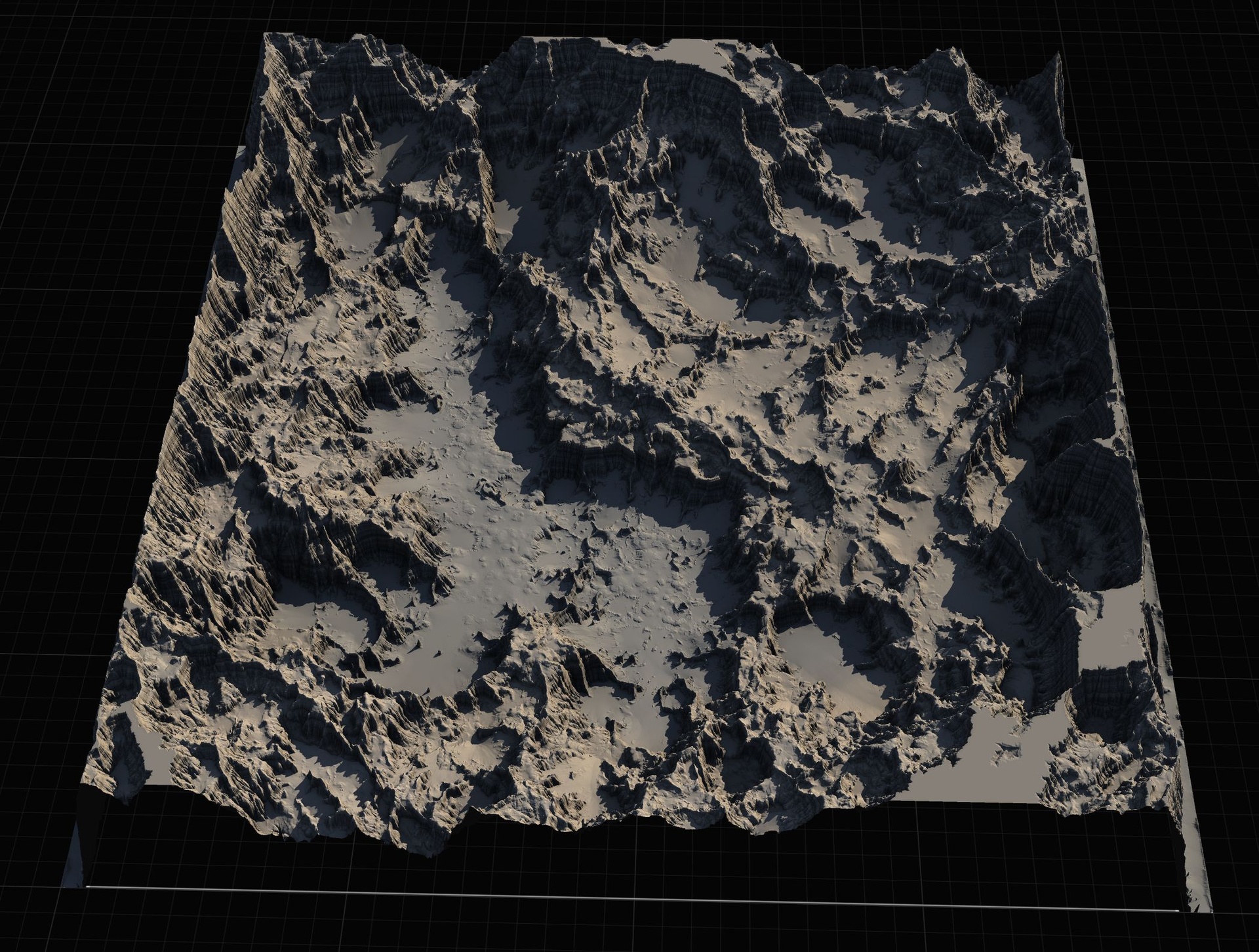
Two maps are worth calling out specifically because they give you set-piece geology for free. Mountain Island includes an adjacent volcano, which is the kind of skyline anchor you would normally have to sculpt and theme by hand. Canyon Landscape carves deep into the terrain, giving you a real drop and vertical layering rather than a shallow gully painted onto a flat plane. Between the islands, the passes, the alpine ranges, the spiral mountain, the volcano and the canyon, you have most of the classic fantasy-biome silhouettes in one purchase.
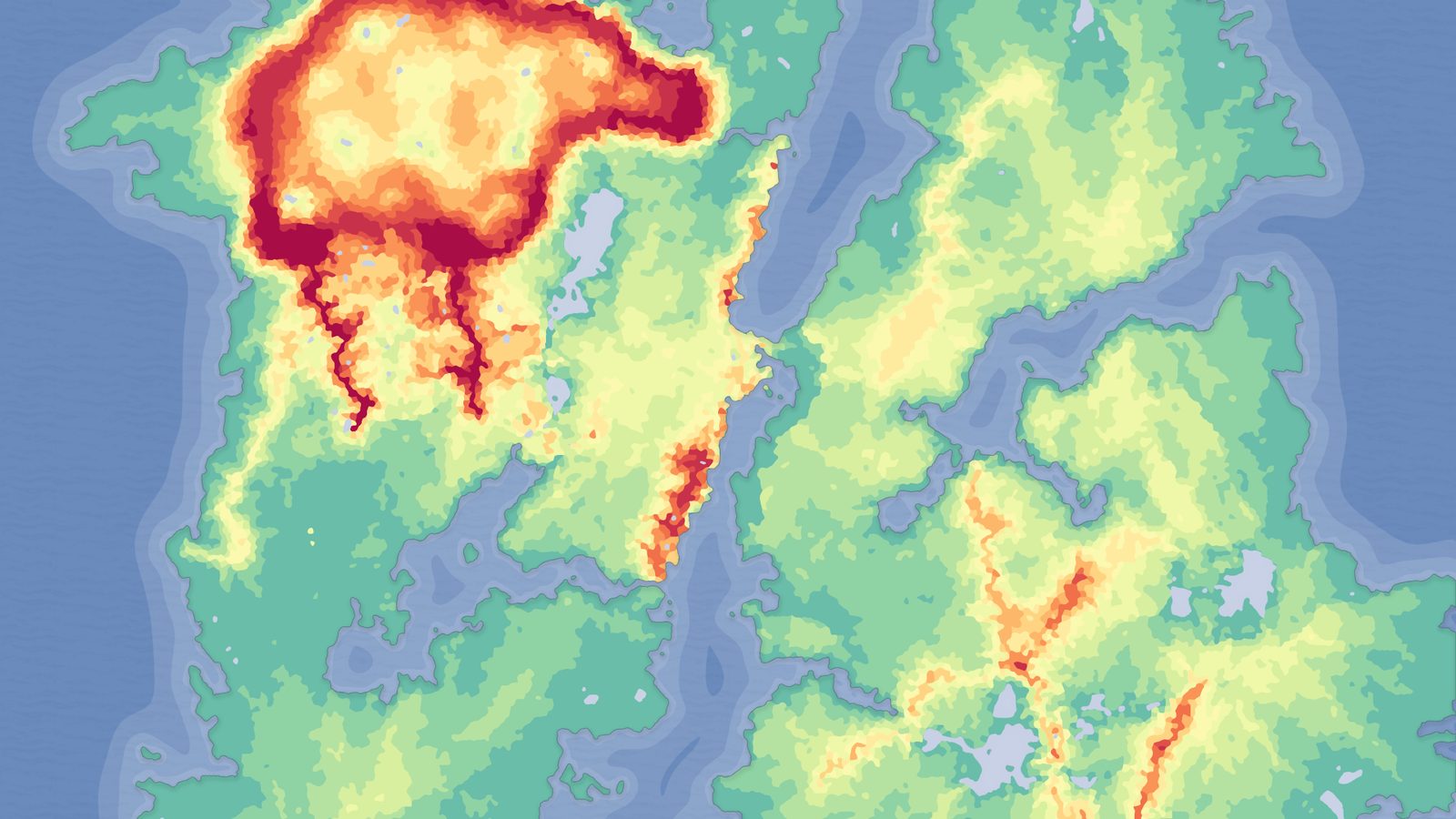
Each map ships as grayscale, import-ready heightmaps where whiter pixels are higher elevation. The regular maps are provided at 512, 1K, 2K and 4K, and the four huge open-world maps are provided at 8K. That resolution ladder matters: a 512 or 1K map is ideal for a focused, hand-built level, while an 8K map gives you a full explorable world. Note that the high-resolution PNGs you may see in each map's subfolder are RGBA preview and screenshot renders, not the import heightmaps - the grayscale maps you actually import live in the Gray Scale Maps and per-map Height_Maps folders.
Getting a map into the editor and auto-textured
The workflow is identical for every map in the pack, which is the whole point. Here is the path from a grayscale file to a textured landscape.
1. Open the Landscape panel and switch to the 'Manage' tab, then choose to create a new landscape from file and select the grayscale heightmap for the biome you want. Pick 512, 1K, 2K or 4K for a regular map, or 8K for one of the open-world maps, depending on whether you need a focused level or a full world.
2. Assign the included AutoMaterial to the landscape's material slot. Expect the landscape to appear black at first - this is normal and expected, not a broken import.
3. Switch to the 'Paint' tab and use 'Create Layers from Assigned Material' to extract the target layers from the AutoMaterial, then run 'Fill Layer' on the base layer. The AutoMaterial paints the terrain automatically using configurable height and incline rules, so cliffs, mid-slopes and low ground get sensible textures without you hand-painting anything.
4. Open the Material Instance to tune the result. You can swap the per-layer base colour and normal textures and adjust the height and slope intensity to move where snow, rock and ground transition. The demo levels reference UE starter-content textures that are intended to be swapped, so treat the out-of-the-box look as a starting point rather than the final art.
Beyond the automatic painting, the AutoMaterial exposes five optional custom layers so you can hand-paint your own textures on top of the defaults - a worn path through Mountain Pass, scorched ground around the volcano on Mountain Island, or a beach line on one of the islands.
Regular maps versus the huge open-world maps
The split between the eleven regular maps and the four huge open-world maps is really a split in intent. The regular maps, at 512 through 4K, are sized for levels you build deliberately: an isolated-island survival start, a mountain-pass ambush, a canyon traversal sequence. At these sizes the terrain is easy to navigate in-editor, quick to iterate on, and light enough that you can dress it densely with your own meshes.
The four open-world maps at 8K are the other end of the scale - full explorable worlds you ship around or trek across. An 8K heightmap gives you the horizon-to-horizon room a fantasy continent needs, and because the AutoMaterial scales by height and slope rather than by hand-painting, a map that large still gets a coherent base texture pass without an enormous amount of manual work.
A useful pattern is to combine both tiers in one project. Use an 8K open-world map as the macro world the player explores, and use the smaller regular maps as focused, hand-crafted set-pieces - a mountain pass or canyon you author in detail and gate behind the open world. Because every map shares the same AutoMaterial, the focused levels and the open world can be made to read as the same world with consistent texturing.
Mixing maps and editing the source terrain
Because the maps share one workflow and one material, mixing several into a single project is straightforward. Import the biomes you want as separate landscapes - or as separate levels you stream - apply the AutoMaterial to each, and align the texturing by reusing the same Material Instance settings across them so the snow line and cliff thresholds match. The result is a project where an island, a mountain pass and a canyon all feel authored by the same hand.
When a stock shape is close but not exactly what your layout needs, the pack includes the Gaea source files for the landscapes. You can open a map's Gaea grayscale source, re-edit the terrain - lower a ridge, widen a pass, deepen the canyon - and re-export a fresh grayscale heightmap to import. This keeps you from being stuck with the exact silhouette of the shipped map while still saving you the work of building terrain from nothing.
Each map also ships with reference imagery - a textured heightmap render, an untextured render, and in-Unreal screenshots - which is genuinely useful when you are deciding which biome to drop where, before you commit to importing. And the included demo project shows each map already textured, lit and with oceans added where appropriate, so you can see the intended result of a map before you build your own version of it.
If your project leans heavily on assembling and re-positioning landforms rather than picking finished maps, it is worth knowing the rest of the MythicLemon landscape line uses this same AutoMaterial and import flow. The Massive Open World Landscape Pack focuses on fourteen 8K-capable open worlds, the Mythic Relic Landscape Pack offers fourteen lore-shaped islands with bonus relic props, and Landstamp Pro takes a different approach entirely - a non-destructive stamping plugin that lets you drop and re-tune mountain, canyon, crater and volcano stamps directly onto a landscape. They are covered briefly below so you can see where the Fantasy Landscape Pack sits.
Where it sits next to the other landscape products
The Fantasy Landscape Pack is the broad biome-sampler of the line: fifteen maps deliberately chosen for shape variety - islands, passes, alpine ranges, a spiral mountain, a volcano and a canyon - at 512 through 4K with four 8K open worlds on top. Reach for it when you want maximum biome contrast from a single pack.
The Massive Open World Landscape Pack is the choice when the priority is scale rather than biome breadth - fourteen open-world landscapes, each at 1K, 2K, 4K and 8K (16-bit grayscale), built for ship-around, explore-the-continent worlds. Its AutoMaterial setup is more elaborate, with Runtime Virtual Texture height and colour assets, snow-mask, puddle and colour-variation material functions, and a Water-plugin demo for oceans.
The Mythic Relic Landscape Pack is the lore-flavoured, budget entry: fourteen maps whose terrain forms iconic shapes - a skull island, a fallen-angel island, a stone hand and more - each at 1K, 2K, 4K and 8K (16-bit grayscale), plus bonus relic FBX meshes (skull, turtle statue, weapons) to dress the scenes. Pick it for instantly recognisable set-piece islands.
Landstamp Pro is not a map pack at all - it is a C++ editor plugin that turns heightmap images into non-destructive Landscape Patch stamps. It ships a large stamp library (370+ stamp data assets and 100+ high-resolution heightmap textures up to 4K per its live listing) with categories including Mountain, Canyon, Hill, Crater, River and Volcano, plus a mesh-to-heightmap extractor. Use it when you want to compose and re-position landforms freely on your own terrain rather than import finished maps. It is Windows 64-bit and its live listing states compatibility with Unreal Engine 5.5, 5.6 and 5.7+.
Choosing a MythicLemon landscape product by need
| Product | What it is | Maps / library | Resolutions | Best for |
|---|---|---|---|---|
| Fantasy Landscape Pack | Multi-biome heightmap pack | 15 maps (11 regular + 4 open world) | 512/1K/2K/4K, plus 8K open world | Maximum biome variety from one pack |
| Massive Open World Landscape Pack | Open-world heightmap pack | 14 open-world maps | 1K/2K/4K/8K (16-bit) | Large explore-the-continent worlds |
| Mythic Relic Landscape Pack | Lore-shaped heightmap pack + relic meshes | 14 mythic-shape maps | 1K/2K/4K/8K (16-bit) | Recognisable set-piece islands on a budget |
| Landstamp Pro | Non-destructive stamping plugin | 370+ stamps, 100+ heightmap textures | Textures up to 4K | Composing/re-positioning landforms freely |
Resolutions and counts are from each product's verified dossier. Landstamp Pro is a plugin, not a map pack.
FAQ
How do I get fantasy biome landscape variety in Unreal from one pack?
Import the Fantasy Landscape Pack's grayscale heightmaps as separate UE landscapes - islands, mountain passes, the canyon, the volcano map - and apply the same included AutoMaterial to each. Because all fifteen maps share one import workflow and one height-and-slope material, you get genuinely different biome shapes that still read as one coherent world.
Which maps and resolutions does the pack include?
Fifteen maps: eleven regular maps (Isolated/Large/Long Island, Menacing/Rocky Mountains, Spiral Mountain, Mountain Pass 1 and 2, Mountain Side, Mountain Island and Canyon Landscape) at 512, 1K, 2K and 4K, plus four huge open-world maps at 8K. Mountain Island includes an adjacent volcano and Canyon Landscape carves deep into the terrain.
Why does my landscape appear black after I apply the AutoMaterial?
That is expected. Go to the Landscape tool's Paint tab, run 'Create Layers from Assigned Material' to extract the target layers, then 'Fill Layer' on the base layer. The AutoMaterial then paints the terrain automatically by height and slope. You can tune the textures and the height/slope intensity in the Material Instance afterwards.
Can I customise a map's shape instead of using it as-is?
Yes. The pack includes the Gaea source files for the landscapes, so you can open a map's Gaea grayscale source, re-edit the terrain - widen a pass, deepen the canyon, lower a ridge - and re-export a fresh grayscale heightmap to import into Unreal.
Should I use the regular maps or the 8K open-world maps?
Use a 512 or 1K regular map for a focused, hand-built level such as a mountain pass or canyon sequence, and use an 8K open-world map when you need a full explorable world. A common approach is to combine both in one project, using the smaller maps as detailed set-pieces gated behind the open world.
Fantasy Landscape Pack
A collection of diverse fantasy heightmap landscapes across multiple biomes — drop-in terrains for RPGs and open worlds, ready to dress and play.
Related on Fab

Related reading