
tutorial · 2026-01-30
How to Organise 750 Niagara Systems in UE5 (Browse by Flower or Family)
A flat-folder workflow for keeping a 750-system Niagara library navigable in the UE5 Content Browser.
The problem: 750 systems and a scroll bar
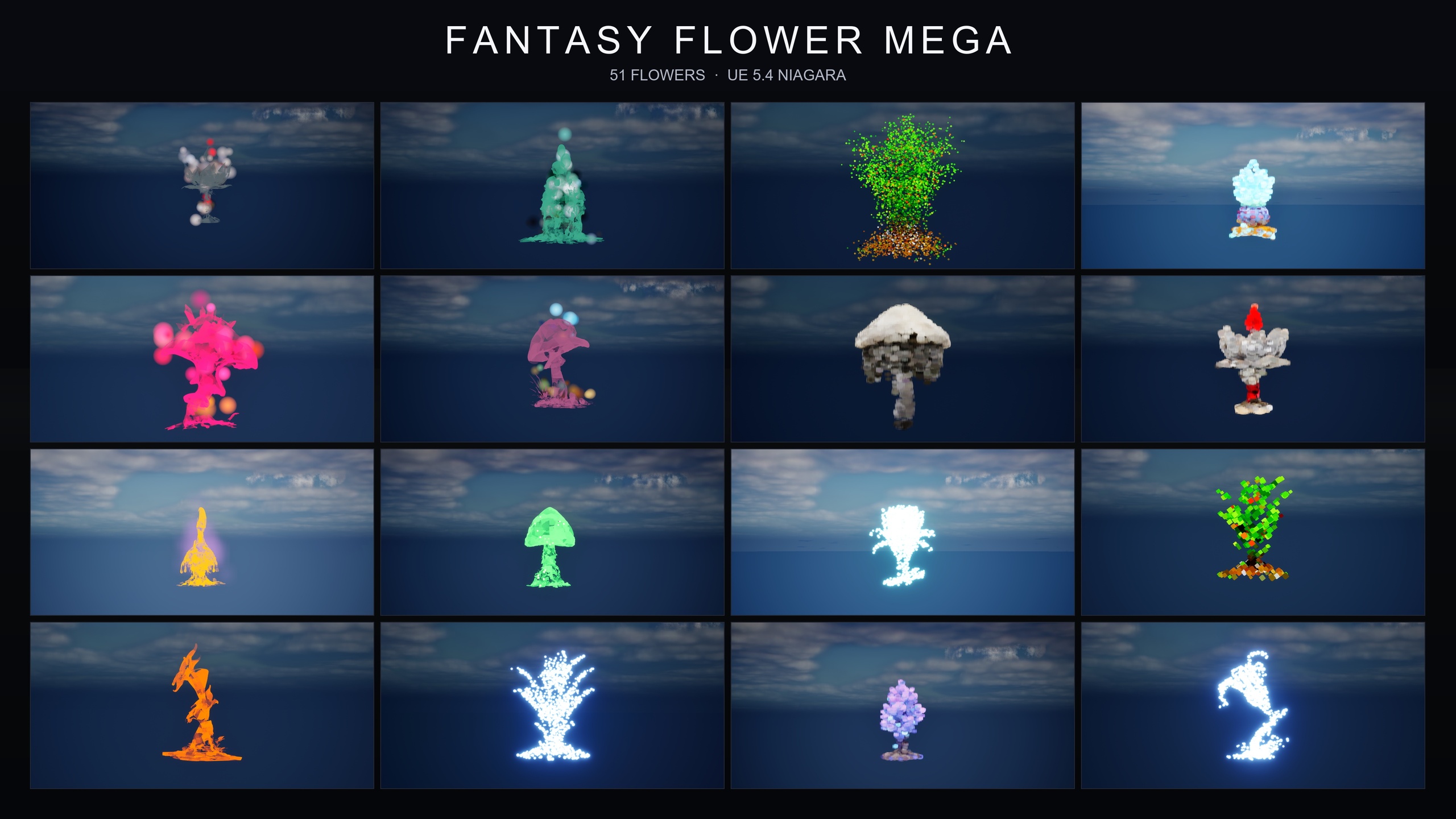
Drop a large VFX pack into a UE5 project and the Content Browser stops being a help. The Fantasy Flower Mega Bundle is a useful stress test for this: it is 750 NiagaraSystems, built as 15 effect families applied across 51 stylised flower meshes. Add 51 StaticMeshes, 22 master Materials, 331 MaterialInstances and 51 Textures on top, and you are looking at roughly 1,209 assets in one place. Scrolling is not a workflow.
If you have ever searched for how to organise many Niagara systems in UE5 and filter the Content Browser, the instinct is usually to start building a deep folder tree — one folder per family, then sub-folders per flower, then more sub-folders for meshes versus materials. That feels tidy, but it scatters everything you need for a single effect across four different places. This tutorial walks through the flat-folder approach the bundle actually ships with, why it works at this scale, and the two Content Browser moves that make 750 systems feel like a handful.
Flat folder layout versus a nested tree
The temptation with a big library is to nest aggressively. The cost only shows up later: to place one effect you open the family folder, find the flower, then jump to a separate Meshes folder for its StaticMesh and a separate Materials folder for its MaterialInstances. Three or four navigations for one decision, repeated all day.
The Fantasy Flower Mega Bundle uses a flat layout instead. Each flower's Niagara variants sit alongside that flower's StaticMesh and its MaterialInstances, rather than being filed away by asset type. The payoff is locality: when you find a flower, you have found everything that flower needs in one view, and you never leave to assemble the parts.
Flat only stays usable if the names carry the structure that the folders gave up — and here they do. Across the Fantasy Flower line the systems follow a consistent naming convention, NS_<flower>_<family>, for example NS_blood_lotus_bloomingmotes. That single rule is what makes the next two sections possible: because the family and the flower both live in the asset name, the Content Browser search box becomes your folder tree, and it filters 750 systems in real time without you maintaining a single directory.
Filtering by family in the Content Browser
When you want one mood across many flowers — every constellation effect, or every dark-mist effect — you filter by family. There are 15 families in the bundle to choose from: BlackMist, BloomingMotes, Bubbles, Constellation, Crystalline, FireflySwarm, GildedBloom, Holographic, LumenLight, Mist, PixelVoxel, ProjectedGlyph, SteampunkGears, UnfoldingBloom and VineGrow.
1. Open the bundle's Niagara folder in the Content Browser so the search is scoped to the systems rather than the whole project.
2. Type the family name into the search box, for example Constellation. Because every system carries its family in its name, the view collapses to just that family's 51 variants — one per flower.
3. Switch the view to a list or to small thumbnails to scan the matches quickly, then drag the system you want straight into the level. These are CPU Niagara systems and play with no parameter tuning, so a drag-and-drop is enough to see the effect.
4. To compare families, clear the box and type a different family name. There is no folder to back out of, so swapping from Mist to FireflySwarm is a one-word change rather than a navigation.
Browsing by flower to see every variant
The other axis is the flower. When you have committed to a particular bloom and want to audition the moods available for it, you browse by flower instead of by family. Type the flower's name into the same search box and the Content Browser returns that flower's full set of variants across the families it appears in — its constellation version, its mist version, its gilded-bloom version, and so on.
This is where the flat layout earns its keep. Because the flower's StaticMesh and MaterialInstances sit in the same view as its NiagaraSystems, a single search gives you the complete kit for that bloom: the mesh to place, the materials it uses, and every effect you could put on it. You are choosing a look, not hunting for scattered dependencies.
It also makes layering deliberate rather than accidental. The families are designed to mix on one flower — the listing explicitly suggests combining BlackMist with ProjectedGlyph for a cursed-summoning read — and when both candidate systems are sitting side by side under the same flower search, stacking two effects on one bloom is something you can see before you commit to it.
Workflow tips for a large VFX library
A few habits keep a library this size fast. Lean on the search box as your primary navigation and treat the folder structure as a fallback — for a flat, well-named library the search is almost always faster than clicking. Keep the family and flower vocabulary somewhere visible while you work, because the filters are only as good as your memory of the 15 family names.
Preview before you place. The bundle ships pre-built, pre-lit demo levels (the product data describes one demo level per family, though the count is stated inconsistently across the listing, so treat it as approximate) which let you see a family's behaviour in context rather than judging it from a thumbnail. Open the relevant demo map, find the look you want, then return to the Content Browser and filter for that exact system.
Finally, remember what this library does and does not assume. It is content-only with no plugin dependencies, the systems use CPU emitters, and the pack is compile-clean on UE 5.4 with the product data listing UE 5.4 to 5.7. There are no LODs beyond LOD0, so the usual large-library discipline applies — place what a scene needs and audition heavy combinations in a demo map first. Organise the names well and the 750 systems stop being a wall of assets and start behaving like a searchable catalogue.
Two ways to find a system in the Content Browser
| Goal | Search by | What the view returns |
|---|---|---|
| One mood across many flowers | Family name (e.g. Constellation) | That family's 51 variants, one per flower |
| Every mood for one flower | Flower name | That flower's variants plus its mesh and materials |
| Layering two effects | Flower name, pick two systems | Both candidate systems side by side under one bloom |
Both methods use the same search box; the flat layout and NS_<flower>_<family> naming make each one a single-word filter.
FAQ
How do I organise many Niagara systems in UE5 and filter the Content Browser without a deep folder tree?
Keep the layout flat and let the asset names carry the structure. If every system is named with its family and flower (here, NS_<flower>_<family>), you can type a family or flower name into the Content Browser search box and it filters the whole library in real time, so you never need to build or maintain nested folders.
What are the 15 families in the Fantasy Flower Mega Bundle?
BlackMist, BloomingMotes, Bubbles, Constellation, Crystalline, FireflySwarm, GildedBloom, Holographic, LumenLight, Mist, PixelVoxel, ProjectedGlyph, SteampunkGears, UnfoldingBloom and VineGrow. Each family is applied across all 51 flower meshes, which is how the pack reaches 750 systems.
Do I need to tune parameters or set up Blueprints to use these systems?
No. The bundle is content-only with no plugin dependencies, and the systems use CPU emitters. Drag a NiagaraSystem into the level or onto an actor and it plays, so the workflow is finding the right system rather than configuring it.
Can I combine more than one family on a single flower?
Yes. The families are designed to mix on one flower for layered effects; the listing suggests pairing BlackMist with ProjectedGlyph for a cursed-summoning read. Browsing by flower puts the candidate systems side by side so you can audition the combination.
Which engine versions does the bundle support?
It is compile-clean on UE 5.4, with the product data listing support for UE 5.4 to 5.7. It is content-only with no plugin dependencies and uses the deferred render path with dynamic lightmaps.
Fantasy Flower Mega Bundle
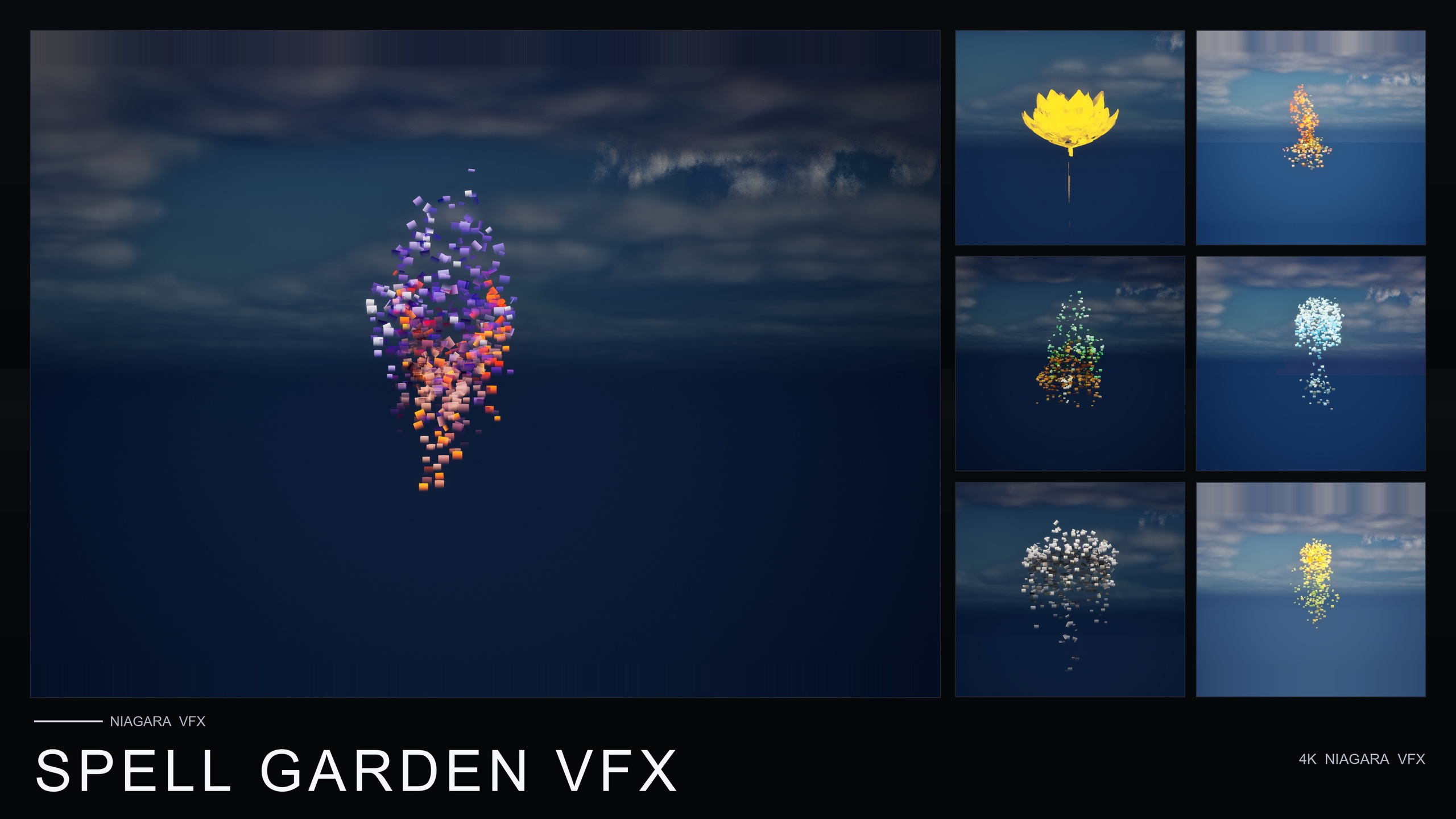
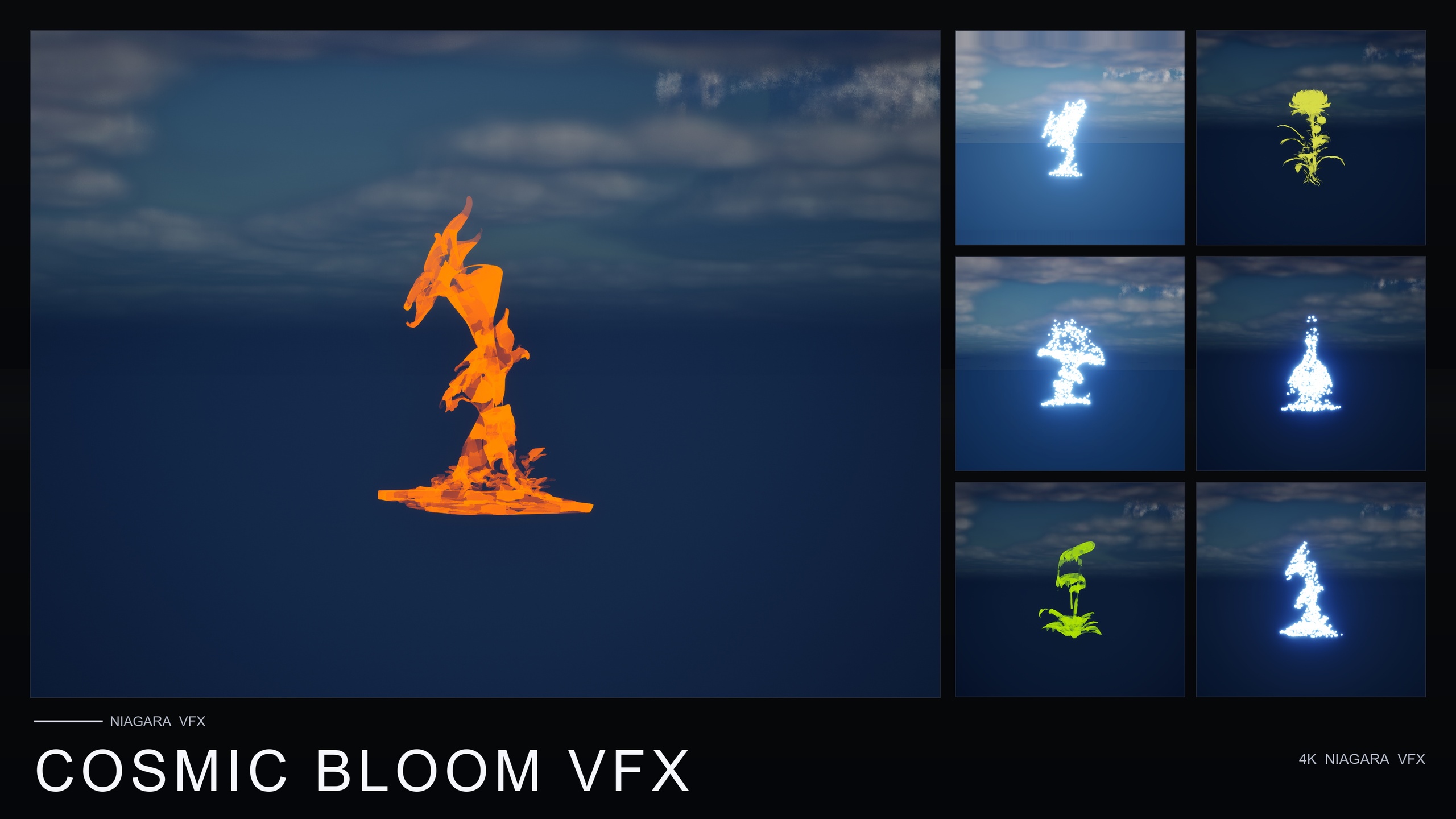
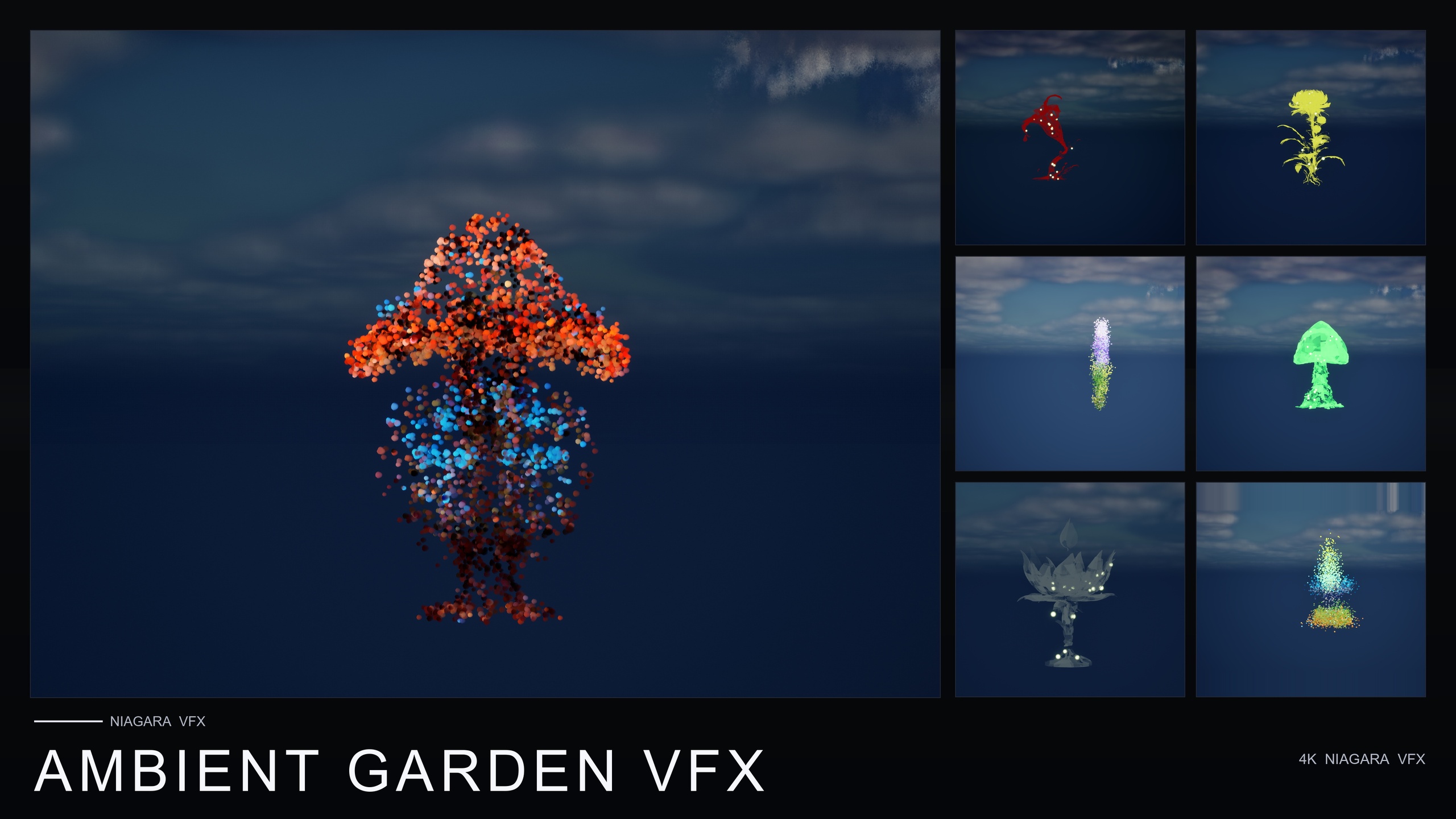
The complete Fantasy Flower collection — 750 ready-to-use Niagara systems spanning all 15 VFX families, from spell gardens and cosmic blooms to dark, crystal, steampunk and sci-fi sets. 51 stylised flower meshes, 331 material instances, CPU-simulated for Windows, Mac and Linux, with 15 demo levels — one per family. Content-only: no C++, no Blueprints, no plugin dependencies.
Related on Fab
Related reading