tutorial · 2026-01-25
How to Use a Free Niagara VFX Pack in UE5: Getting Started with Mayan Glyphs
Add the free 12-glyph Mayan sampler to a project, open the demo map, and spawn a glowing inscription from Blueprint in minutes.
Why start with a free Niagara glyph pack
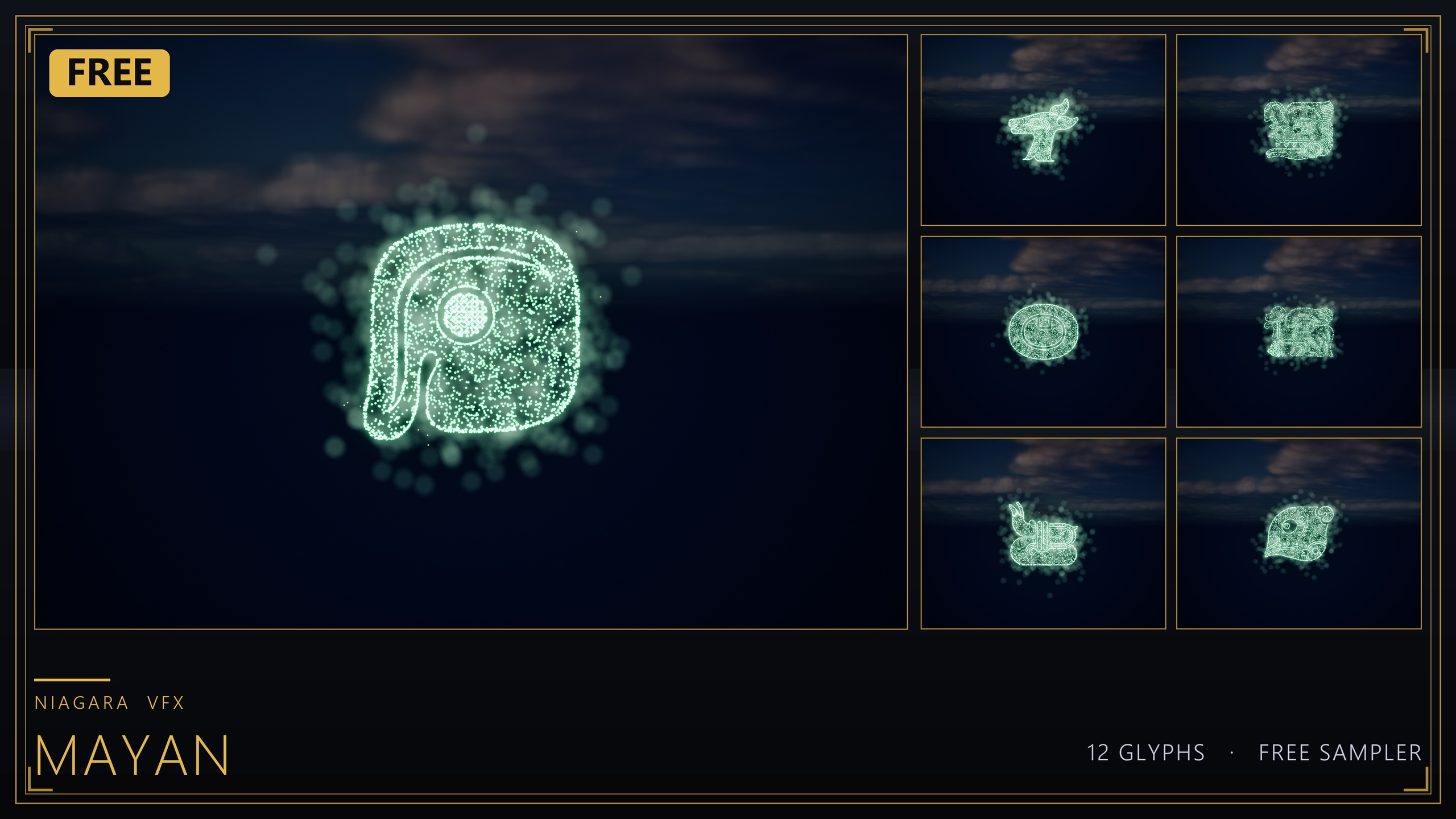
If you have searched for a free Niagara VFX pack and want to know how to use it in Unreal Engine without fighting custom materials, missing textures or a fragile setup, this is the cleanest way in. Niagara Mayan Glyphs is a free 12-glyph sampler of Mesoamerican Maya glyphs, supplied as spawnable Niagara systems with matching static meshes and a ready-to-open demo map. It is a hand-picked subset of the larger 26-glyph Mayan set and exists specifically as the no-cost entry point into the Ancient Scripts line.
The reason it is genuinely friction-free is technical, not marketing. Every effect in the pack is CPU-simulated and uses only engine-default materials plus the Niagara default sprite material. There are zero custom textures, zero material instances and zero Blueprints to wire up. That means the moment the content lands in your project, it renders correctly with nothing else to configure, which is exactly what you want when you are evaluating a pack or prototyping a scene.
It is also cleared for commercial use under the standard Fab licence, so anything you build with it can ship. The pack is listed for Windows and Mac. Treat the 12 glyphs as a sampler rather than a full writing system: they are 12 of a 26-glyph Maya set, ideal for set dressing, lore drops and learning the workflow before you commit to the full library.
Adding the free pack to your project
Because this is a content pack and not a code plugin, adding it is just a matter of getting the assets into your project's Content folder. Acquire the free pack on Fab, then add it to a UE5 project from the Fab library or the Epic Games Launcher's Vault, or copy the content into your project directly.
1. Open the Unreal Editor with the project you want to use the glyphs in. The source is authored in UE5.4 and the product is listed for UE 5.4 to 5.7, so use an engine version in that range.
2. Add the pack to the project. Once it has imported, you will see a new folder of content containing the 12 Niagara systems, the 12 matching static meshes in a Meshes/Mayan folder, and the demo map.
3. In the Content Browser, confirm you can see the systems named NS_mayan_glyph_ followed by a glyph code, such as NS_mayan_glyph_UB through to NS_mayan_glyph_UZ. Those NS_ assets are the spawnable effects you will drop into the world.
There is nothing to enable in 'Plugins', no project restart, and no material setup. Engine-default materials mean the glyphs are ready the instant the import finishes.
Opening the L_Demo_Mayan demo map
Before placing anything yourself, open the included demo so you can see what each glyph actually looks like lit and in context. The pack ships one demo map, L_Demo_Mayan, with all 12 glyphs laid out and lit.
Find L_Demo_Mayan in the Content Browser and double-click it to open the level. Each of the 12 glyph systems is arranged so you can compare them side by side, which makes it easy to pick the symbol you want and to judge the default colour and glow.
The glow you see comes from the sprite colour driving the engine's bloom post-process. Keep bloom enabled in your scene's post-process settings, otherwise the glyphs will read flat. If you want to retune the look, this is the map to experiment in first, since it already has the lighting and exposure set up to show the effect honestly.
Dragging a glyph system into your level
Placing a glyph in your own level is a drag-and-drop operation. Find the NS_ Niagara system you want in the Content Browser and drag it directly into the viewport. Unreal creates a Niagara actor at the drop point and the effect begins simulating immediately.
Position it like any other actor using the move, rotate and scale gizmos. Because the systems are CPU-simulated, you can stack several in a scene to assemble a short inscription, but treat the per-scene count as something to keep modest rather than spawning hundreds at once.
To recolour a glyph, select its system and edit the sprite colour on the emitters. Keep the HDR values modest so the bloom tints the glyph rather than blowing it out to white. If you want a permanent variant, duplicate the system and edit the copy so the original stays intact. For physical carved inscriptions, place the matching static meshes from the Meshes/Mayan folder into the world and light them with emissive materials, then sit a glowing Niagara system on top for a temple frieze that ignites as a torch passes.
Spawning a glyph from Blueprint
Dragging assets in is fine for set dressing, but most gameplay uses want the glyph to appear on cue, for a puzzle solve, a torch passing, or a codex-page reveal. For that you spawn the system at runtime from Blueprint.
1. Open the Blueprint where the event should trigger, for example a Level Blueprint or an interactable actor.
2. From the event you want to drive the effect, such as an overlap or an input action, drag off the execution pin and add the 'Spawn System at Location' node to place a one-shot effect in world space, or 'Spawn System Attached' to parent it to a component such as a torch or a prop.
3. Set the node's 'System Template' to the NS_ glyph you want, for instance NS_mayan_glyph_UB.
4. Feed in the transform. For 'Spawn System at Location', supply the world location and rotation where the glyph should appear; for the attached variant, pick the parent component and a socket or offset.
5. Compile and play. The glyph spawns at the moment the event fires, simulates, and renders with the engine-default materials, so no extra setup is needed at runtime.
Because there are no Blueprints baked into the pack and no custom materials to resolve, the spawn path is exactly the standard Niagara workflow with nothing pack-specific to learn.
When to step up from the free sampler
The free pack is a deliberate slice. You get 12 of the 26 Maya glyphs, which is plenty to learn the workflow and dress a scene, but not a complete script. When you need the full Maya set or a different writing system, there is a direct upgrade path within the same family, and the workflow you just learned carries over unchanged.
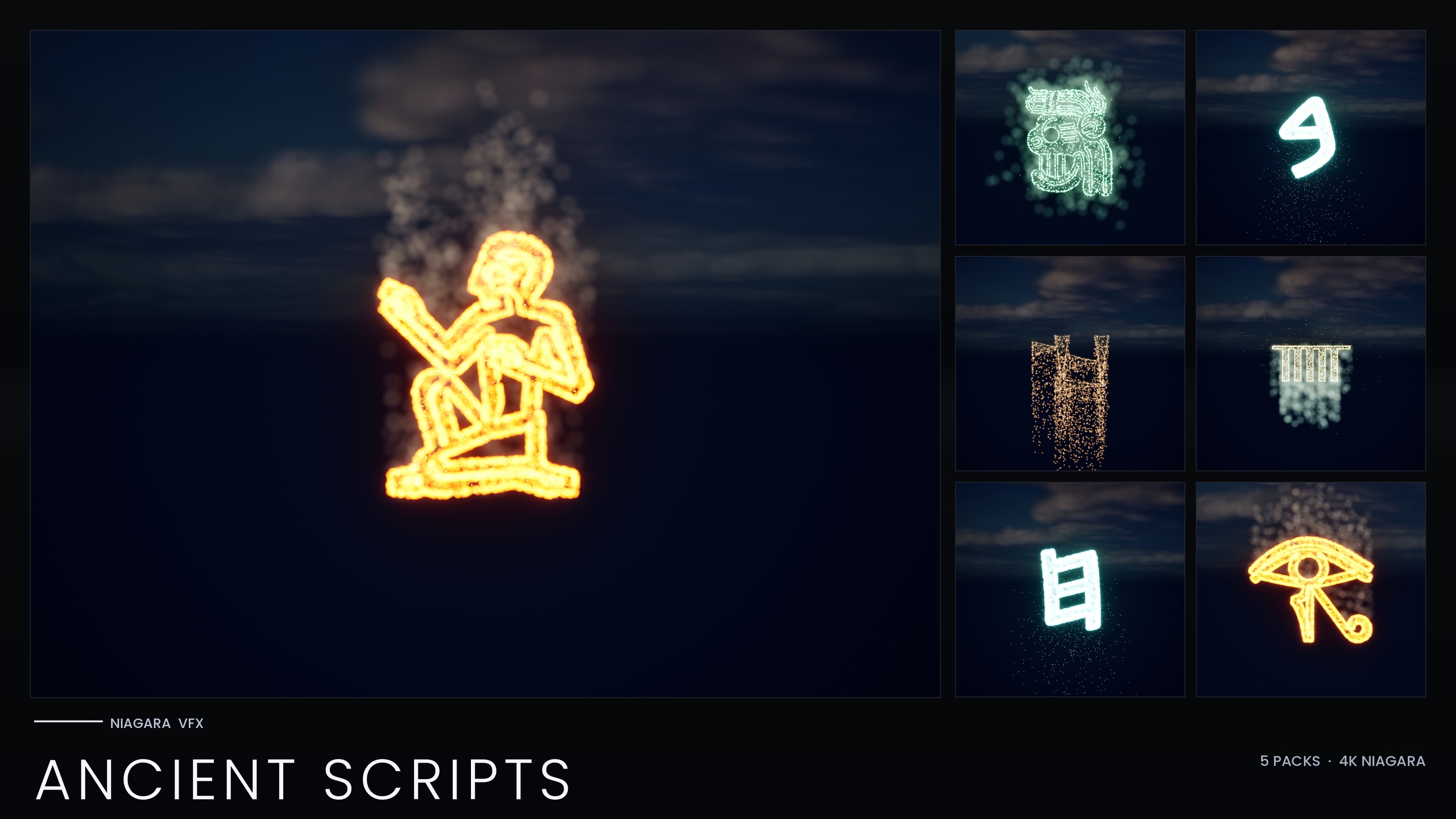
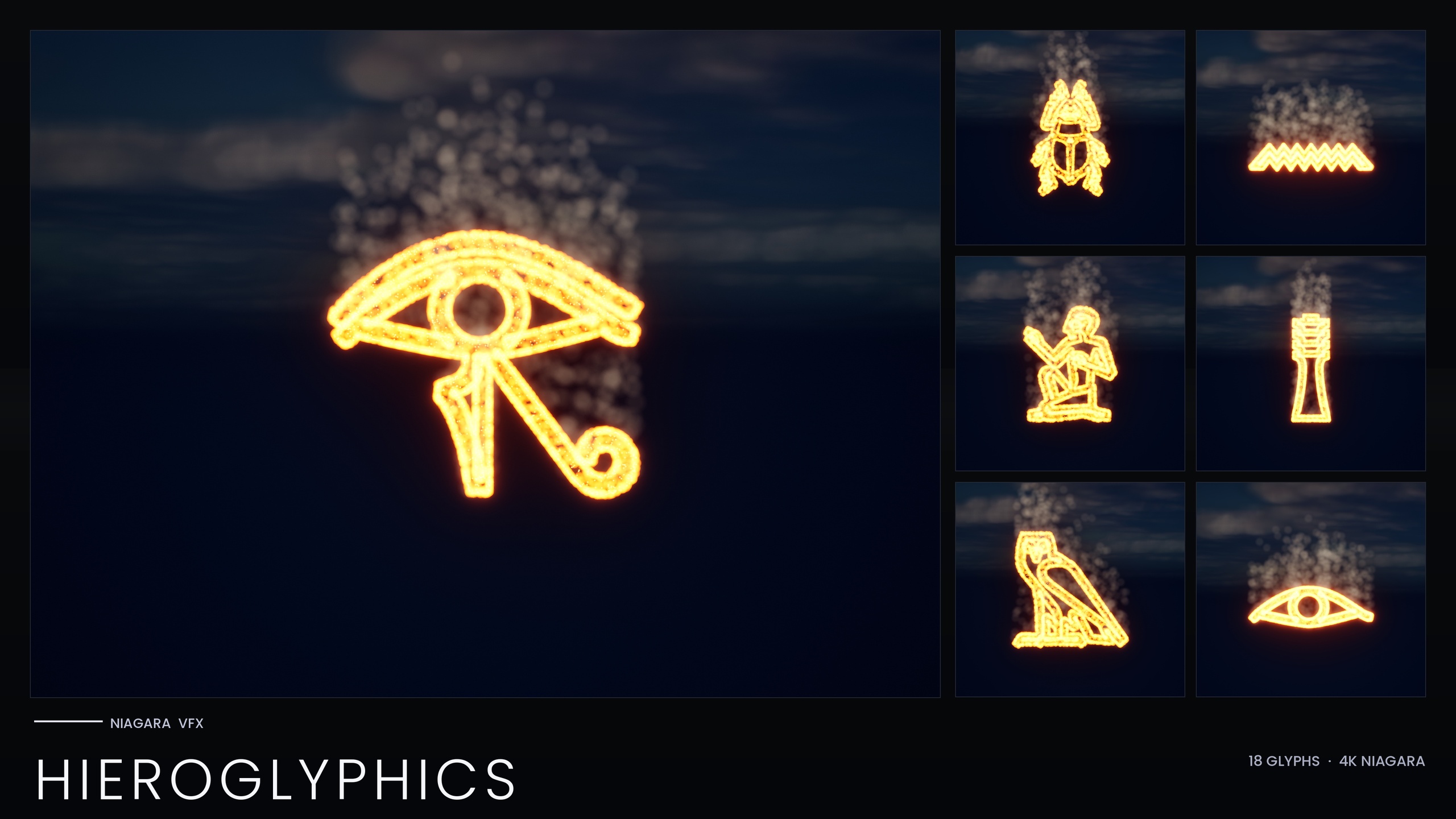
The Niagara Ancient Scripts Pack widens the net to 114 Niagara systems and 114 static meshes across five real writing systems: Egyptian Hieroglyphics, Cuneiform, Mayan, Ogham and Phoenician. It adds a Niagara Parameter Collection so a whole script recolours and re-times from a single asset edit, and splits its content across five demo maps to keep preview load manageable. If you only need Egyptian, the Niagara Hieroglyphics Pack is a focused 18-glyph set built from a three-emitter core, glow and smoke recipe, driven by its own NPC_HieroglyphicsStyle collection.
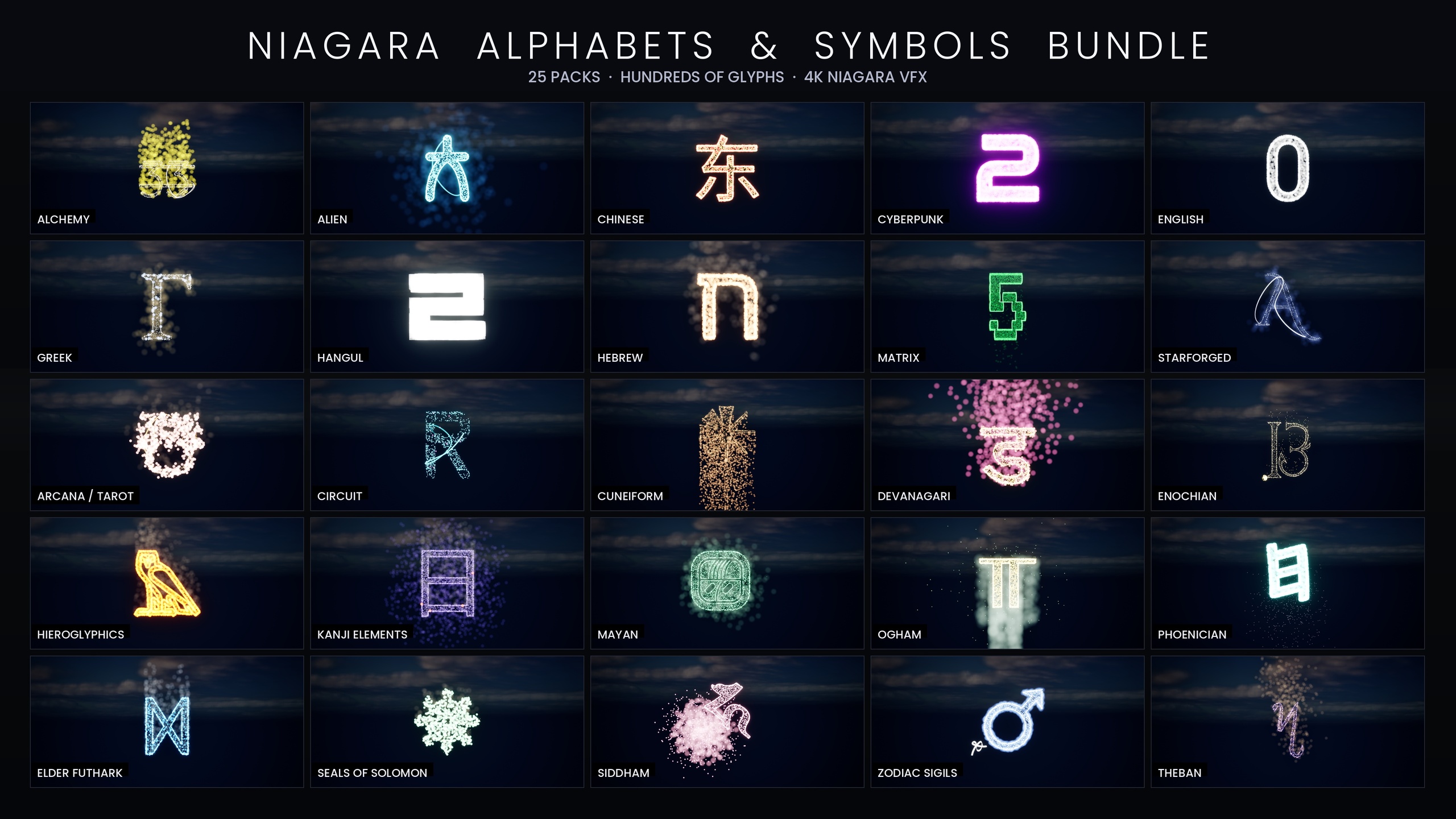
If you expect to need multiple alphabets over time, the Niagara Alphabet & Symbols Bundle is the superset: 687 Niagara systems and 688 static meshes across 25 themed sets, from runes and tarot to Matrix code rain and cyberpunk signage. It is the library that contains the Ancient Scripts, Hieroglyphics and Mayan content as subsets. Start with the free Mayan sampler, get comfortable with the spawn-and-recolour loop, then pick the tier that matches how many scripts your project actually needs.
Where the free Mayan sampler sits in the glyph line
| Pack | Niagara systems | Coverage | Price |
|---|---|---|---|
| Niagara Mayan Glyphs (free sampler) | 12 | 12 of the 26-glyph Maya set | Free |
| Niagara Hieroglyphics Pack | 18 | Egyptian hieroglyphs only | Paid |
| Niagara Ancient Scripts Pack | 114 | 5 ancient scripts incl. full Mayan | Paid |
| Niagara Alphabet & Symbols Bundle | 687 | 25 themed sets (full library) | Paid |
Counts are from each product's listing and dossier. The free sampler is a subset of the larger packs.
FAQ
How do I use a free Niagara VFX pack in Unreal Engine?
Add the content pack to your project so the assets land in the Content folder, open the included demo map to preview the effects, then either drag an NS_ Niagara system into the viewport or spawn it from Blueprint with the 'Spawn System at Location' or 'Spawn System Attached' node. The Mayan Glyphs sampler needs no material or texture setup because it uses engine-default materials only.
Do I need to set up materials or textures for the Mayan Glyphs pack?
No. The pack ships with zero custom materials, zero textures, zero material instances and zero Blueprints. It uses the engine-default material and the Niagara default sprite material, so the glyphs render correctly the moment the import finishes.
Why do the glyphs look flat or dim in my scene?
The glow comes from the sprite colour driving the engine's bloom post-process. Make sure bloom is enabled in your post-process settings. When recolouring, keep HDR colour values modest so the bloom tints the glyph rather than blowing it out to white.
Can I use the free pack in a commercial game?
Yes. The pack is cleared for commercial use under the standard Fab licence. It is listed for Windows and Mac.
What if I need more than 12 glyphs?
The free sampler is 12 of a 26-glyph Maya set. For the full Maya set plus four other scripts, step up to the Ancient Scripts Pack (114 systems); for a single script use the Hieroglyphics Pack; and for the complete 687-system library across 25 themed sets, use the Alphabet & Symbols Bundle. The spawn-and-recolour workflow is identical across all of them.
Niagara Mayan Glyphs
Twelve Mayan glyph Niagara systems, free — CPU-simulated and demo-ready, using engine-default materials for a near-zero footprint. A taste of the Niagara Ancient Scripts pack.
Related on Fab
Related reading