
tutorial · 2026-02-26
How to Generate a Niagara VFX Effect from a Text Prompt in UE5
A practical walkthrough of turning a plain-English description into a baked, game-ready Niagara spritesheet system inside the Unreal editor.
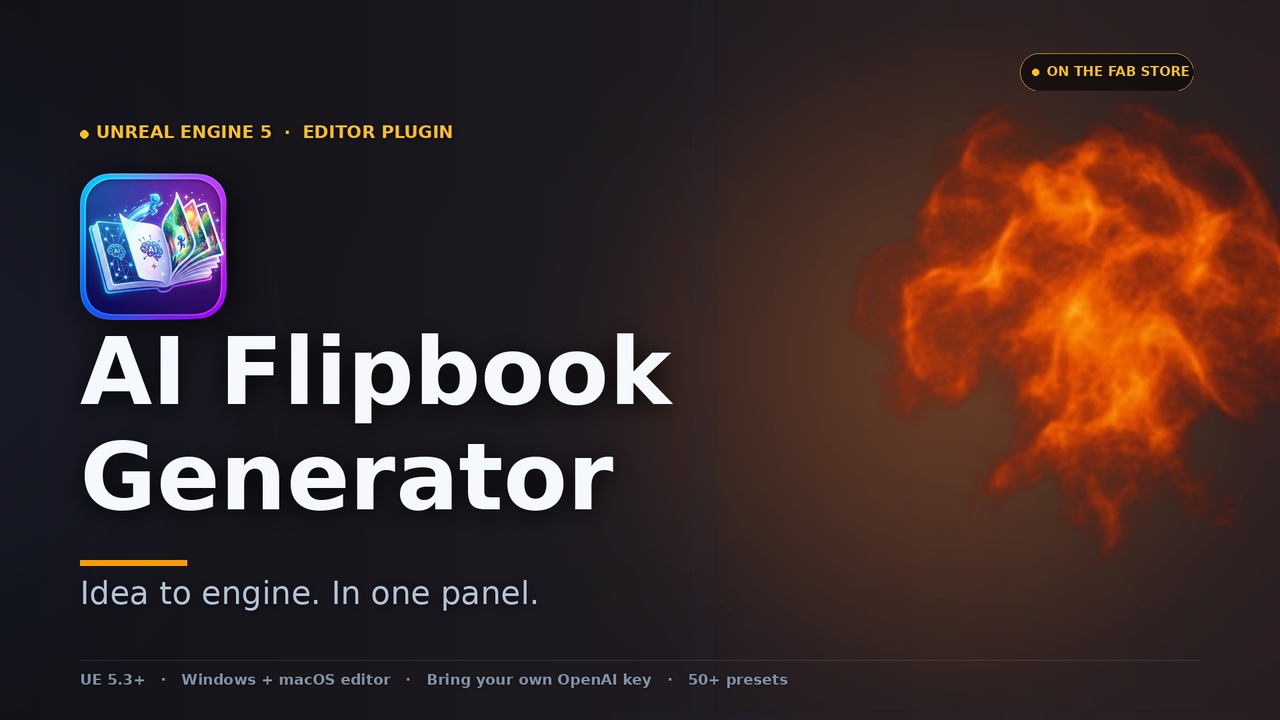
What you are actually generating: a flipbook (sub-UV) effect
If you have ever needed an explosion, a fireball or a swirling magic ring in a hurry, you have probably hit the same wall: hand-authoring VFX in Niagara is its own craft, and most working developers do not have a dedicated VFX artist on call. This guide shows you how to make Niagara VFX from a text prompt in UE5 instead — describing the effect you want in plain English and baking the result straight into a game-ready Niagara System, without painting a single frame by hand.
The technique rests on an old, reliable trick: the flipbook, also called a sub-UV effect. Rather than simulating thousands of particles, you render the whole animation as a grid of frames on one texture — a spritesheet — and let a single sprite cycle through the cells over time. It is cheap to render, predictable, and ships everywhere. The catch has always been authoring the spritesheet itself, which is exactly the part AI-generated VFX in Unreal can shoulder for you.
The tool this walkthrough is built around is AI Flipbook Generator, a UE5 editor plugin that wraps OpenAI's image models in an opinionated flipbook authoring panel. You describe an effect, pick a grid size, and it composes a strict prompt, sends a grid template plus a gutter-locking mask to OpenAI's image-edits endpoint, post-processes the returned spritesheet, and bakes it one-click into a Texture2D, a Material Instance and a fully-configured Niagara System. Everything below assumes that plugin is installed and enabled.
Step 1: enable the plugin and add your OpenAI API key
AI Flipbook Generator uses your own OpenAI API key, billed directly by OpenAI — nothing is proxied through the seller, and the key never leaves your machine. That means the first thing you need is an OpenAI account with image access of your own; the plugin supplies the workflow, not the model credits.
1. Enable the plugin in 'Edit' then 'Plugins'. The required engine plugin 'Niagara' enables automatically alongside it, so you do not need to hunt for it separately. Restart the editor if prompted.
2. Open the AI Flipbook Generator panel from the 'Window' or 'Tools' menu. It docks like any other editor tab.
3. Paste your OpenAI API key into the panel settings. It is stored per-user in 'EditorPerProjectUserSettings.ini' and is never committed to source control, so it will not leak into your repository or ship in a build.
One housekeeping note before you generate anything: the plugin needs outbound HTTPS to api.openai.com, and OpenAI's image calls can be slow — the panel enforces a generous per-model timeout floor because a single image can exceed 170 seconds. If you are behind a restrictive corporate firewall, clear that route first.
Step 2: write an effective effect prompt
A flipbook prompt is not the same as a still-image prompt. You are describing one moment of an animation that will be tiled across a grid, so be concrete about the subject and its motion, and let the tool handle the framing. Describe the effect, its colour, and how it should evolve across the sequence — for example, a fireball that ignites, expands and dissipates — rather than just naming a noun.
You do not have to start from a blank box. The plugin ships with a built-in, editable effect library (EffectCatalog.json) of starter prompts spread across Fire, Smoke, Water, Magic, Impact, Beam, Lightning, Decal and Buff. The sidebar gives you a category filter, substring search, and one-click append, so you can drop a vetted prompt in and tweak it rather than guessing at phrasing cold. The catalogue is yours to edit, so you can grow it with prompts that work for your project.
Keep the description focused on the effect itself. The panel's strict prompt assembly already handles the spritesheet geometry — the grid, the gutters, the cell-by-cell progression — so you do not need to mention frames, grids or sheets in your own wording. Spend your words on the look and the motion.
Step 3: choose grid, view, background and style
Four axes shape the output before you ever hit Generate, and getting them right up front saves you re-rolls later.
Grid size sets how many frames your animation holds: 4x4 gives you 16 frames, 6x6 gives you 36, and 8x8 gives you 64. More frames mean smoother motion but also a busier prompt for the model to satisfy per cell, so reach for a denser grid only when the motion genuinely needs it; a punchy impact reads fine at 16 frames, while a slow, churning smoke plume benefits from more.
View preset decides the camera relationship. The side-on (camera-facing sprite) preset is what you want for the classic billboard effect — fire, explosions, beams that face the player. The top-down (decal) preset is tuned for ground effects you lay flat on the floor: AoE rings, runes, scorch marks and ripples. Each preset applies its own tuned prompt preamble, so pick the one that matches how the effect will sit in the world.
Background key colour controls how cleanly the effect is cut out. You get three choices — Magenta (#FF00FF), Lime green (#00FF00) and Black (#000000) — each tuned to a different palette so the chroma-key step has the cleanest possible edge to work with. Pick a key that contrasts your effect: black tends to fight glowing fire, while magenta or lime give the keyer a clearer signal.
Style axes are optional. Four dropdowns — Visual Style (eight options including realistic, pixel art and anime), Palette (eight, from warm and cool to toxic, arcane and monochrome), Mood (eight) and Detail Level (three) — layer onto the prompt. Each defaults to None, so the prompt stays untouched until you deliberately pin one. They are the lever for producing an art-direction-consistent effect set across a whole project rather than one-off looks.
Step 4: generate variants and pick the best
Image models are stochastic, so the smart move is to generate more than one candidate and choose. Set the variant count — you can fire 1 to 4 variants per Generate click — and two is a sensible default that gives you a choice without burning through calls.
When you click Generate, the requests fire in parallel, sharing one cancel token, and each variant lands in the in-panel gallery as it returns. A horizontal progress bar tracks each call against its network timeout, and the panel shows a cost preview plus a running session total so you always know roughly what the batch is costing. Treat that figure as an estimate, by the way: it is an in-panel approximation and your OpenAI invoice is the authoritative number.
Behind the gallery, an adaptive image pipeline is doing the unglamorous work that makes the result usable. It auto-detects the actual cell count the model returned (image models sometimes drift to 5x5 or 6x8 even when asked for a clean grid), finds the real cell boundaries from the alpha-density signal, chroma-keys the background using the auto-detected key colour, removes the de-spill colour fringe, re-centres each cell's alpha to kill frame bounce, and outputs premultiplied alpha. That is the difference between a raw AI image and a spritesheet that actually animates cleanly.
If a generation is close but not quite right, you do not have to rewrite the prompt from scratch. The 'Refine with feedback' option sends the latest image plus your written critique to a vision chat model and returns a diagnosis paragraph alongside a revised prompt that is ready to fire — useful for nudging a near-miss toward intent rather than starting over. Note that which models are available to you (the image and vision models alike) depends on your own OpenAI account and OpenAI's current offerings; a model your account cannot reach returns a clean 404.
Step 5: bake to Texture, Material and Niagara System
Once you have a variant you are happy with, the bake turns it into real engine assets in three stages. Select the best variant in the gallery, then run the bake.
1. Texture2D first. The cleaned, keyed spritesheet is written out as a texture asset in your project.
2. Material Instance next. You choose the blend mode that suits the effect — Translucent, Additive or AlphaComposite. Additive is the natural fit for glowing fire, sparks and energy; Translucent or AlphaComposite suit smoke, water and anything that should occlude what is behind it.
3. Niagara System last. The bake duplicates the engine's default sprite-flipbook template, swaps in your new sprite renderer material, and sets the SubUV rows and columns to match your grid. Critically, it exposes sub-UV cycling, sprite size and animation duration as runtime-overridable User parameters — so you can retime and resize the same effect per instance without re-baking.
Every generation also leaves a per-iteration debug dump under 'Saved/AIFlipbook/Iterations/<timestamp>/', capturing the exact prompt, grid template, mask, raw response and post-processed bitmap. If a bake ever looks wrong, that folder is where you go to see precisely what the model was asked and what it sent back. The generated images live only inside your project's 'Saved/' folder.
Step 6: drop it into a level
The output of the bake is an ordinary Niagara System, so placing it is the standard workflow. Drag the baked Niagara System asset from the Content Browser into your level, or spawn it from Blueprint with a node such as 'Spawn System at Location' or 'Spawn System Attached' for an effect that should follow an actor.
Because the bake exposed sub-UV cycling, sprite size and animation duration as User parameters, you can tune the effect in context without returning to the generator. Override the sprite size so the explosion reads at the right scale for your scene, adjust the duration to match a gameplay beat, or drive the cycling rate from Blueprint. The same baked asset can serve several situations once you are overriding those parameters per use.
From here it behaves like any hand-authored flipbook system: it works in cooked Windows builds, it costs what a single cycling sprite costs, and it slots into your existing VFX pooling and spawning conventions. The point of the whole pipeline is that you got there from a sentence of plain English rather than an afternoon in the Niagara editor.
Where this fits in a real production
Be clear-eyed about what this is for. AI-generated flipbooks are outstanding for rapid prototyping of explosion, fire, smoke, magic and water effects during pre-production, for placeholder spritesheets while you wait on hand-authored hero VFX, and for solo or small teams that need shippable effects with no VFX specialist on staff. With the style axes pinned, they are also a fast route to an art-direction-consistent effect set. They are not a wholesale replacement for a senior VFX artist authoring bespoke hero moments — and the plugin does not pretend to be.
A few honest constraints worth knowing up front: the shipped plugin runs in the Windows editor, the listing supports Unreal Engine 5.3 and newer, and you are bringing and paying for your own OpenAI access. Generation time and quality depend on OpenAI's models on the day; the documentation describes effects usually taking under two minutes as a typical figure, not a guarantee. Plan around it as a fast iteration tool, not a deterministic asset press.
If you want to keep going, two next steps pay off. First, build out the effect library with prompts that work for your art direction, so your team is appending vetted starting points rather than re-deriving phrasing. Second, once you have a baked system in a level, capture and inspect it the way you would any other VFX — which is where the related tools below come in.
Choosing a grid size
| Grid | Frames | Best for |
|---|---|---|
| 4x4 | 16 | Punchy, fast effects: impacts, sparks, quick bursts |
| 6x6 | 36 | General-purpose fire, magic and beams |
| 8x8 | 64 | Slow, churning motion: rolling smoke, dense plumes |
More frames mean smoother motion but a busier prompt for the model to satisfy per cell. Match the grid to how much motion the effect needs.
View preset and material blend, by effect type
| Effect | View preset | Suggested blend |
|---|---|---|
| Fire / explosion / sparks | Side-on (sprite) | Additive |
| Smoke / water / dust | Side-on (sprite) | Translucent or AlphaComposite |
| AoE ring / rune / scorch / ripple | Top-down (decal) | Translucent or AlphaComposite |
View preset decides the camera relationship; blend mode is chosen at the Material Instance bake step. Guidance only — pick what reads best in your scene.
FAQ
How do I make Niagara VFX from a text prompt in UE5?
Install and enable AI Flipbook Generator, add your own OpenAI API key in the panel, type a plain-English description of the effect, pick a grid (4x4, 6x6 or 8x8) and a view preset, generate one to four variants, select the best, then bake. The bake produces a Texture2D, a Material Instance and a fully-configured Niagara System you can drag straight into a level.
Do I need my own OpenAI API key, and who pays for the images?
Yes. The plugin is bring-your-own-key: it calls OpenAI directly using a key you store per-user in the editor, and OpenAI bills you. Nothing is proxied through the seller and the key never leaves your machine. The panel shows an in-app cost estimate, but your OpenAI invoice is the authoritative figure.
Which engine versions and platforms does it support?
The listing supports Unreal Engine 5.3 and newer, and the shipped plugin runs in the Windows editor. It also requires the engine's Niagara plugin, which it enables for you automatically.
Can I make ground decals like AoE rings and runes, not just billboard effects?
Yes. Switch the view preset to top-down (decal), which applies a tuned prompt preamble for flat ground effects such as area rings, runes, scorch marks and ripples, then bake as normal.
A generation is close but not quite right. Do I have to rewrite the prompt?
No. Use 'Refine with feedback': send the latest image plus a written critique to a vision model and it returns a diagnosis plus a revised prompt ready to fire, so you can nudge a near-miss toward intent instead of starting over. You can also inspect the per-iteration dump under Saved/AIFlipbook/Iterations to see exactly what was sent.
AI Flipbook Generator
Type a prompt, get a game-ready effect. AI Flipbook Generator turns text into flipbook spritesheets via OpenAI image models, then bakes them to Texture2D, Material Instance and a ready-to-drop Niagara System — with a 55-entry effect library, style presets and multi-variant batching. Uses your own OpenAI API key; nothing is proxied through us.
Related on Fab
Related reading