
tutorial · 2026-03-25
Controlling Overlapping Terrain Features with Stamp Priority in UE5
When two landscape stamps cover the same ground, here is exactly how to decide which one wins.

The overlap problem: two stamps, one patch of ground
Once you start blocking out terrain with stamps, overlap is inevitable. You drop a mountain range, then push a volcano into its flank; you lay a river that cuts through a hill. The moment two stamps cover the same area, Unreal needs a rule for which one wins, because the same XY footprint cannot show two heights at once. Without a deliberate rule you get muddy results where the last-placed edit quietly dominates.
This is the classic unreal overlapping landscape edits problem, and Landstamp Pro is built to make it deterministic. Because the plugin drives Unreal's built-in Landscape Patch system, every stamp you place is an ALandstampActor that stays editable after placement - nothing is baked into the heightmap, so you control how overlapping stamps resolve rather than discover it after the fact.
Two settings govern the outcome. Priority decides which stamp renders on top where they overlap; blend mode and blend distance decide how the winning stamp's edge merges into what is underneath. Get both right and a volcano sits convincingly inside a mountain range; get them wrong and the seam shows.
The 10-level priority system
Landstamp Pro exposes a 10-level priority system through the EStampPriority enum. Higher priority renders on top of lower priority where two stamps share ground, and a freshly placed stamp defaults to level 5. That midpoint default is deliberate: it leaves you headroom in both directions, so you can promote a stamp above its neighbours or push one beneath them without re-numbering everything else. Treat it as a stacking order - a broad base landform belongs at a low priority, while a sharp feature you want to punch through that base belongs at a high one.
1. Select the stamp you want to sit on top in the level - this spawns or selects its ALandstampActor.
2. In the 'Details' panel, find the priority property and raise it above the stamp it should override; the default is 5, so a feature you want on top might go to 7 or 8.
3. Lower the priority on the stamp that should act as the base layer if you would rather demote it than promote everything else.
4. Use 'Preview Stamp' to see the resolved overlap before you commit, and 'Apply To Landscape' to write it; 'Clear Preview' discards the preview if it is not what you wanted.
Worked example: combining a volcano into a mountain range
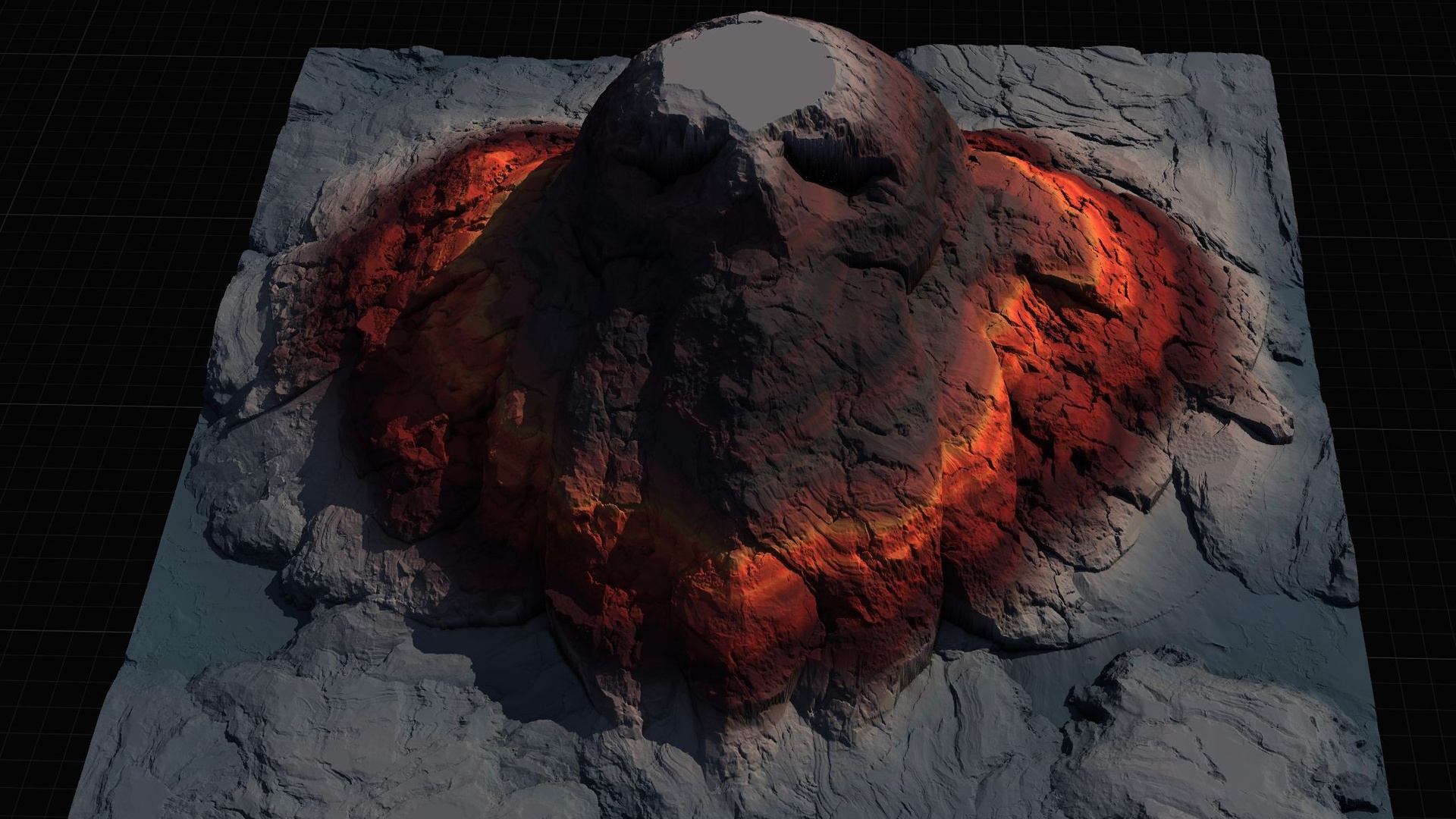
Here is the canonical overlap case. You have a mountain-range stamp placed and you want a volcano to sit inside it - a sharp cone rising out of the surrounding peaks rather than fighting them. Landstamp Pro ships stamps in categories including Mountain and Volcano, so both shapes come from the library; the only question is how they resolve where they touch.
Leave the mountain range at the default priority of 5 as your base landform. Place the volcano over the flank where you want the cone and raise its priority above the mountain so it renders on top in the overlap. Keep the volcano on the Additive blend mode to build its cone up from the existing peaks, or use Maximum so the higher of the two surfaces wins at every point and the volcano never sinks the range.
If the cone needs to be taller, adjust HeightIntensity on the volcano - the range runs from -2 to 2, and a negative value inverts the shape, turning the same cone into a caldera depression. Preview, judge the silhouette, and apply. Because nothing is baked, you can return later to slide the volcano along the range, re-scale it, or drop its priority to blend it down into the surrounding terrain.
Blend distance presets vs a manual blend distance
Priority decides who wins; blend distance decides how cleanly the winner's edge dissolves into what is underneath. A volcano that wins the overlap but ends in a hard rim still looks pasted on, so the falloff at the boundary is what sells the composition. Landstamp Pro gives you falloff shapes - Circle, Rounded Rectangle and Square - and, separately, control over how far that falloff reaches.
The simplest route is the blend-distance presets, which scale with the stamp's size rather than being a fixed number of metres. They run from Tiny, roughly 5% of the stamp, through to Massive at around 75%. Because they are proportional, the same preset reads consistently on a 1000 m Small stamp or a 20000 m Massive one, keeping your blends coherent as you re-scale features during blockout.
When you need an exact transition - matching one stamp's falloff precisely to a neighbour, or feathering a river into a hillside over a specific width - switch the blend preset to Manual. ManualBlendDistance is used only when the preset is Manual, letting you dial in the falloff width directly instead of inheriting it from the stamp size. Use the presets while you are blocking out and overlap keeps changing; use a manual blend distance when a particular seam must be exact.
Next step: build the overlap, then refine it
The practical workflow is to get the stacking order right with priority first, then tidy the seams with blend mode and blend distance, and only then sweat per-stamp height. Because every edit is a live Landscape Patch component, you are never locked in. For overlapping landscapes specifically, turn off auto-targeting and set TargetLandscape explicitly so each stamp resolves to the landscape you intend. When you need shapes the library lacks, the mesh-to-heightmap extractor turns any static mesh into a new stamp.
Blend-distance presets scale with stamp size
| Preset | Approx. falloff | Best for |
|---|---|---|
| Tiny | ~5% of stamp | Crisp features that need a tight edge |
| Massive | ~75% of stamp | Broad landforms that should melt into surroundings |
| Manual | ManualBlendDistance | Exact, hand-tuned seams between specific stamps |
Presets are proportional to the stamp footprint, so the same preset reads consistently across stamp sizes. Switch the preset to Manual to set ManualBlendDistance directly.
FAQ
With unreal overlapping landscape edits, which one wins?
The stamp with the higher priority wins where two stamps overlap. Landstamp Pro uses a 10-level priority system (EStampPriority); higher priority renders on top, and a newly placed stamp defaults to level 5. Raise a stamp's priority to push it on top, or lower it to demote it beneath a base landform.
What is the difference between priority and blend mode?
Priority decides which stamp renders on top in the overlap; blend mode (Additive, Subtractive, Replace, Maximum or Minimum) decides how the winning stamp's height combines with what is underneath. For a volcano inside a mountain range, raise the volcano's priority and use Additive to build it up, or Maximum so the higher surface always wins.
When should I use a manual blend distance instead of a preset?
Use the presets (Tiny ~5% up to Massive ~75% of stamp size) while blocking out, because they scale automatically with stamp size and stay consistent as you re-scale. Switch the blend preset to Manual and set ManualBlendDistance when you need an exact falloff width, for example to match one stamp's seam precisely to a neighbour.
Do overlapping stamps damage the landscape permanently?
No. Landstamp Pro builds on Unreal's Landscape Patch system, so every stamp stays editable after placement. You can re-order priority, change blend mode and blend distance, move or re-scale stamps, and re-evaluate the overlap as many times as you like without baking anything into the landscape.
Landstamp Pro
Sculpt production terrains in minutes, not hours. Landstamp Pro is a professional heightmap stamping system for Unreal Engine — combine, layer and blend stamps with precise control and real-time preview, fully non-destructive.
Related on Fab
Related reading