
tutorial · 2026-03-19
How to Add a Fab Content Pack to an Unreal Engine 5 Project
Add to Project versus Migrate, where the files land, fixing redirectors, and matching engine versions — the complete workflow for installing a Fab pack cleanly.
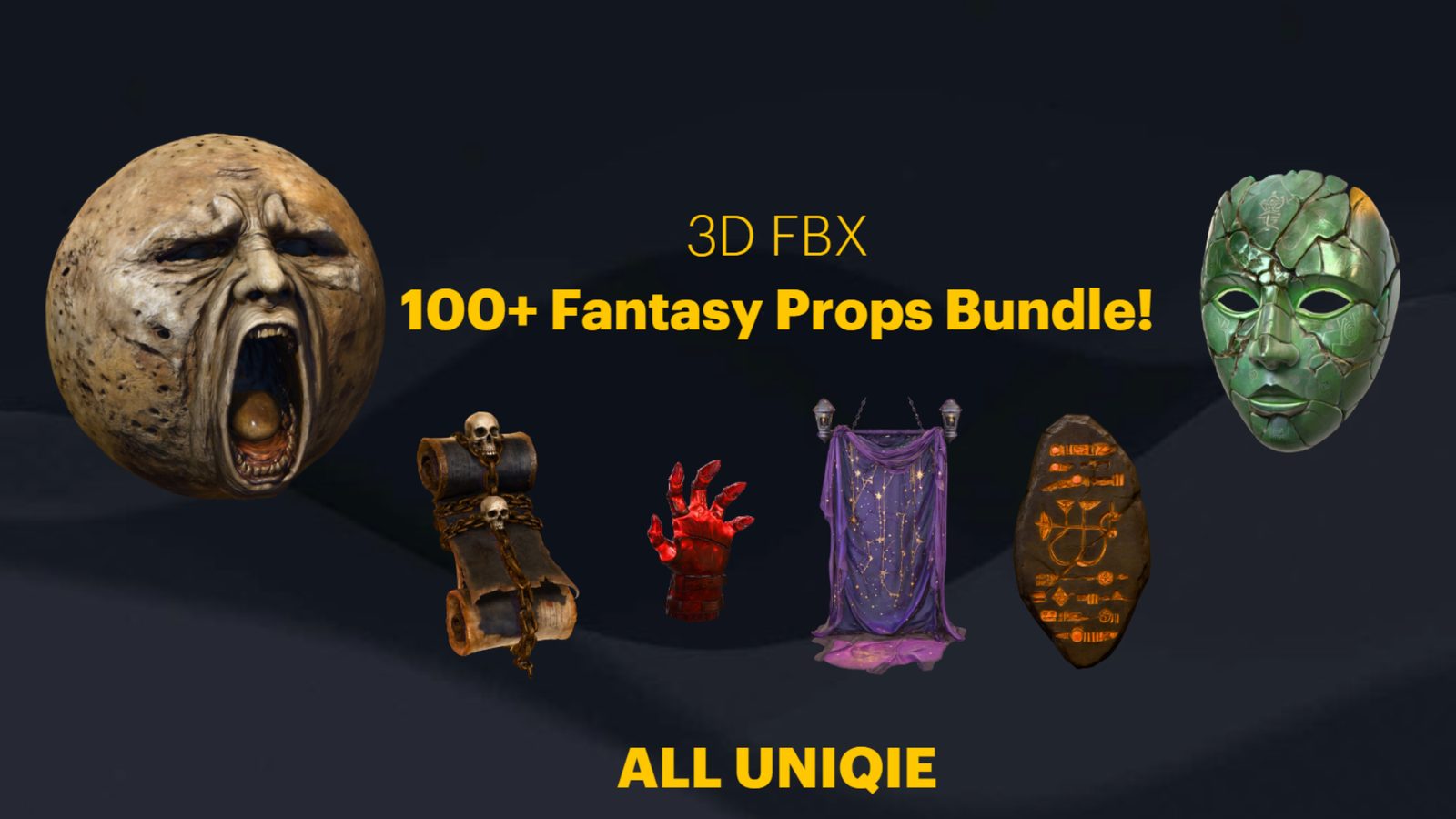
Two ways a Fab pack reaches your level
Most Fab packs are not plugins — they are self-contained content. The Dark Fantasy Props Bundle, for example, ships as a complete Unreal project (DarkFantasyPropPack.uproject) built on Unreal Engine 5.6, with a Demo.umap that arranges all of its gothic static meshes so you can see them before you commit. That distinction shapes everything that follows: there is no module to enable, no build step, only assets that need to end up in the right folder of your own project.
If you want to know how to add a Fab content pack to your Unreal project, there are two supported routes and they behave very differently. The first is 'Add to Project', offered straight from the Epic Games Launcher (and the Fab library inside it) for packs that expose a vault entry. The launcher copies the pack's content folder directly into a project you select, with no extra clicks. The second is 'Migrate', driven from inside the editor when you already have the pack open as its own project — you right-click the content and push it across into the destination project yourself.
Use 'Add to Project' when the launcher offers it and the engine versions already line up; it is the fastest path and it preserves the pack's internal folder layout for you. Use 'Migrate' when the pack arrives as a downloadable project (as the Dark Fantasy Props Bundle does), when you need to bring across only part of a pack, or when you want full control over exactly which referenced assets travel along for the ride. The rest of this guide assumes the Migrate route, because it is the one that rewards understanding and the one most likely to leave broken references if you rush it.
Migrate, step by step
1. Open the pack as its own project first. Launch DarkFantasyPropPack.uproject in Unreal Engine 5.6 and let it finish compiling shaders. Opening the included Demo.umap is worth the minute — it confirms the assets imported intact and shows you the props arranged and lit, which is your reference for what 'correct' looks like once they reach the new project.
2. Locate the pack's top-level content folder in the Content Browser. For this bundle that is the DarkFantasyPropsBundle100ArtefactsAndOddities folder, which holds the Meshes and the matching materials. Keeping the migration scoped to that single root folder is what keeps the operation predictable.
3. Right-click the folder and choose 'Asset Actions', then 'Migrate'. Unreal walks the dependency tree and presents a checklist of everything the selected assets reference — meshes, the bespoke per-mesh materials, and every texture those materials pull in. Leave the dependencies ticked. Deselecting them is the single most common cause of a migrated pack that loads with pink, material-less meshes.
4. Point the migration at the 'Content' folder of your destination project, not at the project root. Unreal expects the path that ends in '/Content'. Pick the wrong level here and the assets land beside your Content folder instead of inside it, and nothing will resolve.
5. Let it copy, then open the destination project. Your new folder appears under Content with the same internal structure it had in the source pack. Drag any SM_ mesh from the Meshes folder into the level: each one already carries its assigned M_ material and has Nanite enabled, so high-poly props drop in correctly with no manual LOD setup and no material reassignment.
Where the files land, and why the folder matters
Migrate is deliberately literal. Whatever folder structure the pack used at its root is recreated verbatim under your destination Content folder. That is a feature, not a quirk — Unreal references assets by their content path, so preserving the path is what keeps every material-to-texture and mesh-to-material link intact across the move.
The practical rule is to never rename or reorganise a pack's folders before you migrate, and ideally not for a while afterwards either. If you decide a pack's top-level folder name is too long for your taste, change it inside the editor by dragging or right-click renaming so Unreal can write the redirectors that keep references alive — never by moving files in Windows Explorer, which severs the path silently and leaves you hunting for the breakage later.
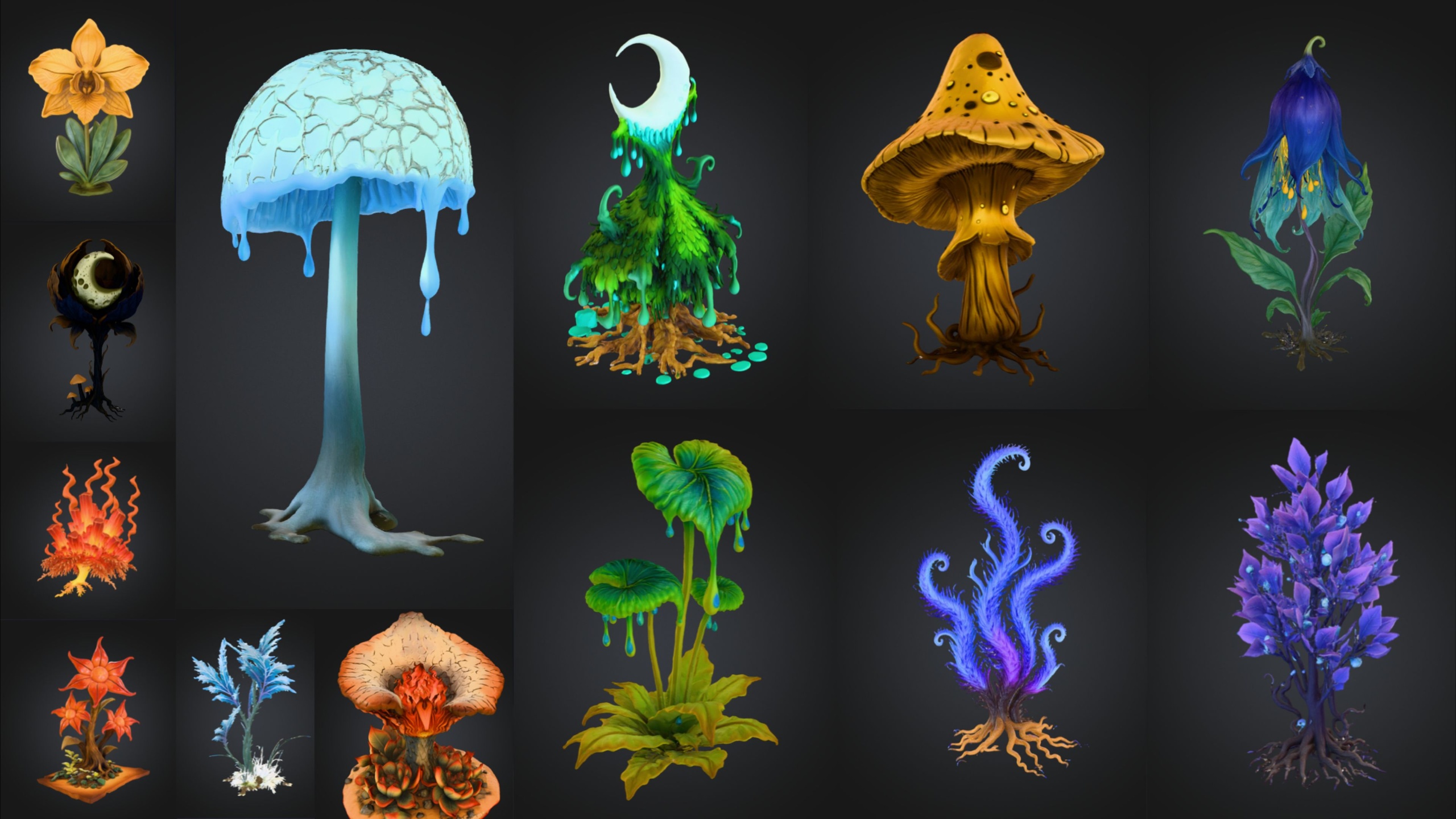
Keeping each pack in its own clearly named root folder also pays off when you mix several. The Dark Fantasy Props Bundle, the Fantasy Flower Pack and the Mythic Relic Landscape Pack can all live side by side under Content with zero collision precisely because each keeps to its own namespace. Flatten them into a shared folder and you invite name clashes and a migration history nobody can untangle six months on.
Fixing redirectors and broken references
When you rename or move an asset inside Unreal, the editor leaves behind a redirector — a tiny stand-in at the old path that quietly forwards anything still pointing there to the new location. Redirectors are what let you tidy a freshly migrated pack without breaking the materials and levels that reference it. They are helpful, but you do not want them to pile up indefinitely, because a long chain of forwards is harder to reason about and slightly slower to load.
To clean them up, right-click the migrated pack's folder in the Content Browser and choose 'Fix Up Redirectors in Folder'. Unreal rewrites every reference to point straight at the real asset and then deletes the now-redundant redirector. Run this after any round of renaming or reorganising, and the pack settles into a clean state with direct references throughout.
If a mesh ever shows up using the default checkerboard material instead of its own, the cause is almost always a reference that did not travel during migration. Reopen the source pack project, re-run Migrate with the full dependency list ticked, and confirm you targeted the destination's Content folder. Because every mesh in this bundle ships with its own bespoke material already assigned, a missing material means a missing migration step rather than anything you need to wire up by hand.
Match the engine version before you migrate
Engine version is the compatibility question that trips people up most, and it is worth settling before you copy a single asset. The Dark Fantasy Props Bundle is built on Unreal Engine 5.6, and the cleanest experience is to migrate it into a 5.6 (or newer) project so the asset format matches exactly. Migrating into an older engine than the one a pack was authored in is the case to avoid — assets saved by a newer editor cannot be reliably opened by an older one.
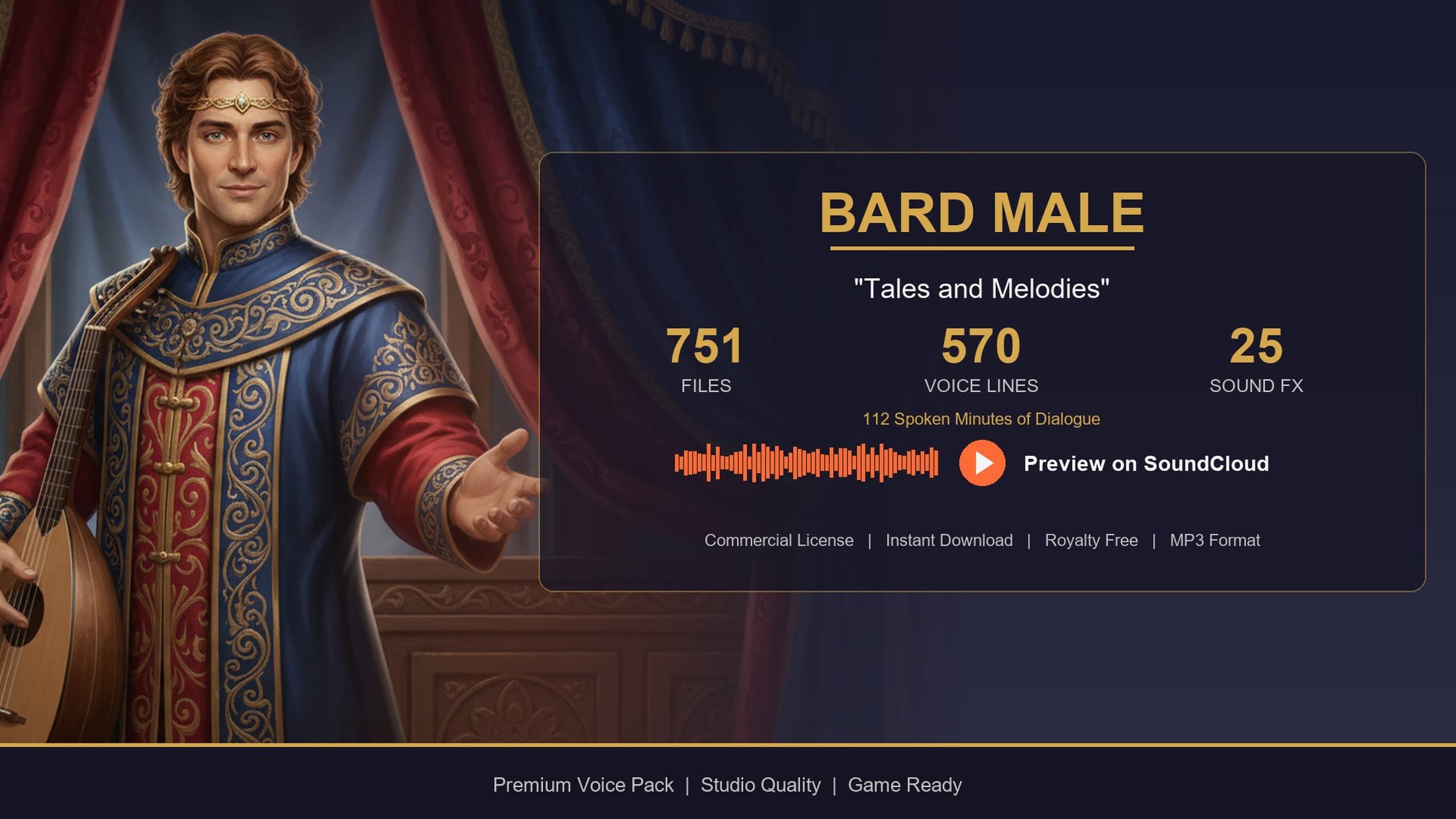
Content packs vary in how wide a version range they support, and you should check each pack's stated range rather than assume. Among the related packs here, the Fantasy Flower Pack is also a 5.6 pack, the Mythic Relic Landscape Pack is listed for 5.5 to 5.6, and the Bard Dialogue Pack carries the widest window at 5.3 through 5.7. The comparison table below lays the four out side by side so you can see at a glance which will drop straight into your project.
When versions do line up, opening a migrated pack in a same-or-newer editor will simply trigger a one-time asset upgrade on first load — Unreal recompiles shaders and resaves in the current format. That is normal and harmless. What you cannot do safely is go backwards, so if you are pinned to a specific engine version for production reasons, confirm the pack supports it before you buy, not after.
Keeping a multi-pack project tidy
Once you start combining packs, a little discipline keeps the project navigable. Treat each pack's root folder as read-only source material: drop instances into your levels, but make per-project tweaks on Material Instances or duplicated assets in your own working folder rather than editing the migrated originals. That keeps a future re-migration or pack update from clobbering your changes.
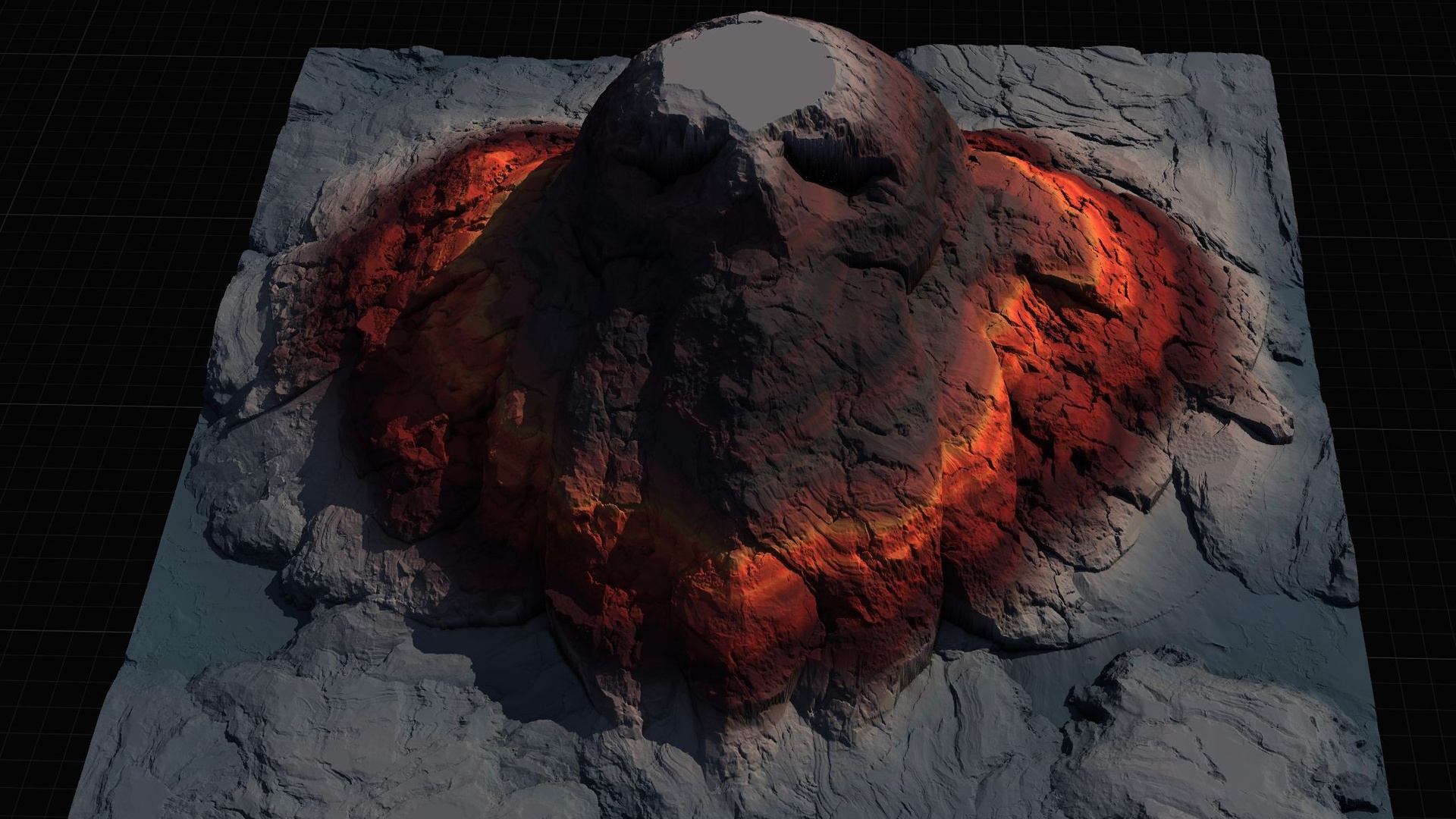
Lean on what each pack already gives you. Every mesh in the Dark Fantasy Props Bundle is Nanite-enabled, so there are no LODs to author for the high-poly artefacts. The Fantasy Flower Pack adds automatic collision and Nanite on its 51 plant meshes, which makes it a natural candidate to feed into the Foliage tool or a PCG graph for scattered ground cover. The Mythic Relic Landscape Pack works differently again — you import its 16-bit grayscale heightmaps through the Landscape panel rather than dragging meshes — and the Bard Dialogue Pack is content you drive from DataTables in code rather than place in a viewport at all.
Finally, run 'Fix Up Redirectors in Folder' once more across each pack after a tidy-up session, and consider a quick pass with the Content Browser's reference viewer on anything you have moved. A project where every pack sits in its own namespace, every redirector is resolved, and every engine version matches is one you can hand to a teammate without a paragraph of caveats — which is the whole point of buying ready-made content in the first place.
The four packs, side by side
| Pack | What it is | Engine version | How you use it | Price (USD) |
|---|---|---|---|---|
| Dark Fantasy Props Bundle | 100+ gothic static meshes (105 SM_ assets), one bespoke material each, Nanite, 2K PBR; ships as a UE project with Demo.umap | 5.6 | Migrate the content folder, drag SM_ meshes into the level | 34.99 |
| Fantasy Flower Pack | 51 fantasy/sci-fi/gothic flower meshes, Nanite, automatic collision, 2K PBR; ships with FBX sources | 5.6 | Migrate, then drag in or feed to Foliage / PCG for scatter | 21.99 |
| Mythic Relic Landscape Pack | 14 lore-shaped landscapes as 16-bit grayscale heightmaps (1K-8K each), an AutoMaterial, demo levels and Gaea sources | 5.5 - 5.6 | Import heightmaps via the Landscape panel, apply the AutoMaterial | 7.99 |
| Bard Dialogue Pack | Male-bard voiceover + lore content driven by five DataTables (DT_Dialogue and others); USoundWave audio | 5.3 - 5.7 | Migrate the content folder, drive lines from DT_Dialogue in code | 3.99 |
Format, engine version and how each pack reaches your level. Versions are the ranges stated on each pack's listing — check before buying if you are pinned to a specific engine.
FAQ
How do I add a Fab content pack to my Unreal project?
Two ways. If the Epic Games Launcher offers 'Add to Project' for the pack, select your project and it copies the content in for you. Otherwise open the pack as its own project, right-click its top-level content folder, choose 'Asset Actions' then 'Migrate', leave all dependencies ticked, and target the destination project's 'Content' folder. The Dark Fantasy Props Bundle ships as a UE 5.6 project, so it uses the Migrate route.
Why do my migrated meshes show up with no material?
Almost always because the material and texture dependencies were unticked during Migrate, or because the migration targeted the wrong folder. Re-run Migrate from the source pack with the full dependency list selected and point it at the destination's Content folder. Every mesh in the Dark Fantasy Props Bundle ships with its own material already assigned, so a missing material means a missing dependency, not setup you forgot to do.
What does 'Fix Up Redirectors in Folder' actually do?
When you rename or move an asset inside Unreal, the editor leaves a redirector at the old path so existing references keep working. 'Fix Up Redirectors in Folder' rewrites those references to point straight at the real asset and deletes the redundant redirector, leaving a clean set of direct references. Run it after any renaming or reorganising of a migrated pack.
Can I use a UE 5.6 pack in an older engine version?
No — you cannot reliably open assets in an editor older than the one that saved them. Migrate into a same-or-newer engine. The Dark Fantasy Props Bundle and Fantasy Flower Pack are 5.6 packs, the Mythic Relic Landscape Pack is listed for 5.5 to 5.6, and the Bard Dialogue Pack supports 5.3 to 5.7. Migrating into a newer editor triggers a harmless one-time asset upgrade on first load.
Should I rename a pack's folders after migrating?
Only inside the Unreal editor, never in Windows Explorer. Renaming in the editor writes redirectors that keep references intact; moving files on disk severs the content path silently. If you do rename inside the editor, follow up with 'Fix Up Redirectors in Folder' to settle the references.
Dark Fantasy Props Bundle
A comprehensive collection of gothic and dark-fantasy props — artefacts, oddities and set dressing for horror, RPG and dungeon environments. Game-ready, atmospheric, and built to fill a scene fast.
Related on Fab
Related reading