tutorial · 2026-03-14
How to Import a Single Static Mesh Into Unreal Engine 5: A Quick Checklist
Four checks that stop a freshly imported prop from looking wrong in your level.
Get the mesh into the project
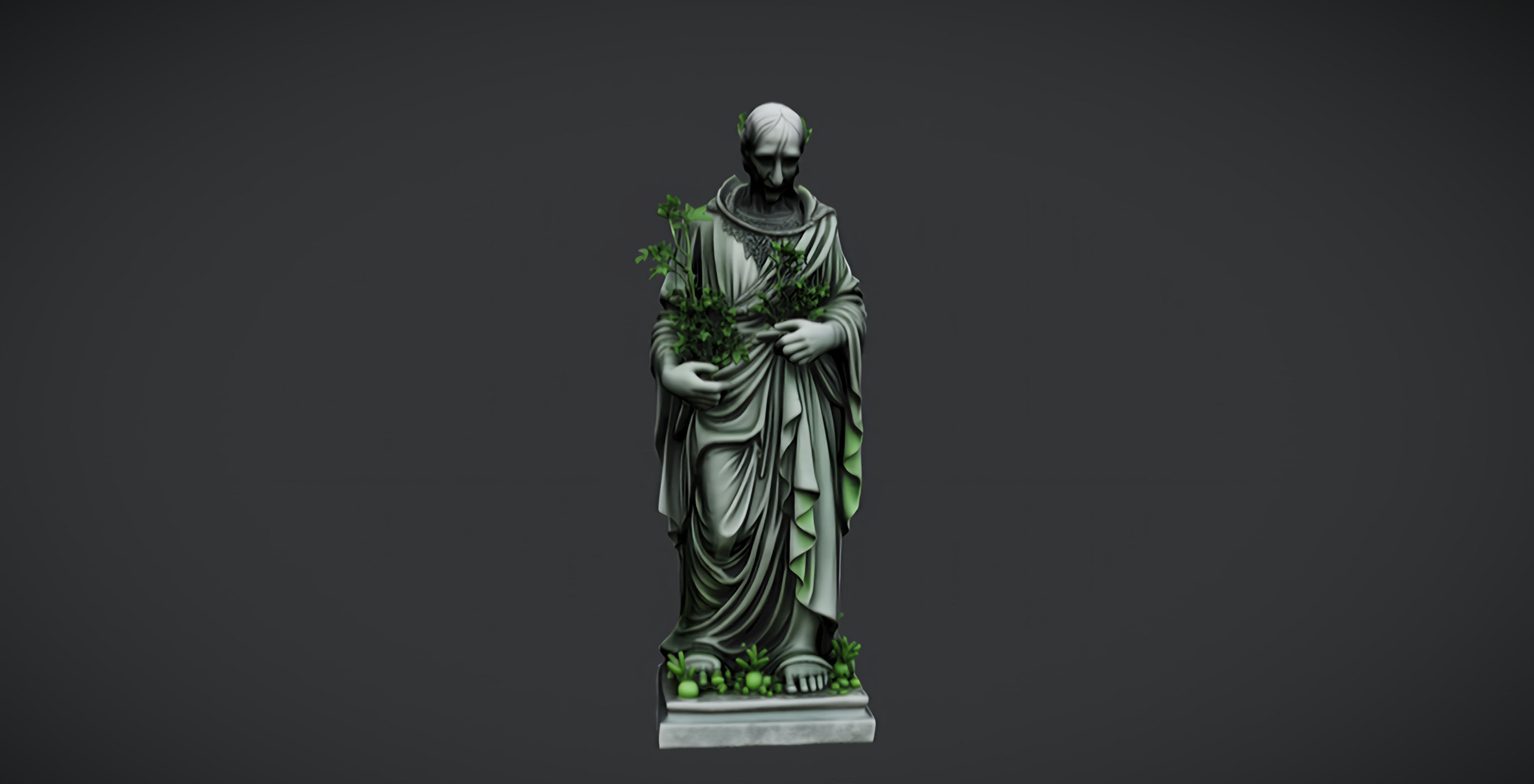
Knowing how to import a single static mesh into Unreal Engine 5 feels trivial until the prop lands in your level the wrong size, with no collision, or wearing a default grey material. The import is fast; the five minutes afterwards are where a clean drop-in either succeeds or quietly breaks your scene. This checklist covers the four things to verify every time, using the free Fantasy Nature Statue as a no-cost asset you can practise on.
If you grabbed the Fantasy Nature Statue from Fab, the simplest path is to add it to a UE5 project from the Epic Games launcher, which drops the mesh, its material and its 2K PBR maps into your Content folder ready to use. To bring in your own file instead, open the 'Content Drawer', click 'Import', choose your FBX, and accept the 'FBX Import Options' dialog. Either way, the next four checks are identical.
1. Confirm the material assignment
Double-click the new asset to open the 'Static Mesh Editor' and look at the 'Material Slots' panel. A single prop like the Fantasy Nature Statue ships with its material already assigned, so you should see a real material rather than the engine's 'WorldGridMaterial' placeholder. If you imported your own FBX and the slot is empty or grey, the textures did not bind during import.
When that happens, check that the texture files imported alongside the mesh, then drag the correct material onto the slot. The Fantasy Nature Statue uses 2048x2048 (2K) PBR maps for base colour, metallic, normal and roughness, which is plenty of detail for a garden or shrine centrepiece viewed up close.
2. Set up collision for a static prop
A static mesh with no collision lets players and physics objects pass straight through it, which is rarely what you want for a solid stone statue. In the 'Static Mesh Editor', toggle 'Collision' visibility in the viewport to see whether any collision primitives exist. If the mesh is bare, add a simple hull from the 'Collision' menu: 'Add Box Simplified Collision' for a blocky base, or 'Auto Convex Collision' for a tighter fit around an irregular silhouette.
Keep collision primitives as simple as the gameplay allows. For a decorative prop the player only walks around, a single box or convex hull is far cheaper than per-polygon collision and avoids physics hitches. Set the 'Collision Complexity' to 'Use Simple Collision As Complex' only if you genuinely need traces to hit the exact surface.
3. Make the Nanite and lightmap decision
Two settings in the 'Static Mesh Editor' 'Details' panel decide how the prop renders. The first is 'Nanite Settings'. If you tick 'Enable Nanite Support' and build the mesh, UE5 handles level of detail automatically and you can skip manual LODs. Enabling Nanite is a per-mesh choice you make in your own project, based on your scene's rendering setup rather than an assumption that it is already on.
The second is lightmaps. If your project uses baked lighting rather than Lumen, the mesh needs a valid lightmap UV; tick 'Generate Lightmap UVs' in the 'Build Settings' and set a sensible 'Min Lightmap Resolution' for the prop's on-screen size. If you light the scene dynamically with Lumen, you can leave lightmaps alone. Pick one path deliberately so you are not baking UVs you never use.
4. Run a scale sanity check
The most common import surprise is scale. Drag the statue into your level next to a default character capsule and compare heights. If the prop comes in at a tenth or ten times its intended size, the source file used different units; reimport and set the 'Import Uniform Scale' in the 'FBX Import Options' rather than scaling every placed instance by hand.
Once material, collision, render mode and scale all check out, the Fantasy Nature Statue is ready to place as a grove centrepiece, an altar focal point, or a free landmark in a prototype. As a single free static mesh under the Fab Standard licence, it is the cheapest way to rehearse this import routine before committing to a larger paid set.
Where to go next
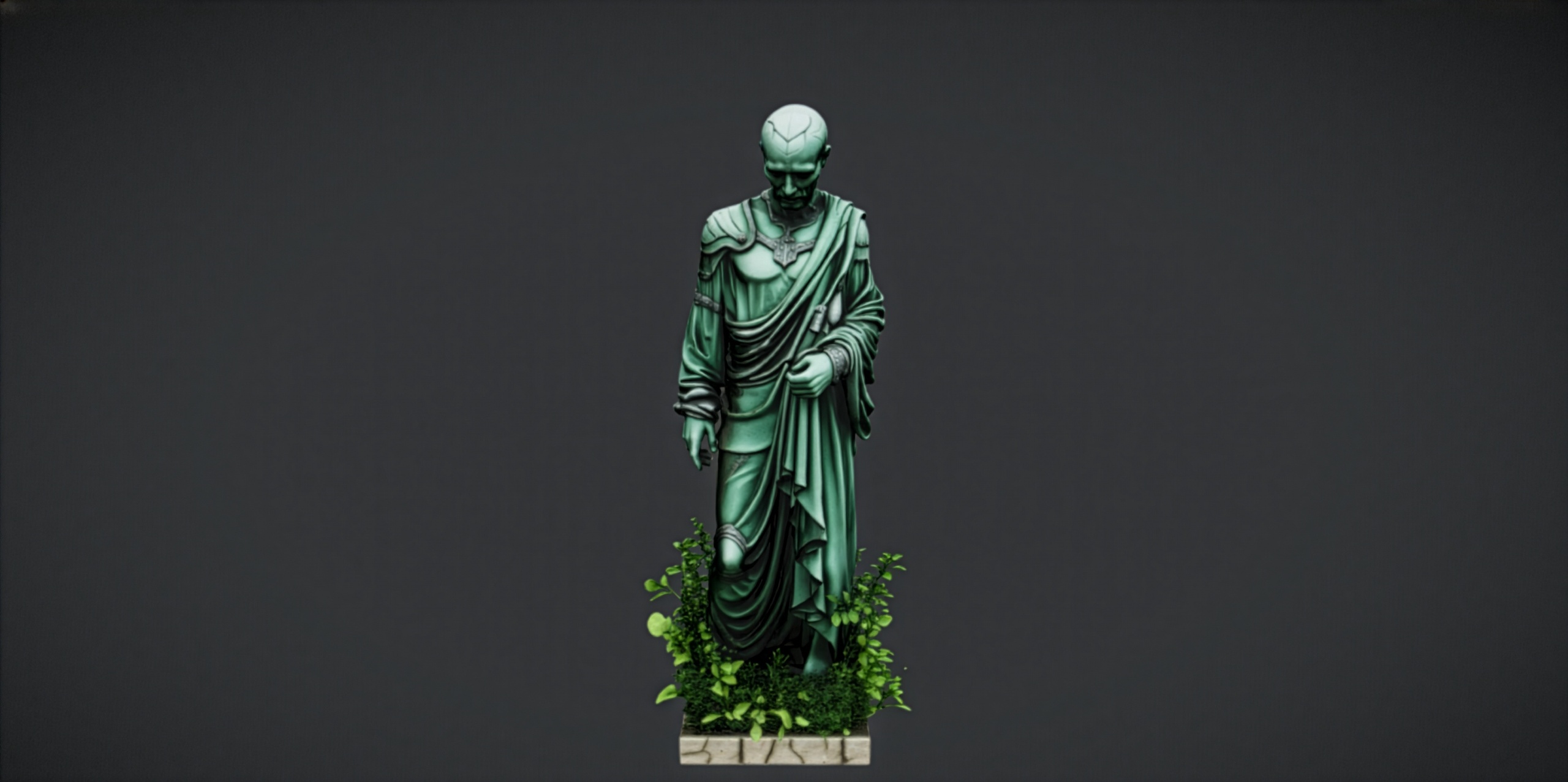
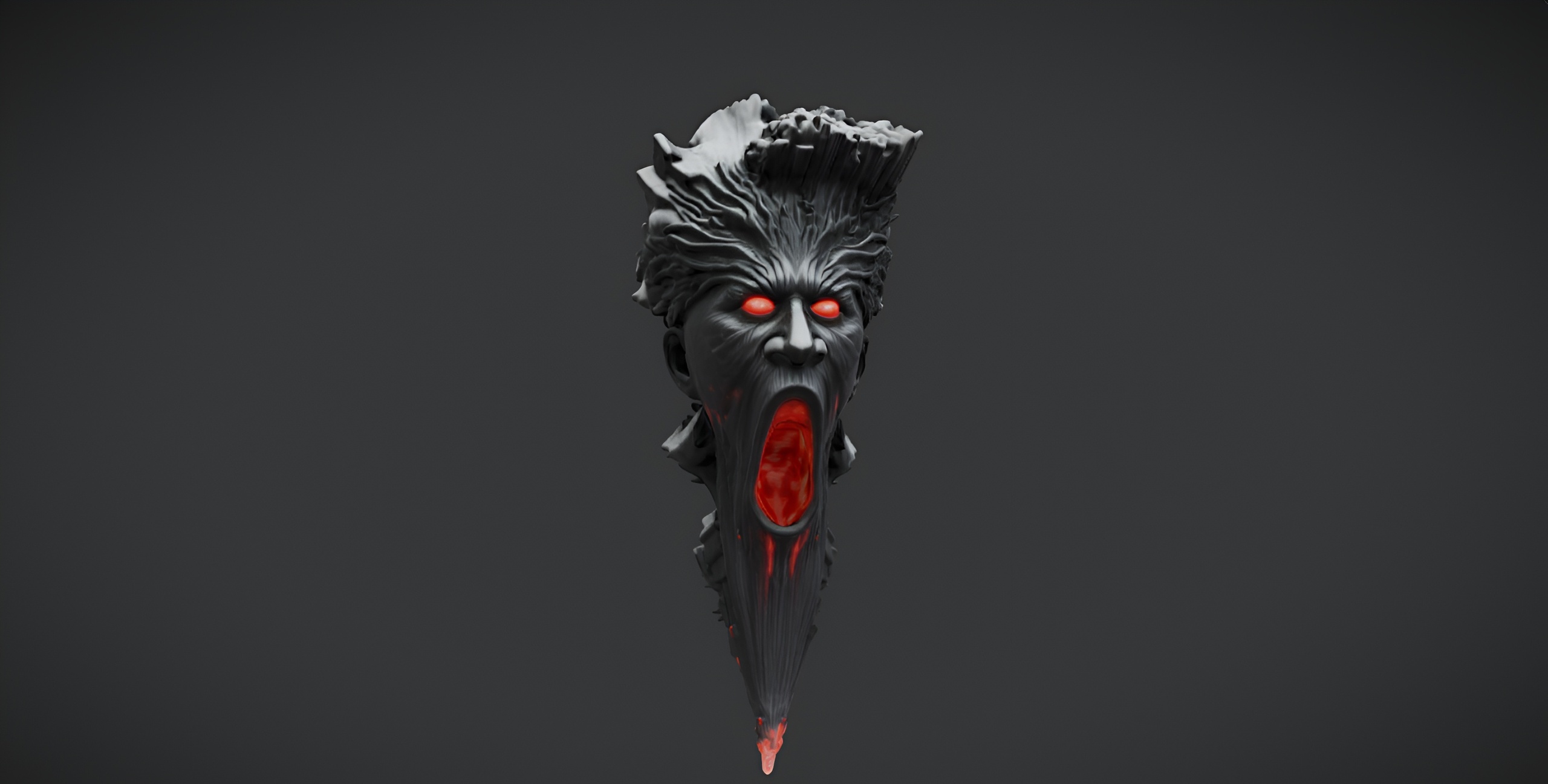
The same four checks scale to a whole kit. The free Dark Fantasy Nature Statue and the free Demonic Wailstone boulder pair naturally with this statue for a no-cost dark dressing set you can drop into a ruin or cursed grove.
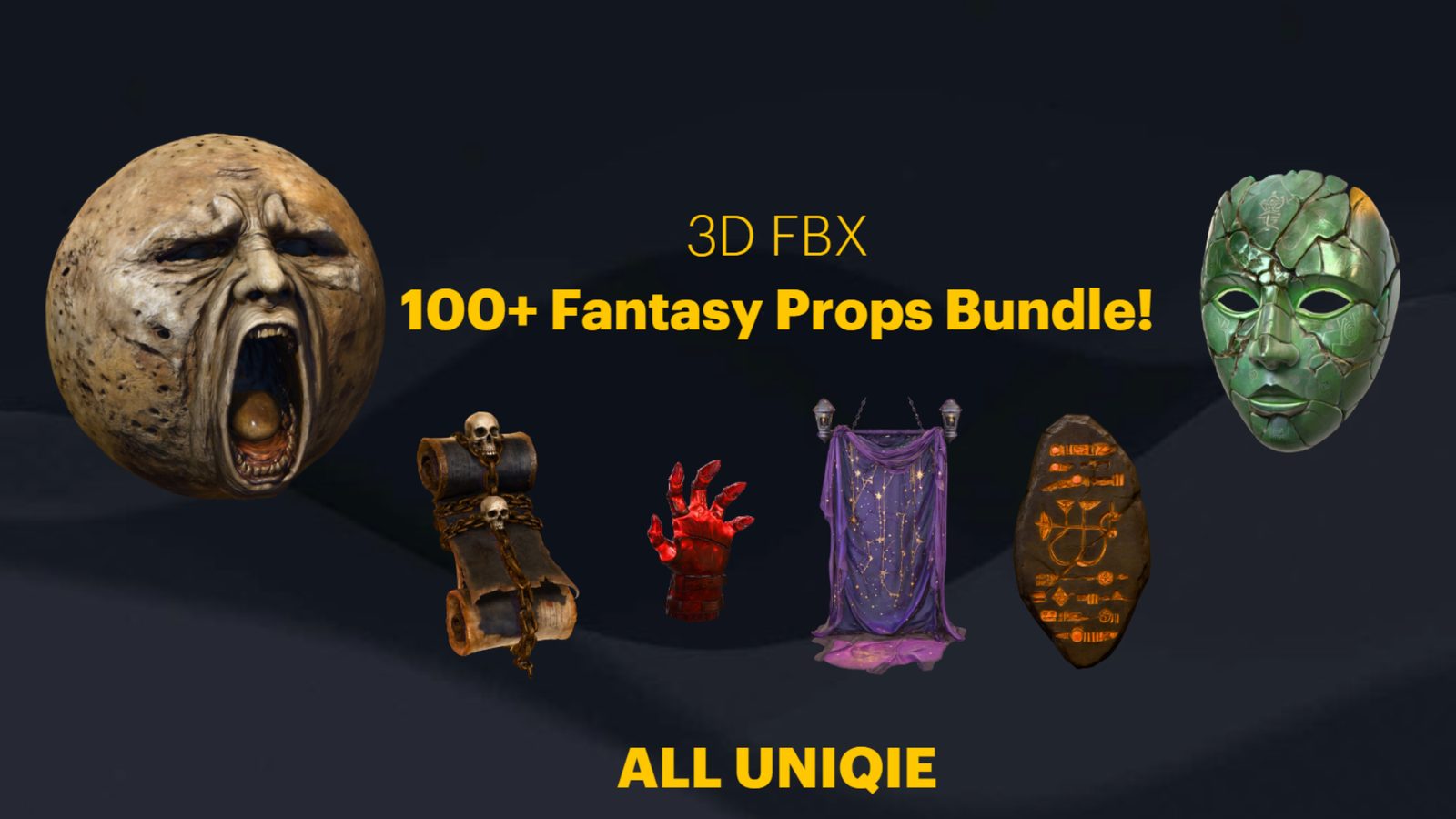
When you need to fill a scene fast rather than place props one at a time, the Dark Fantasy Props Bundle ships as a complete Unreal Engine 5.6 content project with 100+ gothic static meshes, each with its own material and Nanite enabled, plus a demo map showing the props arranged. Migrate its content folder into a 5.6 or later project and you skip the per-mesh setup entirely.
Post-import checklist at a glance
| Check | Where to look | What good looks like |
|---|---|---|
| Material | Static Mesh Editor, Material Slots | Real material assigned, not WorldGridMaterial |
| Collision | Collision menu and viewport | A simple box or convex hull, not bare or per-poly |
| Nanite / lightmaps | Details panel, Nanite and Build Settings | Nanite on, or valid lightmap UVs for baked lighting |
| Scale | Level, next to a character capsule | Real-world height, no instance-by-instance rescaling |
Run these four checks on every single static mesh you bring into UE5.
FAQ
How do I import a single static mesh into Unreal Engine 5?
Open the Content Drawer, click Import, choose your FBX and accept the FBX Import Options dialog; or, for a Fab asset like the free Fantasy Nature Statue, add it to your UE5 project from the Epic Games launcher so the mesh, material and 2K PBR maps land in your Content folder. Then verify material, collision, render mode and scale before placing it.
Why does my imported mesh have no collision?
Imported FBX files often arrive without collision. Open the Static Mesh Editor and add a primitive from the Collision menu, such as Add Box Simplified Collision or Auto Convex Collision, keeping the shape as simple as your gameplay allows.
Should I enable Nanite on an imported static mesh?
Enabling Nanite is a per-mesh choice in the Static Mesh Editor's Nanite Settings. Turn it on when you want UE5 to handle level of detail automatically and skip manual LODs; decide based on your project's rendering setup rather than assuming it is preset.
My imported prop is the wrong size. How do I fix it?
This is almost always a units mismatch in the source file. Reimport and set Import Uniform Scale in the FBX Import Options, or correct the scale on the mesh asset, instead of rescaling every placed instance in the level.
Fantasy Nature Statue
A free fantasy nature statue — mossy, ornamental stone for gardens and sacred groves. Drop-in ready for Unreal Engine 5.
Related on Fab
Related reading