tutorial · 2026-04-02
How to Make a Readable Note or Scroll Item in Unreal Engine 5
Turn a static scroll mesh into an interactable, readable quest pickup with a UMG widget and a few Blueprint nodes.
What you are building
A scroll lying on a ritual table is set dressing until the player can walk up, press a key, and actually read what is on it. That single interaction is the difference between a prop and a quest item. This tutorial covers how to make a readable note or scroll item in Unreal Engine 5: you start with a static mesh, attach an interaction component, show a UMG widget with the note text, and wire the whole thing to overlap or a use key.
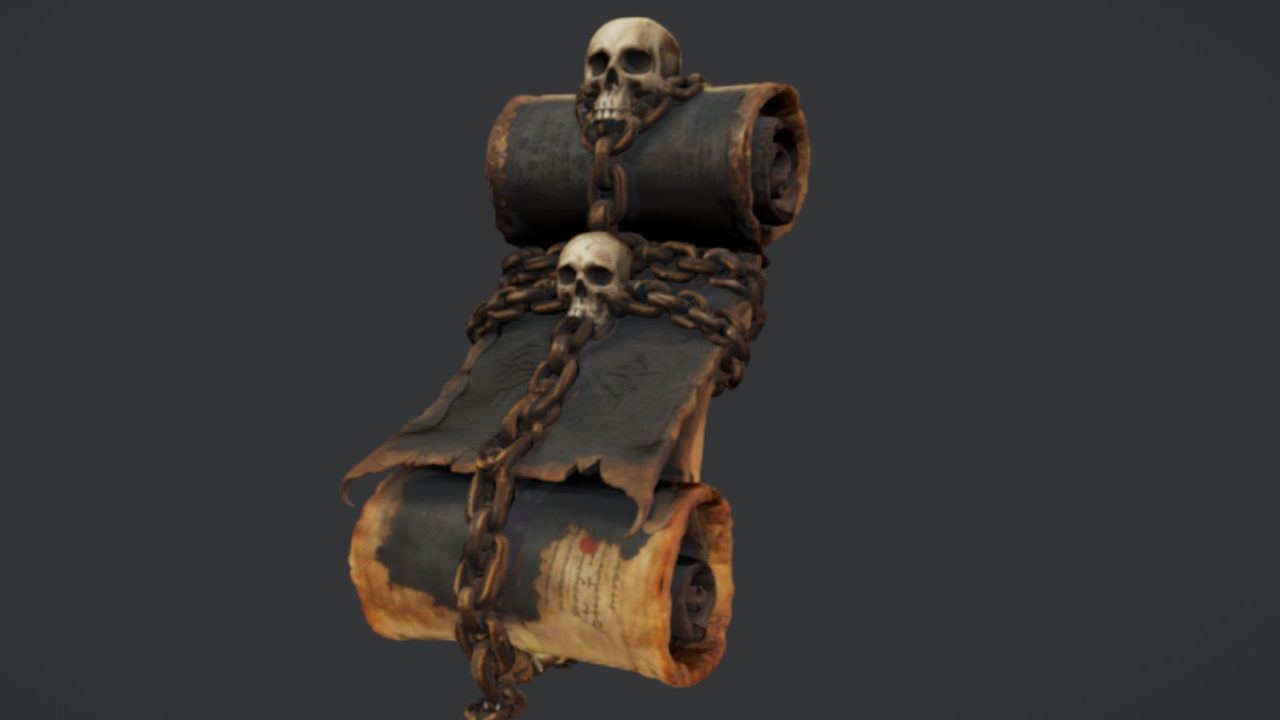
The asset used here is The Binding Scrolls, a free arcane bound-parchment static mesh with 2K PBR textures, offered under the Fab Standard licence. It is a clean, drop-in UE5 mesh with no Blueprint logic of its own, which makes it an ideal blank canvas: everything readable about it is logic you add, so you keep full control over how the note behaves.
Because the scroll ships as a single static mesh and nothing more, there is no animation or unrolling behaviour to fight against. You are building the interaction from scratch, and the same Blueprint you create will work on any document-style prop in your project.
Set up the readable Blueprint actor
Start by turning the scroll into an Actor Blueprint so it can hold logic. Right-click in the Content Browser, choose 'Blueprint Class', and pick 'Actor' as the parent. Name it something like 'BP_ReadableScroll'.
1. Open BP_ReadableScroll and add a 'Static Mesh' component in the Components panel. With it selected, set the 'Static Mesh' property in the Details panel to the Ancient Bound Scroll mesh from The Binding Scrolls. The 2K PBR material comes with the mesh, so it looks correct immediately.
2. Add a 'Box Collision' component as a child of the root. Scale it so it comfortably surrounds the scroll plus a small reach radius. This volume is what detects the player approaching.
3. Add a variable of type 'Text' called 'NoteText' and tick 'Instance Editable' in its details. This is the content the player will read, and making it instance-editable means every copy of the scroll you place in the level can carry a different note without a new Blueprint.
Keeping the readable text on the actor rather than hard-coded in the widget is what makes the pattern reusable. Each placed scroll becomes its own little document with its own words.
Build the UMG reading widget
The reading panel is a UMG Widget Blueprint. Right-click in the Content Browser, choose 'User Interface', then 'Widget Blueprint', and name it 'WBP_NoteReader'.
1. In the Designer, drag a 'Border' or 'Image' onto the canvas to act as the parchment background, then drop a 'Text' block on top of it for the note body. A 'Scroll Box' wrapping the text is worth adding if your notes can run long, so the player can scroll through lengthy lore.
2. Select the body 'Text' block and, in its Details, tick 'Is Variable' so you can set it from Blueprint. Give it a readable serif font and a generous size; this is the whole point of the interaction, so make it comfortable to read.
3. In the widget's Event Graph, create a function or 'Event' that takes a 'Text' input and calls 'Set Text (Text)' on your body text block. This is how the actor hands its NoteText to the widget when the player opens it.
Designing the widget once and feeding it text from outside means a single WBP_NoteReader serves every note, scroll, book and letter in your game. You never duplicate the panel, only the words it displays.
Trigger reading on overlap or a use key
Now connect the actor and the widget so the player can open the note. There are two common patterns: a pure proximity prompt, or a prompt that waits for a key press. The key-press version feels more deliberate and avoids notes popping open every time the player brushes past, so it is the better default for a quest item.
1. In BP_ReadableScroll, select the box collision and add an 'On Component Begin Overlap' event. Check that the overlapping actor is the player character, then set a boolean such as 'PlayerInRange' to true and optionally show a small 'Press E to read' hint. Add 'On Component End Overlap' to set it back to false and hide the hint.
2. Handle the use key. The cleanest approach is an Enhanced Input action (for example IA_Interact) on the player character that, when triggered, looks for a nearby readable actor and calls an interface event on it. If you prefer to keep everything on the scroll for now, you can branch on 'PlayerInRange' inside the actor and listen for the input there.
3. On the interact event, branch on 'PlayerInRange', then 'Create Widget' using WBP_NoteReader as the class, call your text-setter passing in 'NoteText', and 'Add to Viewport'. Set the input mode to UI and show the mouse cursor if your game needs it.
4. To close the note, add a 'Close' button or bind the same interact key while the widget is open to call 'Remove from Parent' and restore game input mode. Always remove the widget rather than just hiding it, so you do not leak UI between reads.
For a scalable project, put the open-read logic behind a Blueprint Interface (for example BPI_Interactable with an 'Interact' event). The player simply line-traces or uses overlap to find the nearest interactable and calls the interface; the scroll, a door, or a lever all respond to the same call. That keeps the player character free of prop-specific code.
Reuse the pattern for any document prop
The strength of this setup is that nothing in it is specific to one mesh. Swap the 'Static Mesh' component to a different prop and you have a readable book, letter, plaque or tablet with zero new logic. Because The Binding Scrolls is a drop-in static mesh with no baked behaviour, it slots in and out of BP_ReadableScroll cleanly.
Scatter several copies of the scroll across a scriptorium or wizard's study, give each placed instance its own NoteText in the Details panel, and you have a trail of readable lore for the cost of one Blueprint and one widget. The free scroll mesh and its 2K PBR material keep the visual quality consistent across every copy.
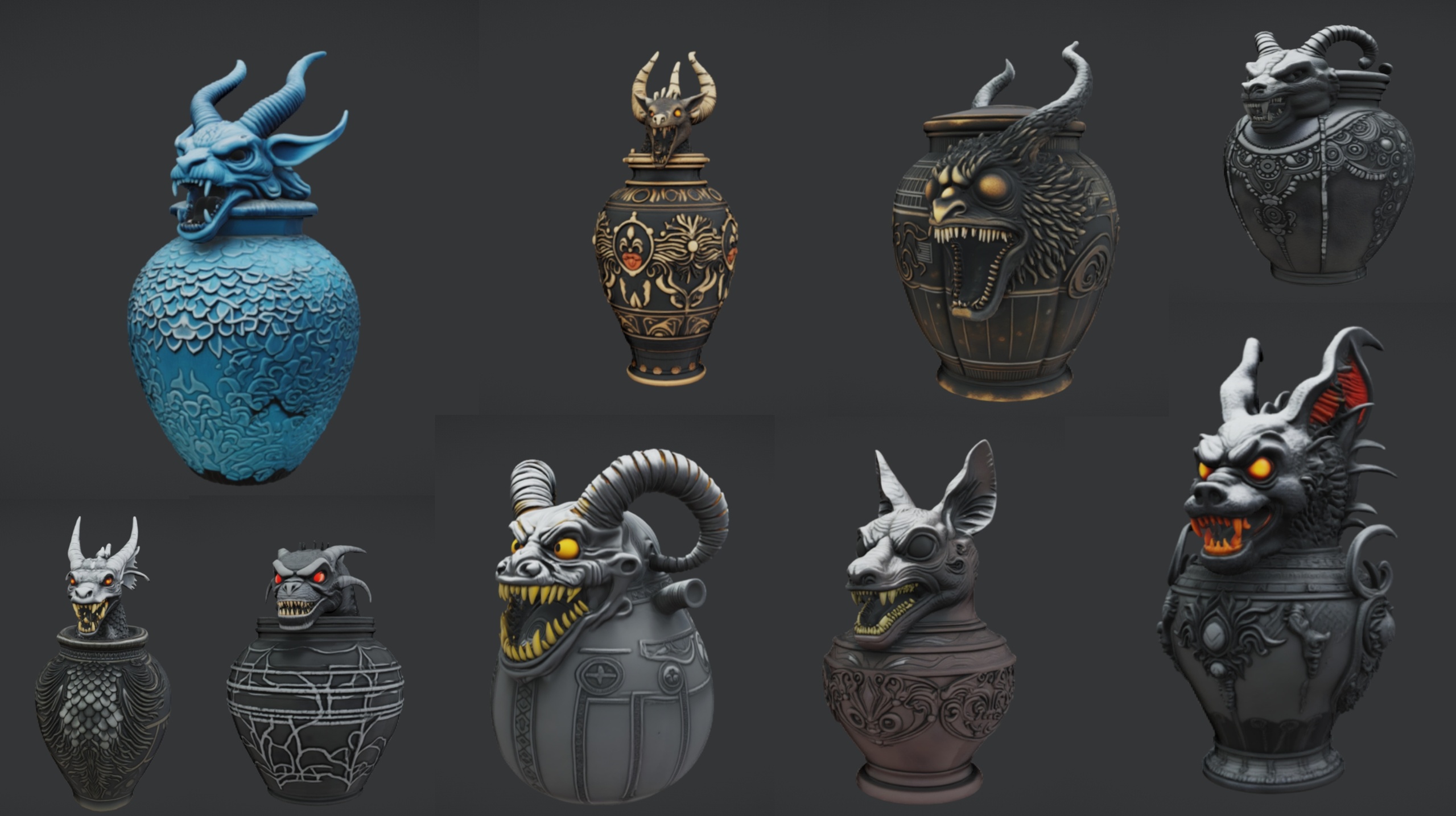
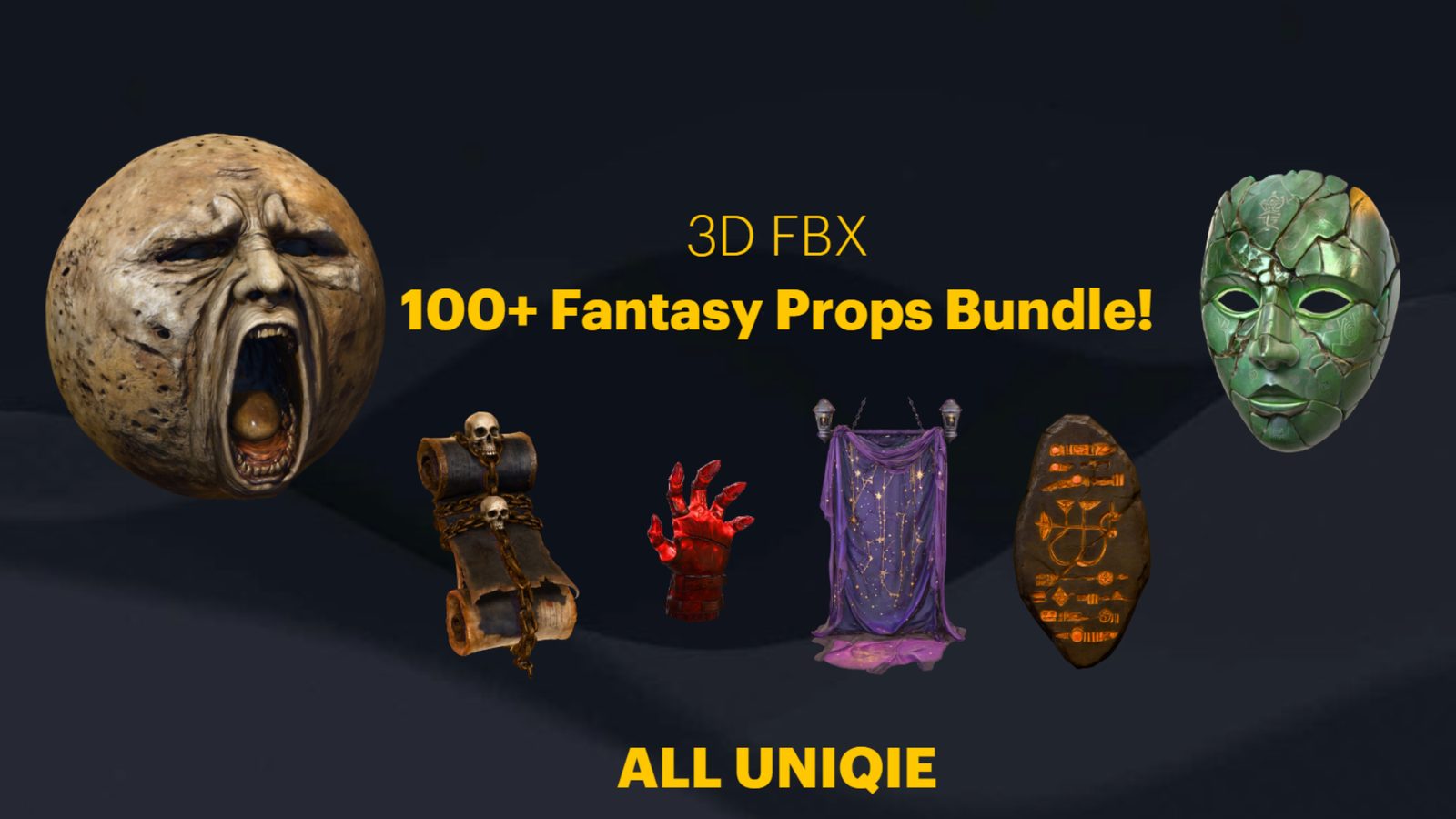
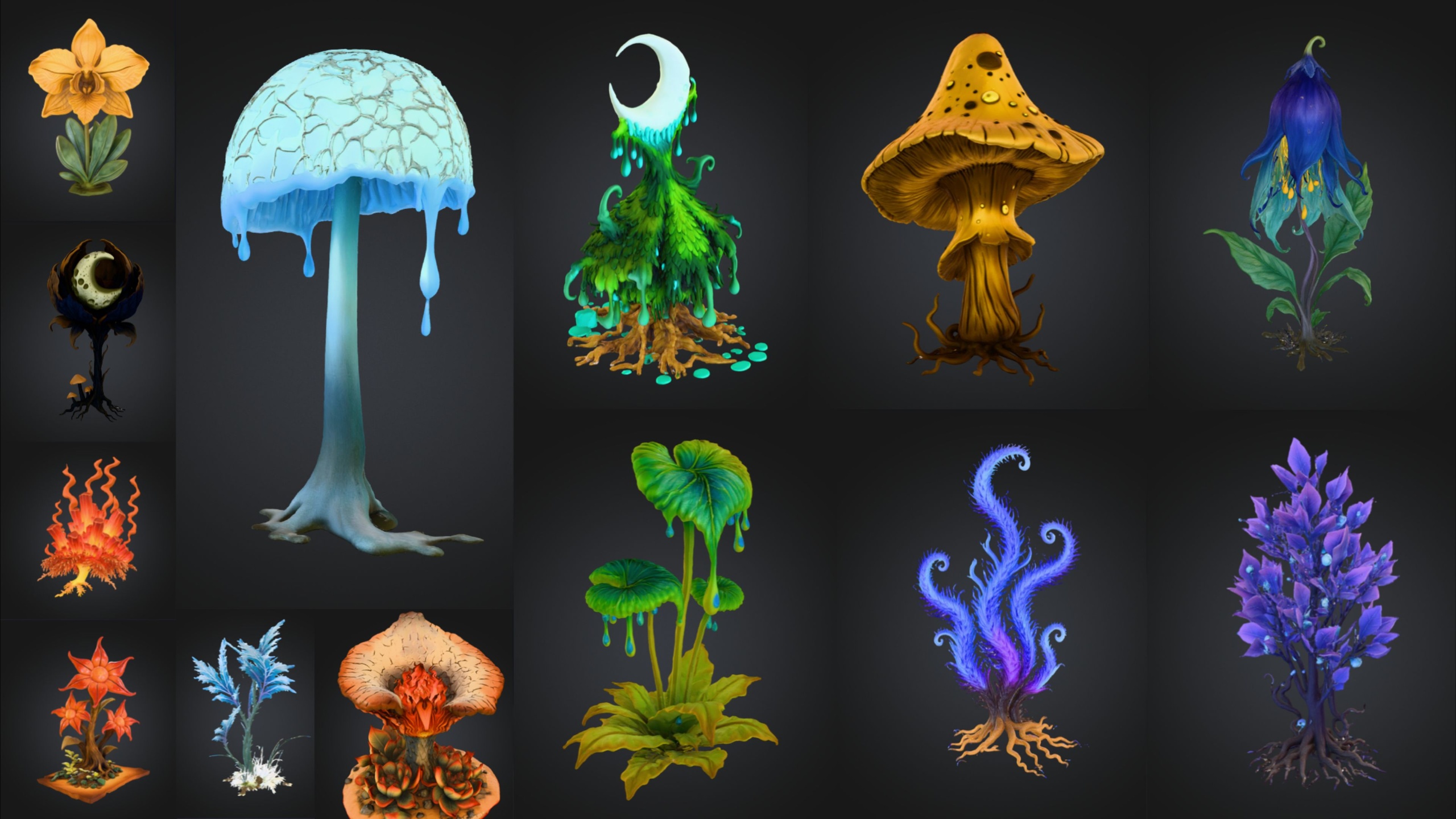
To dress the scene around your readable scrolls, the Dark Fantasy Props Bundle adds tomes, lecterns, candles and altars in a matching gothic style, and Ritual Jars provides canopic jars and a large altar table to arrange them on. The Fantasy Flower Pack adds nightshade and blood-lotus blooms if your study spills into a cursed garden. Each of these is a Nanite static-mesh pack you can drop alongside the scroll using exactly the same placement workflow.
Next step: convert BP_ReadableScroll into a child of a shared BP_InteractableBase, expose NoteText and an optional title, and you have a single readable-document system you can reuse for the rest of the project.
FAQ
How do I make a readable note or scroll item in Unreal Engine 5?
Turn the scroll mesh into an Actor Blueprint, add a box collision for proximity detection and an instance-editable Text variable for the note content, build a UMG widget that displays that text, then on a use key (or overlap) create the widget, pass it the actor's text, and add it to the viewport. Remove the widget to close the note.
Should I open the note on overlap or on a key press?
A key press is the better default for a quest item. Use the box collision overlap to detect that the player is in range and show a 'press to read' hint, but wait for an interact input before opening the widget so notes do not pop up every time the player walks past.
Does The Binding Scrolls come with reading logic already set up?
No. It is a free single static mesh with 2K PBR textures and no Blueprint logic, animation, or unrolling behaviour. That is what makes it a good base: you add the interaction yourself and keep full control over how the note reads and behaves.
How do I reuse the same widget for books, letters and tablets?
Keep the note text on the actor as an instance-editable variable and feed it into the widget at runtime with 'Set Text', rather than hard-coding words in the UMG. One WBP_NoteReader then serves every document prop; you only change the mesh and the text per actor. A shared Blueprint Interface lets the player trigger them all the same way.
Can I give each placed scroll a different note?
Yes. Mark the NoteText variable 'Instance Editable' on the actor, then set a unique value in the Details panel for each copy you drag into the level. Every scroll becomes its own document without creating a new Blueprint.
The Binding Scrolls
Free binding scrolls — arcane parchment props for libraries, ritual tables and spellcasting scenes. Drop-in ready for Unreal Engine 5.
Related on Fab
Related reading