
tutorial · 2026-02-09
How to Migrate a UE5 Content Pack Into Your Own Project (Migrate vs Add to Project)
When a pack ships as its own .uproject, here is how to move the assets into your game without breaking a single material or texture reference.

When a pack arrives as its own .uproject
Plenty of Fab content packs do not install through the Epic launcher's 'Add to Project' button. They arrive as a complete, standalone Unreal project. The Dark Fantasy Props Bundle is a good example: it ships as DarkFantasyPropPack.uproject built against Unreal Engine 5.6, with all 100+ static meshes, their bespoke materials and 2048x2048 PBR textures sitting inside a single named content folder, plus a Demo.umap showcase scene.
That format is great for previewing the assets, but it is not where you want to build your game. The whole point of a content project is to be a donor. The question every developer hits is the same: how to migrate assets from one Unreal project to another without leaving a trail of broken material and texture references behind. The answer is the engine's built-in Migrate tool, and used correctly it copies every dependency for you.
Before you start, make sure both projects are on a compatible engine version. The Dark Fantasy Props Bundle is authored in UE 5.6, so migrate it into a UE 5.6 (or newer) project. Migrating into an older engine can trigger an upgrade prompt and is not guaranteed to round-trip cleanly.
Asset Actions, Migrate, step by step
1. Open the donor project first. Launch DarkFantasyPropPack.uproject in Unreal Engine 5.6 and let it finish compiling shaders so the Content Browser is fully populated.
2. In the Content Browser, locate the pack's top-level content folder (for this bundle it is the DarkFantasyPropsBundle100ArtefactsAndOddities folder, which holds the Meshes, materials and textures).
3. Right-click that folder and choose 'Asset Actions', then 'Migrate'. You can also right-click an individual asset, such as a single SM_ mesh, if you only want one prop rather than the whole set.
4. Unreal opens the 'Asset Report' dialog. This lists not just the assets you selected but every dependency they pull in, so each SM_ mesh automatically brings its M_ material and the underlying textures along with it. Leave everything ticked unless you have a deliberate reason to exclude something.
5. Click 'OK', then browse to the Content folder of your own project, for example YourGame/Content, and select it as the destination.
6. Confirm, and Unreal copies the folder and all its dependencies into your project. When it finishes, the same folder structure appears in your Content Browser, materials still assigned and Nanite still enabled, ready to drag into a level.
Keep the folder structure intact
Migrate is deliberately strict about folder layout. It recreates the source folder path verbatim under your project's Content directory. So if you point it at your Content folder, you get YourGame/Content/DarkFantasyPropsBundle100ArtefactsAndOddities with the Meshes and material subfolders preserved exactly as they were authored.
Resist the urge to reorganise or rename folders mid-migration. The internal references between a mesh, its material and its textures are path-based. Migrate keeps them coherent precisely because it preserves that structure. If you want the assets to live somewhere tidier, migrate first, verify everything works, and only then move folders inside the editor, which updates references safely. Moving or renaming on disk in a file explorer is what breaks packs.
If you only need a handful of props, for example a couple of thrones and a tome to greybox a boss arena, migrate just those individual SM_ assets. The Asset Report still gathers their materials and textures, so you import a clean subset rather than all 105 meshes.
Avoid redirector and reference breakage
The most common way people break a migrated pack is by dragging folders around in Windows Explorer instead of inside Unreal. Always move, rename or delete assets from within the Content Browser so the editor can leave redirectors that keep existing references valid.
After migrating, it is good housekeeping to right-click the imported folder and choose 'Fix Up Redirectors in Folder'. This resolves any redirector stubs left behind so your references point straight at the real assets. If a material ever shows up checkered or a texture reads as missing, it almost always means an asset was moved outside the editor and a redirector was lost.
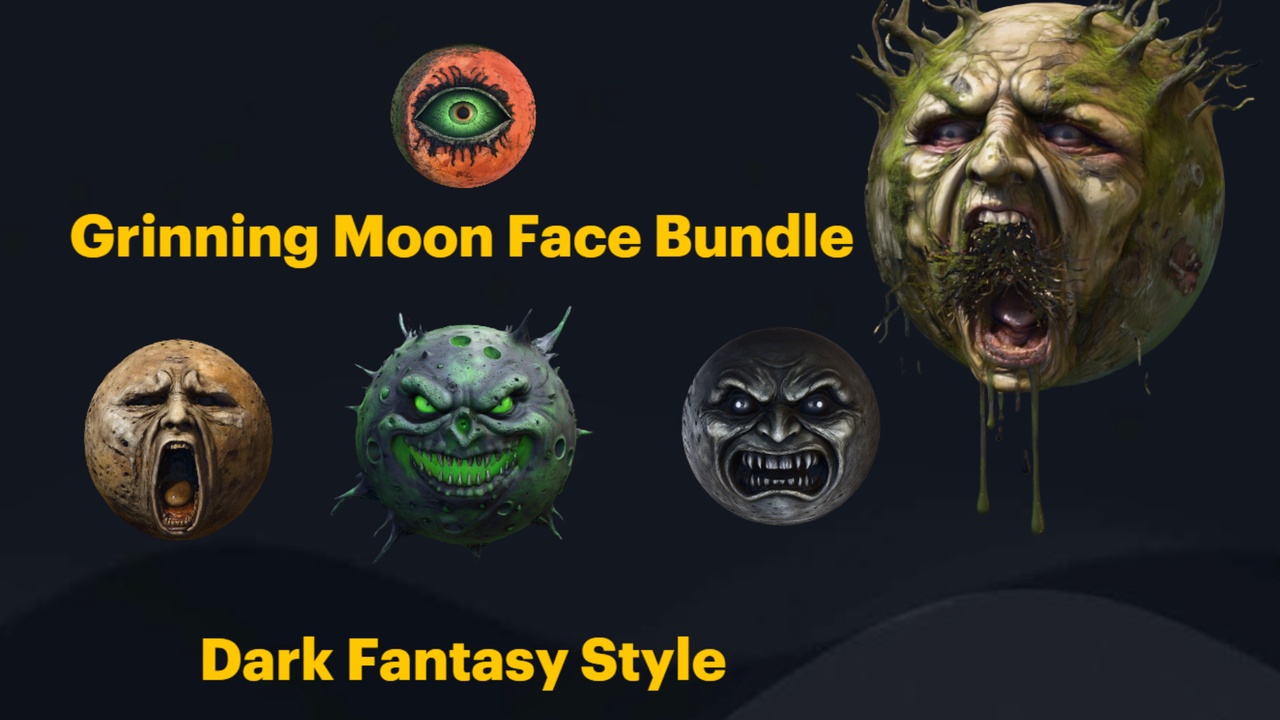
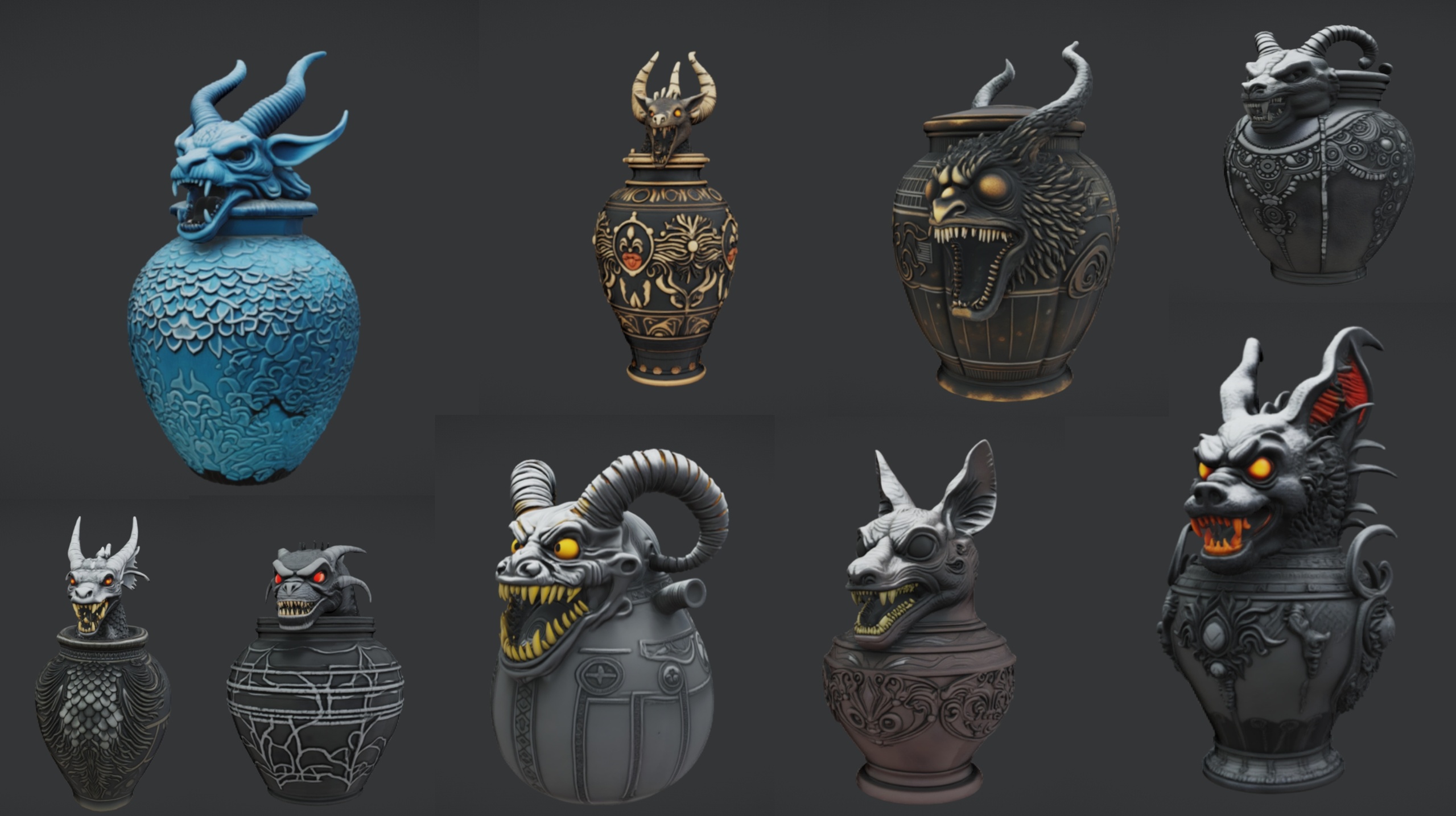
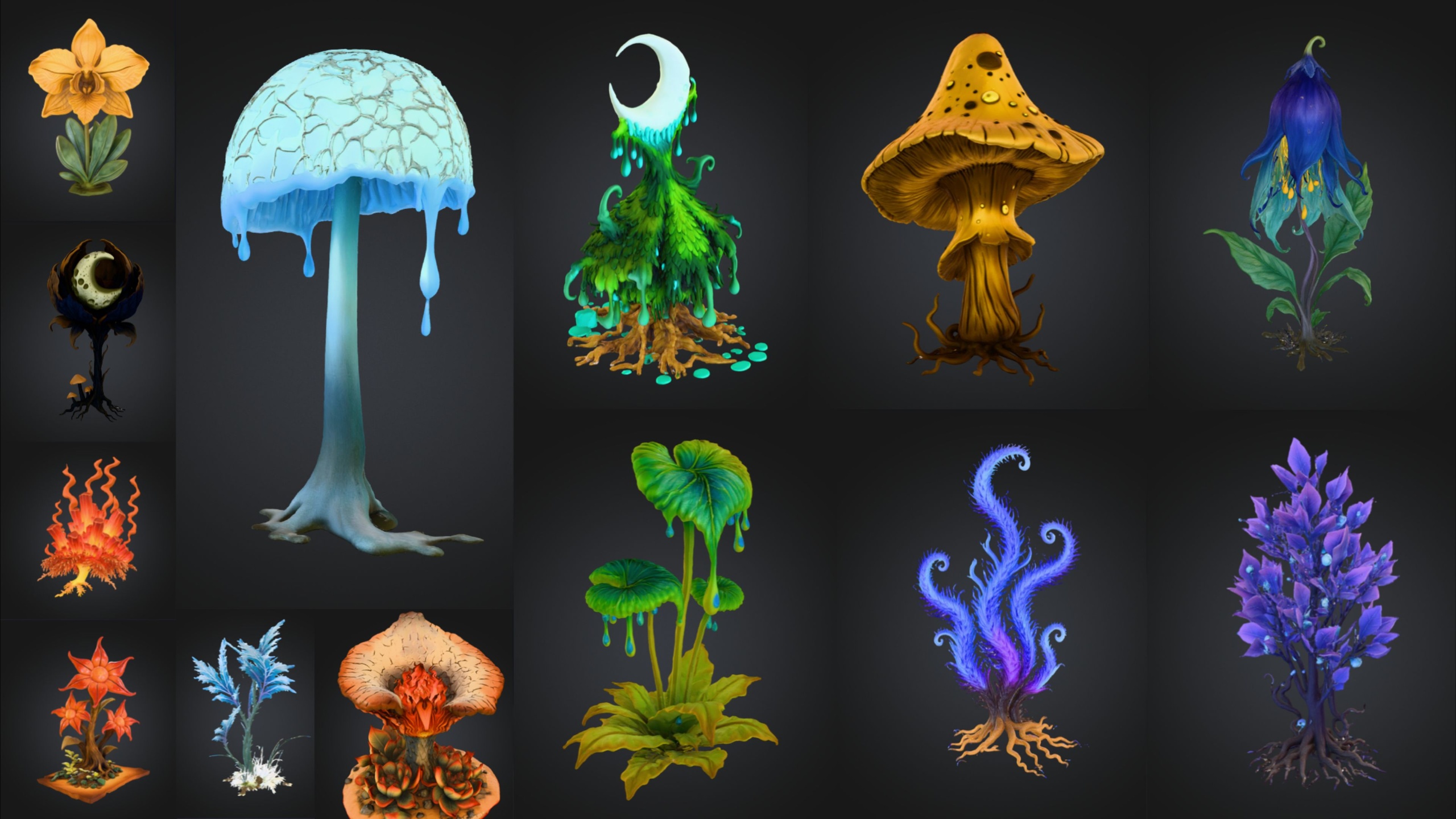
Finally, save everything. Once the migration completes, use 'File', then 'Save All' to commit the newly imported assets to disk, then test by dragging an SM_ mesh into a level. Each one ships with its M_ material already assigned and Nanite enabled, so a clean migration drops straight in with no extra setup. Sibling packs in the same range, including the Ritual Jars, Grinning Moon Face Bundle and Fantasy Flower Pack, migrate the exact same way, so the workflow you learn here carries across your whole library.
Add to Project vs Migrate
| Aspect | Add to Project (launcher) | Asset Actions Migrate |
|---|---|---|
| Pack format | Vault content installed via Epic launcher | Standalone .uproject like DarkFantasyPropPack.uproject |
| Where you start | Epic Games Launcher | Inside the donor project's Content Browser |
| Dependencies handled | Yes, automatically | Yes, the Asset Report gathers materials and textures |
| Partial import | Whole pack only | Whole folder or individual SM_ assets |
| Folder structure | Placed by the launcher | Source path recreated verbatim under Content |
Why content packs that ship as a .uproject use Migrate rather than the launcher button.
FAQ
How do I migrate assets from one Unreal project to another?
Open the donor project, right-click the asset or folder in the Content Browser, choose Asset Actions then Migrate, review the Asset Report listing all dependencies, and select your target project's Content folder as the destination. Unreal copies the assets and everything they reference.
Why does the Dark Fantasy Props Bundle ship as a .uproject instead of installing through the launcher?
It is a content project rather than a vault item or plugin. You open DarkFantasyPropPack.uproject in UE 5.6 to preview the props in the included Demo.umap, then migrate the content folder into your own project to actually use the assets.
Will migrating break the material and texture references?
No, as long as you use Migrate and do not reorganise folders outside the editor. The Asset Report pulls in each mesh's material and textures, and Migrate preserves the original folder paths so references stay intact. Run Fix Up Redirectors afterwards for good measure.
Can I migrate just a few props instead of the whole pack?
Yes. Right-click an individual SM_ mesh and run Migrate on just that asset. The Asset Report still gathers its material and textures, so you import a clean subset rather than all 105 meshes.
What engine version do I need?
The Dark Fantasy Props Bundle is authored in Unreal Engine 5.6, so migrate it into a UE 5.6 or newer project. Migrating into an older engine may trigger an upgrade prompt and is not guaranteed to round-trip cleanly.
Dark Fantasy Props Bundle
A comprehensive collection of gothic and dark-fantasy props — artefacts, oddities and set dressing for horror, RPG and dungeon environments. Game-ready, atmospheric, and built to fill a scene fast.
Related on Fab
Related reading