
tutorial · 2026-05-31
Drawing Symbols with Particles: Sampling 3D Glyph Meshes in Niagara (UE5)
How to make UE5 Niagara spawn particles on a mesh surface so they trace a text symbol, emoji or icon — and how to keep it crisp at any scale.
Why draw a shape out of particles instead of a sprite
A flat sprite of a heart or a checkmark is the obvious way to put a symbol on screen, but it is also a dead end. Scale it up for a hero shot and the edges go soft. Light it and it ignores your scene. Animate it and it can only fade, slide or spin as a single rigid quad. The moment you want the symbol to assemble, shimmer, swarm or burst apart, a sprite has nothing left to give.
The technique that fixes this is to make UE5 Niagara spawn particles on a mesh surface that already has the shape of your symbol, then let each particle sit somewhere across that surface. Instead of one quad pretending to be a heart, you get hundreds of small particles distributed over a heart-shaped mesh, and collectively they read as the heart. Now the symbol can be born particle by particle, scattered by wind, recoloured per emitter, or exploded on a capture — because it was never a single image to begin with.
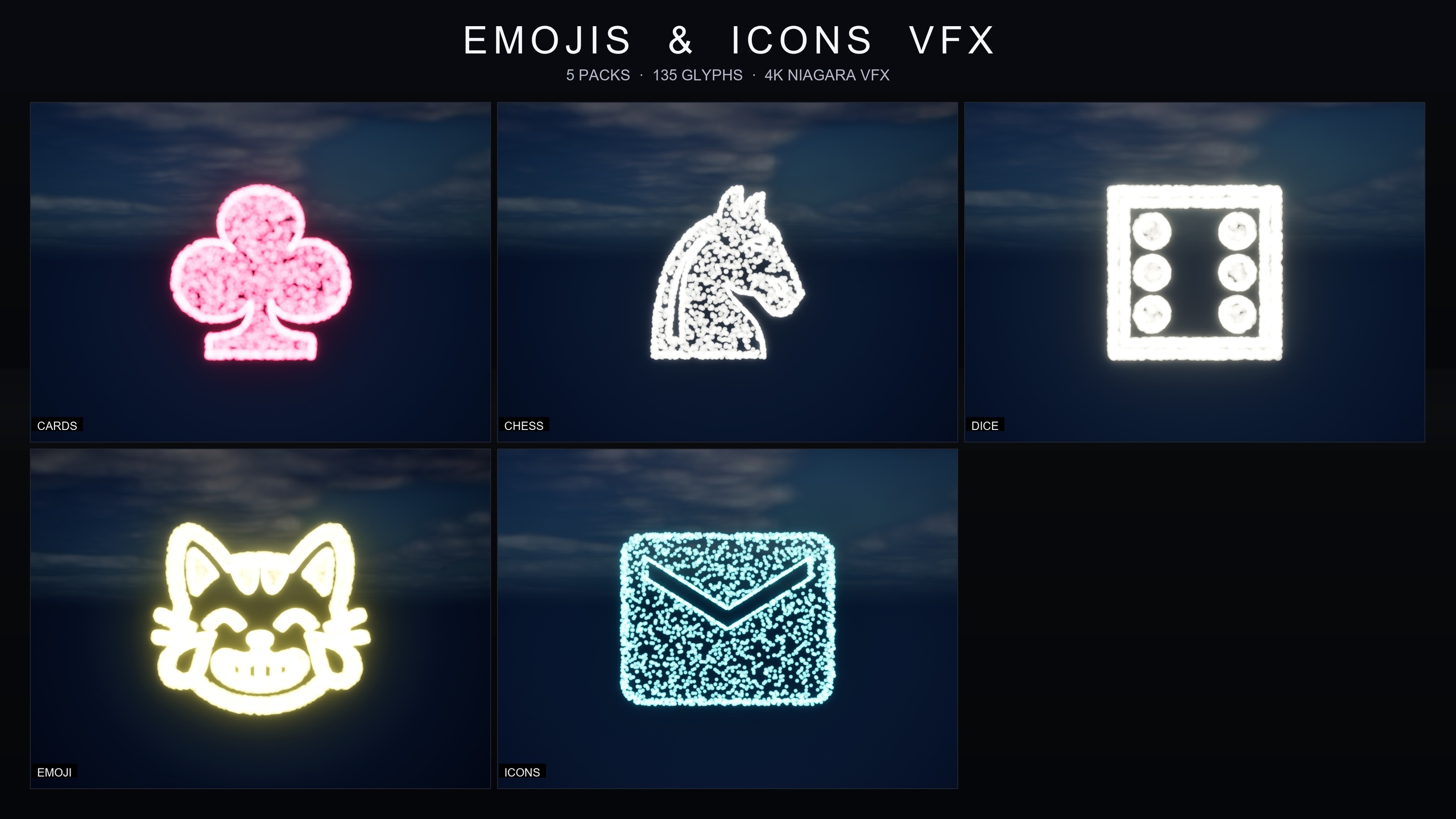
This is exactly how the Emojis and Icons VFX Bundle is built. Every one of its 135 effects is a Niagara CPU sprite renderer that samples particle positions across a baked 3D glyph mesh, so the symbol is drawn out of particles rather than stamped from a texture. The rest of this tutorial walks through building that pipeline yourself, then explains where reaching for the ready-made library makes more sense than authoring 135 systems by hand.
Step 1: bake a glyph (emoji, icon or suit) to a mesh
Before Niagara can sample a symbol, the symbol has to exist as geometry. The source of truth is a font asset. The Emojis and Icons VFX Bundle draws its glyphs from font assets such as F_EmojiNoto, F_NotoEmoji_Regular, F_MaterialIcons_Regular and F_NotoSansSymbols2 — the Noto Emoji set for the emoji and Material Design for the icons. A font is just a library of vector shapes, one per character, which makes it the cleanest possible starting point for a clean-edged symbol.
1. Pick your glyph. Decide which character you are turning into a shape: a spade suit, a chess knight, a die face, a Noto emoji, or a Material icon such as home, menu, search or settings. Each maps to a single character (or code point) in a font.
2. Get that glyph into a mesh. The goal is a static mesh whose silhouette is the symbol — for example an SM_ asset matching the glyph. You can extrude the font outline into geometry in a DCC tool and import it, or build the mesh from the font glyph inside the editor. The bundle keeps all of these as baked glyph meshes under a Meshes folder so the runtime never has to rasterise text.
3. Keep it flat and clean. A symbol mesh wants an even, well-distributed surface so particles land uniformly across the shape rather than clumping on dense triangles. The bundle follows a tidy convention here — SM_ for the static meshes, F_ for the fonts — and stores everything under one content folder so a glyph, its font and its system stay together.
Baking once, at author time, is the whole point. The expensive step (turning a vector outline into geometry) happens before the game runs, so at runtime Niagara only has to read positions from a finished mesh.
Step 2: a CPU sprite renderer that samples positions across the mesh
With a glyph mesh in hand, the Niagara system is surprisingly small. The bundle uses a Niagara CPU sprite renderer that samples positions across the baked 3D glyph mesh, and you can reproduce the same structure in a fresh system.
1. Create a new Niagara System from an empty emitter, or from the Fountain template if you want a working spawn loop to strip back. Give the emitter a CPU simulation target so it runs on PC, console and mobile alike — a CPU sim is what keeps the bundle mobile-friendly.
2. Add the glyph mesh as a sampling source. In the emitter, add a static mesh sampling capability and point it at your baked SM_ glyph. This is the data interface Niagara reads to find valid surface positions on the shape.
3. In 'Particle Spawn', set each new particle's position from the mesh. Use the static mesh sampling to pick a position on the surface (or across the triangles) and write it into the particle's 'Position'. From the first frame, every particle is born somewhere on the symbol, so the cloud reads as the glyph immediately.
4. Set the renderer to a Sprite Renderer. Each sampled point becomes a small camera-facing sprite. Because the positions came from the mesh, the sprites collectively spell out the shape; because they are individual particles, you can drive their size, colour, lifetime and motion independently.
5. Tune spawn rate and lifetime for the read you want. A low spawn rate with a long lifetime gives a delicate, sparse symbol; a high spawn rate gives a dense, solid one. The bundle exposes exactly these dials, which is the subject of the next step.
Step 3: keeping the symbol crisp at any scale
The reason this approach beats a sprite is sharpness. A bitmap glyph has a fixed pixel resolution and softens the instant you push past it. A particle-sampled glyph has no native resolution at all — it is a distribution of points over geometry — so the bundle is described as 4K-ready and crisp at any scale. Whether the symbol sits in a HUD corner or fills the screen for a capture, the edges stay defined because they are made of discrete particles, not interpolated pixels.
To hold that crispness as you scale, density has to track size. A symbol that looks solid at HUD-corner scale will look sparse and gappy when blown up to screen-filling, because the same particle count now has to cover far more area. The fix is to raise the spawn rate (more particles) and, if needed, drop the per-particle size as the overall effect grows, so the symbol stays evenly filled at every scale.
The bundle bakes this control into a single asset per pack. Each of the five packs ships its own Niagara Parameter Collection — NPC_CardsSuitsStyle, NPC_ChessPiecesStyle, NPC_DicePipsStyle, NPC_EmojiNotoStyle and NPC_IconsMaterialStyle — and editing one of those retunes spawn rate, particle size, glyph colour and lifetime across the entire pack in real time. So you can take a whole category from delicate dust to dense hero burst, or from HUD-corner to screen-filling, by changing one value rather than opening every system.
It also plays well with your lighting stack. The effects work under any post-process setup and play nicely with bloom, so a small amount of bloom over a bright particle glyph reinforces the read at large scale without you reauthoring anything.
Step 4: recolour and retheme from one place
Once the geometry and sampling are right, theming is where this pipeline pays off repeatedly. Because colour is a per-emitter parameter rather than baked into a texture, you can retheme an entire category from a single value. The bundle ships with a signature colour per pack out of the box — warm gold for the emoji, cool cyan for the icons, pure white for the chess and dice sets, and pink-red for the cards — but each pack's Niagara Parameter Collection exposes glyph colour as one of its live controls.
That means recolouring is not a per-asset chore. Open the relevant NPC_<PackName>Style collection, change the glyph colour, and every system in that pack updates together — useful when a UI restyle, a seasonal event or a brand palette change has to ripple across dozens of symbols at once.
Lifetime is exposed the same way, which controls behaviour as much as look. A short lifetime gives a one-shot pop suited to a button press or a notification; a long lifetime gives a persistent ambient glow suited to a selected piece or a standing HUD accent. Because all five packs share the same architecture, learning to retune one pack teaches you all of them.
Step 5: dropping a finished glyph into a level or UI
Whether you authored your own or are using the bundle, placing a symbol effect is deliberately trivial. The bundle is content-only with zero third-party dependencies — no Marketplace prerequisites, no extra plugins, no external content — so there is nothing to compile and nothing to wire up.
1. Browse to the system. In the Content Browser, the bundle lives under a single EmojisAndIconsVFX folder, with the Niagara split into CardsSuits, ChessPieces, DicePips, EmojiNoto and IconsMaterial. The naming is consistent — NS_ for systems, for example NS_CardsSuits_SpadeBlack, NS_ChessPieces_WhiteKnight or NS_DicePips_Die6 — so filtering to the symbol you need is fast.
2. Drag the NS into your level or UI context and play. The symbol assembles out of particles with no setup and no missing references.
3. Preview before you commit. The bundle ships demo maps named L_Demo_EmojisAndIconsVFX_*, including multi-part maps for the larger Emoji and Icon sets, so you can audition the whole library laid out in one place before choosing.
4. Restyle in context. If the default look is close but not exact, open that pack's NPC style collection and nudge spawn rate, size, colour or lifetime until it fits the moment.
These are practical places to use it: suit-reveal flourishes in card and casino games, piece-selection feedback and checkmate hero shots in chess, dice-roll feedback in tabletop and gacha titles, reaction and emote bursts for chat overlays and streaming, and Material-icon flair for HUD accents, button feedback and onboarding pointers.
Build your own vs using the ready-made library
Building one glyph effect from scratch, as above, is genuinely a short afternoon: bake the mesh, sample it from a CPU sprite emitter, expose a few parameters. The cost is not the first system — it is the hundredth. A full symbol library means sourcing fonts, baking a clean mesh per character, naming everything consistently, building a parameter collection per category, and producing demo maps to audition it all. That is the work the Emojis and Icons VFX Bundle has already done.
The bundle covers 135 effects across five themed packs: Card Suits (eight effects — spades, hearts, diamonds and clubs in pure black and white variants), Chess Pieces (twelve — king, queen, rook, bishop, knight and pawn in white and black sets), Dice Pips (six — the die faces one through six), Emoji (eighty face and reaction emoji from the Noto Emoji set, rendered as warm glowing particles), and Material Design Icons (twenty-nine, including home, menu, search, favourite, add, settings and camera). Each pack arrives with its own parameter collection, its signature colour, and demo maps.
It is a content-only pack with no third-party dependencies, built clean on Unreal Engine 5.4, with the product listing covering 5.4 to 5.7. If your need is a single bespoke symbol with very specific motion, author it yourself using the steps above. If you need a broad, consistent, instantly retunable symbol set for UI flair, game feedback and reaction moments, the bundle saves the repetitive baking-and-naming work and hands you a uniform architecture to learn once.
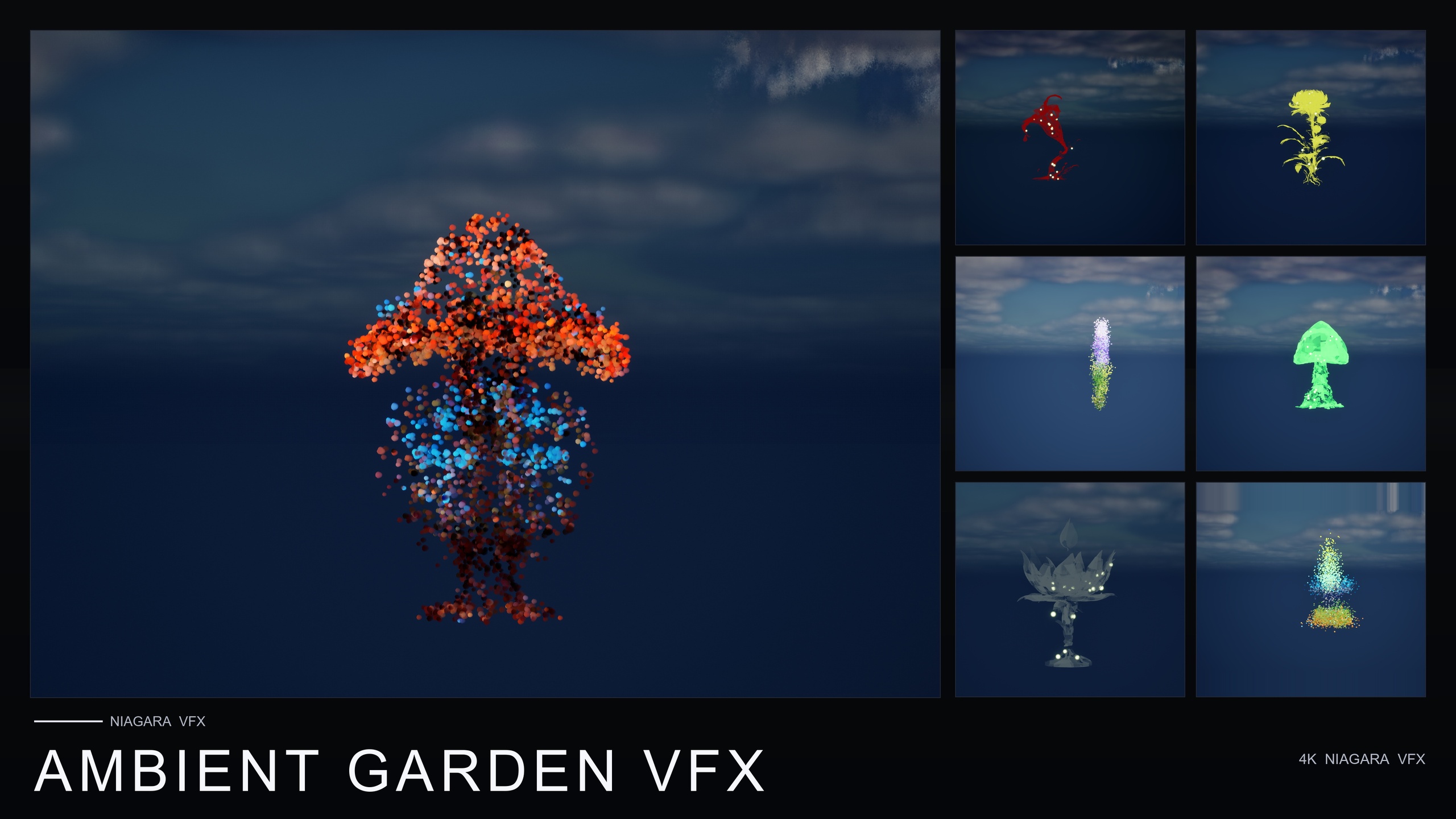
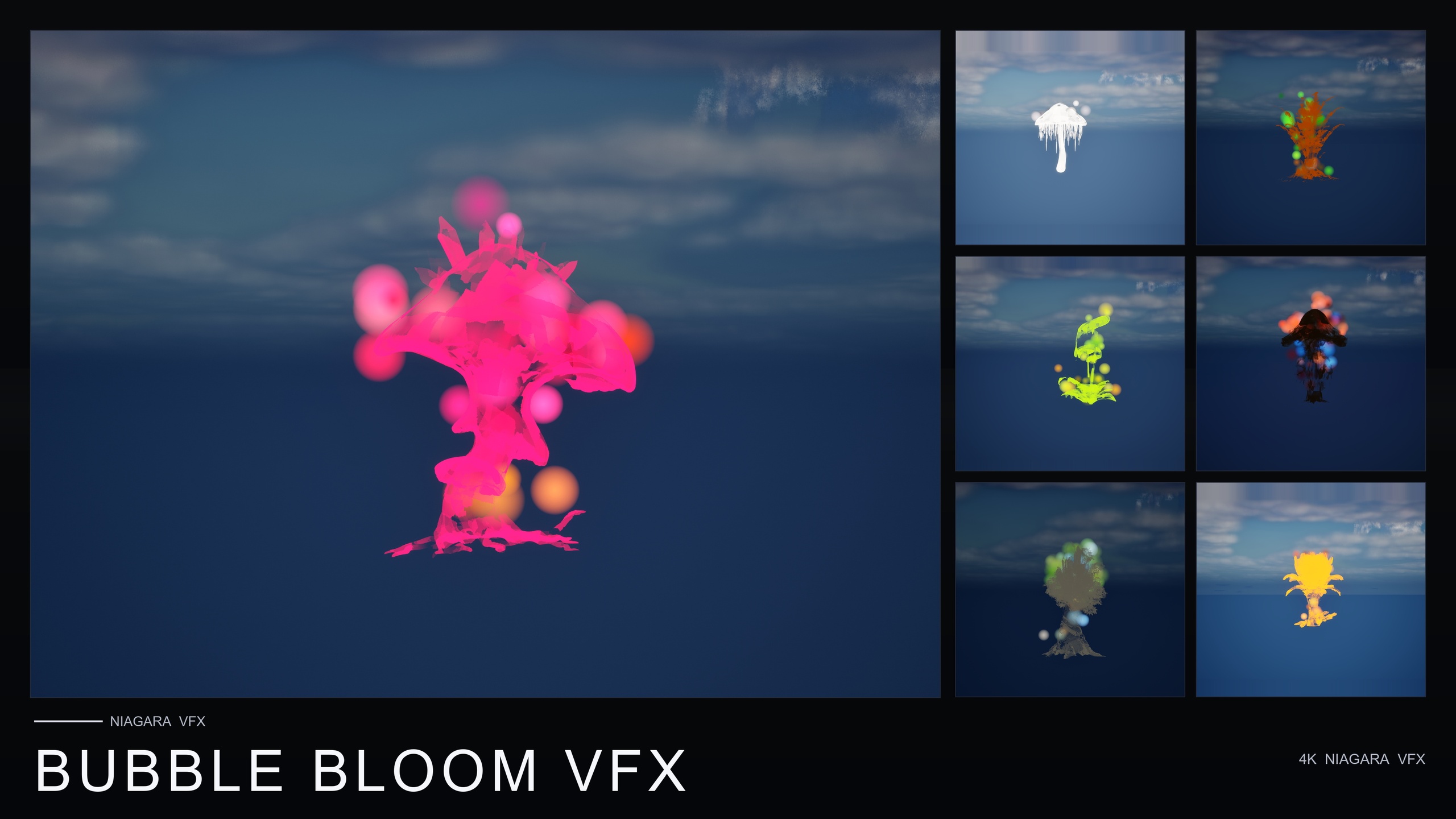
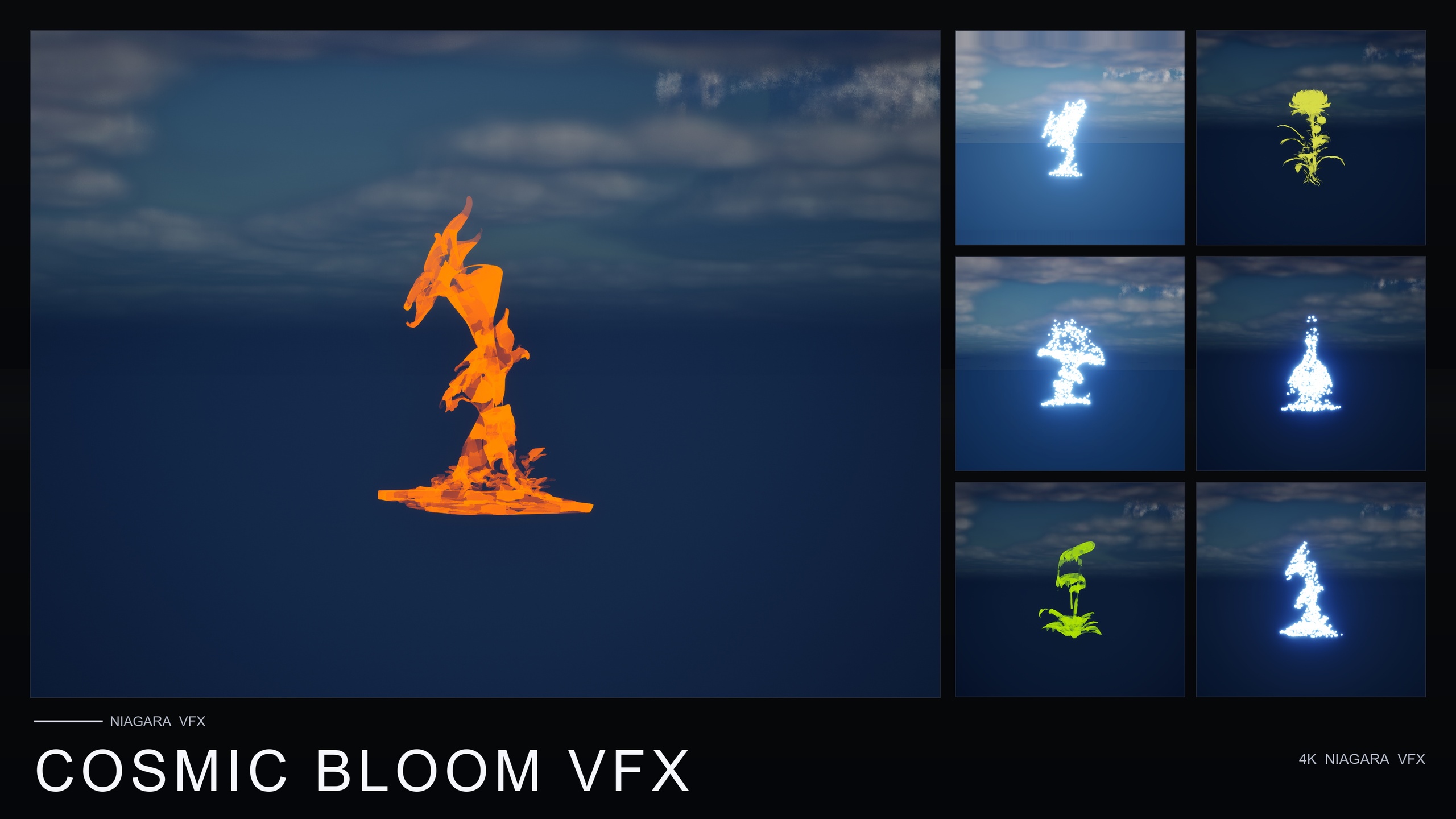
If you like this mesh-sampled Niagara approach for nature scenes rather than symbols, the same studio's flower-line packs apply families of effects across the stylised flower roster: Ambient Garden VFX for drifting motes, firefly swarms and ground mist, Bubble Bloom VFX for rising soap-film bubbles, and Cosmic Bloom VFX for constellation silhouette tracing and soft astral light. All are content-only CPU-sim Niagara packs in the same house style.
What ships in each pack
| Pack | Effects | Coverage | Signature colour | Parameter collection |
|---|---|---|---|---|
| Card Suits | 8 | Spade, heart, diamond, club in black and white | Pink-red | NPC_CardsSuitsStyle |
| Chess Pieces | 12 | King, queen, rook, bishop, knight, pawn (white + black) | Pure white | NPC_ChessPiecesStyle |
| Dice Pips | 6 | Die faces 1 to 6 | Pure white | NPC_DicePipsStyle |
| Emoji (Noto) | 80 | Face and reaction emoji from the Noto Emoji set | Warm gold | NPC_EmojiNotoStyle |
| Material Icons | 29 | Home, menu, search, favourite, add, settings, camera, arrows | Cool cyan | NPC_IconsMaterialStyle |
Counts and signature colours are from the product listing. All five packs share the same CPU-sprite-on-glyph-mesh architecture and one Niagara Parameter Collection each.
FAQ
How do I make UE5 Niagara spawn particles on a mesh surface so they form a text symbol?
Bake your symbol (an emoji, icon, suit or letter) into a static mesh whose silhouette is the shape, then add that mesh as a static-mesh sampling source on a CPU emitter. In 'Particle Spawn', set each particle's position from a sampled point on the mesh and render with a Sprite Renderer. Every particle is then born somewhere on the symbol, so the cloud reads as the shape. The Emojis and Icons VFX Bundle ships 135 effects built exactly this way.
Why use particles on a mesh instead of just a flat sprite of the symbol?
A sprite is a single fixed-resolution quad: it softens when scaled up, ignores your scene, and can only fade or slide as one rigid object. Particles sampled across a glyph mesh have no native resolution, so the symbol stays crisp at any scale, and because each particle is independent you can assemble, scatter, recolour or burst the symbol apart.
Will mesh-sampled glyph effects stay crisp when I scale them up?
Yes — the bundle is described as 4K-ready and crisp at any scale because the symbol is a distribution of particles over geometry rather than a bitmap. To keep it evenly filled as it grows, raise the spawn rate so more particles cover the larger area, which you can do for a whole pack at once via its Niagara Parameter Collection.
Can I recolour or retune the whole set without editing every effect?
Yes. Each of the five packs ships one Niagara Parameter Collection (for example NPC_EmojiNotoStyle) that exposes spawn rate, particle size, glyph colour and lifetime. Editing a single value retunes every system in that pack in real time, so a recolour or a density change ripples across the category instantly.
Does the bundle need any plugins or external content to run?
No. It is a content-only pack with zero third-party dependencies — no Marketplace prerequisites, no extra plugins and no external content. It was built clean on Unreal Engine 5.4 with the listing covering 5.4 to 5.7, runs on a CPU sim so it is mobile-friendly, and you preview it with the included L_Demo_EmojisAndIconsVFX maps.
Emojis and Icons VFX Bundle
Five themed Niagara packs in one bundle — Card Suits, Chess Pieces, Dice Pips, 80 Emoji and Material Design Icons — 135 effects in total. Each pack ships a Niagara Parameter Collection so spawn rate, size, colour and lifetime retune across a whole set from a single asset.
Related on Fab
Related reading