
tutorial · 2026-05-30
Stitching Multiple Landscapes Together in World Partition (UE5)
How to use smaller heightmap tiles to patch several landscapes into one continuous world inside World Partition.
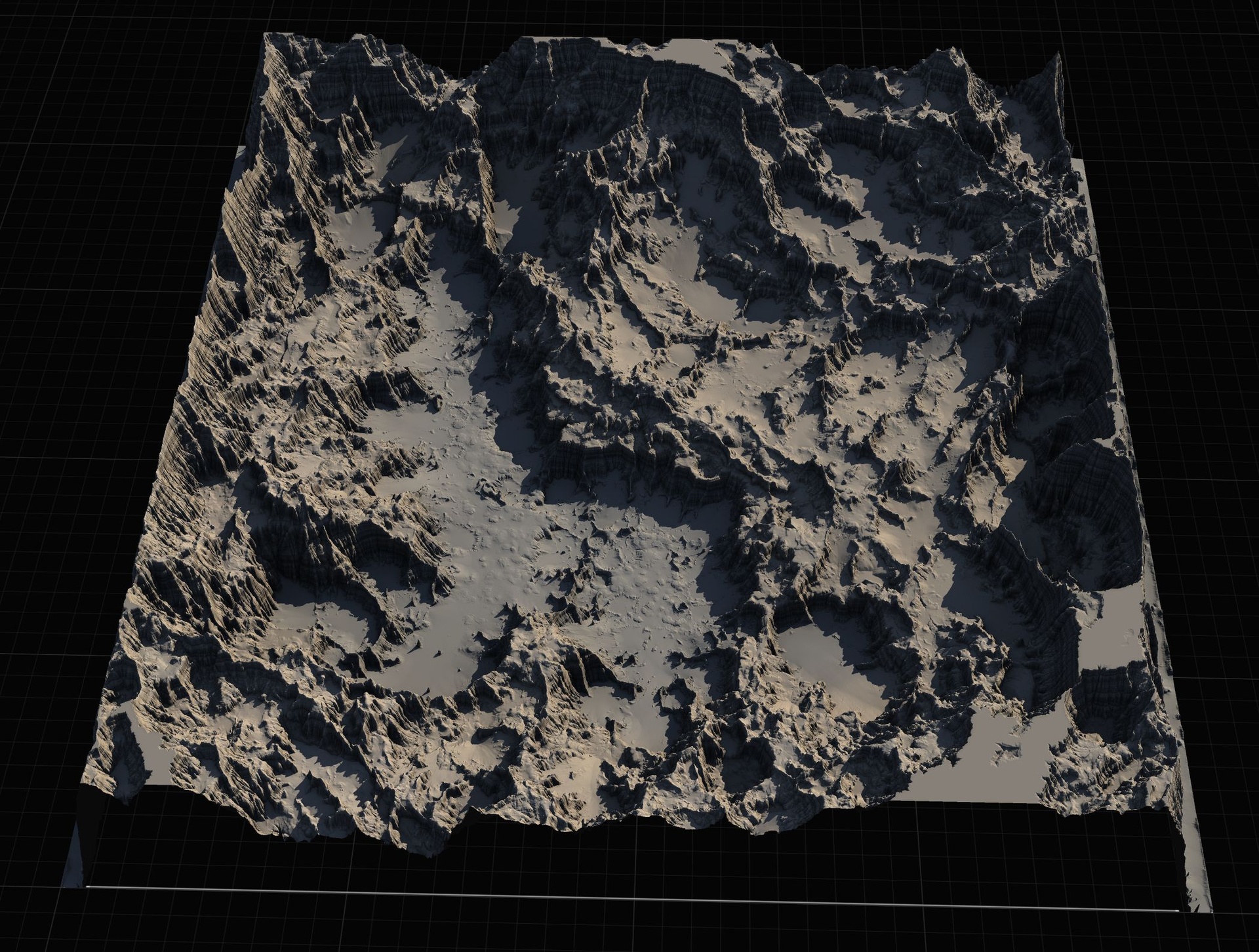
Why one giant landscape isn't always the answer
The instinct when you start a big map is to reach for a single enormous landscape and an 8K heightmap. It works, but it is not always the right call. A monolithic terrain is one asset you have to load, sculpt and version as a unit, and it pins your whole world to one heightmap's resolution and footprint. The moment you want a different region to read at a different scale, or you want to author one valley without touching the rest of the continent, that single block starts to fight you.
World Partition gives you a better option. You can create multiple landscapes and patch them together so the player walks across what feels like one continuous world, while you keep each piece as its own importable, re-editable tile. This guide shows how to learn unreal world partition multiple landscapes patch together tile workflows in practice, using the Massive Open World Landscape Pack as a ready-made source of clean, import-ready heightmaps at four resolutions.
The pack ships 14 distinct open-world landscapes, and crucially each one is provided at 1K, 2K, 4K and 8K. That range is what makes tiling realistic: you use the smaller maps for sub-regions and reserve 8K for the full open world. You are never forced to bring an 8K terrain to a job a 2K tile would do.
Using smaller heightmaps as tiles
Each landscape in the pack is a 16-bit grayscale PNG heightmap, where whiter pixels mean higher elevation. The four sizes correspond to UE landscape-friendly pixel dimensions: roughly 1009x1009 for 1K, 2017x2017 for 2K, 4033x4033 for 4K and 8129x8129 for 8K. Those are not exact powers of two, which is deliberate, as UE prefers these section-friendly dimensions when it builds a landscape's component grid.
Treat the smaller resolutions as your tiles. A 1K or 2K heightmap makes a sensible sub-region: an island, a mountain pass, a stretch of highlands that you can place next to its neighbours. Because the pack includes terrains like Dragon Tooth Island, Sandstone Isles, Dark Mountains, Mountain Pass and Highlands, you can mix recognisable landforms into a single composed world rather than repeating one shape.
Plan the layout before you import. Decide which tile sits where, and remember that two adjacent landscapes meet at their shared edge, so the elevations along that edge are what you will need to reconcile later. Picking heightmaps whose border heights are broadly compatible, or planning to blend the seam, saves work when you patch them together.
Creating multiple landscapes in World Partition
Work in a World Partition level. In this mode Unreal lets you create multiple landscapes in the same world and patch them together, which is the foundation of the whole tiling approach.
1. Open the Landscape panel and switch to the Manage tab. Choose to create a new landscape From File and select one of the pack's grayscale heightmaps. Start with a 1K or 2K tile for a sub-region rather than jumping straight to 8K.
2. Set the landscape's location in the world before you confirm, so it lands roughly where it belongs in your layout. This is your first tile.
3. Repeat the process for the next region: create another new landscape From File, select the next heightmap, and position it adjacent to the first. Each import is its own landscape actor, so you can manage, hide and edit them independently.
4. Continue until every region of your world exists as a placed tile. Because you are in World Partition, these landscapes coexist in one persistent world and stream as the player moves, instead of all living inside a single monolithic terrain.
Keep the resolutions consistent where tiles meet. If two neighbours need to share an edge cleanly, importing them at the same resolution makes their per-vertex spacing match, which makes the seam far easier to align in the next step.
Aligning and patching the tiles together
With your tiles imported, the job is to make the joins disappear. Alignment comes first: position each landscape so that adjacent edges butt up against one another in XY with no gap and no overlap, and so their base elevations line up at the shared border. Matching resolutions, as noted above, keeps the vertex spacing consistent across the seam.
Where edge heights do not perfectly agree, you blend the seam rather than leaving a cliff. This is where a stamping tool earns its place. Landstamp Pro drives Unreal's built-in Landscape Patch system, placing non-destructive 'Landstamp' actors that add, subtract or replace height beneath them, so you can smooth a join or raise a ridge across two tiles without baking the change. It auto-targets the landscape its footprint sits over, and for overlapping landscapes you can turn off bAutoTargetLandscape and set the TargetLandscape explicitly, which is exactly the case at a tile boundary. Its blend modes (Additive, Subtractive, Replace, Maximum, Minimum) and falloff shapes let you feather a seam in.
If you would rather stay in Blueprint, the Landscape Stamp Tool offers the same patch-based idea without C++: you drag a stamp-tool blueprint into a World Partition level and it morphs the terrain in place, with priority-based overlap handling and falloff so stacked stamps blend. Either way, because these are Landscape Patch edits, the seam work stays editable and you can re-tune it after the fact.
Once the geometry reads as continuous, unify the look. Apply the pack's included AutoMaterial in each landscape's material slot so every tile is painted by the same height and slope rules. Expect the landscape to appear black at first, which is expected. Open the Landscape tool's Paint tab, choose 'Create Layers from Assigned Material' to extract the target layers, then right-click 'AutoMaterial Base Layer' and choose Fill Layer to paint the whole tile by height. Doing this consistently across every tile is what makes a patched-together world look like one terrain instead of several.
Texturing patched tiles consistently
Visual continuity across a seam depends on every tile sharing the same material setup. The pack's AutoMaterial is structured with named layers, an AutoMaterial Base Layer plus Snow, Cliff, Mid-High, Mid-Low and Ground, and it ships with five extra custom layers for hand-painting your own textures on top. Configure the height and slope thresholds once in the Material Instance, then reuse that same instance on each tile so a cliff on one landscape is shaded identically to a cliff on its neighbour.
Edit textures and parameters in the Material Instance, not in the extracted layers. Each layer exposes a base colour and normal plus height and slope intensity, and the supporting material functions handle snow masking, puddles, colour variation, tiling variation and an RVT blend. The pack also includes Runtime Virtual Texture height and colour assets and physical materials per tier, which help blending objects and footstep behaviour stay consistent across the whole world.
Do not edit the extracted target layers directly; if you need to change something, adjust the Material Instance and re-create the layers. The bundled textures are basic, starter-content-style coverage meant to be swapped, so plan to bring your own art for a shipping project, applying the same swapped textures across every tile to preserve the seamless look.
Choosing 8K for the largest worlds
Resolution is a deliberate choice, not a default. The guidance the pack follows is straightforward: use the smaller resolutions for parts of a larger world, and reserve 8K for the largest open worlds. A 1K or 2K tile is the right size for a sub-region you are patching alongside others, while an 8K heightmap suits a single sprawling, explore-the-continent landscape where you genuinely need that vertex density end to end.
In a patched World Partition world you will often mix the two ideas. You might anchor the map on one large 8K landscape and patch smaller 1K and 2K tiles around its margins for islands and outlying regions, or build the whole thing from medium tiles for finer control over streaming and per-region iteration. Because every map in the pack is supplied at all four sizes, you can prototype a region at 1K, then re-import the same landform at 4K or 8K once the layout is locked.
When you want to change a tile's shape rather than just its resolution, each map includes a Gaea .terrain source file, so you can re-edit the terrain in Gaea and re-import the adjusted heightmap. That keeps your tiling workflow non-destructive end to end: prototype small, patch and blend in World Partition, and only commit to high-resolution tiles where the world is big enough to need them.
Choosing a heightmap resolution per tile
| Resolution | Approx. pixels | Typical use in a patched world |
|---|---|---|
| 1K | 1009x1009 | Small sub-region or island tile |
| 2K | 2017x2017 | Mid-size sub-region, finer streaming control |
| 4K | 4033x4033 | Detailed region once layout is locked |
| 8K | 8129x8129 | A single large, explore-the-continent open world |
Approximate pixel dimensions are the UE landscape-friendly sizes shipped in the pack; labels (1K-8K) are not exact powers of two. Use as a guide to picking tile sizes when patching.
FAQ
Can you really create multiple landscapes and patch them together in World Partition?
Yes. In World Partition mode Unreal lets you create multiple landscapes in one world and patch them together. Each landscape is imported as its own actor from a heightmap, positioned adjacent to its neighbours, and the shared edges are aligned and blended so the result reads as one continuous terrain.
What resolution should each tile be?
Use smaller resolutions for parts of a larger world and reserve 8K for the largest open worlds. A 1K or 2K heightmap is a sensible sub-region tile, 4K suits a detailed region, and 8K is for a single sprawling landscape. Every map in the pack ships at all four sizes, so you can prototype small and re-import larger later.
How do I blend the seam where two landscapes meet?
Align the tiles so adjacent edges butt up in XY and their base elevations match, then blend any height difference with a Landscape Patch stamp. Landstamp Pro (C++) or the Landscape Stamp Tool (Blueprint) both drive the patch system non-destructively, with falloff and blend modes to feather the join, and the edits stay editable afterwards.
How do I keep the texturing consistent across tiles?
Apply the same AutoMaterial in each tile's material slot and reuse one Material Instance so height and slope rules match everywhere. Expect an initial black landscape, then use the Paint tab's 'Create Layers from Assigned Material' and Fill the AutoMaterial Base Layer. Edit textures in the Material Instance, never the extracted layers directly.
Can I change a tile's shape before re-importing it?
Yes. Each map includes a Gaea .terrain source file, so you can re-edit the terrain in Gaea and re-import the adjusted grayscale heightmap. This lets you reshape a tile to fit your layout while keeping the whole tiling workflow non-destructive.
Massive Open World Landscape Pack
Fourteen ready-to-play open-world landscapes with an auto-material setup — 56 heightmaps from 1K to 8K, including volcanic islands and oceans. Drop in, paint your own textures and build your world.
Related on Fab

Related reading