
tutorial · 2026-04-26
How to Scatter Meshes With PCG in Unreal Engine 5: A Fantasy Flower Scatter Tutorial
Build a slope-aware, biome-filtered procedural flower scatter in UE5 using the Procedural Content Generation framework and the Fantasy Flower Pack.
The problem with hand-placing flowers
Hand-placing ground cover does not scale. The moment you want a glade floor, an alien meadow or a cursed garden to read as believable, you need hundreds of plants distributed with controlled randomness, broken up by species, and kept off the cliffs and rooftops where flowers would never grow. Painting that by hand is slow, hard to iterate on, and impossible to keep consistent across a large landscape.
This tutorial covers how to scatter meshes with PCG in Unreal Engine 5: you will build a Procedural Content Generation graph that samples a surface, filters the points by slope, and spawns a varied mix of meshes from the Fantasy Flower Pack. PCG is non-destructive, so once the graph is built you can move it, resize it, retune the density and re-roll the layout without ever touching an individual instance.
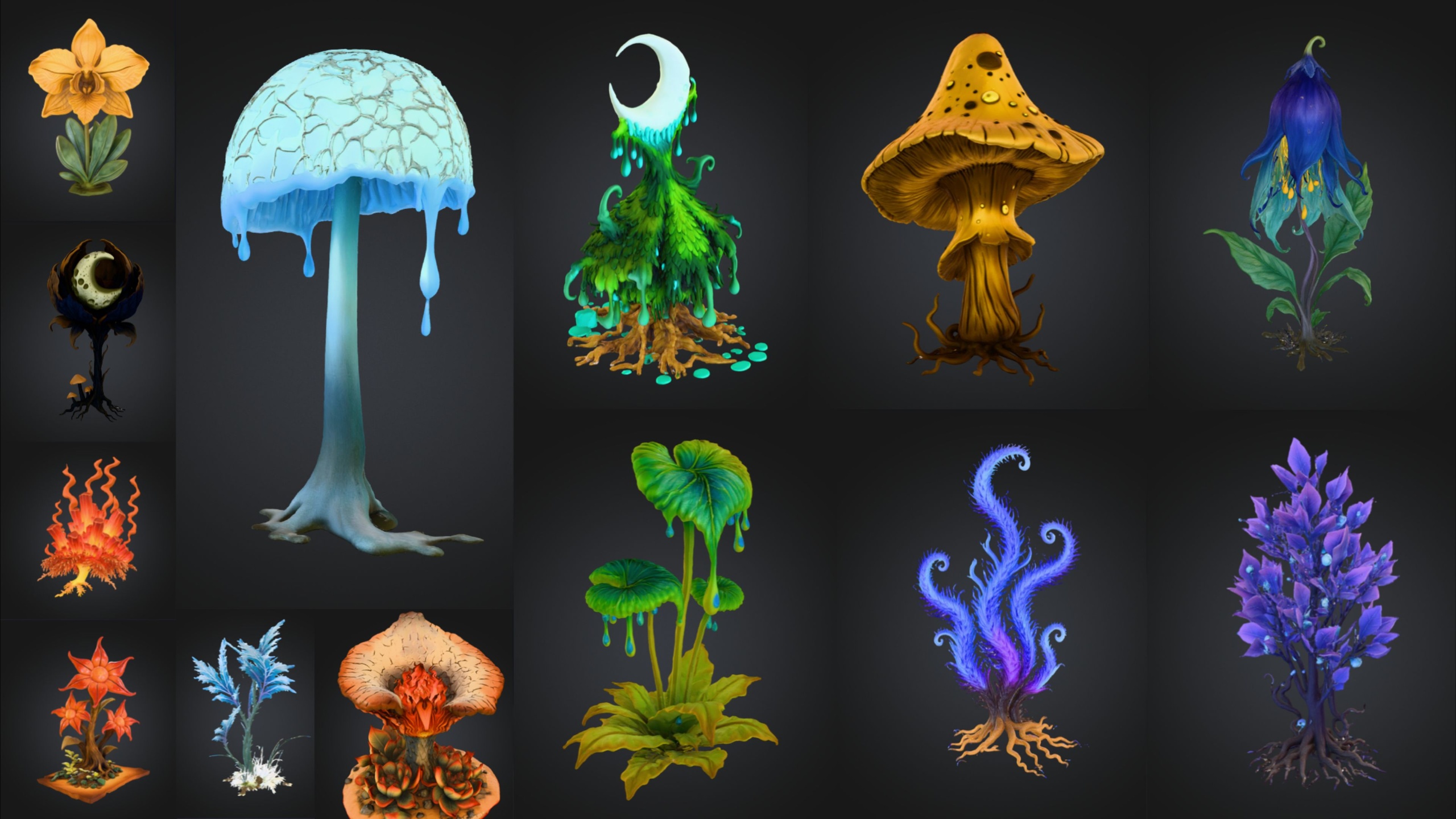
The Fantasy Flower Pack is a good fit for this because it ships 51 unique hand-modelled flower and plant static meshes, all Nanite-ready, each with its own material and a 2K PBR texture set. That variety is exactly what a scatter graph needs: enough distinct meshes to avoid the obvious tiling and repetition that gives away a procedural placement.
PCG basics: what the framework actually does
PCG in Unreal Engine 5 works on point data. A graph generates a cloud of points, transforms and filters that cloud, and then hands the surviving points to a node that spawns geometry at each one. Everything in between is just operations on points: sampling a surface to create them, moving them, culling them, and writing attributes such as scale and rotation onto them.
There are two pieces you place in the level. The first is a PCG Volume, which defines the bounds the graph operates inside. The second is the PCG Graph asset, which holds the actual node network and is assigned to the volume's PCG component. You edit the graph once, and every volume that references it regenerates automatically.
Make sure the PCG framework is available before you start. Open 'Edit' then 'Plugins', search for PCG, and confirm 'Procedural Content Generation Framework' is enabled. The Fantasy Flower Pack targets Unreal Engine 5.6, so work in 5.6 to keep the meshes, materials and the PCG nodes referenced here consistent.
Step 1: create the volume and an empty graph
1. In the 'Place Actors' panel search for 'PCG Volume' and drag one into your level over the ground you want to dress. Scale it so it covers the area, making sure the bottom of the volume sits below the surface and the top sits above it, because the surface sampler only finds geometry inside the volume bounds.
2. In the Content Browser right-click, choose 'PCG' then 'PCG Graph', and name it something like PCG_FlowerScatter. Double-click it to open the PCG graph editor.
3. Select the PCG Volume in the level, find the 'PCG' component in the Details panel, and assign your PCG_FlowerScatter graph to its 'Graph' property. From now on, edits to the graph drive what appears inside the volume.
Every new graph opens with an 'Input' node and an 'Output' node already present. The Input node is where the world data, the landscape or static meshes under the volume, enters the graph; the Output node is the end of the chain. Your job is to fill the space between them.
Step 2: sample the surface and set density
Add a 'Surface Sampler' node and wire the 'Input' node into it. The Surface Sampler projects a grid of points onto whatever surface lies inside the volume, which becomes your raw candidate positions for flowers. If you are scattering on Unreal's Landscape, the sampler reads it directly; if you are scattering on static-mesh terrain, make sure those meshes are inside the volume.
Select the Surface Sampler and tune 'Points Per Squared Meter' to control density. Start low, around one quarter to one point per square metre, and raise it once the rest of the graph is working, otherwise you will be regenerating tens of thousands of points on every edit. Lower density also reads more naturally for flowers, which rarely carpet a surface edge to edge.
At this point you should see a uniform grid of points filling the volume floor in the viewport. That regularity is the thing PCG is built to break up, which is the next two steps.
Step 3: filter by slope so flowers stay on flat ground
Flowers do not grow on vertical rock faces, so you want to discard any point sitting on a steep gradient. The clean way to do this is with the surface normal: on flat ground the normal points almost straight up, and as the surface tilts the normal tilts with it.
Add an 'Attribute Filter' node downstream of the Surface Sampler. Configure it to test the point normal's vertical component (the Z value of the Normal attribute) against a threshold, keeping points where Z is above roughly 0.8 and rejecting the rest. A higher threshold keeps flowers to flatter and flatter ground; lowering it lets them creep onto gentle slopes. Wire the kept output onward and leave the rejected output unconnected.
If you want a softer biome boundary rather than a hard slope cut, drive density with a 'Density Filter' or paint a mask and sample it, so flowers thin out toward the edge of a region instead of stopping abruptly. The same point cloud also accepts a height test, letting you keep blooms in a valley and off the peaks. The point of this step is that nothing here touches the meshes yet, you are only deciding where flowers are allowed to be.
Step 4: randomise rotation and scale for natural variety
A grid of identical, identically-oriented flowers looks wrong instantly. Add a 'Transform Points' node after your filter to introduce per-point variation. Enable rotation randomisation on the yaw (Z) axis across the full 0 to 360 degree range so every flower faces a different way, and add a small amount of pitch and roll jitter if you want them to lean slightly.
In the same node, set a scale range, for example a minimum of around 0.85 and a maximum of around 1.2, so individual plants vary in size. Keep the range modest; wild scale variation makes a bed of flowers look like a glitch rather than a garden.
Add an 'Offset' or position-jitter so the points stop sitting on the obvious grid. Even a small random horizontal offset per point removes the tell-tale rows and turns the regular sample into something that reads as organic. Because the Fantasy Flower Pack meshes are Nanite-ready, you can lean on this scale and density variation freely without worrying about LOD popping on the denser blooms.
Step 5: point PCG at the flower meshes
Now connect the points to geometry. Add a 'Static Mesh Spawner' node after your Transform Points node and wire it through to the 'Output' node. The Static Mesh Spawner reads each point's transform and instances a mesh there.
In the Static Mesh Spawner's 'Mesh Entries', add an entry and assign one of the pack's meshes, for example SM_FantasyFlower_01 (the meshes follow the SM_FantasyFlower_ naming pattern). Each flower already carries its assigned material and 2K PBR maps, and the meshes ship with automatic collision, so you do not need to set up materials or collision by hand after spawning.
Regenerate the graph. You should now see that single flower species scattered across the flat ground inside your volume, rotated and scaled per point and absent from the steep faces. That is a complete single-species scatter; the remaining work is mixing species so the bed has real variety.
Step 6: mix flower types for a believable bed
A real flower bed is several species intermingled, not one mesh repeated. The Static Mesh Spawner supports weighted mesh selection: add several 'Mesh Entries', each pointing at a different SM_FantasyFlower_ mesh, and give each one a weight. The spawner then distributes points across those meshes according to the weights, so you can make common blooms frequent and rare ones sparse.
Lean on the pack's themed variety here. The 51 meshes span blossoms, lotuses such as the Blood Lotus and Radiant Lotus, crystalline and arbor plants, mushrooms and fungus, nightshade, and ember and coral blooms. For a fantasy glade, weight the soft blossoms and lotuses heavily and sprinkle a few crystalline plants. For a gothic or cursed garden, weight the nightshade, blood lotus and ember blooms instead. For an alien biome, the crystalline, coral and arbor plants give you the otherworldly read.
For more control than a single weighted spawner gives, split the cloud: run two or three branches off your filtered points, each with its own small density adjustment and its own Static Mesh Spawner and species set, then feed them all into the Output. This lets you, for instance, keep tall arbor plants sparser than the low ground-cover blossoms, layering a scatter the way a planted garden actually layers.
When the bed reads well, dress it. Drop a statue or large prop in as a focal point and let the scatter run up to its base. The free Fantasy Nature Statue makes a natural grove centrepiece for testing the look, the Fantasy Statue Bundle adds eighteen weathered marble statues for landmarks across an open-world scatter, and the Dark Fantasy Props Bundle supplies altars, lanterns and obelisks for a cursed-garden version of the same graph.
Next steps and tuning
With the graph built, iteration is fast and non-destructive. Resize or duplicate the PCG Volume to dress new areas, retune the Surface Sampler density and the slope threshold for different terrain, and re-roll the layout by nudging the graph's seed until the distribution feels right. Nothing is baked, so a designer can keep editing the look without you regenerating anything by hand.
Because PCG owns the placement, you keep the source assets clean: the Fantasy Flower Pack ships as a UE 5.6 project with its FBX sources, image and reference folders alongside the cooked content, so if you need to re-import or edit a mesh in a DCC tool the raw FBX is there. Build the scatter graph once, point it at the meshes, and you have a reusable, slope-aware, multi-species flower system you can drop onto any surface in your project.
Which flower types suit which biome
| Biome | Lead species to weight high | Use as accent |
|---|---|---|
| Fantasy glade / enchanted garden | Blossoms, lotuses (Radiant Lotus) | Crystalline / arbor plants |
| Gothic / cursed garden | Nightshade, Blood Lotus, ember blooms | Mushrooms / fungus |
| Alien / sci-fi biome | Crystalline, coral, arbor plants | Ember blooms |
All species ship in the single Fantasy Flower Pack; weight your Static Mesh Spawner entries by biome.
FAQ
How do you scatter meshes with PCG in Unreal Engine 5?
Place a PCG Volume over your surface and assign it a PCG Graph. Inside the graph, use a Surface Sampler to generate points on the surface, optionally filter them by slope with an Attribute Filter on the normal, randomise per-point rotation and scale with a Transform Points node, then connect a Static Mesh Spawner with your meshes assigned and wire it to the Output. Regenerate, and the meshes appear at every surviving point.
How many flower meshes does the Fantasy Flower Pack include?
It ships 51 unique hand-modelled fantasy, sci-fi and gothic flower and plant static meshes, each with its own material and a 2K PBR texture set, for 201 textures in total at 2048x2048.
Do I need to set up materials, collision or LODs after scattering?
No. Each Fantasy Flower Pack mesh already carries its assigned material and 2K PBR maps and ships with automatic collision. The meshes are also Nanite-ready, so you do not need to author manual LODs for the denser scatter.
Can I use the same meshes with the Foliage tool instead of PCG?
Yes. You can add any of the meshes to a Foliage type and paint them by hand, or feed them to a PCG graph for procedural scatter. PCG is the better choice when you want non-destructive, rule-driven distribution that you can retune and re-roll across a large area.
Which Unreal Engine version should I use?
The Fantasy Flower Pack targets Unreal Engine 5.6 and is supported on Windows. Working in 5.6 keeps the meshes, materials and the PCG nodes described in this tutorial consistent.
Fantasy Flower Pack
Fifty hand-modelled fantasy, sci-fi and gothic flowers — 51 unique meshes with automatic collision, 201 textures at 2048² and Nanite-ready geometry. Dress gardens, alien worlds and stylised scenes.
Related on Fab



Related reading