
tutorial · 2026-01-12
Recolour Matrix Rain to Green, Amber or Blood-Red Without Blooming to White in UE5
Keep the hue when you tint digital-rain glyphs: why your Niagara particle colour blooms too bright to white, and how to fix it.
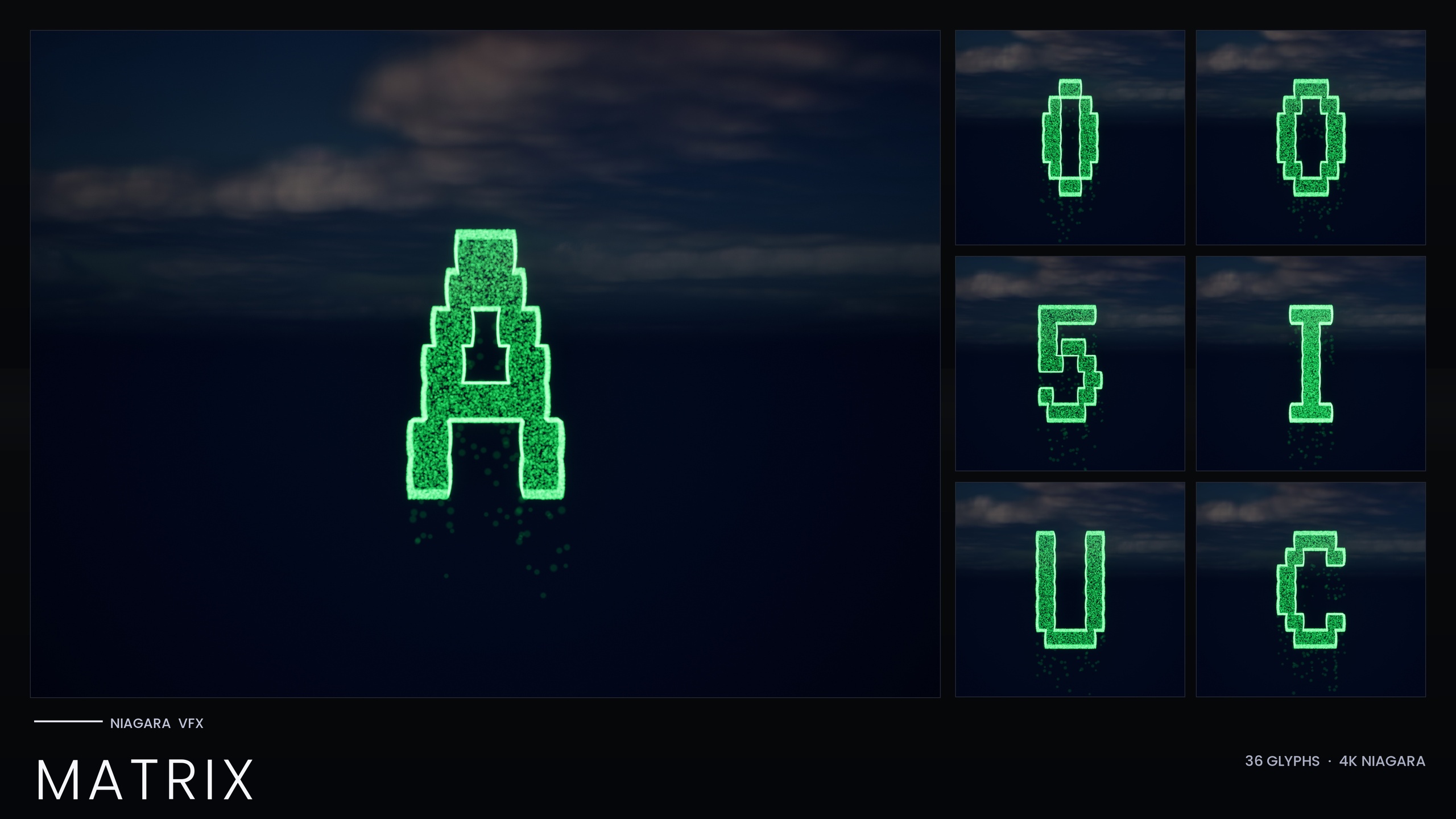
Why your tinted code rain blooms too bright to white
You drop a falling-code glyph into the level, decide green is too on-the-nose, and reach for the sprite colour to make it amber or blood-red. The moment you pick a vivid hue and push the value up, the whole effect blows out: instead of amber rain you get a white smear with a faint coloured fringe. This is the classic 'change Niagara particle color bloom too bright white in UE5' problem, and it is not a bug in your tint - it is how High Dynamic Range colour interacts with the bloom post-process.
Sprite glow in this style comes from HDR colour values above 1.0 driving the engine's bloom. Bloom adds light, and once the value climbs high enough every channel clips and the perceived colour collapses towards white. A green at value 6 reads as white-with-a-green-halo; a red at value 8 reads as a hot white core. The hue is technically still there, but the eye only sees the blown-out highlight.
The fix is to keep the HDR value modest so bloom tints the rain rather than saturating it. The Niagara Matrix Pack is built around exactly this discipline: its green is kept deliberately low, roughly in the 1.0 to 2.5 range, so the bloom picks up the colour instead of washing it out. Hold to that same range when you recolour and your amber stays amber, your red stays red.
Where the colour actually lives on the Spark and Rain emitters
Each of the 36 glyphs (A-Z and 0-9) in the pack ships as its own spawnable Niagara System, and every glyph is built from two CPU emitters. The 'Spark' emitter is the bright, short-life flicker pixels that sell the character; the 'Rain' emitter is the dim grain that falls straight down to sell the cascade. The colour you want to change lives on both.
Unlike the other sets in this product line, the standalone Matrix pack bakes its style as inline Constants - there is no Niagara Parameter Collection here, so there is no one-asset switch and no one-time NPC setup to do. Recolouring is therefore per-system: you edit the colour on the emitters of the system you are using.
1. In the Content Browser, open the glyph's NS_alphabet_matrix_glyph system (for example the system for the letter you are spawning) to bring it into the Niagara editor.
2. Select the 'Spark' emitter and find where the sprite colour is set. Because the style is stored as inline constants, the colour is a value on the emitter itself rather than a parameter pulled from a collection.
3. Set your target hue but keep the brightness low - aim for roughly 1.0 to 2.5 on the dominant channel rather than 5, 6 or higher. This is what keeps bloom tinting instead of clipping to white.
4. Repeat on the 'Rain' emitter so the falling grain matches the spark. If only one emitter is recoloured the cascade and the flicker will disagree, and the readability of the glyph as falling grain breaks down.
5. Make sure bloom is enabled in your post-process volume or project settings - the glow is entirely bloom-driven, so with bloom off the rain will look flat regardless of the colour you pick.
Tinting per-channel for amber and blood-red
Green is forgiving because a single channel carries most of the brightness. Amber and red need a little more care, because you are now lighting two channels (or pushing one hard) and it is easy to overshoot the value that triggers wash-out.
For amber, lift red and green together while keeping blue near zero, and treat the combined brightness - not each channel in isolation - as the thing to keep modest. Two channels each at, say, 2.0 sum to a brighter perceived result than a single green channel at 2.0, so back the values off until the bloom reads as warm amber rather than warm white.
For blood-red, push red and keep green and blue very low. Pure deep red tolerates a slightly higher value before it clips because only one channel is doing the work, but resist the urge to chase a neon glow - the point of this look is that the glyphs read as shapes made of falling digital grain, not as a solid silhouette wrapped in a halo. Sub-pixel-to-pixel grain only reads at a sensible render resolution and quality, so preview at the resolution you intend to ship.
A quick way to judge it: if you cannot still see individual falling pixels through the glow, your value is too high. Drop it until the grain reappears and the hue will come back with it.
Duplicating a system for multiple palettes
Because the Matrix pack has no Parameter Collection, the clean way to keep several palettes on hand is to duplicate. Once you have a system tuned to amber or blood-red, right-click it in the Content Browser and duplicate it, give the copy a clear palette suffix, and you have a reusable preset you can drag into any scene without re-tuning the values each time.
Build the glyphs you actually need per palette rather than recolouring all 36 every time - you spell with the rain by arranging several glyph systems, so most scenes only call for the handful of letters and digits a given word requires. Spawn them by dragging the NS_ system into the level or from Blueprint with the 'Spawn System at Location' or 'Spawn System Attached' node, and arrange them to spell your message.
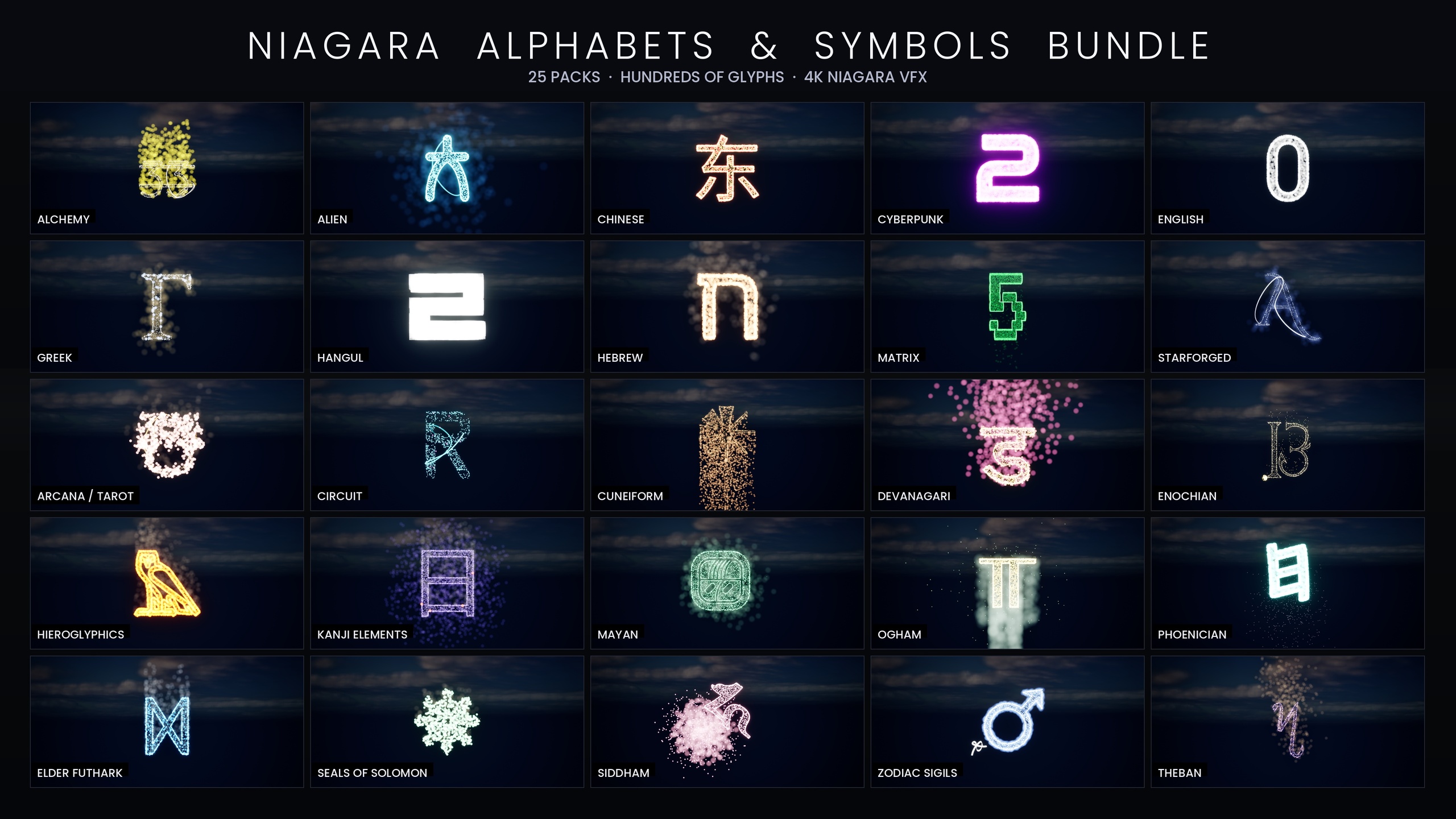
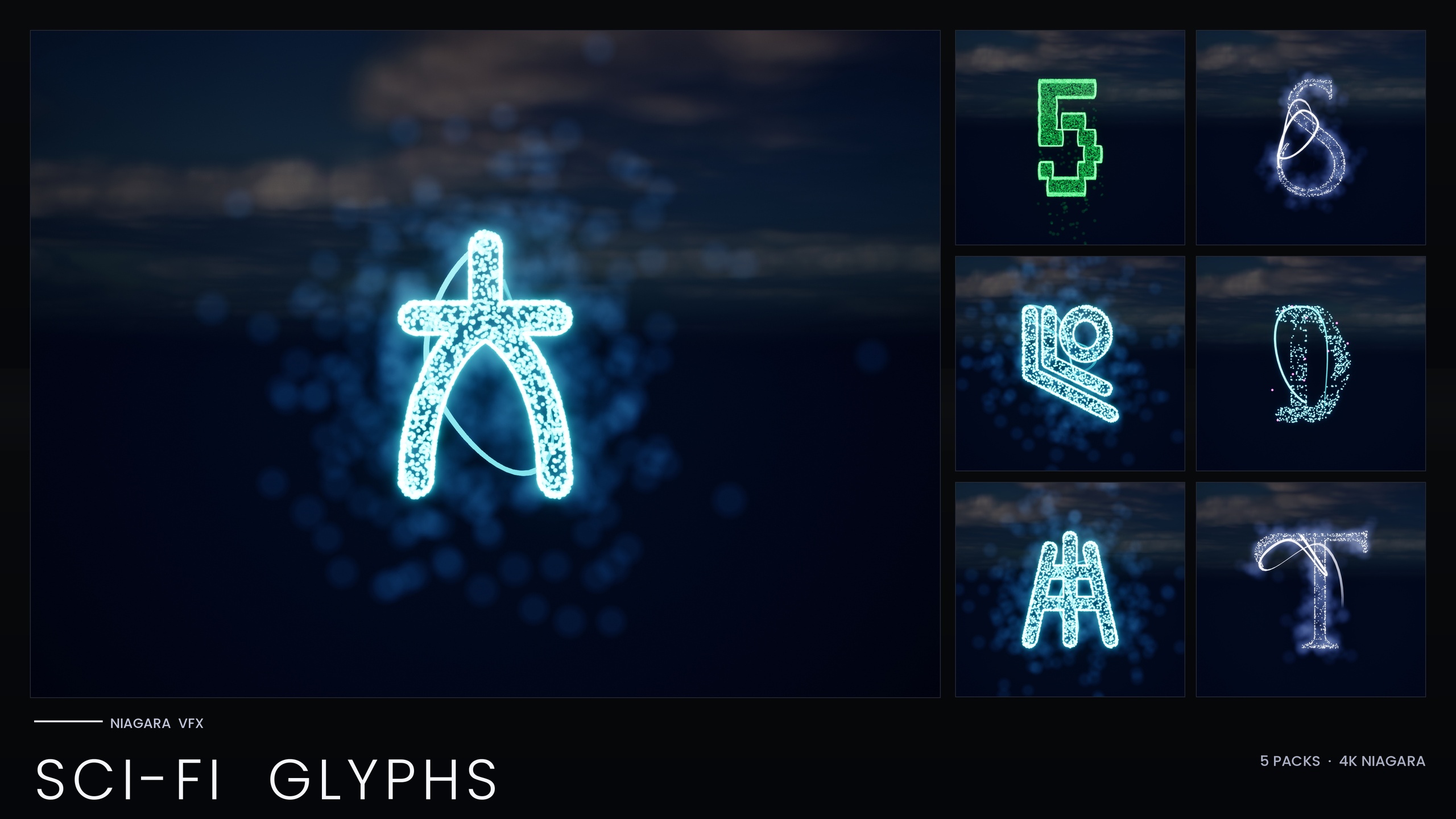
If you later want one-asset recolouring across a whole writing system rather than per-glyph edits, that workflow lives in the larger packs in this line, where each script ships with a Niagara Parameter Collection. The Sci-Fi Glyphs bundle contains this same Matrix set alongside four other futuristic scripts, and the full Alphabet & Symbols bundle is the superset of the entire library. For the standalone Matrix rain, though, the low-HDR, per-system duplicate approach above is all you need to ship green, amber and blood-red side by side without ever washing to white.
Recolouring approach by pack
| Pack | Niagara Systems | Parameter Collection | Recolour workflow |
|---|---|---|---|
| Niagara Matrix Pack | 36 | None (inline constants) | Per-system: edit Spark and Rain colour, or duplicate |
| Niagara SciFi Glyphs Bundle | 147 | 1 (Matrix bakes style inline) | One NPC per script; Matrix remains per-system |
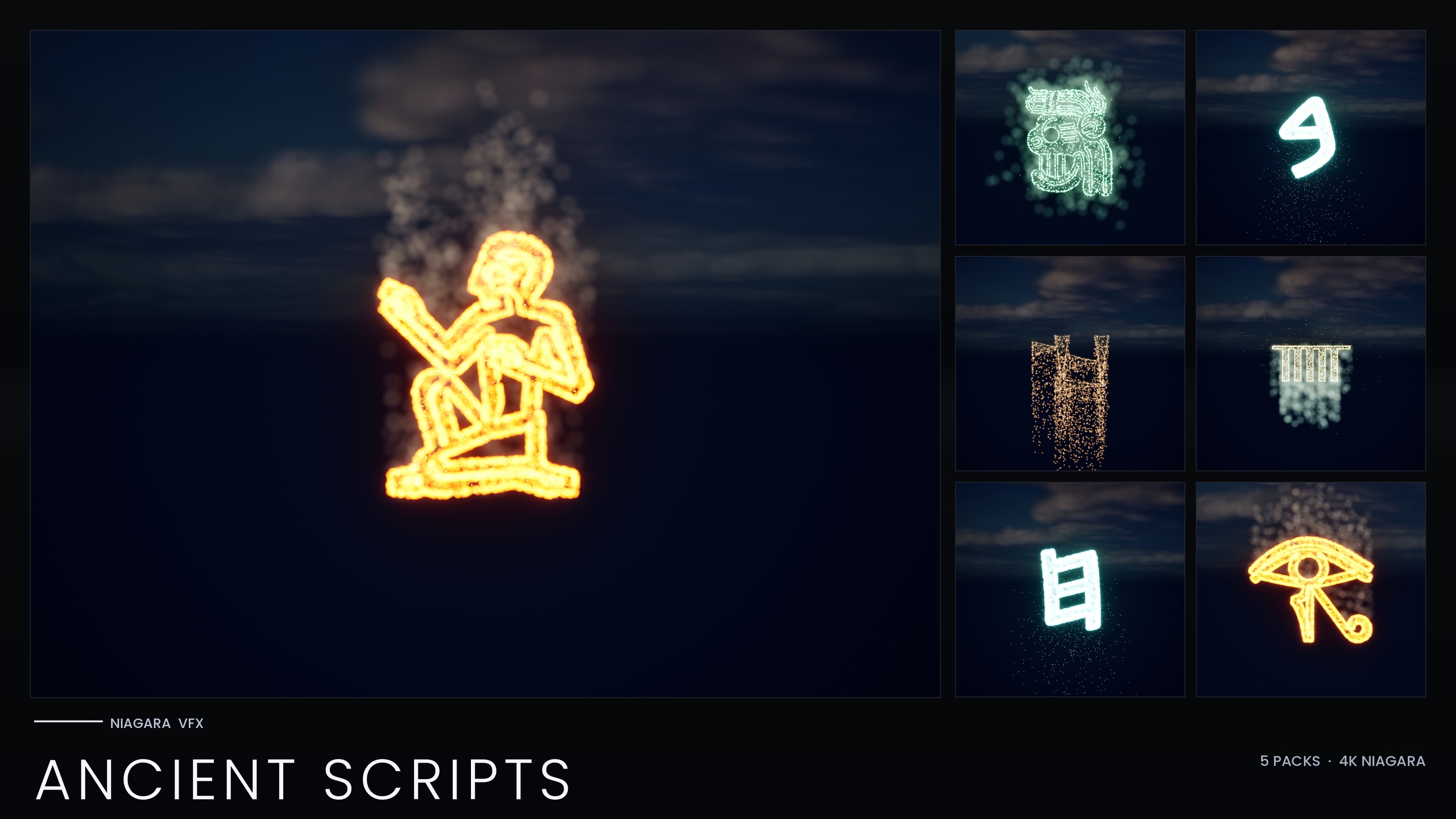
| Niagara Ancient Scripts Pack | 114 | 1 | Edit the NPC to recolour a whole script |
| Niagara Alphabet & Symbols Bundle | 687 | 4 | Edit a theme's NPC to recolour that writing system |
Whether a colour change is one-asset or per-system depends on whether the pack ships a Niagara Parameter Collection. Engine range and platform support are from the product JSON.
FAQ
Why does my Niagara particle colour bloom too bright to white in UE5?
The HDR sprite colour value is too high. Glow in this style comes from values above 1.0 driving the bloom post-process, and once a value climbs high enough the channels clip and the colour collapses towards white. Keep the value modest - roughly 1.0 to 2.5 - so bloom tints rather than saturates.
Where do I change the colour on the Matrix glyphs?
On the emitters of each glyph's NS_alphabet_matrix_glyph Niagara System. Every glyph uses two CPU emitters, a 'Spark' (bright flicker pixels) and a 'Rain' (dim falling grain); recolour both so the cascade and flicker agree. The style is stored as inline constants, so the colour is set on the emitter itself.
Is there a single asset that recolours all the Matrix glyphs at once?
Not in the standalone Matrix pack - it bakes its style as inline constants and ships no Niagara Parameter Collection, so recolouring is per-system. The one-asset recolour workflow applies to the other scripts in the larger bundles, which each include a Parameter Collection.
How do I keep several palettes such as green, amber and blood-red ready to use?
Duplicate a tuned system in the Content Browser and give each copy a palette suffix. Because there is no Parameter Collection, duplicated systems are the cleanest way to keep reusable green, amber and blood-red presets you can drag straight into a scene.
Do I need to enable bloom for the effect to look right?
Yes. The glow is entirely bloom-driven from the HDR sprite colour, so with bloom disabled in your post-process volume or project settings the rain will look flat no matter which hue you choose.
Niagara Matrix Pack
Thirty-six Niagara systems of cascading matrix-style glyphs for hacker, cyberpunk and sci-fi scenes — CPU-simulated and demo-mapped, ready to drop into any UI or environment.
Related on Fab
Related reading