tutorial · 2026-02-25
How to Recolour a Mesh Material Instance in Unreal Engine 5 (Azure to Anything)
Turn one azure gargoyle urn into a whole palette of crypt props without touching the source material or duplicating a single texture.
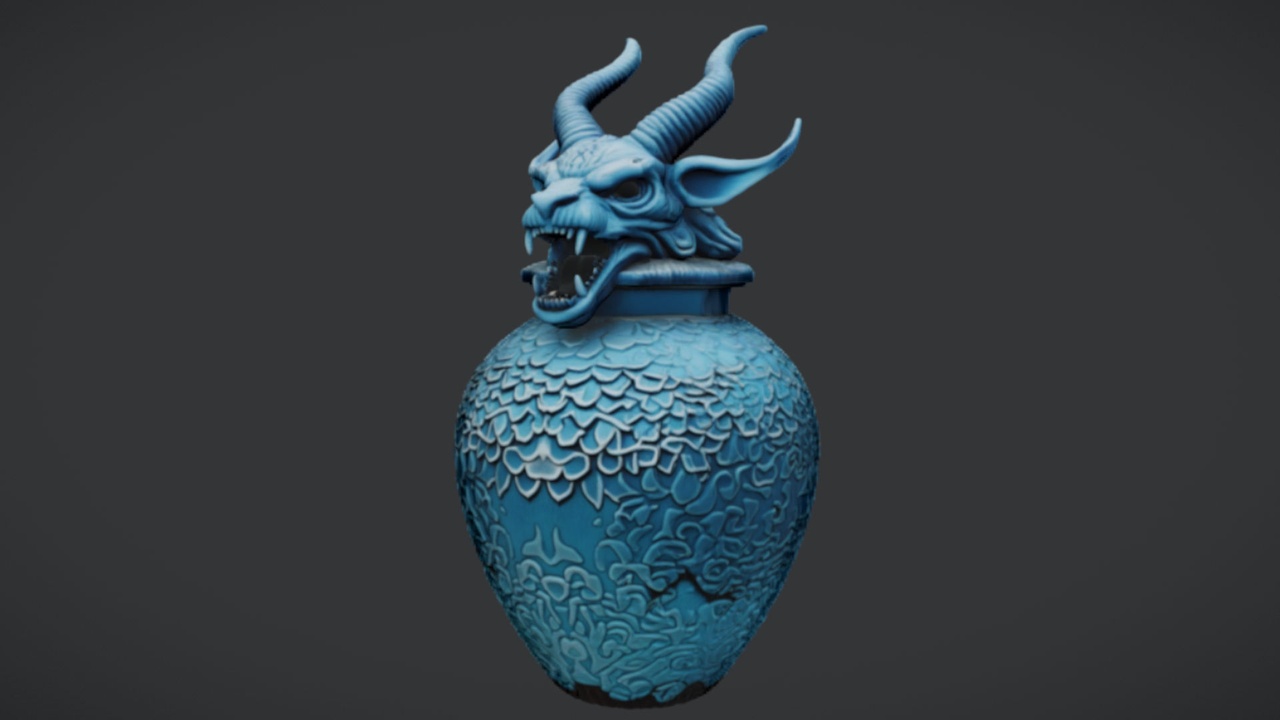
Why recolour with a material instance instead of editing the material
You have dropped The Azure Gargoyle Urn into your crypt scene, and it looks the part — but you want three of them in three different tones, and your level designer wants a fourth that matches the room's lighting. The wrong way to do that in Unreal Engine 5 is to duplicate the base material, recolour each copy, and end up with four near-identical materials that each cost a separate shader compile. The right way is a Material Instance, and once you know the pattern you will use it on every prop you own.
The urn ships as a drop-in UE5 static mesh with a single 2K PBR material — base colour, metallic, normal and roughness maps at 2048x2048 — and an azure-toned gothic look. That material is the perfect candidate to instance, because instancing lets you override values on top of it without recompiling the shader or copying any textures. This is exactly how to recolour a mesh material instance in Unreal Engine: you expose a parameter once on the parent, then spin up as many cheap children as you need.
A Material Instance is a thin layer of overrides that points back at the original material: change a colour on the instance and only that prop changes, while the parent and every other instance stay untouched.
Step 1 — Create the material instance
1. In the Content Browser, find the urn's material — the 2K PBR material that came with the mesh. Right-click it and choose 'Create Material Instance'. Unreal creates a child asset; give it a clear name such as MI_GargoyleUrn_Crimson so future-you knows what it is at a glance.
2. Double-click the new instance to open the Material Instance Editor. The top of the panel lists every exposed parameter from the parent material, each with a checkbox on its left. An unticked checkbox means the instance is inheriting the parent's value; tick it and the field becomes editable for this instance only.
3. If the parent material already exposes a colour or tint parameter, you can recolour right here — tick its box, change the value, and you are done. If it does not, the parameters list will be sparse, which is the cue to expose one on the parent first. That is the next step.
Step 2 — Expose a tint parameter on the parent material
An instance can only override parameters the parent material chose to expose, so to recolour the azure tone you need a colour parameter feeding the base colour. You only do this once, on the parent, and every instance gains the control for free.
1. Double-click the base material to open it in the Material Editor. Locate the node currently driving the 'Base Color' input — for a PBR prop this is usually the base-colour texture sample.
2. Right-click in the graph, add a 'Vector Parameter' node, and name it something explicit like 'Tint'. Set its default to white (1,1,1) so the urn looks identical to before until someone deliberately changes it.
3. Add a 'Multiply' node. Plug the base-colour texture into the A input and the 'Tint' parameter into the B input, then wire the 'Multiply' output into 'Base Color'. Multiplying by white is a no-op, which is why the default keeps the original azure look intact.
4. Click 'Apply' and 'Save'. The parent now exposes a 'Tint' parameter, and it appears as a tickable entry in the Parameters list of every material instance built from it.
Step 3 — Swap the azure tone and reuse it across props
Back in your MI_GargoyleUrn instance, tick the box next to 'Tint' and click the colour swatch to open the colour picker. Drag away from azure toward whatever the scene needs — a desaturated bone-grey for an ancient crypt, a deep crimson for a blood ritual, a sickly verdigris for a flooded tomb. The viewport preview updates live, and because you are tinting rather than repainting a texture, the metallic, normal and roughness detail all survive untouched.
Assign the finished instance to your urn by selecting the placed mesh and setting the material slot in the 'Details' panel to your new instance. To get a row of varied urns, duplicate the instance, tick 'Tint' on each copy, and give each a different colour. Every one shares the parent's single shader and the same 2K textures, so the variety is effectively free at runtime.
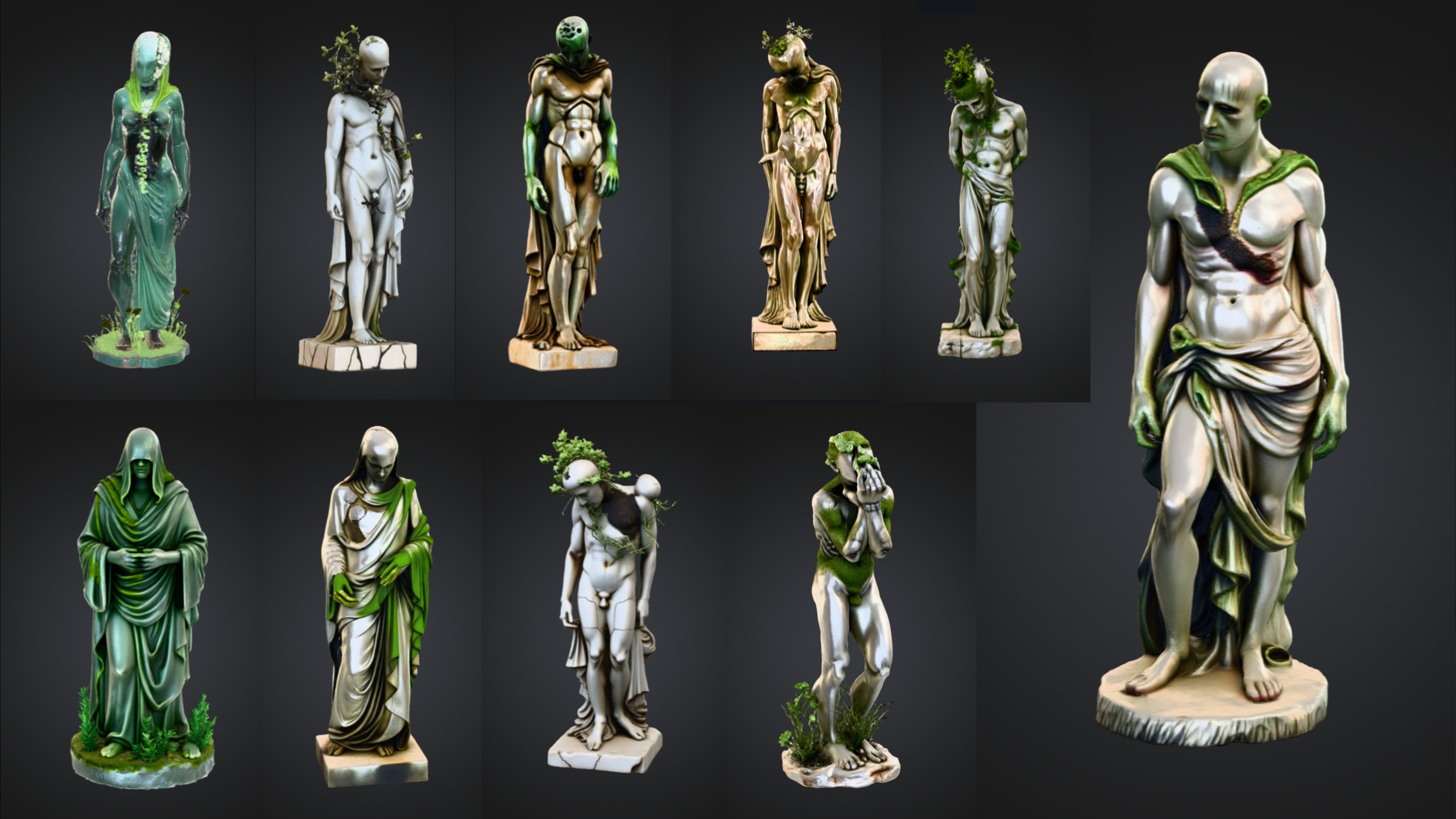
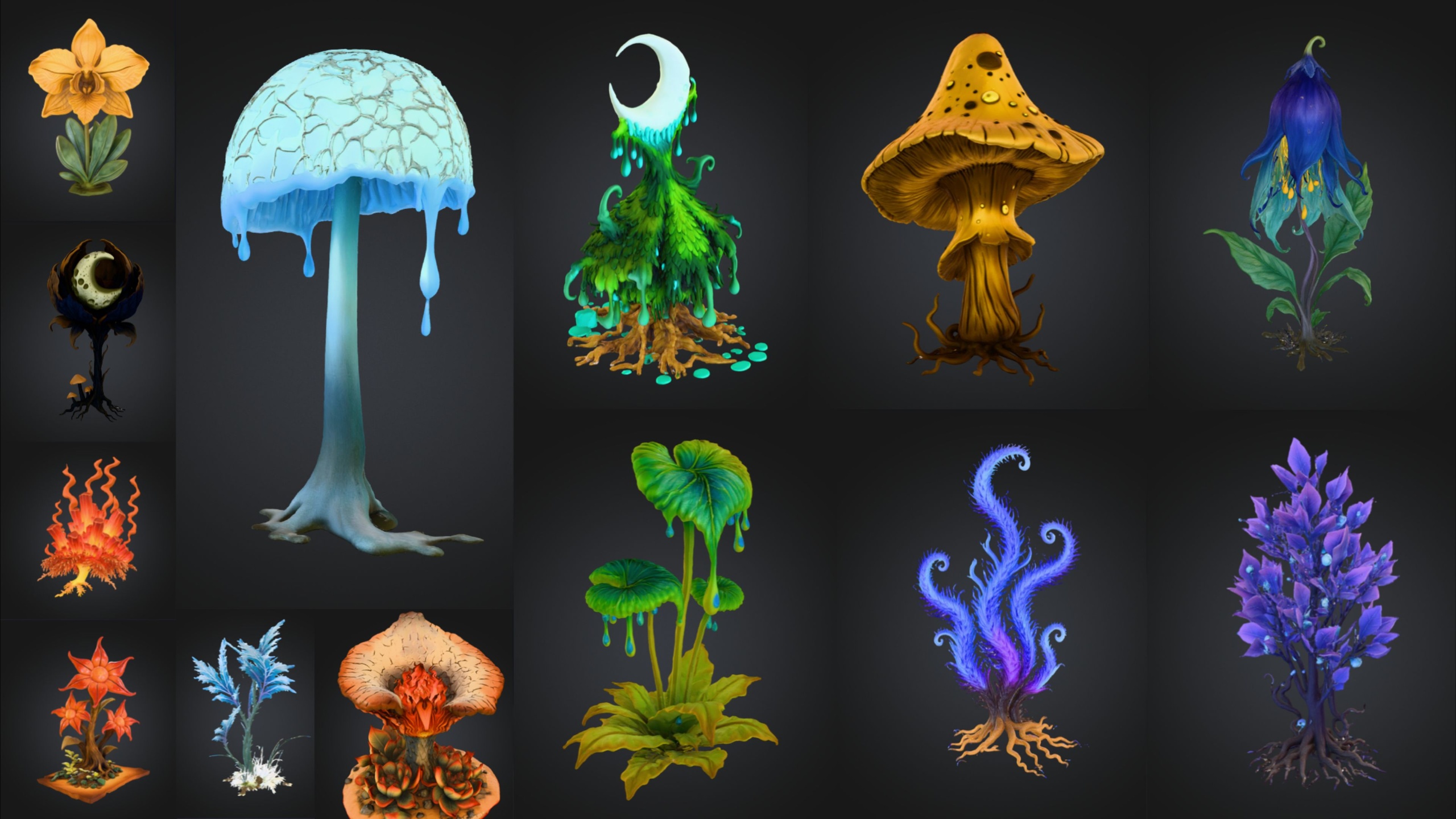
This pattern scales straight onto the bundles you place alongside the urn. The Fantasy Statue Bundle's weathered marble statues, the Dark Fantasy Props Bundle's thrones and tomes, and the Fantasy Flower Pack's blooms each ship with their own per-mesh materials — instance any of them, expose a tint, and you can colour-coordinate an entire crypt or garden from a handful of parents. Start with the free urn, get the workflow into your fingers, then apply it everywhere.
FAQ
How do I recolour a mesh material instance in Unreal Engine?
Right-click the prop's material and choose 'Create Material Instance', open the instance, then tick and edit a colour or tint parameter exposed by the parent. If no such parameter exists yet, add a 'Vector Parameter' to the parent material and multiply it into 'Base Color' first, then override it per instance.
Will recolouring with an instance change every other copy of the prop?
No. A material instance only overrides values on that single asset and points back at the unchanged parent. Edit one instance and only the props using that instance change; the parent material and all other instances stay exactly as they were.
Do I lose the urn's normal, metallic or roughness detail when I tint it?
No. Tinting multiplies a colour into the base-colour channel only. The normal, metallic and roughness maps still feed the shader unchanged, so the gargoyle's surface detail and material response survive the recolour.
Is creating extra recoloured instances expensive at runtime?
No. Every instance shares the parent material's compiled shader and the same 2K PBR textures, so adding colour variants does not trigger new shader compiles or duplicate texture memory. That is the main reason to instance rather than duplicate the material.
Can I use this same workflow on the paid prop bundles?
Yes. The Fantasy Statue Bundle, Dark Fantasy Props Bundle and Fantasy Flower Pack each ship with per-mesh materials you can instance the same way. Expose a tint parameter on the parent material and you can recolour their statues, thrones or flowers per placement.
The Azure Gargoyle Urn
A free azure gargoyle urn — an ornate funerary vessel for tombs, crypts and gothic scenes. Drop-in ready for Unreal Engine 5.
Related on Fab

Related reading