
tutorial · 2026-02-14
Using Vision-Model Feedback to Refine a Near-Miss AI VFX Generation
When a flipbook is close but not quite right, hand the image and a written critique to a vision model and fire the revised prompt with one click.
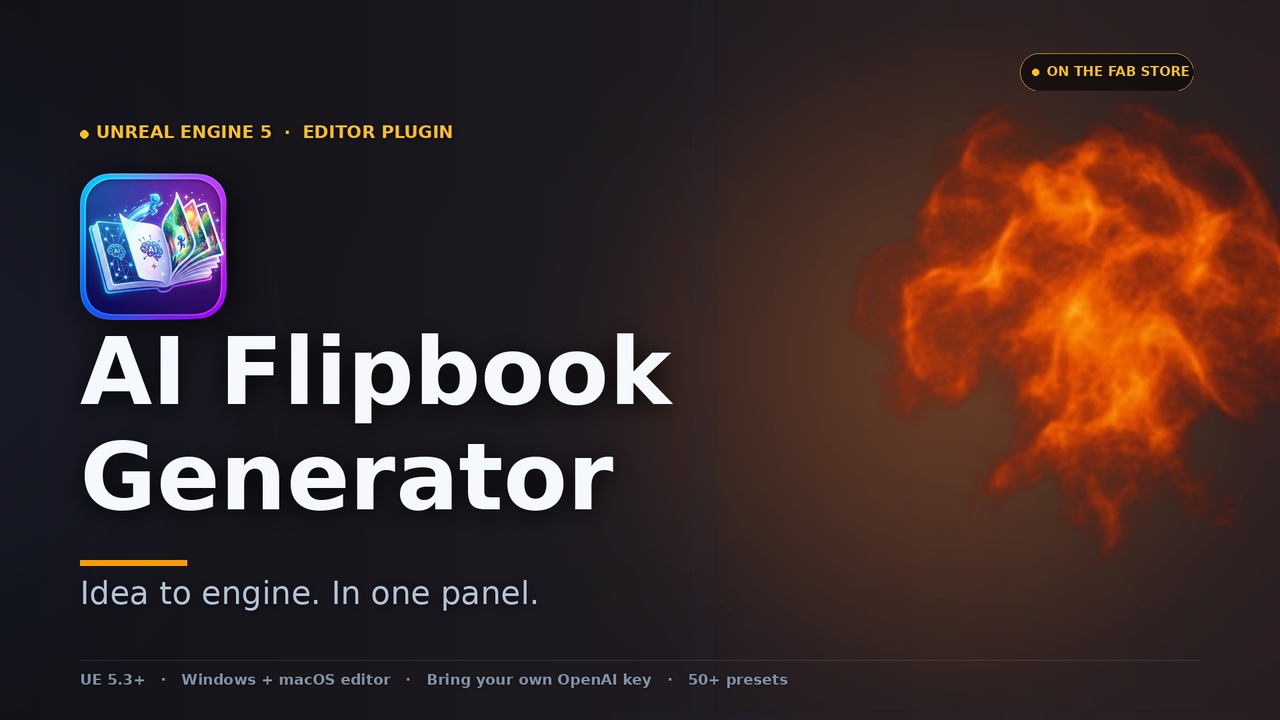
When a generation is close but not right
You typed a prompt, picked a 6x6 grid, fired two variants, and one of them is almost the explosion you wanted. The shape is right, the timing reads, but the core is too cold and the smoke trails off a frame early. This is the most common state in AI VFX authoring: not a failure, a near miss. The instinct is to rewrite the whole prompt and roll the dice again, which throws away the parts that already worked and burns another generation.
AI Flipbook Generator is a UE5 editor plugin that turns a plain-English prompt into a game-ready Niagara spritesheet, and it includes a feature built for exactly this moment. Rather than re-prompting blind, you can improve the AI-generated image with feedback: select the near-miss variant, write a short critique of what is wrong, and let a vision model look at the actual pixels and propose a fix. This guide walks the full iterate-the-VFX-prompt loop, from writing a useful critique to firing the revised prompt with a single click.
The point is to keep what is working. You are not starting over; you are steering. The vision model sees the same image you do, reads your note about what to change, and returns a revised prompt that carries the good parts forward while addressing the specific complaint.
Writing a useful critique
Open the gallery panel, click the variant that came closest, and choose 'Refine with feedback'. The plugin sends the latest image plus whatever you type into the critique box to a vision chat model. The quality of the revised prompt is bounded by the quality of your note, so this is the one place worth spending thirty seconds.
Be concrete and visual. 'Make it better' gives the model nothing to anchor on; 'the fireball core is too dull and grey, push it to a hot white-yellow centre, and the smoke dissipates one frame too early so extend the dissipation' gives it three precise, separable corrections. Name what you see, name the cell or frame if a specific frame is wrong, and name the direction of the change. The model is reasoning from the image you both can see, so describe deltas, not abstractions.
Keep the critique to the things that genuinely missed. If the silhouette, palette and motion are right and only the core colour is off, say only that. Over-stuffing the note with corrections the image does not need invites the revision to drift away from a result you already half-liked. Treat each refine pass as one or two targeted nudges, not a wishlist.
How the vision model returns a diagnosis and a revised prompt
When you submit, the image and your critique go to a vision chat model from the gpt-5 or gpt-4o families. Which specific model is available depends on your own OpenAI account and OpenAI's current offerings, and the plugin uses your bring-your-own key billed directly by OpenAI rather than proxying anything through the seller. If a model you select is not on your account, the underlying API returns a clean 404 rather than failing silently.
The response comes back in two parts. First is a diagnosis paragraph: the model's read of why the image missed your intent, in plain language. This is genuinely useful on its own, because it often surfaces a cause you had not named, for example that the gutters between cells were bleeding or that the palette was reading cooler than the prompt asked. Second is a revised prompt, rewritten to carry the working elements forward while correcting the faults you flagged, and it lands ready to fire.
Read the diagnosis before you accept the revised prompt. If the model misread the image or latched onto the wrong fault, that will be visible in the diagnosis, and it is cheaper to re-write your critique now than to spend a generation on a misguided prompt. A vision critique is a single text-and-image chat call, far lighter than a full spritesheet generation, so the panel surfaces a cost preview and a running session total before you commit; your actual OpenAI invoice is authoritative. Because re-running a critique costs a fraction of a generation, reading the diagnosis twice is almost always the cheaper move.
Firing the revised prompt with one click
Once the revised prompt looks right, send it straight back through the generator. Because the plugin composes the strict prompt, grid template and gutter-locking mask for you, the revised text slots into the same pipeline that produced the near miss, so the only thing that changed is the wording the vision model improved. Set your variant count, two is a sensible default, and click Generate; the new variants fire in parallel and land in the gallery as they return, each with the running session cost shown.
Compare the new variants against the one you kept. If the refine landed, bake the winner: one click produces a Texture2D, then a Material Instance with your chosen blend mode (Translucent, Additive or AlphaComposite), then a fully configured Niagara System with sub-UV cycling, sprite size and animation duration exposed as runtime-overridable User parameters. If it is still a near miss, refine again from the new best variant. Each pass is cheap, targeted and grounded in an image the model actually looked at.
When a result looks wrong in a way you cannot explain, open the per-iteration dump under Saved/AIFlipbook/Iterations/ for that timestamp; it captures the exact prompt, grid template, mask, raw response and post-processed bitmap, so you can see precisely what was sent and what came back. That dump is the ground truth for any 'why did it do that' question, and it pairs naturally with the refine loop: critique what you see, check the diagnosis, fire the revision, and inspect the dump only when something is genuinely puzzling.
FAQ
How do I improve an AI-generated VFX image with feedback instead of re-prompting from scratch?
Select the near-miss variant in the gallery, choose 'Refine with feedback', and write a concise critique of what is wrong. The plugin sends that image plus your note to a vision chat model, which returns a diagnosis paragraph and a revised prompt that carries the working elements forward. You then fire the revised prompt back through the generator, so you steer the result rather than rolling the dice on an entirely new prompt.
Which vision models does 'Refine with feedback' use?
It sends the image and critique to a vision chat model from the gpt-5 or gpt-4o families. The specific model available depends on your own OpenAI account and OpenAI's current offerings; if a selected model is not on your account, the API returns a clean 404. The plugin uses your own OpenAI key, billed directly by OpenAI.
What does a good critique look like?
Concrete and visual. Name what you see, the direction of the change, and the frame if a specific cell is wrong, for example 'the fireball core is too grey, push it to hot white-yellow, and extend the smoke dissipation by a frame'. Limit each pass to one or two targeted corrections so the revision does not drift away from the parts you already liked.
How does refining a generation affect cost?
A refine pass is one vision chat call against the image plus your critique, which is much lighter than a full spritesheet generation. The panel shows a cost preview and a running session total, and because everything bills directly through your own OpenAI key, your actual OpenAI invoice is authoritative. The practical takeaway is that reading the diagnosis and re-running a critique is far cheaper than spending a full generation on a misguided prompt.
Where can I see exactly what was sent and returned for a generation?
Each generation writes a per-iteration debug dump under Saved/AIFlipbook/Iterations/ keyed by timestamp, capturing the exact prompt, grid template, gutter-locking mask, raw response and post-processed bitmap. Inspect it when a result looks wrong in a way you cannot explain.
AI Flipbook Generator
Type a prompt, get a game-ready effect. AI Flipbook Generator turns text into flipbook spritesheets via OpenAI image models, then bakes them to Texture2D, Material Instance and a ready-to-drop Niagara System — with a 55-entry effect library, style presets and multi-variant batching. Uses your own OpenAI API key; nothing is proxied through us.
Related on Fab
Related reading