
article · 2026-05-15
Too Many Niagara Systems on One Map: Why You Should Split VFX Demo Content to Manage Particle Load in UE5
CPU-simulated glyph effects stack per instance, so crowding every system onto a single level is the fastest way to tank your frame time. Here is the pattern that keeps preview scenes honest.
Why too many Niagara systems on one map hurts performance in UE5
Open a fresh level, drag in a single Niagara system, and everything feels free. Drag in fifty of them to show off a whole writing system at once, and the editor starts to crawl. This is the trap every glyph-VFX library walks into: the assets are cheap individually but the cost is paid per instance, and a demo map is exactly where you are tempted to place all of them side by side.
The reason the cost stacks so cleanly is the simulation target. The Niagara Ancient Scripts Pack runs its emitters on the CPU rather than the GPU. CPU simulation is predictable and broadly device-friendly, but it means each active system carries its own per-instance tick cost. There is no shared GPU dispatch quietly amortising the work across many systems. Put another way, two hundred CPU systems on screen is roughly two hundred times the per-frame simulation bill of one, and that bill lands on the game thread where you can least afford it.
If you are searching for why too many Niagara systems on one map are hurting performance in UE5, this is usually the whole story: it is not that any single effect is heavy, it is that you have stacked a lot of light effects into the same frame and the per-instance arithmetic caught up with you.
How the pack splits demo content across five maps
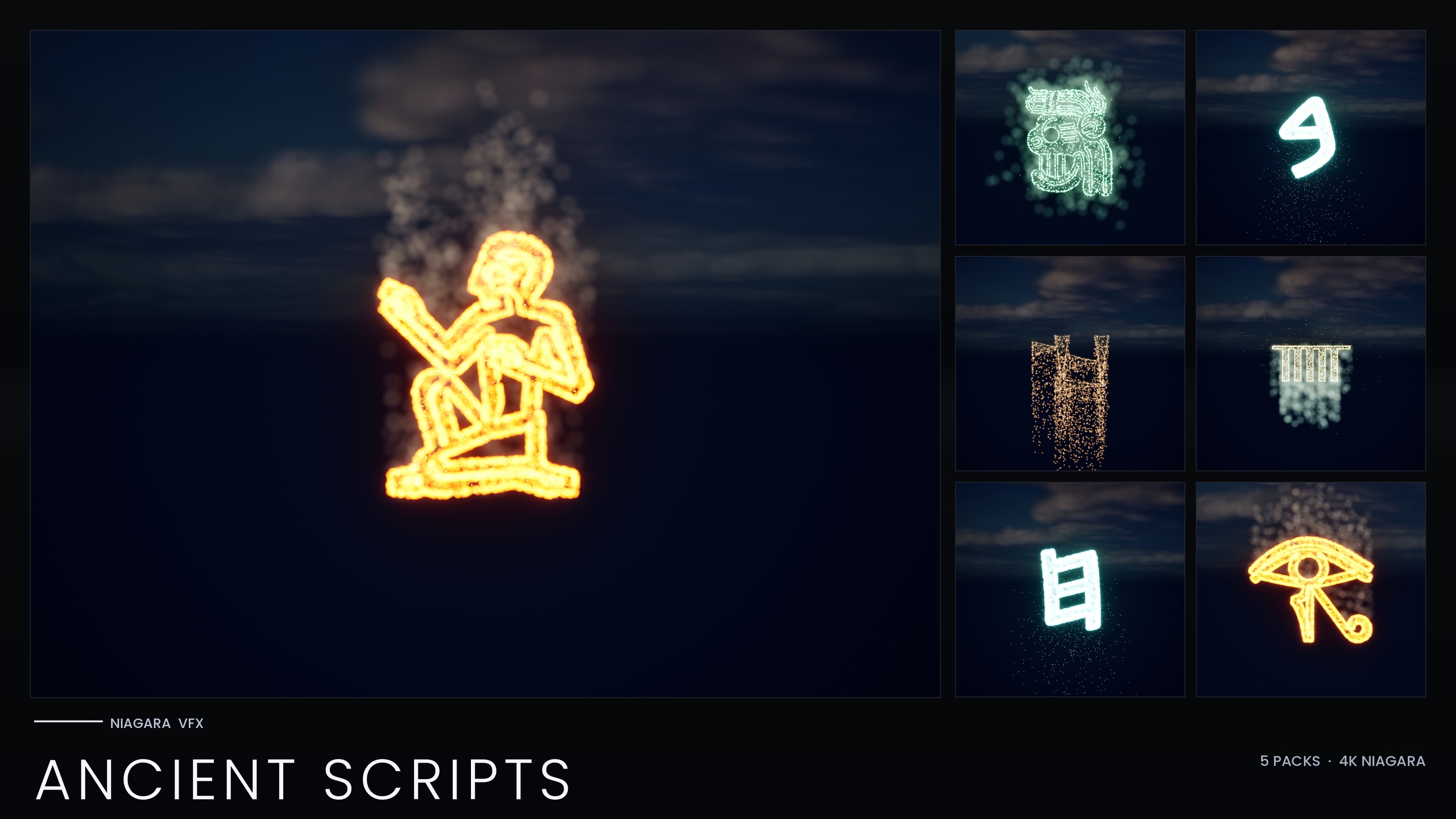
The Ancient Scripts Pack ships 114 Niagara systems covering five real writing systems: Egyptian Hieroglyphics, Cuneiform, Mayan, Ogham and Phoenician. Showing all 114 in one place would produce a beautiful screenshot and a miserable editor session. So the pack does not do that.
Instead it ships five demo maps, one per script, explicitly to keep GPU and RAM load manageable during preview. Open the Egyptian map and you are previewing roughly two dozen glyphs, not a hundred-plus. Each script also shares a single Niagara backbone and reads its style from the pack's Niagara Parameter Collection, so when you edit that collection on one map the whole script recolours and re-times from a single asset, no per-glyph babysitting required.
The takeaway for your own project is the pattern, not just the pack. A demo or test map should be scoped to one theme or one slice of content at a time. You get a clean, responsive scene to evaluate the work in, and you never accidentally benchmark your editor against the entire library when all you wanted to do was check a colour.
Practical limits when you crowd effects together
Sometimes you genuinely need several glyphs on screen at once: a tomb inscription, a sarcophagus reveal, a row of cartouches. That is fine, and it is exactly what the pack is for. The discipline is to treat a dense cluster as a deliberate choice rather than an accident of dumping everything into one level.
A few habits keep crowded scenes in check. Spawn only the glyphs the shot actually needs rather than the whole alphabet. Compose real inscriptions from the matching static meshes, which the pack also ships for every glyph, and reserve the animated Niagara systems for the lines that need to glow or react. A carved, emissive-lit mesh costs you nothing on the simulation thread; an active CPU system does.
When you do want a comparative or trade-route scene that mixes scripts on one map, build it consciously and watch the frame budget as you add systems rather than discovering the limit after the fact. The five-map split exists precisely so that preview never forces this decision on you by surprise.
Profile before you ship
The one number nobody can give you in advance is your own ceiling. It depends on your target hardware, what else is in the scene, and how many systems are genuinely on screen at the moment that matters. So measure it rather than guess.
1. Build the scene the way it will actually run, with the inscriptions and clusters you intend to ship rather than the full demo layout.
2. Open Unreal's profiling tools, with 'stat unit' for a quick read on game, draw and GPU thread time and 'stat particles' to see how many systems and emitters are live.
3. Use the Niagara debugger ('fx.Niagara.Debug.Hud 1') to confirm which systems are actually simulating versus culled, so you are not paying for effects the player never sees.
4. Add systems incrementally and watch where game-thread time starts climbing. That inflection point, on your hardware, is your real limit for CPU-simulated glyphs.
Profiling on your target rather than trusting a headline figure is the only honest way to set a per-scene budget. Keep your previews split by theme, keep your shipping scenes scoped to what the shot needs, and the per-instance cost of CPU simulation stays a tool rather than a tax.
FAQ
Why are too many Niagara systems on one map hurting performance in UE5?
Because these glyph effects are CPU-simulated, each active system carries its own per-instance tick cost on the game thread, and that cost stacks linearly. A single system is cheap; a hundred of them stacked into one frame multiplies the simulation bill, which is why a crowded demo map can crawl even when no individual effect is heavy.
How many demo maps does the Ancient Scripts Pack ship and why?
It ships five demo maps, one per script (Egyptian Hieroglyphics, Cuneiform, Mayan, Ogham and Phoenician), explicitly to keep GPU and RAM load manageable during preview. Splitting the 114 systems across themed maps means you preview roughly two dozen glyphs at a time instead of the whole library at once.
Can I still put several glyphs on one map?
Yes. Dense inscriptions and mixed-script scenes are a core use case. The point is to do it deliberately: spawn only the glyphs the shot needs, use the static meshes for carved lines that do not need to animate, and watch your frame budget as you add active systems rather than dumping the entire set into one level.
How do I find my own safe limit for systems on screen?
Profile on your target hardware. Build the scene as it will ship, then use 'stat unit' and 'stat particles' to read thread time and live system counts, and the Niagara debug HUD to confirm what is actually simulating. Add systems incrementally and note where game-thread time climbs; that inflection point is your real ceiling.
Niagara Ancient Scripts Pack
114 Niagara glyph systems across five ancient scripts — Cuneiform, Hieroglyphics, Mayan, Ogham and Phoenician — for rituals, spells and mystical UI. CPU-simulated with a Parameter Collection and demo map.
Related on Fab
Related reading