
tutorial · 2026-03-15
Record the Editor Viewport and Capture Screenshots in UE5
A practical guide to capturing editor tutorials, marketing clips and stills straight from Unreal Engine 5 with Simple Screen Recorder.
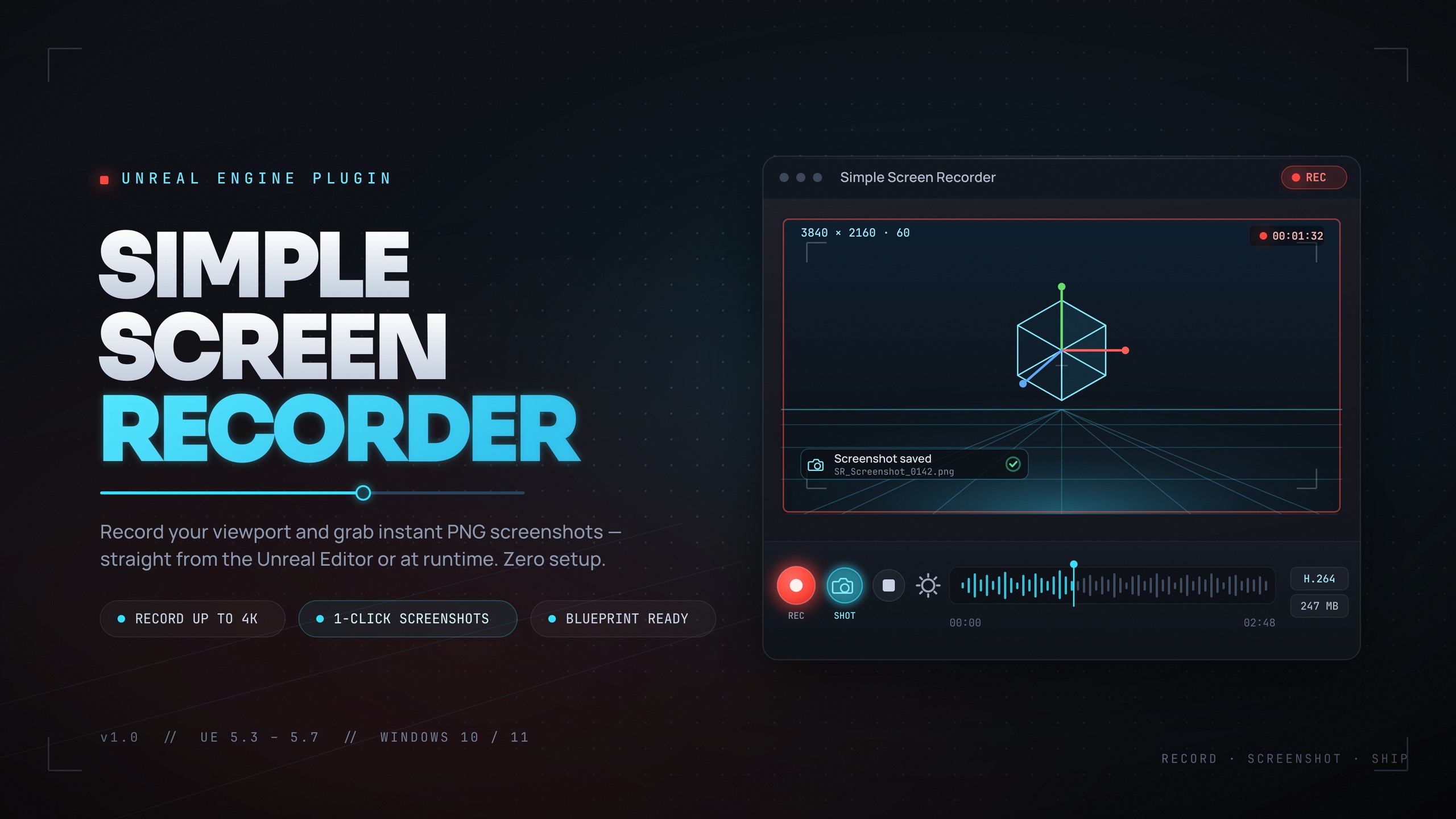
Capture from inside the editor, not a separate recorder
If you make tutorials, devlogs or Fab listing assets, you have probably reached for OBS or a third-party screen grabber and then fought with cropping, window focus and audio routing. When you only want a clean capture of the Unreal Engine editor viewport or a PIE session, an in-editor record editor viewport screenshot tool removes that whole detour. Simple Screen Recorder is a Windows-only UE5 plugin that records the editor viewport, Play-In-Editor sessions and runtime gameplay directly to H.264 MP4, using the Windows Media Foundation encoder that ships with the operating system, so there are no external dependencies to install.
The fastest way to record is the toolbar button the plugin adds, or the 'Ctrl+Shift+R' toggle hotkey. Press once to start, press again to stop. Both the toolbar button and the hotkey are editor-only, which is exactly what you want when you are demonstrating a workflow rather than building a player-facing feature. Output is written as an MP4 file, and you can jump straight to it with 'Open Output Folder' from the plugin's menu.
Choose the right source: Editor, Game Window or Entire Screen
The capture source is the single most important setting for a tutorial. Simple Screen Recorder exposes three values through the 'EScreenRecorderSource' enum: Game Window, Editor and Entire Screen. Pick the one that matches what your audience needs to see.
Choose Editor when you are walking viewers through panels, the Content Browser, the Blueprint graph or the Details panel, in other words anything that is part of the Unreal editor chrome rather than the running game. Choose Game Window when you only want the rendered output of a PIE or runtime session, ideal for a clean gameplay trailer with no editor furniture around it. Choose Entire Screen when your demonstration spills outside Unreal, for example showing Explorer, a terminal or another application alongside the editor.
Set the source alongside the other recording settings before you hit record. Resolution can match the viewport or use a preset such as 720p, 1080p, 1440p or 4K (or a custom size), frame rate is clamped between 15 and 120 FPS with a default of 30, and quality runs from the Small Files preset up to the Professional preset. If you want narration or in-game sound, enable audio capture; note that audio is captured as system loopback, so it records whatever your machine is playing rather than isolating a single application's sound.
Switch to the minimal toolbar to keep recordings clean
When the recorder controls appear in your captured frame they distract from the content and date your video the moment the UI changes. Simple Screen Recorder offers a minimal toolbar option that shows icons only, stripping the text labels so the controls take up far less space in your tutorial.
Enable the minimal toolbar in the plugin settings before recording. Combined with the 'Show Mouse Cursor' toggle, which lets you decide whether the pointer is visible, you get tidy footage where the only thing on screen is what you actually want to teach. Turn the cursor on when you are pointing at menus and nodes, and off when it would only clutter the shot.
Take stills with SimpleScreenshot
Video is not always the right format. Store thumbnails, documentation figures and Fab gallery images all want a crisp still. Simple Screen Recorder includes a screenshot function, 'SimpleScreenshot', that saves a single frame to the same output folder your recordings use, so your stills and clips live together.
Because the screenshot lands in the configured output directory, you can batch a set of marketing images in one session: line up a shot, fire 'SimpleScreenshot', reframe and repeat. This pairs naturally with capturing short clips for a store or Fab listing, giving you both the moving and the static assets from a single capture pass without leaving the editor.
Organise output with prefixes and a dedicated folder
A folder full of generically named captures is impossible to sort later. Simple Screen Recorder names files using the pattern [Prefix]_YYYYMMDD_HHMMSS.mp4, so every file already carries the date and time it was created. The piece you control is the prefix.
Set 'FilenamePrefix' to something descriptive for the session, for example a feature name or a tutorial identifier, so a glance at the file name tells you what it contains. Point 'OutputDirectory' at a dedicated capture folder per project or per video, and use 'GetOutputDirectory' or 'Open Output Folder' to get back to it quickly. With a consistent prefix and a known folder, your recordings and screenshots stay self-describing and easy to feed into an editing timeline.
Once your assets are captured, the natural next step is publishing them. If your workflow involves pushing screenshots or metadata to a backend, EasyHTTP can call a REST endpoint from Blueprints; Fast Chart Widgets can render the in-game data overlays you want on screen before you record; and Markdown 4 Blueprints lets you keep per-asset tutorial notes in the editor so your written documentation tracks the same Blueprints you are recording.
Choosing a capture source
| Source | Captures | Best for |
|---|---|---|
| Editor | The Unreal editor and its panels | Workflow tutorials, Blueprint and panel walkthroughs |
| Game Window | The rendered PIE / runtime output only | Clean gameplay trailers with no editor chrome |
| Entire Screen | The whole desktop | Demos that span Unreal plus other applications |
From EScreenRecorderSource. Pick the source that matches what your audience needs to see.
FAQ
What is the best Unreal Engine record editor viewport screenshot tool for tutorials?
Simple Screen Recorder records the editor viewport directly to H.264 MP4 and also takes stills via SimpleScreenshot, all from inside UE5. Set the source to Editor for panel and Blueprint walkthroughs, or Game Window for clean PIE footage, and use Ctrl+Shift+R to toggle recording.
How do I record only the game window and not the editor UI?
Set the recording source to Game Window using the EScreenRecorderSource setting before you start. That captures the rendered PIE or runtime output without the surrounding editor panels, which is what you want for a gameplay trailer.
Can I capture audio with my recording?
Yes, enable audio capture and it records system audio as AAC via Windows WASAPI loopback. Be aware this captures whatever your machine is playing as a whole; it cannot isolate a single application's audio.
Where are my recordings and screenshots saved?
Both recordings and SimpleScreenshot stills are written to the configured output directory. Files are named [Prefix]_YYYYMMDD_HHMMSS.mp4, so set FilenamePrefix and OutputDirectory beforehand, then use Open Output Folder or GetOutputDirectory to find them.
Does Simple Screen Recorder work outside Windows?
No. It is Windows-only because it relies on Windows Media Foundation for encoding and WASAPI for audio. Output is H.264 video and AAC audio in an MP4 container.
Simple Screen Recorder
Record the editor viewport or runtime gameplay to H.264 MP4 with system audio — one click (Ctrl+Shift+R) from the toolbar, or Start/Stop/Pause/Resume from Blueprints. Resolution presets up to 4K, 15–120 FPS, no external dependencies.
Related on Fab



Related reading