
article · 2026-01-28
Additive, Subtractive, Replace, Maximum, Minimum: UE5 Landscape Stamp Blend Modes Explained
How each blend mode decides what your heightmap stamp does to the terrain underneath it - and which one to reach for when building up, carving down or forcing an exact silhouette.

What a blend mode actually controls when you stamp height
When you drop a heightmap stamp onto an Unreal landscape, you are not painting a fixed elevation. You are telling the engine how the grayscale values in the stamp should combine with the terrain that is already there. That combination rule is the blend mode, and getting the additive versus subtractive distinction wrong is the most common reason a stamp lifts the ground when you wanted it to sink. This is the part of the unreal landscape stamp additive subtractive difference question that trips people up: the stamp texture is the same either way - only the blend mode changes what it does.
In Landstamp Pro the rule lives in the EStampBlendMode enum, and it has exactly five values: Additive, Subtractive, Replace, Maximum and Minimum. Because Landstamp Pro builds every stamp on Unreal's built-in Landscape Patch system, the blend is non-destructive - each placed ALandstampActor drives a Landscape Texture Patch, so changing the blend mode after placement re-evaluates the result without baking anything into the landscape. You can switch from Additive to Replace, re-preview, and switch back, and the underlying terrain is never damaged.
Two other controls sit alongside the blend mode and change the felt result: HeightIntensity, which scales the stamp from -2 to 2 and inverts the shape when negative, and the bInvertHeight flag stored on the stamp asset, which turns a raised landform into a depression. Keep those separate from the blend mode itself. The blend mode says how the stamp combines with the terrain; intensity and invert say what the stamp's own profile looks like before that combination happens.
Additive and Subtractive: building up and carving down
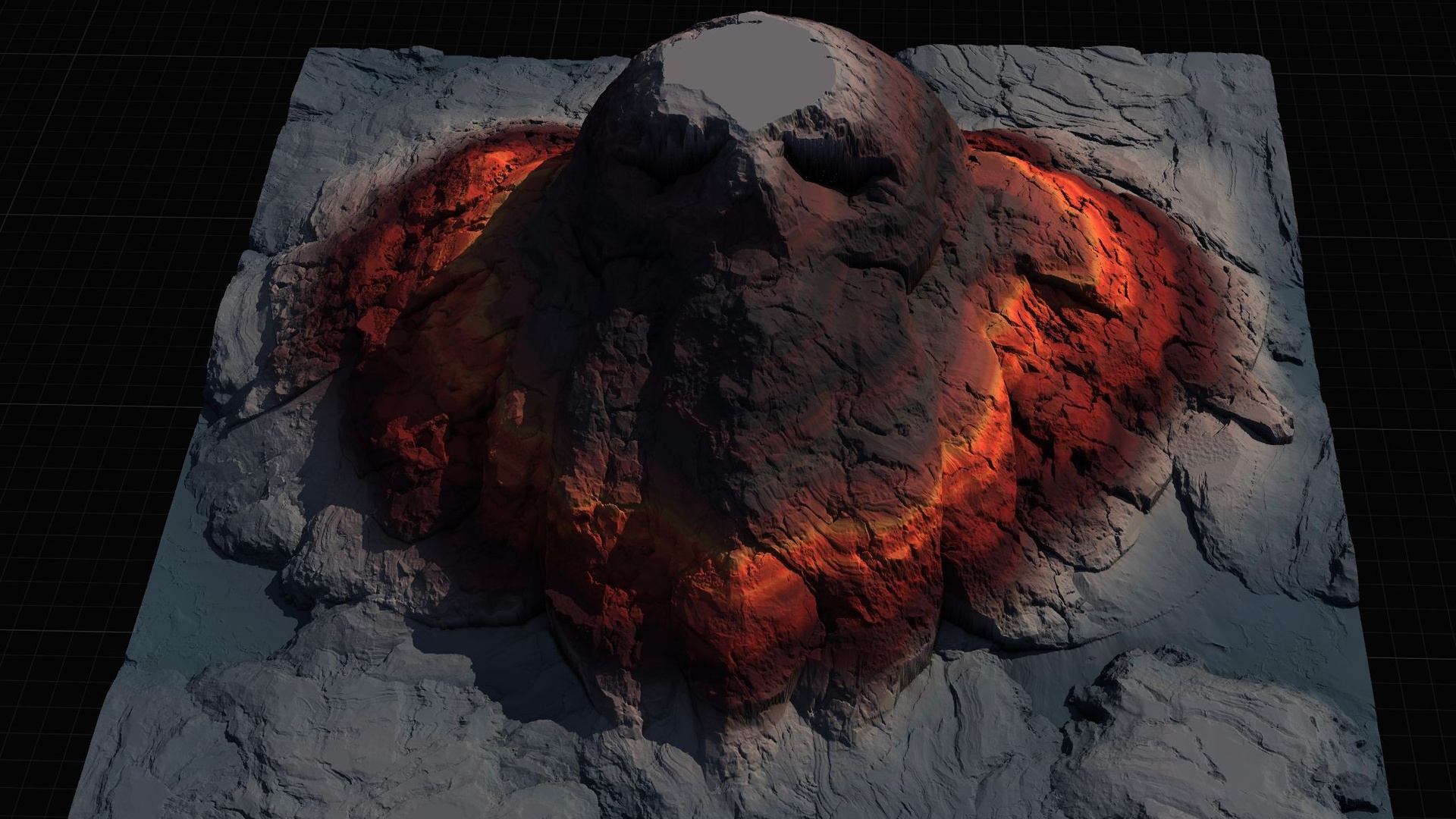
Additive is the workhorse. It takes the stamp's height profile and adds it on top of whatever elevation already exists beneath the actor. Drop a mountain stamp in Additive over a flat plain and you get a mountain rising from the plain; drop the same stamp over rolling hills and the mountain piles on top of the hills, inheriting their lumps at its base. Use Additive whenever you are accumulating terrain - raising a ridge, layering a foothill onto a mountain range, building a peak up from a starting surface.
Subtractive does the opposite: it removes the stamp's profile from the existing terrain, pushing the ground down by the stamp's height values. A mountain-shaped stamp in Subtractive carves a mountain-shaped pit. This is your default for trenches, dry riverbeds and quarry cuts where you want to dig a specific shape out of otherwise solid ground. Note that Subtractive is a distinct mode here - it is not the same as feeding a negative number into Additive, although the two can look similar for simple cases.
That overlap is where the 'difference' part of the search lands. There are three ways to reach a downward result in Landstamp Pro: choose the Subtractive blend mode, keep Additive and set a negative HeightIntensity (down to -2) which inverts the stamp's contribution, or flip the asset's bInvertHeight flag to turn the landform into a depression. For carving a canyon, reach for Subtractive or an inverted intensity; for building a peak, stay Additive with a positive intensity. When a stamp does the opposite of what you expected, the culprit is almost always one of these three sign controls, not the heightmap.
Replace, Maximum and Minimum: hard, deterministic control
The remaining three modes stop accumulating and start asserting. Replace ignores the terrain underneath and writes the stamp's height directly, so the area under the stamp becomes exactly the stamp's profile regardless of what was there. Reach for Replace when you need an authoritative result - a flat building pad, a plateau at a known elevation, or a hero landform whose silhouette must read precisely and must not inherit noise from the surrounding hills. The trade-off is that Replace overwrites detail inside its footprint, so falloff matters more here than anywhere else (covered next).
Maximum keeps, at every point under the stamp, whichever value is higher: the existing terrain or the stamp. This is the clean way to add a peak that should never sink below the ground it sits on - the mountain shows where it rises above the terrain, and the terrain shows where it was already taller, so the two merge with no overlap seam and no double-counting of height. Minimum is the mirror image: it keeps whichever value is lower, which lets a stamp cut into terrain only where the stamp is deeper than what is already there, ideal for clamping a valley floor or a coastline to a ceiling height without disturbing anything that already sits below that line.
A practical way to choose: use Additive and Subtractive when you want to accumulate, Maximum and Minimum when you want to combine without ever fighting the existing terrain, and Replace when you want one shape to win outright. Because Landstamp Pro also ships a 10-level priority system (EStampPriority), overlapping stamps resolve top to bottom by priority, so you can stack a high-priority Replace plateau inside a low-priority Additive mountain range and the plateau wins cleanly where they overlap.
How edge falloff and falloff shape interact with blending
A blend mode decides how the stamp combines with the terrain, but the edge falloff decides how the stamp fades out at its border - and the two together determine whether your landform reads as a deliberate feature or a stamped-on patch with a hard rim. Landstamp Pro exposes the border shape through EStampFalloffMode, which offers Circle, Rounded Rectangle and Square. Circle gives an organic, radial fade that suits mountains and craters; Rounded Rectangle suits plateaus and pads; Square gives a crisp rectangular edge for tiled or grid-aligned work.
The width of that fade is set by a blend-distance preset that scales with the stamp's size - the presets run from Tiny at five percent of the stamp through to Massive at seventy-five percent - or by a manual blend distance if you want an exact figure. A wider blend distance pulls the transition further inward and feathers the stamp gently into its surroundings; a narrow one keeps the stamp's edge sharp.
The interaction matters most with Replace. Because Replace overwrites everything inside the footprint, a narrow falloff leaves a visible step where the overwritten area meets untouched terrain. Widen the blend distance and the Replace region eases into the surrounding height instead of cutting against it. Additive and Subtractive are more forgiving because they layer onto existing terrain, but a generous falloff still hides the join where a ridge or trench peters out. As a rule, the harder the blend mode, the more falloff you want.
Practical recipes: carve a canyon, raise a peak
To raise a peak that sits naturally on existing hills, place a mountain stamp, set BlendMode to Additive (or Maximum if you want the terrain to win wherever it is already higher), keep HeightIntensity positive, choose the Circle FalloffMode, and pick a medium blend-distance preset so the base feathers into the slope. Preview before you commit:
1. Open the Stamp Browser from the toolbar and drag a mountain stamp onto the landscape - this spawns an ALandstampActor that auto-resolves the landscape beneath it.
2. In the details panel set BlendMode to Additive, a positive HeightIntensity, FalloffMode to Circle and a medium BlendPreset.
3. Click the PreviewStamp button (it is CallInEditor) to see the result without writing it, adjust StampSize, StampRotation and intensity, then click ApplyToLandscape to commit - or ClearPreview to discard.
To carve a canyon, the recipe inverts. Place a canyon or directional stamp, set BlendMode to Subtractive so the shape is removed from the ground - or keep Additive with a negative HeightIntensity if you prefer to drive the depth from the sign of the intensity. Use a Circle or Rounded Rectangle falloff with a fairly wide blend distance so the canyon walls ease into the surrounding plateau rather than cutting a vertical lip. If two canyons cross, give the deeper cut a higher EStampPriority so it wins at the intersection, or switch the shallower one to Minimum so it only deepens the floor where it is genuinely lower.
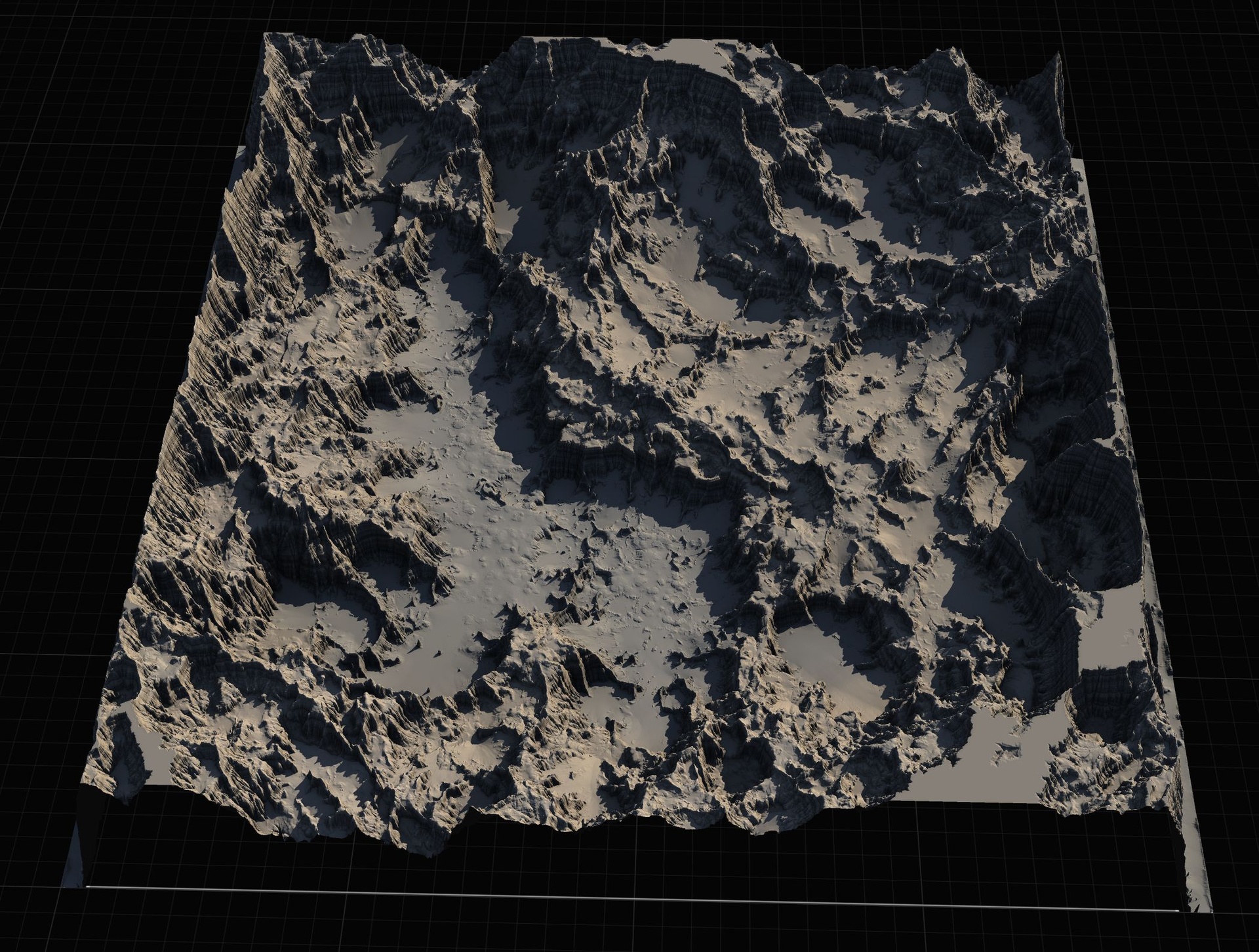
Because everything is a Landscape Patch, none of this is final - you can re-position, re-scale, re-blend or delete any stamp later and the landscape returns to its prior state, which is the whole reason to block out terrain this way rather than hand-sculpting. A good next step is to drop one stamp of each blend mode onto a test landscape, flip between Additive, Subtractive, Replace, Maximum and Minimum on the same shape, and watch how each negotiates with the ground - it is the fastest way to make the five modes intuitive. The included demo map showcases the full set of stamp types if you want a reference scene to experiment in.
UE5 landscape stamp blend modes at a glance
| Blend mode | What it does | Reach for it when |
|---|---|---|
| Additive | Adds the stamp's height on top of existing terrain | Building up - raising peaks, layering ridges and foothills |
| Subtractive | Removes the stamp's height from existing terrain | Carving down - trenches, canyons, riverbeds, pits |
| Replace | Writes the stamp's height directly, ignoring what was there | Authoritative shapes - flat pads, plateaus, hero landforms |
| Maximum | Keeps whichever is higher: terrain or stamp | Adding a peak without it ever sinking below the ground |
| Minimum | Keeps whichever is lower: terrain or stamp | Clamping a valley floor or coastline to a ceiling height |
The five EStampBlendMode values in Landstamp Pro and what each one does to the terrain beneath the stamp.
FAQ
What is the difference between additive and subtractive landscape stamp blend modes in UE5?
Additive adds the stamp's height profile on top of the terrain that is already there, building elevation up. Subtractive removes that same profile from the existing terrain, carving elevation down. The stamp texture is identical in both cases - only the blend mode changes whether the shape rises out of the ground or is dug into it. In Landstamp Pro both are values of the EStampBlendMode enum.
How do I make a stamp carve a depression instead of raising terrain?
There are three ways in Landstamp Pro. Set the blend mode to Subtractive so the stamp's shape is removed from the ground, set a negative HeightIntensity (down to -2) which inverts the stamp's contribution while staying Additive, or enable the bInvertHeight flag on the stamp asset to turn a raised landform into a depression. If a stamp does the opposite of what you expect, one of these three sign controls is usually the cause.
When should I use Replace instead of Additive?
Use Replace when you need an authoritative, deterministic result that must not inherit lumps from the terrain underneath - a flat building pad, a plateau at a known height, or a hero landform whose silhouette has to read exactly. Additive accumulates onto existing terrain, so use it when you are layering. Because Replace overwrites everything inside its footprint, widen the edge falloff so the result eases into the surrounding terrain instead of leaving a visible step.
What is the difference between Maximum and Minimum blend modes?
Maximum keeps whichever value is higher at each point - the existing terrain or the stamp - so a peak merges cleanly without sinking below ground it sits on. Minimum keeps whichever is lower, so a stamp only cuts into terrain where it is genuinely deeper than what is already there, which is useful for clamping a valley floor or coastline to a ceiling height without disturbing terrain that already sits below that line.
Are landscape stamp blend modes destructive?
No. Landstamp Pro builds every stamp on Unreal's built-in Landscape Patch system, so each placed stamp drives a Landscape Texture Patch rather than baking into the landscape. You can change the blend mode, intensity, falloff or position after placement, re-preview, and the underlying terrain is never permanently altered - which is why blocking out terrain with stamps is far more flexible than hand-sculpting.
Landstamp Pro
Sculpt production terrains in minutes, not hours. Landstamp Pro is a professional heightmap stamping system for Unreal Engine — combine, layer and blend stamps with precise control and real-time preview, fully non-destructive.
Related on Fab

Related reading