
comparison · 2026-03-20
Unreal Engine 4K Recording Settings: Bitrate, Framerate and Resolution Explained
How to pick resolution, FPS and quality presets when capturing your UE5 viewport or gameplay straight to MP4.
The three dials that decide your capture
Every screen recording is a negotiation between three numbers: resolution, frame rate and bitrate. Get them wrong and you either ship a soft, blocky trailer or a 4K file so large it chokes your upload. Get them right and a clip captured straight from the editor looks indistinguishable from one rendered through an external suite. If you are searching for the right Unreal Engine 4K recording settings, including the bitrate, framerate and resolution that actually matter, this guide walks through each preset and the trade-offs between them.
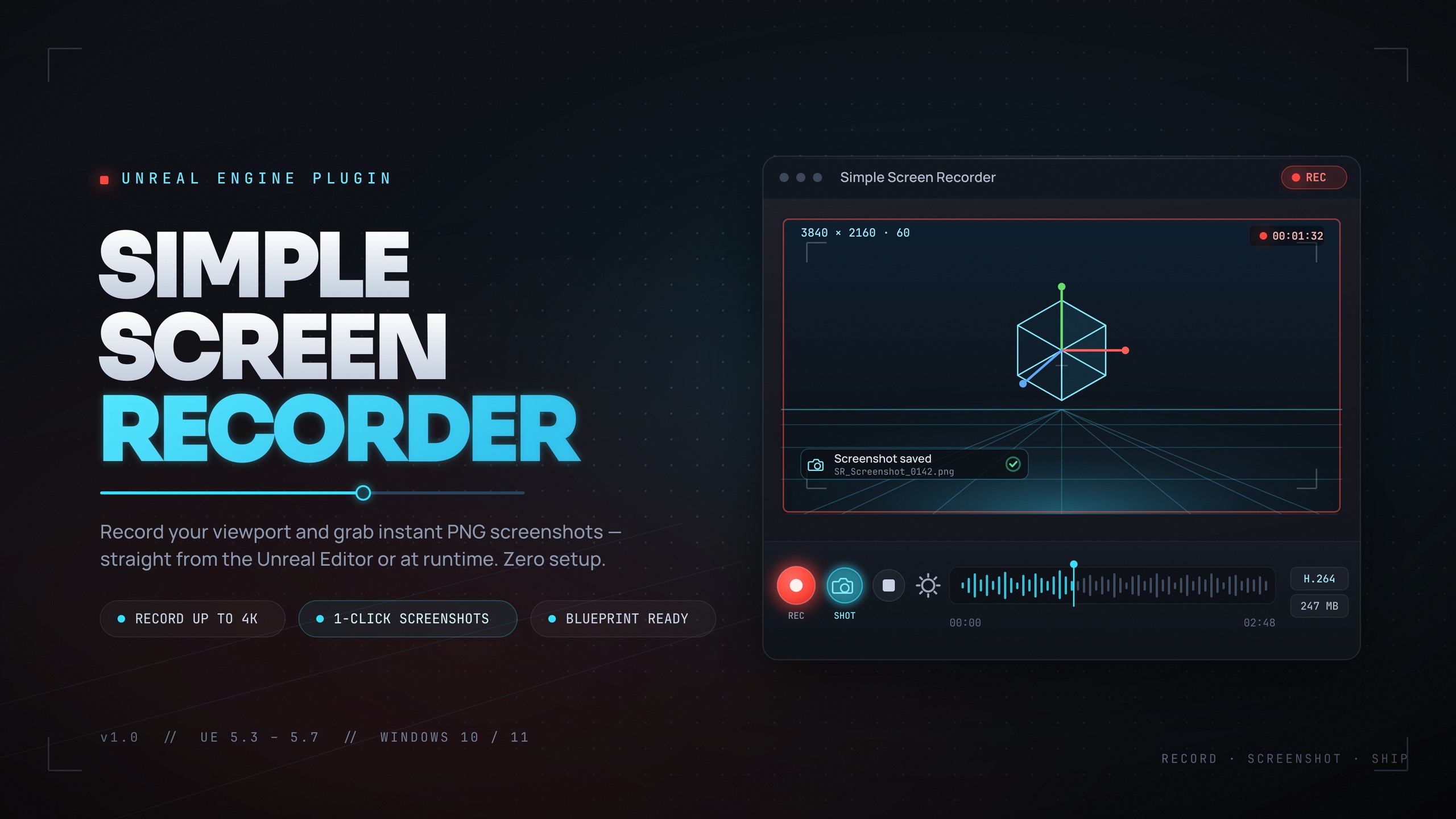
Simple Screen Recorder exposes exactly these three controls, so the choices are concrete rather than abstract. It is a Windows-only UE5 capture plugin that records the editor viewport, PIE sessions and runtime gameplay to H.264 MP4 with AAC system audio, using Windows Media Foundation with no external dependencies. Whether you toggle a recording with the Ctrl+Shift+R hotkey in the editor or fire it from a Blueprint node at runtime, the same three settings, resolution, frame rate and quality, govern what lands on disk.
Resolution presets, from Match Viewport to 4K
Resolution sets the pixel dimensions of every captured frame. Simple Screen Recorder offers a fixed set of presets through the EScreenRecorderResolution enum: Match Viewport, 720p (1280x720), 1080p (1920x1080), 1440p (2560x1440) and 4K (3840x2160), plus a Custom option that accepts any width from 320 to 7680 and any height from 240 to 4320.
Match Viewport records at whatever size your editor viewport or game window currently is, which is the safest default when you just want a faithful grab of what you are looking at. The named presets force a standard 16:9 size regardless of window, which matters when a marketplace or video host expects an exact frame. 4K at 3840x2160 is the headline tier for store hero clips and high-detail walkthroughs; 1080p remains the practical workhorse for tutorials and quick shares.
Custom is there for the awkward cases: ultrawide compositions, vertical clips for short-form video, or oversized frames you intend to downscale later for extra crispness. Stay inside the 320-7680 by 240-4320 clamp and the plugin will honour the exact dimensions you ask for. Resolution is the single biggest lever on both visual fidelity and file size, so decide it first, then balance frame rate and bitrate around it.
Frame rate: the 15 to 120 range
Frame rate controls motion smoothness. Simple Screen Recorder clamps frame rate to the 15-120 FPS range and defaults to 30. Thirty frames per second is the comfortable baseline for tutorials, UI walkthroughs and most editor capture, where smoothness matters less than clarity and a smaller file.
Step up to 60 FPS for gameplay trailers and anything with fast camera motion or particle-heavy action, where 30 starts to look choppy. The upper end of the range, towards 120, suits slow-motion source footage you plan to retime in an editor, or captures of high-refresh gameplay you want to preserve faithfully. The trade-off is direct: doubling the frame rate roughly doubles how many frames the encoder has to fit into the same bitrate budget, so high FPS and a low quality preset together will soften each frame.
Set the frame rate to match your delivery target rather than chasing the maximum. If the final clip plays back at 30, capturing at 120 only inflates the file. If you are driving a recording from the SimpleScreenRecorder Blueprint node, Resolution and FrameRate are passed in directly (they sit under Advanced Display on the node), and on the Screen Recorder actor component they live in the recording settings alongside the quality preset.
Quality presets and what each bitrate buys you
Quality in Simple Screen Recorder is expressed as four bitrate presets through the EScreenRecorderQuality enum. Small Files encodes at 10 Mbps, Default at 20 Mbps, High Quality at 50 Mbps and Professional at 100 Mbps. Bitrate is how much data the H.264 encoder is allowed to spend per second of video, and it is the dial that decides whether motion looks clean or breaks up into compression blocks.
Small Files at 10 Mbps is for quick internal shares, bug-report clips and anything where upload size matters more than pristine detail. Default at 20 Mbps is a sensible balance for 1080p tutorials. High Quality at 50 Mbps is where 1440p and busy scenes start to hold up well. Professional at 100 Mbps is the tier to reach for when recording 4K hero footage, fast action or material you will re-encode downstream, because the more headroom you give the first encode, the less detail you lose later.
Bitrate has to scale with the other two dials. A 4K frame contains four times the pixels of a 1080p frame, and 60 FPS doubles the frames per second, so the same Small Files preset that looks clean at 1080p30 will look noticeably softer at 4K60. As a rule of thumb, push the quality preset up whenever you push resolution or frame rate up.
Putting the presets together
The presets are most useful read as recipes for a delivery target rather than as isolated switches. The table below pairs each common use case with a sensible starting point across all three dials, using only the presets the plugin actually ships. Treat these as starting points and adjust to taste; there is no single correct combination.
Two practical notes on the output itself. Every capture is written as H.264 in an MP4 container with AAC audio, and files are named with your prefix and a timestamp, so [Prefix]_YYYYMMDD_HHMMSS.mp4. Audio, when enabled, is captured as system loopback through Windows WASAPI, which records everything your machine is playing rather than isolating game audio, so mute other applications before you record a clean trailer.
Where this fits in a UE5 capture workflow
Because the same resolution, frame rate and quality settings apply to both editor capture and the runtime Blueprint API, you can standardise one set of choices across manual recordings and automated ones. Auto-start a recording on BeginPlay with a max-duration cap for repeatable QA repros, expose a record-my-run feature to players, or batch short clips for store listings, all using the presets covered above.
If your captures feed a wider pipeline, the same MythicLemon code-tools cluster covers the neighbouring jobs. EasyHTTP lets you POST a finished clip's metadata or a telemetry event to a backend from Blueprints. Fast Chart Widgets can render an in-game performance overlay you might want on screen while you record. Markdown 4 Blueprints, an editor-only documentation tool, is handy for writing up the exact capture settings you standardised on so the rest of the team records consistently.
The next step is simple: pick the row in the table that matches what you are shipping, set those three values, and record. Once you have a baseline that looks right for your project, save it on the Screen Recorder component so every future capture starts from the same place.
Quality presets and their bitrates
| Preset | Bitrate | Best for |
|---|---|---|
| Small Files | 10 Mbps | Bug-report clips and quick internal shares where upload size matters most |
| Default | 20 Mbps | 1080p tutorials and general editor walkthroughs |
| High Quality | 50 Mbps | 1440p capture and busy, detailed scenes |
| Professional | 100 Mbps | 4K hero footage, fast action and clips you will re-encode later |
The four EScreenRecorderQuality presets and the H.264 bitrate each targets.
Starting points by use case
| Use case | Resolution | Frame rate | Quality |
|---|---|---|---|
| Quick bug-report clip | Match Viewport | 30 FPS | Small Files (10 Mbps) |
| 1080p tutorial / walkthrough | 1080p | 30 FPS | Default (20 Mbps) |
| Gameplay trailer | 1080p or 1440p | 60 FPS | High Quality (50 Mbps) |
| 4K store hero clip | 4K (3840x2160) | 60 FPS | Professional (100 Mbps) |
| Slow-motion source | 1080p or 1440p | 120 FPS | Professional (100 Mbps) |
Suggested combinations using only the plugin's shipped presets. Adjust to taste.
FAQ
What are the best Unreal Engine 4K recording settings for bitrate and framerate?
For 4K (3840x2160) capture, pair the Professional quality preset, which targets 100 Mbps, with a frame rate that matches your delivery target, typically 60 FPS for gameplay trailers or 30 FPS for slower walkthroughs. The high bitrate is what stops a 4K frame breaking up into compression blocks, and you should always raise the quality preset when you raise resolution or frame rate.
What resolutions can Simple Screen Recorder capture?
It offers Match Viewport, 720p (1280x720), 1080p (1920x1080), 1440p (2560x1440) and 4K (3840x2160) presets, plus a Custom option that accepts any width from 320 to 7680 and any height from 240 to 4320.
What frame rates are supported?
Frame rate is clamped to the 15-120 FPS range, with a default of 30. Use 30 for tutorials, 60 for gameplay and fast motion, and the upper end for slow-motion source footage you intend to retime.
How do the four quality presets map to bitrate?
Small Files is 10 Mbps, Default is 20 Mbps, High Quality is 50 Mbps and Professional is 100 Mbps. Bitrate is the per-second data budget the H.264 encoder works within, so higher presets preserve more detail in motion and fine textures.
What format do recordings come out as?
Every capture is encoded as H.264 video in an MP4 container, with AAC audio when audio is enabled. Audio is captured as Windows system loopback via WASAPI, so it records everything your machine plays rather than isolating game audio.
Simple Screen Recorder
Record the editor viewport or runtime gameplay to H.264 MP4 with system audio — one click (Ctrl+Shift+R) from the toolbar, or Start/Stop/Pause/Resume from Blueprints. Resolution presets up to 4K, 15–120 FPS, no external dependencies.
Related on Fab



Related reading