
tutorial · 2026-05-13
Unreal Engine Screen Recording With Sound: Capturing System Audio in UE5
How to record gameplay and editor sessions to MP4 with synchronised system audio, straight from Unreal, with no external recorder.
The problem: silent gameplay clips
You have just captured a clean run inside Play-In-Editor, but the file plays back silent. Unreal Engine screen recording with sound is the part most in-engine capture stumbles on: getting the picture is easy, getting the audio the player actually heard to land in the same MP4, in sync, is the awkward bit. Reaching for OBS solves it but drags your capture workflow out of the editor.
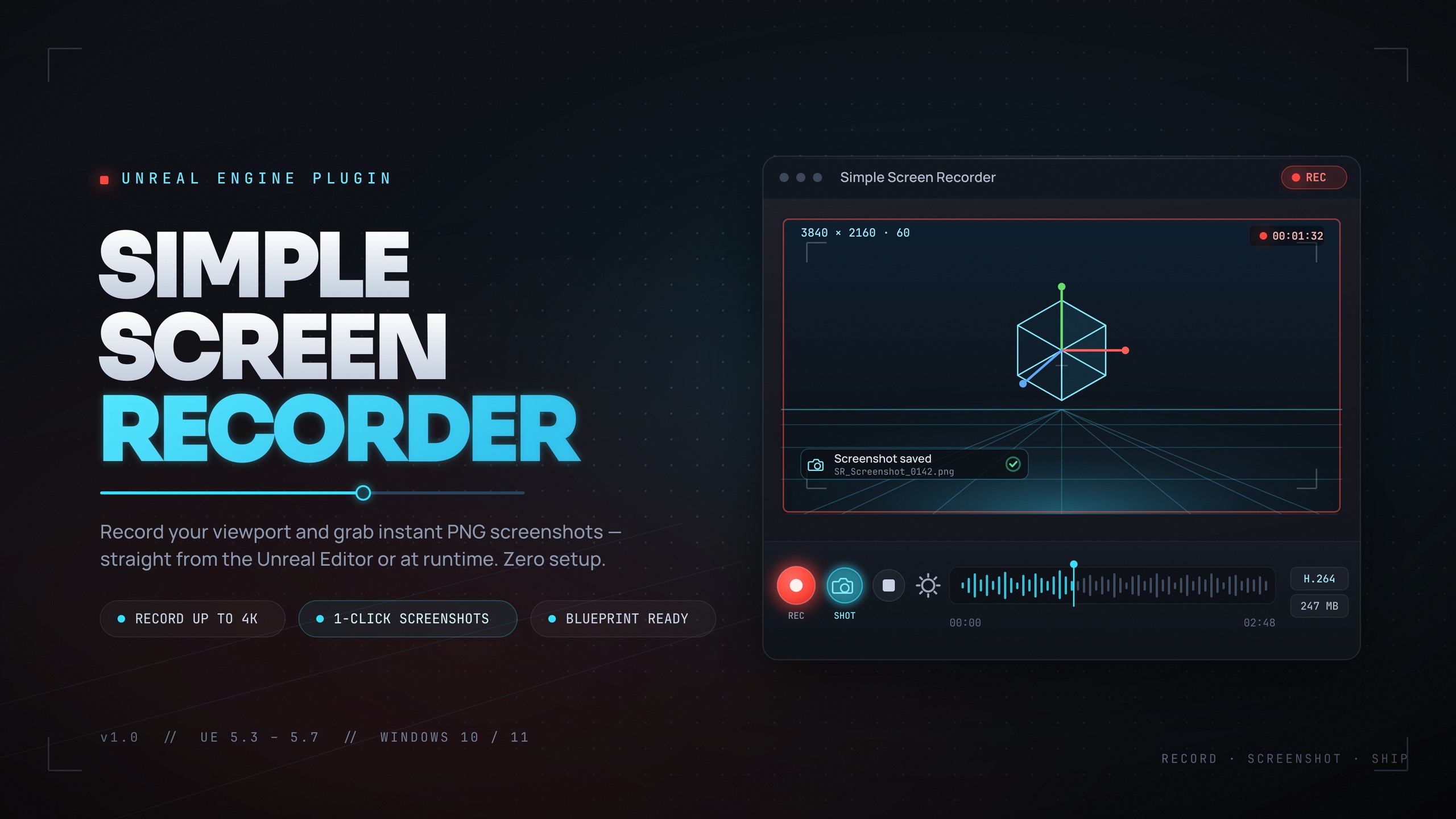
Simple Screen Recorder records the editor viewport, PIE sessions and runtime gameplay to H.264 MP4 with AAC system audio, using Windows Media Foundation, with no external dependencies. Because the audio path is built in, the sound is muxed into the same MP4 as the video rather than captured by a separate program you then have to line up by hand. This guide covers how that audio capture works, how to switch it on, and how to fix a recording that comes out silent.
How loopback audio capture works
The plugin captures audio using Windows WASAPI loopback. Loopback means it taps whatever is being rendered to your default playback device, in other words whatever comes out of your speakers or headphones, and records that stream. So the soundtrack of your recording is exactly what you heard while the session played, mixed down to the final output.
There is one consequence worth understanding up front: capture is loopback only. It records the system mix, not an isolated game-audio bus, so it cannot separate your game's audio from anything else playing through the same output device and cannot give you a clean per-source stem. In practice, close or mute other noisy applications before a capture you intend to keep, because a notification chime or a music player will be baked into the same track as your game.
On the encode side, the audio is compressed to AAC and the video to H.264 (AVC), both written into an MP4 container by Media Foundation, hardware-accelerated where your machine supports it. The container is fixed and audio is not available with AVI output, so the supported pipeline is H.264/AAC in MP4. This is a Windows-only path: the plugin targets Win64, with Media Foundation and WASAPI doing the work.
Enabling Include Audio
Audio capture is controlled by a single toggle, exposed in Blueprints as bIncludeAudio and shown as the Include Audio setting. When it is on, the recorder opens the WASAPI loopback stream alongside the video capture; when it is off, you get a silent MP4. Switching it on is the whole job, but where you set it depends on how you are recording.
1. For editor capture, open the recorder settings (via the toolbar entry or the Open Settings command) and enable Include Audio there, alongside your resolution, frame rate, quality and source choices, then toggle recording with the toolbar button or the Ctrl+Shift+R hotkey. The toolbar and that hotkey are editor-only conveniences.
2. For runtime capture with the Screen Recorder actor component, add the component to an actor and set its recording settings, making sure bIncludeAudio is enabled before you start, then call StartRecording and StopRecording. You can also drive auto-start-on-BeginPlay and auto-stop-on-EndPlay, set a MaxRecordingDuration cap, and bind OnRecordingStarted, OnRecordingStopped and OnRecordingError.
3. For the one-shot Blueprint API, call the SimpleScreenRecorder node with an action of Start, supplying Resolution and FrameRate (both on Advanced Display), then call it again with Stop, Pause or Resume; the node returns the output path. Recordings are written to the configured output directory as Prefix_YYYYMMDD_HHMMSS.mp4. Use Open Output Folder, or GetOutputDirectory in Blueprints, to find them.
Troubleshooting no-audio recordings
If a recording comes back silent, the user guide's first two checks resolve most cases. First, confirm Include Audio is actually enabled for the path you are recording with: the settings panel for editor capture, or bIncludeAudio on the component or node for runtime capture. It is easy to set it in one place and record from another.
Second, make sure sound is genuinely playing through your default output device during the capture window. Because the recorder taps the system loopback, if nothing is reaching your speakers or headphones, there is nothing to record. Verify your game is not muted, that audio is routed to the device Windows is using as default playback, and that you can hear it yourself while recording.
Beyond those, remember the loopback nature of the capture: if the audio is present but contaminated, a background app was playing into the same mix, so mute or close it and record again. And if you are scripting captures, enable Include Audio before calling StartRecording rather than after, so the loopback stream is open for the whole take.
Pair the recorder with SimpleScreenshot for stills and GetRecordingInfo or IsRecording for a HUD indicator, and you have a complete capture path without leaving Unreal, in the same Blueprint-first, no-dependency toolkit as EasyHTTP, Fast Chart Widgets and Markdown 4 Blueprints. Install it, enable Include Audio, and your next clip arrives with the sound already in the file.
FAQ
Does Unreal Engine screen recording with sound work without an external recorder?
Yes. Simple Screen Recorder captures system audio via Windows WASAPI loopback and encodes it to AAC directly into the same H.264 MP4 as the video, so you do not need OBS or any external program to get sound and picture in one file.
How do I turn on audio capture?
Enable Include Audio (the bIncludeAudio toggle). Set it in the recorder settings for editor capture, or on the Screen Recorder component or the SimpleScreenRecorder node for runtime capture, before you start recording.
Can it record only my game's audio and ignore everything else?
No. Capture is system loopback only, so it records the whole output mix and cannot isolate game audio from other applications. Mute or close other noisy apps before a capture you intend to keep.
Why is my recording silent?
Most often Include Audio was not enabled for the path you recorded with, or no sound was actually playing through your default output device during the capture. Confirm the toggle is on and that you can hear audio on the same device Windows uses for playback.
What format and platform does it output?
It always outputs H.264 video with AAC audio in an MP4 container, on Windows (Win64) only, using built-in Windows Media Foundation and WASAPI with no external dependencies.
Simple Screen Recorder
Record the editor viewport or runtime gameplay to H.264 MP4 with system audio — one click (Ctrl+Shift+R) from the toolbar, or Start/Stop/Pause/Resume from Blueprints. Resolution presets up to 4K, 15–120 FPS, no external dependencies.
Related on Fab



Related reading