tutorial · 2026-06-23
Build a Castle in UE5 with Keystone: Multi-Volume Composition
Start from the Castle preset, then understand a fortress as a union of separable volumes — keep, round corner towers, curtain walls and gatehouse — and use the character toolkit to make it look less machine-made.
Why a castle is the right test for multi-volume composition
Most building tools are happiest with a single box: four walls, a roof, maybe a window or two. A castle breaks that model immediately. A real fortress is not one shape — it is a crenellated keep, several round corner towers, lengths of curtain wall running between them, and a gatehouse straddling the entrance. Each of those parts has its own height, its own storey stack and its own roofline. Treat the whole thing as one extruded footprint and you end up fighting the tool the entire way.
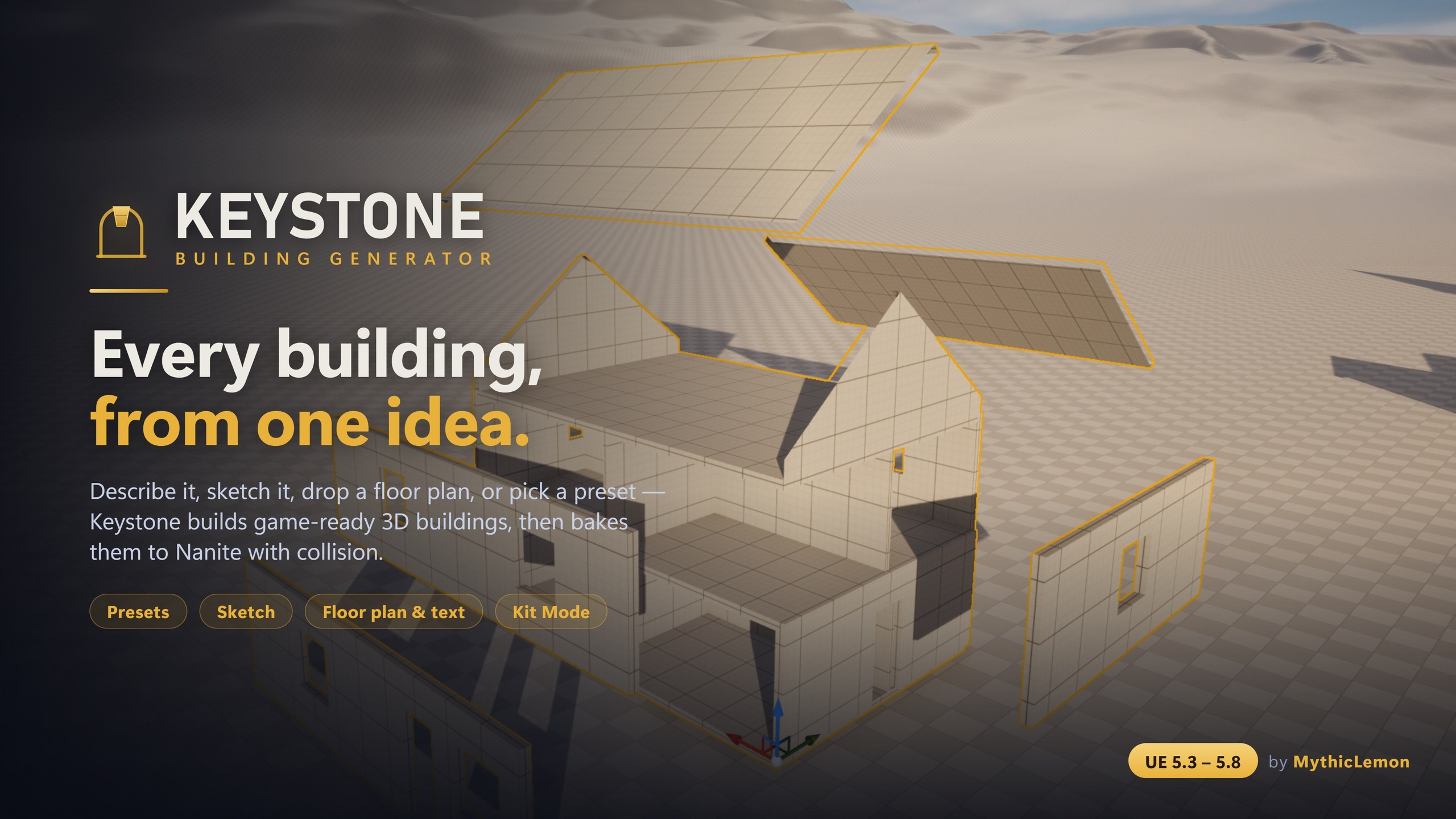
Keystone is built for exactly this. A building can be composed of several volumes, and a building with volumes is simply their union — the pieces abut one another rather than being cut together with a boolean operation. That distinction matters in practice: because the volumes meet by abutment, each one keeps its own storey stack and its own roof, and each bakes out as its own separable piece. You are assembling a castle the way a mason would think about it, as separate towers and walls that share edges, not as one monolithic solid you carve away at.
This tutorial walks the full path. We start from the Castle preset to get a complete fortress on screen in one click, then take it apart conceptually so you understand what each volume is doing. From there we use the character toolkit — wall styles, detail bands, arcs and the stylize deformation — to push it away from the clean, machine-made look that procedural geometry tends toward. Finally we bake it to ordinary Nanite static meshes you own outright. Everything here works with no AI key at all; the optional AI inputs are a separate, bring-your-own-key convenience we will note but not rely on.
Step one: start from the Castle preset, then read it as volumes
Open Keystone from the Level Editor toolbar button labelled Keystone, or from the Tools menu — and if you prefer the console, BG.OpenPanel does the same thing. Keystone gives you five ways to start a building, and for a castle the fastest by a wide margin is a preset. There are eight one-click starter buildings: House, L-Shape, Gable Cottage, 3-Storey Block, Setback Tower, Castle, Log Cabin and Round Tower. Pick Castle.
The Castle preset is the showcase for multi-volume composition, and it is deliberately the most elaborate of the eight: a crenellated keep with round corner towers, curtain walls and a gatehouse. Choosing it drops a complete fortress into the live 3D preview before you bake anything. That preview is the heart of the workflow — whichever of the five start methods you use, they all converge on the same editable building file shown in 3D, so you can judge proportions and read the composition before committing a single asset to disk. If you would rather see it appear in a level immediately, BG.Spawn 5 spawns the Castle preset (the presets are numbered 0–7 in the same order) and BG.Bake 5 bakes it — but for learning, work inside the panel so you have the live preview and the details panel to hand.
With the Castle preset loaded, the most useful thing you can do is stop seeing a castle and start seeing four kinds of volume. The keep is the tall central block. The round corner towers are volumes whose walls curve all the way round. The curtain walls are the lower runs that connect the towers. The gatehouse is the volume framing the entrance. They are separate volumes that happen to share edges, unioned by abutment — not one shape with detail painted on. Internalise three consequences and the rest falls into place: each volume carries its own storey stack (the keep can tower over low curtain walls), each volume has its own roof (a flat battlemented keep beside a conical tower cap), and each bakes as its own separable piece (a tower you dislike is one you can delete or replace alone). That is also how you extend the preset — add a barbican, a second ward or a wing by adding another volume and letting it abut the existing ones.
Adding character: wall styles, detail bands and arcs
A castle straight out of the generator can look too clean — crisp, uniform, unmistakably machine-made. Keystone's detailing toolkit exists to address that, and the first lever is wall style. Three are available: SolidBox (the default flat wall), StackedLog (a log-cabin look built from stacked courses) and TimberFrame (a Tudor look with framed panels). For a stone keep SolidBox is right, but StackedLog and TimberFrame are how you give outbuildings, a wooden palisade section or a half-timbered gatehouse upper storey a different material language without leaving the tool.
Detail bands are what make a wall read as a battlement rather than a plain box. A detail band runs around the top of a wall, and two kinds matter for a castle: crenellations (the alternating merlons and gaps — the battlements along the wall-top) and cornices or string courses (a horizontal moulding line). Run crenellations around the keep top and the curtain walls and the silhouette instantly reads as defensive; add a string course partway up a tall tower and it stops looking like a featureless cylinder. These bands are part of the building file, so they survive every edit and re-bake.
Arcs are the tool for round towers and curved walls. An arc curves a wall edge outward into a round tower or a bay, or inward into an apse or niche — which is exactly how the corner towers in the Castle preset get their roundness. Use arcs to add your own towers, to bow out a section of curtain wall, or to recess an alcove for a gate. One honest constraint to plan around: an edge that has been curved by an arc does not carry openings, so place your doors and windows on the straight edges of a wall and reserve the arc'd edges for the round, blank tower faces — which is how real round towers tend to read anyway.
Stylize: the deliberate wonkiness that sells it
The most effective anti-machine-made tool in Keystone is stylize. It applies a subtle, seeded, repeatable deformation to the geometry — a gentle lean, a slight taper, or a small amount of hand-built wonkiness — the kind of irregularity that makes an old fortress look settled and weathered rather than extruded by a computer five minutes ago. A castle that has stood for centuries is never perfectly plumb, and stylize is how you get that without modelling it by hand.
Two properties of stylize make it safe to lean on. It is seeded and repeatable, so the same building file always produces the same deformation — your castle will not shuffle its imperfections every time you regenerate, and a teammate who imports the same building file gets the identical result. And it never changes topology: the deformation moves vertices around but does not add, remove or re-cut faces, so it will not break your detail bands, your arcs or your bake. You can dial it up for a ruined, leaning border keep or keep it barely-there for a well-maintained royal castle.
Combine the toolkit deliberately rather than all at once. A typical pass: SolidBox stone walls, crenellations around the keep and curtain-wall tops, a cornice string course on the tallest tower, arcs defining the round corner towers, and a low stylize value across the whole thing to take the edge off. Judge each addition in the live preview before moving on — the point of the preview is that you never have to bake to find out whether a change worked.
Materials, the Building Library and baking to separable pieces
Keystone has six material slots — Wall, Floor, Ceiling, Roof, Trim and Interior — and ships colour-coded starter materials (seven assets: one Material and six Material Instances) so the preview is readable from the start. For a castle you will typically assign a stone material to Wall, a darker stone or timber to Roof, and a complementary Trim for the cornices and crenellation caps. You can assign any project material to any slot before or after baking, so there is no rush to finalise the look before you commit geometry.
Every time you press Generate, the building is saved to your project's Content Browser as a clickable thumbnail — a native data-asset record in the Building Library. Generating again adds a new entry rather than overwriting the last one, so iterations accumulate and nothing is lost; you can delete entries you no longer want. This makes castle iteration cheap: generate the keep-only version, generate again with corner towers, generate again with the gatehouse, and keep all three side by side to compare. You can also import or export the whole building file as a single human-readable JSON file — the complete description from footprint to roof — to version it in source control or hand the identical castle to a teammate, because the same building file always produces the same building.
When you are happy, bake. Keystone produces standard Unreal static meshes with collision; Enable Nanite and Generate collision are both on by default, and you choose the destination Content Browser folder. The output comes out as separable pieces — each exterior wall, each roof panel, each floor and ceiling slab as its own asset — which is exactly what a castle wants. You can detach one curtain-wall section to cut a sally port, swap a single tower's conical roof, or delete a wall to make a ruin, all without disturbing the rest. The trade-off to know: separable-piece baking favours editability over draw-call count, so if you are placing many identical castles, merge or instance them after baking. The baked castle is ordinary static-mesh assets — platform-agnostic, no runtime generation, no tick cost, and no runtime dependency on Keystone, so it runs on any target platform your project ships to even though the tool itself is a Windows editor-only build.
Honest limits, and where the optional AI fits
A castle is a strong fit for Keystone because the win is in the exterior and the silhouette — the keep, the towers, the walls, the gate — and that is precisely what the tool is strongest at. Keep your expectations calibrated on one point: interiors are approximate. They are good for blockout, for mid-ground and exterior-read buildings, and for getting a whole fortress standing quickly, but they are not a substitute for a hand-built close-up hero interior set. If the player will walk through the throne room and inspect the masonry, build that room by hand; let Keystone own the shell, the courtyards and the dozens of background buildings.
The optional AI inputs — drafting a building from a text description or from a floor-plan image — are useful for a first pass, but they sit outside the castle workflow we have used here, and they are bring-your-own-key. You supply a key for Anthropic (Claude), OpenAI (GPT) or Google (Gemini), or run a local Ollama model with no key at all and nothing leaving your machine. The AI only interprets your words or image into editable building parameters; the geometry is always built by the deterministic engine, no AI-generated meshes are ever shipped or sold, and your input goes only to the provider you chose — nothing is sent to MythicLemon. The key is read from an environment variable or a key file under the project's Saved/ folder, so it never enters source control or a packaged build. An AI draft is a strong starting point, not a guaranteed pixel-perfect trace, so review and correct it in the details panel. Every workflow in this tutorial — preset, volumes, wall styles, bands, arcs, stylize and bake — needs no AI whatsoever.
Keystone is a Windows (Win64) editor tool at version 1.0.0 (June 2026), with a separate compile-verified build for each of UE 5.3 through 5.8 — download the one matching your engine. Its only dependencies, Geometry Scripting and Modeling Tools, ship with Unreal and auto-enable. It is a one-time purchase at $29.99 with lifetime updates, no subscription and no credits, and it ships a User Guide PDF and a Technical Reference PDF. For a solo developer or small team that needs a castle, a fortified town or a wall of background buildings standing fast — and editable forever after, because every piece bakes separately — that is a sound trade.
The four volume types in a castle
| Volume | What it is | Composition tool |
|---|---|---|
| Keep | The tall central block, usually battlemented | SolidBox walls + crenellation band |
| Round corner towers | Cylindrical towers at the corners | Arc — curve a wall edge outward |
| Curtain walls | Lower runs connecting the towers | Volumes abutting keep and towers |
| Gatehouse | The volume framing the entrance | Volume with door on a straight edge |
A castle in Keystone is the union of several volumes, joined by abutment (never a boolean). Each volume keeps its own storey stack and roof, and bakes as a separable piece.
The character toolkit, and when to reach for each
| Tool | Effect | Use on a castle for |
|---|---|---|
| Wall style | SolidBox, StackedLog or TimberFrame | Stone keep vs timber/log outbuildings |
| Crenellation band | Merlons and gaps along a wall-top | Battlements on keep and curtain walls |
| Cornice / string course | A horizontal moulding line | Breaking up a tall, plain tower |
| Arc | Curve an edge out (tower/bay) or in (apse/niche) | Round corner towers, bowed walls, gate recesses |
| Stylize | Seeded, repeatable lean/taper/wonkiness; no topology change | An aged, settled, less machine-made look |
All of these are part of the building file, survive every edit and re-bake, and need no AI. Place doors and windows on straight edges — an arc'd edge does not carry openings.
FAQ
How do I build a castle in UE5 with Keystone?
Open Keystone from the Level Editor toolbar (or BG.OpenPanel), pick the Castle preset — a crenellated keep with round corner towers, curtain walls and a gatehouse — and it appears in the live 3D preview. Reshape it as a union of volumes, add character with crenellation bands, arcs and the stylize deformation, assign materials to the six slots, then bake to Nanite static meshes with collision. Every step works with no AI key.
What does multi-volume composition actually mean?
A castle is composed of several volumes — the keep, the round towers, the curtain walls and the gatehouse — and a building with volumes is their union by abutment, not a boolean operation. Each volume keeps its own storey stack and its own roof, and each bakes out as its own separable piece, so you can edit, swap or delete one tower or wall without disturbing the rest.
How do I make the castle look less machine-made?
Use the character toolkit. Pick a wall style (SolidBox stone, StackedLog or TimberFrame), run crenellation and cornice detail bands around the wall-tops, curve edges into round towers with arcs, and apply stylize — a subtle, seeded, repeatable deformation (gentle lean, taper or wonkiness) that never changes topology. Because it is seeded, the same building file always produces the same result.
Can I put doors and windows on the round towers?
Not on the curved face itself. An edge that has been curved by an arc does not carry openings, so place doors and windows on the straight edges of a wall and keep the arc'd edges for the blank, round tower faces — which is how real round towers tend to look anyway. Plan a gatehouse door on a straight edge of that volume.
Do I need an AI key to build the castle, and what are the limits?
No. The preset, volumes, wall styles, detail bands, arcs, stylize and bake all work with no AI at all. The optional draft-from-text and draft-from-image inputs are bring-your-own-key (Anthropic, OpenAI, Google, or local Ollama) and only turn your words or image into editable parameters — no AI-generated meshes are ever shipped. The main limits to plan around: interiors are approximate (good for blockout, not hero close-ups), it is a Windows editor-only tool, and separable-piece baking favours editability over draw-call count, so merge or instance many identical castles.
Keystone
Keystone generates game-ready 3D buildings — walls, floors, roofs and approximate interiors — directly inside the Unreal Editor. Start from one of eight presets, draw a footprint on a true-to-scale 2D canvas, drop in a floor-plan image, describe a building in plain English, or tile your own modular meshes with Kit Mode. Every input converges on one editable building file, shown in a live 3D preview, and bakes to Nanite static meshes with collision — as separable pieces — that you own outright. The geometry is built by a deterministic procedural engine: no subscription, no credits, and no AI-generated meshes. The optional Draft-from-Text and Draft-from-Image features use your own API key (Anthropic, OpenAI, Google, or local Ollama) only to read your words or plan into editable parameters.
Related reading