Landscapes & Worlds · Beginner · 14 min
Add Foliage: Paint Grass, Trees and Flowers with the Foliage Tool
Use Foliage mode to paint thousands of grass blades, trees and flowers across your terrain in seconds — and learn why Unreal can draw all of them without grinding your frame-rate to a halt.
Before this: Import Your First Landscape from a Heightmap
- Open Foliage mode and add meshes as foliage types
- Paint, erase and selectively remove foliage with the brush
- Control density, scale and how foliage aligns to the ground
- Explain why foliage is instanced and why that keeps performance high
Why you don't place trees one by one
Imagine you want a meadow. You could drag a grass mesh into the level, copy it, paste it, nudge it, and repeat that a few thousand times. You'd be there until next year, and your project would crawl — because every single copy would be a separate object the engine has to track and draw.
Foliage mode solves both problems at once. Instead of placing objects, you pick a mesh and then paint it onto the world with a brush, like spray paint. One stroke can scatter hundreds of grass blades, rocks or flowers exactly where your cursor passes.
And here's the clever bit you'll hear about over and over: painted foliage is instanced. That's a performance trick — Unreal stores the mesh once and then says 'draw it again here, here and here' thousands of times very cheaply. We'll unpack what that really means as we go. For now, just know that painting a field of grass is both fast to do and fast to run.
Five words to lock in first
Tap a card to flip it
Before you paint
Tick these off so the brush has something to work with:
- An open level with a Landscape in it (the heightmap you imported in the previous lesson is perfect)
- At least one foliage-ready mesh in your Content Browser — a grass, tree, rock or flower static mesh
- Roughly knowing where you want greenery, so your first strokes land somewhere sensible
- Two minutes of patience for the very first dense paint — the editor builds the instances as you go
Paint your first foliage
Work top to bottom. Each row stays ticked even if you close the page and come back, so you never lose your place.
- 1Switch to Foliage mode
At the top-left of the level editor there's an editor-mode menu (by default it's on 'Select'). Open it and choose 'Foliage'. The left panel changes into the Foliage palette — an empty box at the top to drop meshes into, with brush settings below.
TipIf you can't find the dropdown, it's the same one you used to enter Landscape mode last lesson — Foliage sits right next to it.
- 2Add a mesh as a foliage type
In the Content Browser, find a grass, flower, tree or rock static mesh. Drag it up into the big empty area at the top of the Foliage palette and drop it.
It appears as a thumbnail tile. That tile is now a 'foliage type' — a paintable item with its own settings. Add a couple more meshes the same way if you like; you can paint several at once.
TipTick the small checkbox on a tile to include it in the next stroke, and untick it to leave it out — handy for painting grass in one pass and trees in another.
- 3Aim the brush and check the size
Move your mouse over the landscape. A faint circle follows your cursor — that's the brush. Everything inside the circle is where new foliage will land.
In the brush settings, 'Brush Size' sets how wide that circle is. Make it big for broad meadows, small for careful detail work like flowers along a path.
- 4Paint
Hold the left mouse button and drag across the terrain. Foliage scatters under the brush as you move — release to stop. Congratulations, you just placed potentially hundreds of objects in one swipe.
Paint in short strokes and build up coverage. It's easier to add a little more than to thin out a clump you overdid.
TipFoliage only lands on surfaces you've allowed. If nothing appears, jump to the warning below — it's almost always the 'paint surface' setting.
- 5Erase what you don't want
Hold Shift while you paint (Shift + left-drag) and the brush erases foliage instead of adding it. Sweep over anywhere you want clear — a path, a clearing, the edge of a lake.
This is how you carve negative space. Paint generously, then erase to shape it, exactly like sculpting.
TipShift+paint only erases the foliage types that are currently ticked in the palette, so you can clear grass while leaving the trees untouched.
- 6Tune density and scale, then repaint
Click a foliage tile to open its settings. 'Density' (instances scattered per area) controls how thick the coverage is. 'Scale' (often a Min/Max range) randomises each instance's size so your field doesn't look like cloned copies.
Change a value, then paint a fresh patch to see it. A little randomised scale and rotation is the single biggest thing that makes painted foliage read as natural rather than fake.
TipSet Scale to a range like 0.8–1.3 rather than a fixed number — varied sizes instantly kill the 'copy-paste' look.
- 7Walk through it
Switch the editor-mode menu back to 'Select' and press Play. Drop in at eye level and walk through your meadow — foliage always reads completely differently from the ground than from the editor camera high above.
Painting 10,000 grass blades sounds like it should destroy performance. Why doesn't it bring the engine to its knees?
Because foliage is instanced. Unreal keeps a single copy of the grass mesh in memory and a compact list of where each instance sits, how big it is and how it's rotated. The graphics card can then draw all of those copies in one batched operation instead of treating each blade as a separate object with its own draw call.
Manually placed actors don't get this benefit — each is tracked and submitted individually, so a few thousand of them would choke the editor. That's exactly why you paint foliage instead of copy-pasting meshes: same visual result, a fraction of the cost.
It's not magic, and it's not infinite — very dense, very large meshes can still be heavy. But for grass, flowers and scattered props, instancing is what makes a lush world affordable.
Foliage brush shortcuts
- Left-drag Paint foliage under the brush
- Shift Left-drag Erase the ticked foliage types under the brush
- Ctrl Left-drag Select painted instances (in the Select tool) to move or delete them
- Ctrl Z Undo the last stroke — works on foliage like everything else
Foliage tool vs. placing meshes by hand
Best for anything you need a lot of: grass, weeds, flowers, scattered rocks, bushes, a whole forest of trees.
You get instancing for free (cheap to render), brush-fast placement, and randomised scale and rotation so it looks natural. The trade-off is slightly less precise control over each individual item.
Best for the few hero objects that must sit in an exact spot — the one big landmark tree by the gate, a specific bush framing a doorway.
You drag it from the Content Browser into the level and position it precisely. Fine for a handful of items, but it does NOT instance the way painted foliage does, so don't use it to fill a meadow.
Turn a bare patch of terrain into a believable clearing. Paint a thick base of grass over an area, scatter a few trees on top, then erase a winding clear path through the middle. Finally, randomise the grass scale so it doesn't look cloned, and walk the path in Play.
Hint 1
Add two foliage types: a grass mesh and a tree mesh. Tick only the grass, paint the field, then tick only the tree and dab a few in.
Hint 2
To clear the path, tick only the grass type and Shift+left-drag a curving line through it — the trees stay put because they're unticked.
Hint 3
For natural grass, open the grass tile and set its Scale to a Min/Max range, then repaint a fresh patch to see the variation.
Hint 4
If a foliage type refuses to paint, re-check its paint-surface toggles before anything else.
In Foliage mode, drag a grass mesh and a tree mesh into the palette. Tick only grass, set Brush Size large, and left-drag to lay down a thick field. Untick grass, tick the tree, shrink the brush, and dab a handful of trees across the area.
Untick the tree and tick only grass again. Hold Shift and left-drag a curving line through the field to erase a path — the trees are untouched because they aren't ticked.
Click the grass tile, set Scale to a range such as 0.8–1.4 for varied heights, and paint over any flat-looking patches to refresh them. Switch to Select mode and press Play to stroll the path you carved.
If you nail this, you've got the entire foliage workflow: add types, paint, erase to shape, and tune density and scale for a natural look.
QuizCheck yourself
1What's the main reason you paint foliage instead of copy-pasting a mesh thousands of times?
Instancing stores the mesh once and draws all the copies in batched, cheap operations — manually placed actors don't get that, so they'd tank performance in bulk.
2You're holding Shift while you drag the brush. What happens?
Shift + left-drag erases. It only removes the foliage types currently ticked in the palette, so you can clear grass while leaving trees in place.
3Your brush is over the landscape but no foliage appears when you paint. What's the most likely cause?
The foliage type's paint settings list which surfaces it may land on. If the Landscape toggle is off, painting on the landscape does nothing — switch it on.
Mark this lesson complete
We'll remember it on your Academy page and unlock the next lesson below.
Questions beginners ask
What kind of mesh can I use as foliage?
Almost any static mesh — grass, flowers, bushes, rocks, even small props. You just drag it into the Foliage palette to turn it into a foliage type. Meshes built for foliage (low-poly with simple cards, or Nanite-ready geometry) paint and run best, but you can experiment with anything in your Content Browser.
Where do I get grass, trees and flowers to paint with?
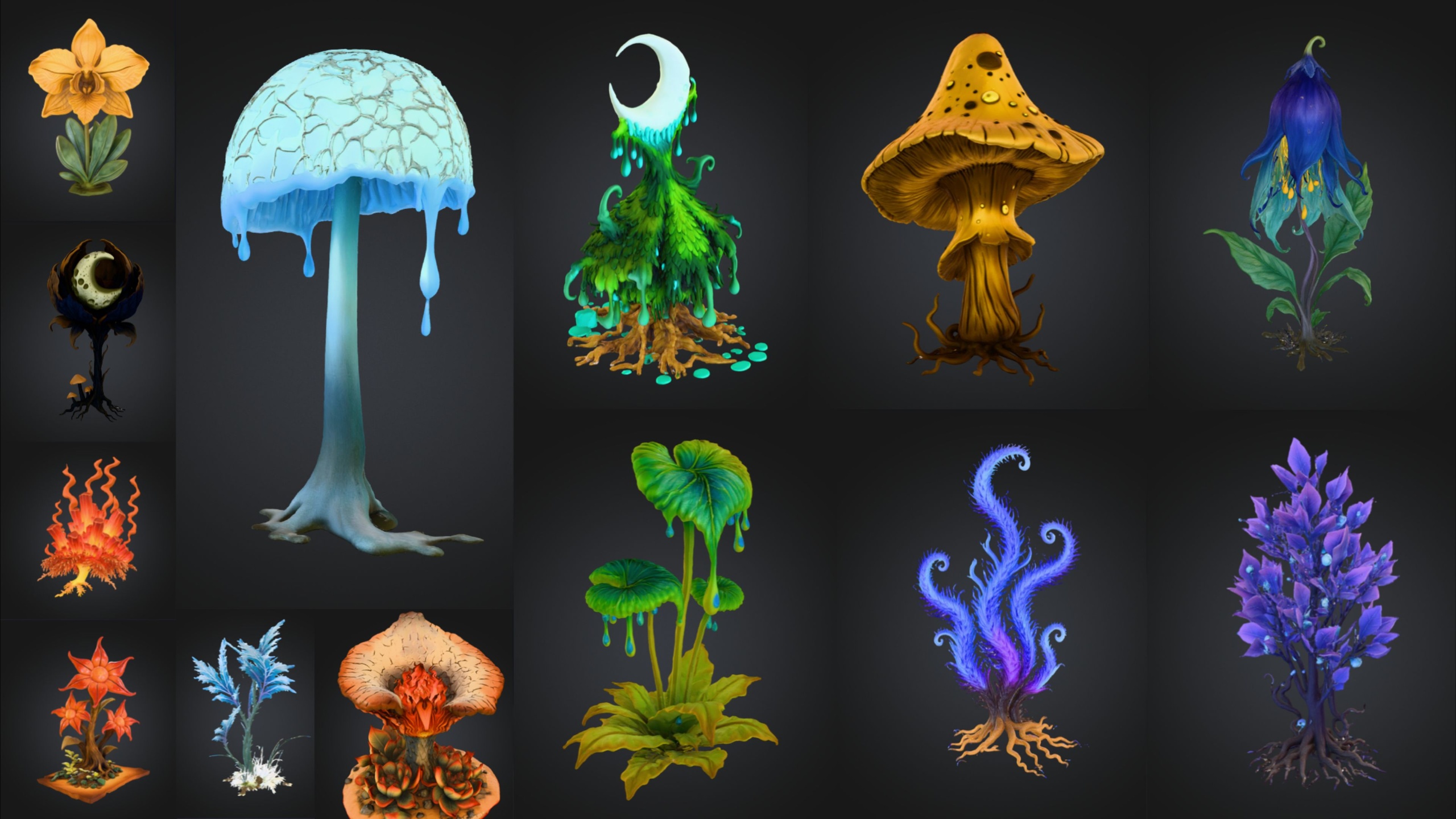
Unreal's Starter Content and free Fab marketplace packs include foliage meshes you can drop straight into the palette. For ready-made decorative plants, content packs like the Fantasy Flower Pack ship dozens of unique flower meshes you can add as foliage types and scatter across a scene — handy when you want variety without modelling your own.
Does deleting the original mesh delete my painted foliage?
The foliage instances reference the mesh, so removing that mesh asset from the project will break or clear the foliage that used it. Keep your foliage meshes in the project. Removing a foliage type from the palette is different — it cleans up the instances of that type, which is exactly what you want when tidying up.
My frame-rate still drops in a big foliage area — isn't instancing supposed to fix that?
Instancing makes copies cheap, but it isn't free. Very dense coverage, very heavy meshes, or huge view distances can still cost performance. Reduce density, use lighter meshes, and let Unreal cull distant instances. You'll dig into measuring this with stat commands in the Package & Share track.