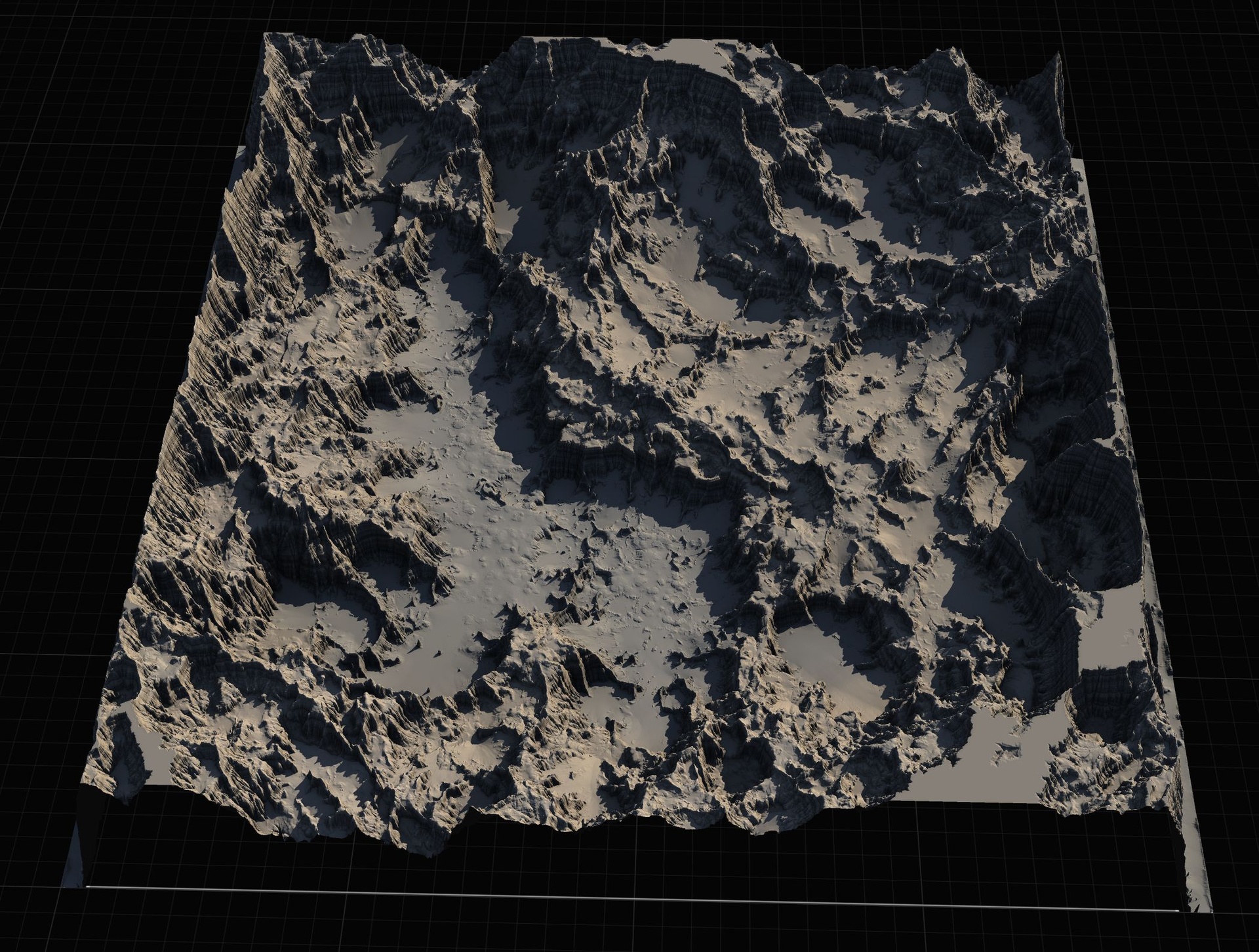
Landscapes & Worlds · Easy · 15 min
Intro to World Partition: How UE5 Streams Huge Open Worlds
Understand how Unreal Engine 5 keeps massive open worlds running smoothly by chopping the map into a grid and loading only the cells near you — plus a friendly look at the World Partition editor, Data Layers and HLODs.
Before this: Import Your First Landscape from a Heightmap, Navigate the UE5 Viewport Like You've Done It for Years
- Explain what World Partition is and the problem it solves
- Describe how the grid divides a level into cells that stream in and out
- Open and read the World Partition editor and its minimap
- Recognise what Data Layers and HLODs are for at a beginner level
The problem big worlds have to solve
Picture a huge open world — rolling hills, a forest, a town, a coastline — all in one level. If Unreal tried to keep every tree, rock, building and light loaded into memory at the same time, even a powerful PC would run out of room and grind to a halt. Yet games like this run smoothly. How?
The trick is to only load the part of the world you're actually near. Stand in the forest and the town across the map can quietly unload — you can't see it anyway. Walk toward the town and it loads back in before you arrive. This idea is called 'streaming', and in Unreal Engine 5 the system that does it automatically is called World Partition.
This lesson is conceptual — there are no big builds to make. The goal is simply to understand what World Partition is, how it thinks, and what you're looking at when you open its tools. Once the mental model clicks, open worlds stop feeling like magic.
The four words that make this whole topic click
Tap a card to flip it
The grid: how World Partition slices the world
When World Partition is enabled on a level, Unreal lays an invisible grid over the entire world from above, like graph paper. Each square is a 'cell'. Every actor you place — a rock, a tree, a building — belongs to whichever cell it sits inside.
At runtime, Unreal looks at where the player (or the camera in the editor) is, and loads the cells within a certain distance around that point. Cells further away stay unloaded. As you move, the ring of loaded cells moves with you: new ones load ahead of you, old ones unload behind you. You never have to write code for this — placing actors in the level is enough.
The beautiful part for a beginner is that there are no sub-levels to wire up by hand. In older Unreal workflows you had to manually carve a world into 'streaming levels' and manage them yourself. World Partition replaced that with one big level and an automatic grid.
Look at World Partition for yourself
You don't need to build anything — this is a guided tour. The fastest way to see World Partition is to open a level that already uses it (the Open World template, or any large sample level). Tick each step as you go.
- 1Open or create an Open World level
Use File → New Level and pick the 'Open World' template, or open an existing large sample/level that already has World Partition enabled. The Open World template starts you with a big landscape and World Partition already turned on.
If you only have a small 'Basic' level, that's fine to read along with — but Open World is where you'll actually see streaming behaviour.
TipWorld Partition is a per-level setting. A tiny menu or arena level usually leaves it off because it doesn't need streaming.
- 2Open the World Partition editor (the minimap)
From the top menu, open the 'Window' menu and find the World Partition entry, then choose the World Partition editor. A new panel opens showing a top-down minimap of your whole world with the grid drawn over it.
This minimap is your map of the map. Each square is a cell, and you can see roughly what content lives where.
TipIf you can't find it under Window, the exact label can vary slightly by version — look for anything named 'World Partition'. The action you want is 'show the top-down grid view of the level'.
- 3Read the loaded vs unloaded cells
On the World Partition minimap, cells are visually distinct depending on whether their content is currently loaded into the editor. You can click and drag to select a region of cells.
Selecting cells lets you choose to load just that region while you work — handy so you don't load an entire continent just to fix one cabin in the woods.
TipEditing a giant world while only the region you care about is loaded keeps the editor fast and responsive.
- 4Load and unload a region
Drag a box around a patch of the minimap, then use the right-click menu to load (or unload) that selection. Watch the main viewport: actors in those cells appear or disappear as their cells stream in and out.
This is the same loading and unloading the game does automatically at runtime — here you're just driving it by hand so you can see it happen.
- 5Play and watch it stream
Press Play and move around. As you travel across the world, distant regions stream in ahead of you and far-behind ones unload — usually without you noticing, which is the whole point.
If you see chunks 'pop' in late, that's a streaming distance or HLOD tuning matter, not a broken level.
TipOpen the console with the backtick key (`) while playing and you can toggle helpers that visualise what's loading — useful later when you tune performance.
Why not just load the entire open world into memory at once on a strong PC — wouldn't that avoid pop-in and streaming hitches?
Even on a strong PC, memory is finite, and a true open world can hold far more geometry, textures, foliage and lights than will fit at once. Loading everything would blow the memory budget and tank your frame rate.
It also wastes effort: the player can only see a small slice of the world at any moment, so rendering and simulating the rest is pure cost for no benefit. Streaming spends your memory and performance budget only on what's actually nearby — that's why World Partition exists. The right fix for pop-in is tuning streaming distances and HLODs, not loading everything.
Two big-world helpers, in plain English
A Data Layer is a named group of actors that you can toggle on or off as a set, independent of where they sit on the grid. Think 'day version vs night version of the town', or 'all the actors that only appear after a quest is complete'.
Because a Data Layer cuts across cells, it's about WHAT is loaded (which logical set), while the grid is about WHERE you are. As a beginner you can ignore Data Layers entirely — just know the feature exists for switching whole categories of content.
HLOD stands for Hierarchical Level of Detail. For regions that are far away and not yet fully streamed in, Unreal can show a cheap, merged stand-in version — enough to fill the horizon so the distance doesn't look empty.
When you walk closer, the real, detailed cells stream in and replace the stand-in. HLODs are generated by a build step; you don't model them by hand. For now, just know they're what keeps a distant mountain range looking like a mountain range.
QuizCheck yourself
1What problem is World Partition mainly designed to solve?
World Partition streams the world: it loads cells near the player and unloads distant ones, so memory and performance stay manageable on a large map.
2On the World Partition grid, what is a 'cell'?
A cell is one tile of the grid. The actors inside it load and unload together as you move toward or away from that area.
3What does an HLOD give you?
HLOD = Hierarchical Level of Detail: a low-cost stand-in shown for distant, not-yet-streamed regions, replaced by the real cells as you approach.
Open an Open World level, open the World Partition editor, and use the minimap to load just one region of the world while leaving the rest unloaded. Then play and travel far enough to watch new regions stream in around you.
Hint 1
Open World template lives under File → New Level.
Hint 2
The minimap panel is in the Window menu under World Partition; it shows the grid top-down.
Hint 3
Drag a box on the minimap to select a patch of cells, then right-click to load (or unload) just that selection.
Hint 4
Press Play and move across the map; the loaded region follows you.
File → New Level → Open World. Open the World Partition editor from the Window menu to see the top-down grid. Drag-select a small region of cells on the minimap and right-click → load that region; notice the rest of the world stays unloaded and the editor stays fast.
Press Play and travel a long way in one direction. As you go, cells ahead of you stream in and cells behind you unload. If you see late pop-in, that's a streaming-distance / HLOD tuning matter you'll meet later — the level isn't broken.
You can now
Tick what's clicked into place:
- Say in one sentence why huge worlds can't all be loaded at once
- Explain that World Partition divides the world into a grid of cells
- Open the World Partition editor and read its top-down minimap
- Load and unload a region of cells by hand for faster editing
- Recognise what Data Layers and HLODs are for, at a beginner level
Mark this lesson complete
We'll remember it on your Academy page and unlock the next lesson below.
Questions beginners ask
Do I have to use World Partition for every level?
No. World Partition is a per-level feature aimed at large open worlds. Small levels — a menu, an arena, a single room — don't need streaming, so they typically leave it off. Reach for it when your world is big enough that loading it all at once would be wasteful.
Is World Partition the same as the old Level Streaming?
It's the modern replacement for the manual approach. Previously you carved a world into separate streaming sub-levels and managed them yourself. World Partition keeps everything in one big level and streams an automatic grid of cells for you, so there's far less hand-wiring.
Do I need to make HLODs myself?
No — HLODs are generated by a build step in the editor, not modelled by hand. As a beginner you mostly just need to know they exist: they're the cheap stand-in meshes that keep distant, not-yet-streamed regions from looking empty.
Will my landscape work with World Partition?
Yes. A large landscape is one of the most common things to stream — the terrain spans many cells, and World Partition loads the parts near you along with whatever you've placed on them. The Open World template even sets this up for you out of the box.