tutorial · 2026-06-22
UE5 Checkpoints, Auto-Save and Save-Slot Thumbnails with JustSave
Build a checkpoint, auto-save and save-slot menu UX in Unreal Engine 5 — the general save pattern, and where JustSave removes the serialization boilerplate.
What a checkpoint and save-slot UX actually has to do
A good save UX in a single-player game looks simple from the outside: the player walks through a checkpoint, a small icon flashes, and later they can open a menu of slots — each with a thumbnail, a level name and a timestamp — and load any one of them. Underneath, that handful of moments hides a lot of plumbing. You have to decide what state to capture, write it to disk in a way that will not corrupt mid-write, give each slot a name and a preview image, and reload all of it later in the right order so the world rebuilds exactly as the player left it.
In stock Unreal Engine 5 the building block is the USaveGame object. You subclass it, add UPROPERTY fields for everything you want to persist, then use UGameplayStatics::SaveGameToSlot and LoadGameFromSlot to read and write a named slot. That works, and it is worth learning, because it is the mental model every save system is built on. The friction is that USaveGame only stores the fields you manually copy into it. Actor transforms, which actors you spawned at runtime, which ones you destroyed, and anything that needs to survive a level transition are all your responsibility to gather, flatten and re-apply by hand.
This tutorial builds the UX in two passes. First the general UE pattern, so you understand every moving part. Then we show where JustSave — a zero-code save system for UE5 — collapses the repetitive parts of that pattern, specifically the auto-save, the slot thumbnails and the slots browser that this article is about.
Step 1 — A checkpoint that triggers a save
Start with the trigger. A checkpoint is just an actor with a trigger volume that fires a save when the player overlaps it. Place a Box Collision (or a Trigger Box actor) where you want the checkpoint, then in your checkpoint Blueprint or C++ bind to its OnComponentBeginOverlap event and check that the overlapping actor is the player pawn. On that overlap you do two things: capture the state, then write it. Give the player feedback at the same moment — a brief 'Checkpoint reached' toast or icon, driven from the same event — so the UI and the disk write stay in lockstep.
In stock UE, the capture step is the honest catch. A checkpoint that only records the player's transform is easy; a checkpoint that records the three enemies you already killed, the door you opened and the key you picked up means walking the level, deciding which actors matter, and serialising each one's state into your USaveGame. Every new system you add — a new pickup type, a new destructible — is another field you must remember to add to the save object and re-apply on load. Miss one and it silently fails to persist, which is the worst class of save bug because nothing errors.
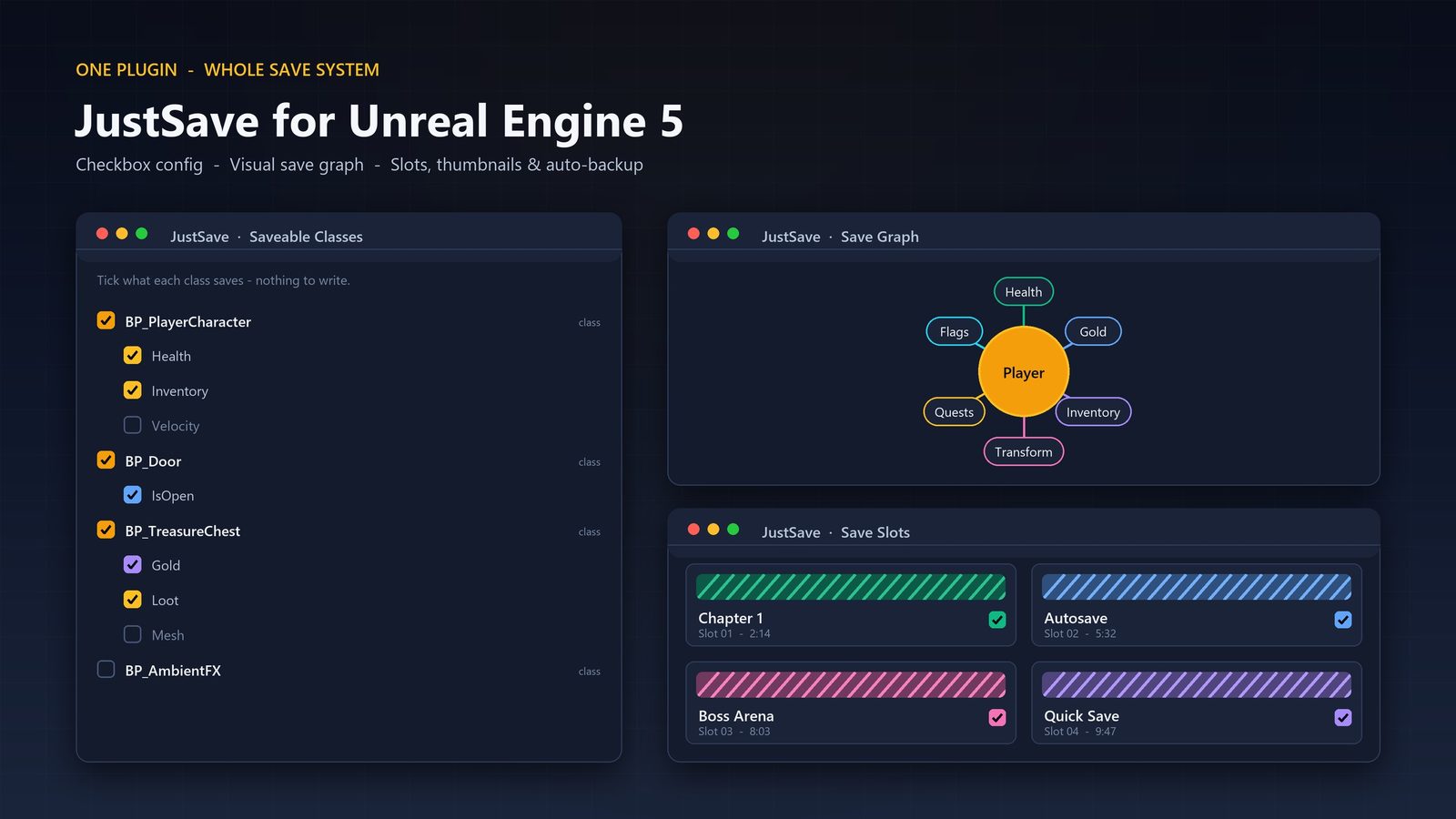
JustSave moves that 'what do I capture' decision out of code and into configuration. Instead of hand-copying fields into a USaveGame, you add a Saveable Component to the actors you care about and mark the properties to keep — either with the SaveGame flag in code, or by ticking them in JustSave's config panel. Your checkpoint overlap then calls Save, and your load screen calls Load. Crucially it persists the things the manual pattern makes you chase: transforms, your marked properties, actors spawned at runtime, actors destroyed at runtime, and data that survives across levels. The config UI keeps this honest at scale — one panel lists every saveable class beside the properties you can tick, plus spec import/export and a read-only Save Graph view — so what gets saved is something you can see and review.
Step 2 — Auto-save without the timer plumbing
Auto-save is the same write you already built, fired on a schedule or at chosen beats rather than only at checkpoints. The general UE approach is a timer: in your Game Mode or a save manager, set a looping timer that calls your save routine every N seconds or on level-load and level-exit events. You will also want to rotate to a dedicated 'Autosave' slot so an auto-save never overwrites a player's manual save, and to debounce so you are not writing mid-loading-screen.
The risk auto-save introduces is corruption. Because an auto-save can fire at an awkward moment, a half-written file is a real failure mode, and a corrupted auto-save that overwrites the only good one is how players lose progress. In stock UE you guard against this yourself — writing to a temporary file and renaming, keeping a backup of the previous good save, and validating on load.
JustSave provides auto-save as a built-in feature rather than a timer you wire up, and its file format is designed for exactly the awkward-moment problem: atomic writes mean a save is either fully written or not applied, and auto-backups with repair plus checksums are there to catch and recover a damaged file. Compression keeps the files smaller, and AES-256 encryption is available as an option if you do not want save data to be trivially editable. None of those are things you should have to build to ship a safe auto-save, which is the point of leaning on the plugin for this layer.
Step 3 — Slot thumbnails and the slots browser
Now the menu. A save-slot screen is a list (a UMG ScrollBox or Tile View) where each entry shows a slot's metadata: a name, the level it was made in, a timestamp, and a thumbnail image of the moment it was saved. The thumbnail is the part players read first, and it is the fiddliest to build from scratch in stock UE.
The general pattern for a thumbnail is: at save time, capture the viewport or a scene-capture render target to a texture, encode it (PNG to bytes), and store those bytes alongside the slot — either inside your USaveGame or in a sidecar file keyed to the slot name. At load-menu time you read each slot's metadata, decode its image bytes back into a texture, and bind that texture into the slot widget's Image. Then you wire the widget's button to call LoadGameFromSlot for that slot name. It is all doable, but it is several systems — render capture, image encode/decode, per-slot metadata — for what the player experiences as one thumbnail.
JustSave includes slot thumbnails as a feature of the save, so the capture-and-store half of that work is handled by the plugin, and it ships a slots browser in its config UI for inspecting the slots that exist. In your in-game menu you still build the UMG yourself — the layout, the styling, the button that triggers Load — but the data each row needs (the slot, its thumbnail) is provided rather than assembled by hand. Treat the in-editor slots browser as the tool for verifying your saves during development, and your UMG screen as the player-facing front end on top of the same slots.
Step 4 — Surviving a shipped update and a cross-level load
Two problems tend to surface only after launch, and both are worth designing for now. The first is the cross-level load: when the player loads a checkpoint made in a different level, you must travel to that level and then re-apply the saved state once the new world is ready — applying state to a level that has not finished loading is a common source of 'my save loaded but everything was reset' reports. JustSave persisting cross-level data is what lets a single load restore state that spans more than the current map.
The second is save migration. The moment you patch your game and change what you save — rename a property, add a field, restructure inventory — old player saves were written against the old shape. Without a migration step those saves either fail to load or load wrong. In stock UE you typically version your USaveGame and write upgrade code that reads an old version and rewrites it to the new one. JustSave provides save-version migration as a built-in concern, so saves made before an update are designed to keep loading after it — which matters most for exactly the auto-saves and checkpoints this UX produces, because those are the saves players never deliberately re-create.
Worth being precise about one thing for multiplayer projects: JustSave is not network replicated and uses no UE network replication itself. What it does is capture multiplayer player-state into the save. So you can record per-player progress, but the saving mechanism is not a substitute for your own replication — wire your gameplay replication as usual and treat JustSave as the persistence layer underneath it.
What you build yourself vs what the plugin owns
The dividing line is consistent across all four steps. You own the experience: the trigger volume that defines a checkpoint, the toast that confirms it, the schedule that decides when an auto-save fires, and the UMG menu the player clicks through. That is the part that makes your game feel like your game, and no plugin should take it from you.
JustSave owns the plumbing underneath that experience: turning a Save call into a safe file (compression, optional AES-256 encryption, checksums, atomic writes, auto-backups with repair), capturing the right state without a hand-maintained save object, producing the thumbnails, migrating old saves, and persisting runtime-spawned, runtime-destroyed and cross-level data. The honest framing is that you could write all of that yourself in stock UE — and learning the USaveGame pattern is genuinely worth it — but it is a large amount of careful, easy-to-get-subtly-wrong code for something every game needs and no player ever notices when it works.
Two practical notes before you commit. JustSave is a Windows (Win64) code plugin supporting Unreal Engine 5.3 through 5.8, so confirm your target engine and platform fit that range — there is no macOS, Linux or console build target in this release. And it is pure C++ that ships no content, exposing a small Blueprint-facing surface (a handful of Blueprint-exposed classes) rather than a folder of example Blueprints, so you integrate it by calling Save and Load from your own Blueprints or C++ rather than by reskinning a provided demo. The plugin ships with a PDF user guide to walk you through that setup.
Checkpoint / save-slot UX: build it yourself vs JustSave
| Part of the UX | Stock UE5 (build yourself) | With JustSave |
|---|---|---|
| Decide what to save | Hand-copy fields into a USaveGame subclass; update it for every new system | Add a Saveable Component, mark properties SaveGame or tick them in the config panel |
| Capture world state | Manually gather transforms, spawned/destroyed actors, cross-level data | Transforms, marked properties, runtime-spawned/destroyed actors and cross-level data persisted for you |
| Auto-save | Wire a timer and rotate to a dedicated slot yourself | Built-in auto-save feature |
| Safe files | Write-then-rename, your own backups and validation | Compression, optional AES-256, checksums, atomic writes, auto-backups with repair |
| Slot thumbnails | Capture a render target, encode/decode image bytes, store per-slot | Slot thumbnails captured and stored as part of the save |
| Inspect saves | Add your own debug tooling | Slots browser + read-only Save Graph in the config UI |
| Old saves after a patch | Version the save and write upgrade code | Built-in save-version migration |
The player-facing experience is yours to design either way; the difference is how much serialisation plumbing you write underneath it.
FAQ
How do I build a checkpoint save in Unreal Engine 5?
Place a trigger volume where the checkpoint should be, bind to its begin-overlap event, and on a valid player overlap capture your state and write it to a named slot. In stock UE that means filling a USaveGame subclass and calling SaveGameToSlot; with JustSave you add a Saveable Component to the actors you care about, mark the properties to keep, and call Save from the overlap event instead of maintaining a save object by hand.
Does JustSave handle auto-save and slot thumbnails, or do I build those?
Auto-save and slot thumbnails are both built-in features of JustSave, so the timer/file-safety plumbing and the thumbnail capture-and-store are handled by the plugin. You still build the player-facing UMG slots menu — the layout, styling and the button that calls Load — but the data each slot row needs is provided rather than assembled manually.
Will my saves survive a shipped game update?
That is what save-version migration is for. JustSave includes save-version migration so saves made before an update are designed to keep loading after it. In stock UE you achieve the same thing by versioning your USaveGame and writing your own upgrade code that reads the old shape and rewrites it to the new one.
Can JustSave save a multiplayer game?
JustSave is not network replicated and uses no UE network replication itself, but it captures multiplayer player-state into the save. So you can persist per-player progress; you still wire your own gameplay replication as usual and use JustSave as the persistence layer underneath it.
What are JustSave's requirements and limitations?
It is a pure C++ code plugin (0 Blueprints, ships no content) for Unreal Engine 5.3 through 5.8, on Windows (Win64) only — there is no macOS, Linux or console build target in this release. You integrate it by calling Save and Load from your own Blueprints or C++ and configuring what gets saved in its editor panel, rather than reskinning a provided demo. A PDF user guide is included.
JustSave
Save and load your whole game state without writing serialization code. Add a Saveable Component, mark the properties you care about, and call Save or Load — JustSave persists transforms, marked properties, runtime-spawned and destroyed actors, and cross-level data. Robust files come standard: compression, optional AES-256 encryption, checksums, atomic writes, auto-backups with repair, save-version migration, auto-save and slot thumbnails. Pure C++, ships no content.
Related reading