
tutorial · 2026-06-25
Generate UE5 Buildings from Text & Floor Plans with Keystone AI
A grounded walkthrough of Keystone's two optional AI inputs — Draft from Text and Draft from Floor-Plan Image — including bring-your-own-key setup and the honest framing of what the AI does and does not do.
What the AI inputs actually do (and what they do not)
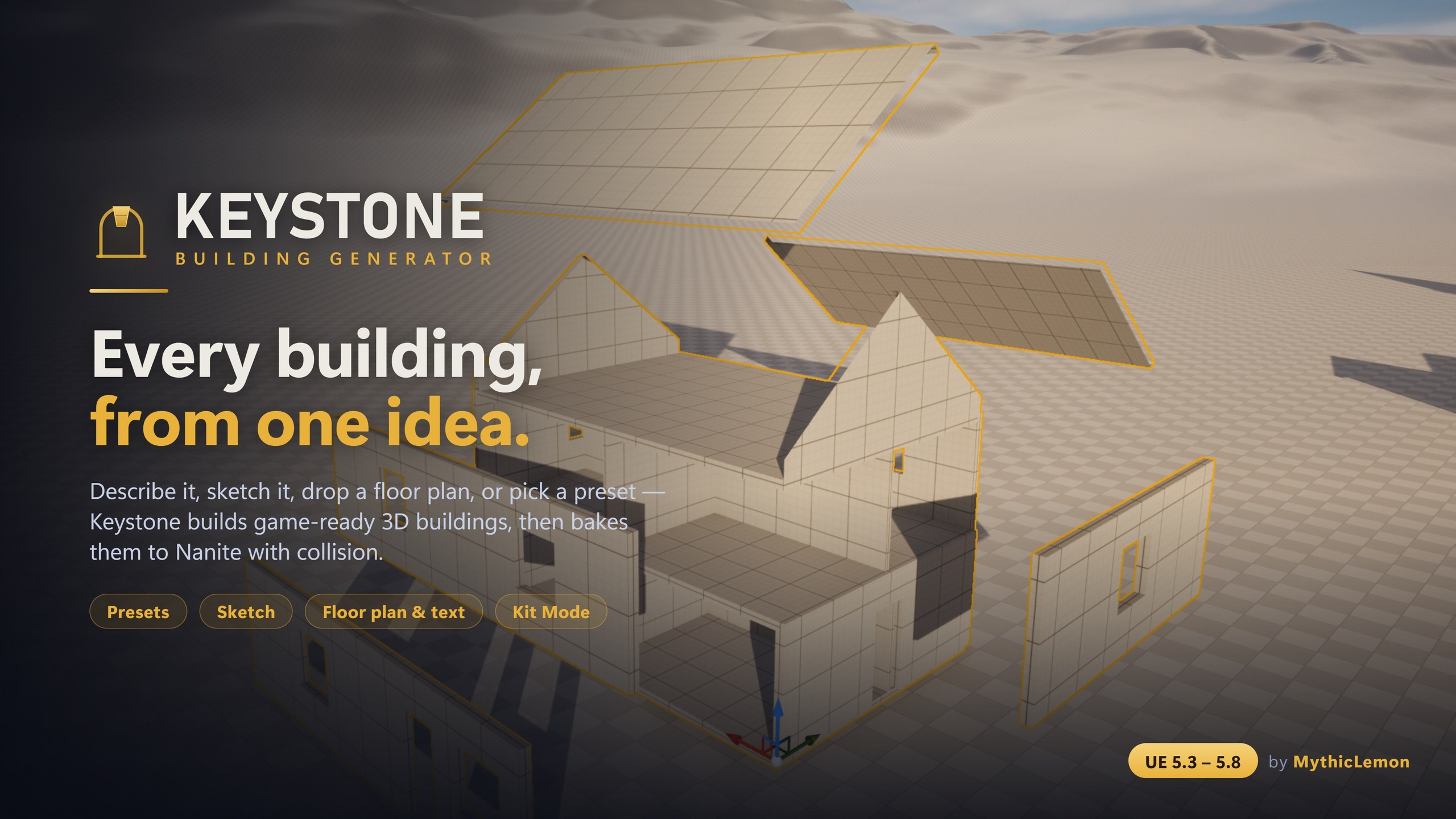
Keystone is a modular building generator for the Unreal Editor. It builds game-ready 3D buildings — walls, floors, roofs and approximate interiors — and bakes them to standard Nanite static meshes with collision that you own outright. The geometry is produced by a deterministic procedural engine. That word, deterministic, is the load-bearing idea for this whole tutorial: the same building file always produces the same building, and the meshes you ship are generated by code, not by a model.
Two of Keystone's five starting points are optional AI inputs: Draft from Text, where you describe a building in plain English, and Draft from Floor-Plan Image, where you load a PNG plan. It is worth being precise about their role, because it is narrower than the marketing instinct would suggest. The AI only interprets your words or your image into editable building parameters. It does not generate geometry, and no AI-generated meshes are shipped or sold. What comes back is a first draft of the same editable 'building file' — an intermediate representation — that every other Keystone workflow produces.
The practical consequence is reassuring. Whatever the model gets right or wrong, the result lands in the live 3D preview and the details panel as ordinary parameters you can read and correct. There is no opaque AI mesh to wrestle with. If the model mis-reads a window count, you change a number. If it puts a wall in the wrong place, you move it. The AI is a fast way to populate the starting parameters; the deterministic engine does the building.
Every non-AI workflow needs no key at all
Before touching any API key, it is worth knowing how little of Keystone depends on AI. Of the five ways to start a building, three need no AI whatsoever. You can choose from eight one-click presets — House, L-Shape, Gable Cottage, 3-Storey Block, Setback Tower, Castle, Log Cabin and Round Tower. You can draw a footprint on the Sketch canvas, a true-to-scale 2D surface in real Unreal units (centimetres) with snapping and orthogonal guides, placing doors, windows and interior walls and stacking storeys. And you can tile your own modular meshes onto the building with Kit Mode. None of those require a key, a credit, or a network connection.
Only the two AI inputs — Draft from Text and Draft from Floor-Plan Image — call out to a model, and they are bring-your-own-key. If you never set a key up, Keystone is still a complete tool: the AI inputs are a convenience layer on top, not the foundation. The free edition, Keystone Lite, has no AI at all, which underlines the point that the deterministic core stands on its own.
So a fair way to think about the AI inputs is as an accelerated way into the editable building file when you happen to have a description or a plan to hand. If you are starting from imagination, a preset plus the Sketch canvas may well get you there faster and with no setup. Reach for AI when you genuinely have words or an image as your source material.
Bring-your-own-key: choosing a provider and storing it safely
The AI inputs are not wired to a single vendor, and they are not proxied through MythicLemon. You bring your own key for one of three hosted providers — Anthropic (Claude), OpenAI (GPT) or Google (Gemini) — or you run a local model through Ollama, which needs no key at all because nothing leaves your machine. Pick whichever you already have access to; the workflow is the same once a provider is configured.
Privacy follows directly from this design. When you use a hosted provider, your input — the sentence you type or the floor-plan image you load — is sent only to the provider you chose, and nothing is sent to MythicLemon. If even that is more than you want to share, the local Ollama route keeps the entire interaction on your own hardware: no key, no outbound request, no third party. Under the bonnet, the AI inputs use the engine's own HTTP and Json modules; there are no bundled third-party libraries doing this work.
A credential is only as safe as the place you put it, so Keystone is deliberate about this. The key is resolved either from an environment variable or from a key file under the project's Saved/ folder — the engine's per-project scratch space, conventionally excluded from version control. The two things the key explicitly never enters are source control and a packaged build, so it cannot leak into a shared repository and cannot be cooked into anything you ship. On a team, the environment-variable route is usually tidier, because each developer sets their own key with no shared file to manage or accidentally commit; for a solo project, a key file under Saved/ is perfectly fine.
Draft from Text and Draft from Floor-Plan Image, step by step
With a provider configured, open Keystone from the Level Editor toolbar button (labelled Keystone) or the Tools menu. For Draft from Text, choose the text input and describe the building in ordinary language — for example, 'two-storey stone cottage, hip roof, a door and three windows'. Be concrete about the things that map cleanly to parameters: number of storeys, the rough footprint, the roof type, and the count of doors and windows. When you submit, your sentence is sent to your chosen provider, which returns a first-draft building file that Keystone loads straight into the live 3D preview, with every parameter exposed in the details panel.
For Draft from Floor-Plan Image, take this route when you already have a plan as a picture — a photographed hand sketch, an architectural drawing, or a reference plan from a design document. Load the PNG and first calibrate scale using the alignment overlay: this is how the tool learns how many real centimetres a pixel represents, so the drafted building is sized correctly rather than arbitrarily. With calibration done, the image is sent to your provider, read into a first-draft building, and shown in the same live preview. A plan image carries more ambiguity than a sentence — line weights, annotations and overlapping symbols can all be read imperfectly — so expect to spend a little more time reviewing interior walls and opening positions.
Whichever input you used, the moment the draft appears is the moment to review. An AI draft is a strong starting point, not a guaranteed pixel-perfect realisation of your sentence or an exact trace of your plan, so read what came back and correct anything that drifted — adjust a storey height, fix a window count, nudge the footprint. Because the output is just the standard editable building file, everything else in Keystone is now available to it: switch wall styles, add a cornice detail band, or apply a subtle stylize deformation, all on top of the AI's draft. If a plan is simple and you know it well, drawing it directly on the Sketch canvas is sometimes quicker than calibrating and reviewing an image draft — choose the path that matches your source material.
The arcs caveat, and reviewing before you bake
One specific limitation is worth flagging while you are placing openings, because it applies to both AI inputs and to hand-editing alike. An edge that has been curved by an arc — used to turn a wall outward into a round tower or bay, or inward into an apse or niche — does not carry openings. Doors and windows must sit on straight edges. If an AI draft has placed an opening on what later becomes a curved run, or if you intend to curve a wall yourself, plan your doors and windows onto the straight sections.
More generally, the review pass is not optional polish; it is part of the workflow as designed. The AI inputs produce a first draft that benefits from a human check, so walk the building in the live 3D preview before you commit to a bake. Confirm the storey count, the openings, the footprint and the roof, and remember that the interiors Keystone produces are approximate — excellent for blockout, exteriors and mid-ground buildings, but not a substitute for a hand-built close-up hero interior set.
When the draft reads correctly, baking is the standard Keystone step and has nothing AI about it. You choose a Content Browser folder, and Keystone bakes the building to ordinary static meshes with collision, with Enable Nanite and Generate collision both on by default. The output is broken into separable pieces — each exterior wall, each roof panel, each floor and ceiling slab — so you can later detach a wall for a doorway, swap a roof panel, or delete a section for a ruin. Baking as separable pieces favours editability over draw-call count, so for large numbers of identical buildings you would merge or instance them. The baked assets are platform-agnostic, have no tick cost and no runtime dependency on Keystone; the AI only ever touched the parameters, never the meshes you ship.
Where the AI inputs fit, honestly
The two AI inputs earn their place in a specific situation: when your source material is already words or an image, and you want a populated building file rather than placing every wall by hand. For a description in a brief, a sentence from a designer, or a stack of reference floor plans, drafting from them and then correcting is a genuine time-saver. It is editor-time tooling for Windows, like the rest of Keystone, so it lives in your authoring workflow, not your shipped game.
Be clear-eyed about the limits, because Keystone is. The drafts are first drafts that benefit from a review pass; interiors are approximate; openings cannot sit on arc'd edges; the tool is a Windows editor-only application; and there is no shipped Blueprint or runtime Blueprint generation API — Keystone is editor tooling whose output is baked StaticMesh assets. None of that is a knock on the AI — it is the honest shape of a feature whose job is to read intent into editable parameters, then hand off to a deterministic engine that does the actual building. The fact that some of the plugin's source code and its listing marketing were produced with AI assistance is disclosed too; the principle throughout is that AI helps author, and the meshes you own are built by code.
If the AI inputs are not for you, nothing is lost. Presets, the Sketch canvas and Kit Mode give you the full deterministic generator with no key, no credits and no network call, and the free Keystone Lite edition lets you try that core before deciding whether the AI inputs, multi-volume composition, the detailing toolkit and JSON import/export of the full edition are worth the one-time purchase.
The five ways to start a building — which ones use AI
| Starting point | Uses AI? | Key needed? |
|---|---|---|
| Presets (8 starters) | No | No |
| Sketch (2D canvas) | No | No |
| Kit Mode (your meshes) | No | No |
| Draft from Text | Yes | Yes (or local Ollama, no key) |
| Draft from Floor-Plan Image | Yes | Yes (or local Ollama, no key) |
Only the two AI inputs are bring-your-own-key. Everything else needs no key, no credits and no network connection.
Choosing a provider for the AI inputs
| Provider | Key required | Data leaves your machine? |
|---|---|---|
| Anthropic (Claude) | Yes | Yes — to Anthropic only |
| OpenAI (GPT) | Yes | Yes — to OpenAI only |
| Google (Gemini) | Yes | Yes — to Google only |
| Local Ollama | No | No — stays on your machine |
Your input is sent only to the provider you choose; nothing is sent to MythicLemon. Guidance only — pick what you already have access to.
FAQ
Do I need an API key to use Keystone?
Not in general. Only the two AI inputs — Draft from Text and Draft from Floor-Plan Image — need a key, and even those can run locally through Ollama with no key. The other three ways to start a building (presets, the Sketch canvas and Kit Mode) need no key, no credits and no network connection. The free Keystone Lite edition has no AI at all.
Does the AI generate the 3D meshes?
No. The AI only interprets your text or floor-plan image into editable building parameters. The geometry is always built by Keystone's deterministic procedural engine, and no AI-generated meshes are shipped or sold. What you bake are ordinary Unreal static meshes that you own outright.
Where is my API key stored, and could it leak?
The key is resolved from an environment variable or from a key file under the project's Saved/ folder. It never enters source control and is never cooked into a packaged build, so it cannot leak into a shared repository or travel out to players. On a team, the environment-variable route avoids any shared file.
What happens to my data when I use a hosted provider?
Your input — the sentence or the floor-plan image — is sent only to the provider you choose (Anthropic, OpenAI or Google). Nothing is sent to MythicLemon. If you would rather keep everything local, run a model through Ollama, which needs no key and sends nothing off your machine.
Why is my door or window not appearing on a curved wall?
An edge curved by an arc — turning a wall into a round tower, bay, apse or niche — does not carry openings. Place doors and windows on straight edges. This applies whether the opening came from an AI draft or you added it by hand, so plan openings onto the straight sections before curving a wall.
Keystone
Keystone generates game-ready 3D buildings — walls, floors, roofs and approximate interiors — directly inside the Unreal Editor. Start from one of eight presets, draw a footprint on a true-to-scale 2D canvas, drop in a floor-plan image, describe a building in plain English, or tile your own modular meshes with Kit Mode. Every input converges on one editable building file, shown in a live 3D preview, and bakes to Nanite static meshes with collision — as separable pieces — that you own outright. The geometry is built by a deterministic procedural engine: no subscription, no credits, and no AI-generated meshes. The optional Draft-from-Text and Draft-from-Image features use your own API key (Anthropic, OpenAI, Google, or local Ollama) only to read your words or plan into editable parameters.
Related on Fab
Related reading